
 Google Calendar
  Outlook Calendar
  Google Meet
  Microsoft Teams
  Zoom Meetings
 Multiple Account Calendar Sync Setup: Complete Guide 2025
Master multiple account calendar sync across Google, Outlook, iCloud with step-by-step setup. Eliminate double bookings and sync unlimited calendars today.
Marcus runs three separate consulting businesses, each with its own Google Workspace account. He also maintains a personal Gmail calendar for family commitments, an iCloud calendar synced to his iPhone, and an Outlook calendar from his board position at a nonprofit organization. That's six different calendar accounts across three platforms.
Every Monday morning, he spends 45 minutes logging into each account separately, checking availability, and mentally piecing together his actual schedule. Last week, he accepted a consulting call on Account A while completely forgetting about a board meeting already scheduled in Outlook. The embarrassing conflict cost him credibility with both clients.
The problem is not too many calendars. The problem is fragmented calendar accounts that never communicate with each other. Multiple account calendar sync solves this by automatically replicating events across every account, maintaining unified availability regardless of which account or platform hosts the original event.
This comprehensive setup guide shows you exactly how to implement multiple account calendar sync in 2025, covering Google, Outlook, and iCloud accounts with step-by-step procedures that eliminate double bookings permanently.
- Why multiple account calendar sync differs from basic calendar sharing
- Step-by-step setup for syncing multiple Google accounts
- How to sync Outlook and Microsoft 365 accounts effectively
- Cross-platform synchronization between Google, Outlook, and iCloud
- Configuration strategies for professionals managing 10+ accounts
- Privacy controls to protect sensitive information across accounts
What Is Multiple Account Calendar Sync?
Multiple account calendar sync is the automatic replication of calendar events across different accounts and platforms in real time. When you create, modify, or delete an event in any connected account, that change instantly propagates to all other synced accounts, ensuring consistent availability and preventing scheduling conflicts regardless of which account you're viewing.
Multiple account calendar sync works by connecting to each calendar account via official APIs, monitoring for event changes, and applying configured sync rules to replicate events bidirectionally. Unlike viewing multiple calendars in one interface or sharing calendars between accounts, true synchronization creates actual event copies in each account that update automatically when changes occur anywhere in the system.
The synchronization process operates continuously. When you add a meeting to Google Account A, the sync tool detects the new event within seconds, evaluates your configured rules, and creates corresponding events in Google Account B, your Outlook account, and your iCloud account. Modify the meeting time in any account, and that change propagates everywhere within 1-2 minutes. Delete it from one place, and it disappears from all accounts automatically.
Why You Need Multiple Account Calendar Sync
Before diving into implementation, understanding the compelling reasons for multiple account calendar sync clarifies what you're solving and validates the effort required for setup.
Prevents Expensive Double Bookings
Organizations implementing calendar synchronization experience a 30-40% reduction in scheduling-related issues according to 2024 research[^1]. Double bookings are not minor inconveniences. They represent professional failures with measurable consequences.
[^1]: Atlassian, "Team Productivity and Collaboration Report 2024," https://www.atlassian.com/blog/productivity/scheduling-statistics
When you accept a client meeting in Account A without knowing about an existing commitment in Account B, you create conflicts that waste everyone's time. The client who arrives for a meeting you cannot attend questions your professionalism. The rescheduling cascade disrupts multiple people's schedules. In client services, these incidents directly impact customer retention and revenue.
Multiple account calendar sync eliminates double bookings entirely by ensuring every account reflects every commitment. Book time in any account, and that time becomes unavailable in all accounts automatically.
Eliminates Massive Time Waste
Professionals managing multiple calendar accounts without synchronization spend over 4 hours weekly on calendar-related tasks, according to productivity research[^2]. That's 208 hours annually, equivalent to more than five full work weeks wasted checking calendars instead of doing productive work.
[^2]: Harvard Business Review, "The Hidden Cost of Calendar Fragmentation," https://hbr.org/2024/03/time-management-productivity
Without synchronization, you become the manual integration point. You log into Account A, check availability, switch to Account B, verify no conflicts exist, open Account C, confirm it's clear, then finally commit to the meeting. Every single scheduling decision requires this exhausting process.
Multiple account calendar sync reduces calendar management time by 70-90% by maintaining automatic availability across all accounts. Check one account and you see everything. Schedule in any account and all accounts update automatically.
Reduces Cognitive Burden
The mental load of tracking multiple disconnected accounts is exhausting and unsustainable. You cannot confidently accept meetings without checking three, four, or five separate accounts. You constantly worry about conflicts you might have missed. You second-guess whether you captured all commitments.
This cognitive tax reduces focus, increases stress, and contributes to burnout. Calendar synchronization eliminates this mental burden by providing a single source of truth. Every account shows the complete picture. You can commit to meetings confidently, knowing synchronization maintains accuracy automatically.
Overcomes Arbitrary Platform Limits
Popular scheduling tools impose frustrating account limits. Calendly restricts users to just one calendar connection on free plans and caps paid Team plan users at six calendars for $16 monthly. For consultants managing multiple client accounts or executives juggling several business ventures, these artificial restrictions force impossible choices about which accounts to connect.
Multiple account calendar sync tools, especially platforms like CalendHub.com built specifically for power users, eliminate these arbitrary constraints. You can sync 10, 15, 20+ accounts without hitting artificial caps, because the platform was designed for professionals managing extensive account portfolios rather than casual users with one or two calendars.
Enables True Professional Flexibility
Managing multiple businesses, consulting practices, or professional roles requires multiple calendar accounts. Each business needs its own Google Workspace. Different clients require separate accounts. Board positions come with their own organizational calendars.
Multiple account calendar sync makes this complexity manageable. Instead of forcing everything into one account or maintaining manual separation, synchronization lets you maintain proper account boundaries while ensuring unified availability. Each business keeps its own account, but scheduling intelligence spans all accounts automatically.
Understanding Multiple Account Sync vs. Multi-Calendar Sync
Clarifying terminology prevents confusion when implementing synchronization solutions.
Multi-Calendar Sync refers to synchronizing multiple calendars within the same account. For example, you might have "Work," "Personal," "Projects," and "Team" calendars all within one Google account. Syncing these calendars together ensures events from all calendars appear on scheduling pages and block availability appropriately. This is relatively straightforward because all calendars belong to the same account with shared authentication.
Multiple Account Calendar Sync refers to synchronizing calendars across completely separate accounts, often on different platforms. You're not just syncing "Work" and "Personal" calendars in one Google account. You're syncing your entire Google Account A with Google Account B, Microsoft Outlook Account C, and Apple iCloud Account D. These accounts have different credentials, different platforms, and no native connection to each other.
Multiple account sync is significantly more complex because it requires:
- Authenticating separately with each account
- Handling different calendar platforms and APIs
- Managing event replication across account boundaries
- Maintaining separate sync rules for each account connection
- Dealing with permission and access differences
This guide focuses specifically on multiple account calendar sync, the more challenging and valuable synchronization scenario for professionals managing separate business accounts, client accounts, and cross-platform calendars.
What You Need Before Starting Setup
Proper preparation ensures smooth implementation and prevents configuration problems.
- Backup All Calendars: Export calendar data from every account before making sync changes
- Verify Account Access: Confirm you have login credentials for every account you plan to sync
- Check Permissions: Ensure corporate accounts allow third-party application connections
- Document Current State: Take screenshots of current calendar configurations for reference
1. Complete Account Inventory
List every calendar account you need to synchronize with complete details:
- Platform (Google, Microsoft, Apple, etc.)
- Account email address
- Account type (personal, work, client-specific)
- Current event count (approximate)
- Access permissions (do you own it or is it shared?)
- Corporate restrictions (does IT block third-party access?)
Understanding exactly what you're syncing prevents missed accounts and reveals potential obstacles before you encounter them during setup.
2. Verify Authentication Access
Confirm you can actually connect each account:
- Account usernames and passwords available
- Two-factor authentication codes accessible
- Permission to authorize third-party applications
- Corporate IT approval if using organizational accounts
- App-specific passwords generated (required for iCloud)
Some corporate environments prohibit third-party calendar access for security reasons. Discovering this restriction after starting setup wastes time and creates frustration. Verify permission upfront.
3. Define Privacy Requirements
Determine what information should sync between accounts:
- Should personal account events show full details on work accounts?
- Can client-specific information appear in other client accounts?
- Do family members with shared calendar access need to see confidential business details?
- Which accounts require full bidirectional sync versus one-way busy blocking?
Privacy requirements directly influence tool selection and sync rule configuration. Clarifying these requirements before setup prevents privacy leaks and configuration rework.
4. Choose Multiple Account Sync Tool
Select a synchronization tool appropriate for your specific needs. Critical factors include:
Account Quantity Limits: How many accounts do you need to sync? Tools like Calendly impose strict limits (6 calendars on Team plans). For professionals managing 10+ accounts, platforms like CalendHub.com provide unlimited account connections without arbitrary restrictions.
Platform Support: Verify the tool supports all your calendar platforms. Google Calendar support is universal, but Outlook, Microsoft 365, Exchange, and iCloud support varies. Cross-platform syncing requires robust API integrations with all major platforms.
Sync Architecture: Real-time synchronization (1-2 minute propagation) versus scheduled syncing (15-30 minute intervals). Modern tools offer real-time sync, but verify to avoid surprises.
Privacy Controls: Granular controls for event detail masking, selective syncing, and keyword-based filtering. Essential if you're mixing personal and professional accounts.
Configuration Complexity: Some tools require technical expertise and detailed rule configuration. Others provide simplified setup with intelligent defaults. Choose based on your technical comfort level.
For extensive account portfolios (10+ accounts), CalendHub.com stands out as a calendar-first platform built specifically for power users managing multiple accounts without arbitrary limits that constrain flexibility.
5. Plan Your Primary Account Strategy
Even when syncing many accounts, designate one primary account as your canonical source of truth. This becomes your main calendar for creating events and managing schedules. Other accounts sync to maintain consistency, but your primary account remains the authoritative source.
Choosing a primary account simplifies mental models and reduces decision fatigue about where to create new events. Most professionals choose the account they access most frequently as their primary account.
Step-by-Step: Sync Multiple Google Accounts
Syncing multiple Google accounts represents the most common multiple account scenario. Here's exactly how to implement it.
Method 1: Using a Dedicated Sync Tool (Recommended)
This method provides robust bidirectional synchronization with privacy controls and reliable operation.
Step 1: Sign Up for Multiple Account Sync Service
Create an account with your chosen sync tool. For professionals managing extensive account portfolios, CalendHub.com offers unlimited account connections. Alternative tools include OneCal, CalendarBridge, and SyncThemCalendars.
Navigate to the platform's website and complete registration. Most tools offer free trials, allowing you to test functionality before committing to paid plans.
Step 2: Connect First Google Account
After signing into your sync tool, locate the calendar connection option, typically labeled "Add Calendar," "Connect Account," or similar.
Select Google Calendar as the account type. The tool will redirect you to Google's OAuth authentication page. Sign in with credentials for your first Google account.
Google displays a permission request showing exactly what access the sync tool needs. Review the permissions carefully. Calendar sync tools typically request:
- Read access to calendar events
- Write access to create and modify events
- Delete access to remove events
These permissions are necessary for bidirectional synchronization. If comfortable with the permissions, click Allow or Accept.
After authentication, you return to the sync tool interface where it displays available calendars within the connected Google account. Select which specific calendars to sync. Most users sync all calendars within each account, but you can exclude specific calendars if needed.
Step 3: Connect Additional Google Accounts
Repeat the authentication process for each additional Google account. The key challenge is authenticating with multiple Google accounts when using the same browser.
Browser Approach 1: Sequential Logout/Login Log out of the first Google account before connecting the second account. This ensures Google's authentication page prompts for credentials rather than automatically using the already-signed-in account.
Browser Approach 2: Incognito/Private Windows Open a separate incognito or private browsing window for each additional account. This isolates authentication sessions, allowing you to connect multiple accounts without logout/login cycles.
Browser Approach 3: Different Browser Profiles Create separate browser profiles (Chrome profiles, Firefox profiles, etc.) for each Google account. Switch profiles when connecting different accounts.
For each additional account:
- Click "Add Another Calendar" or "Connect New Account"
- Select Google Calendar
- Authenticate using one of the browser approaches above
- Approve permissions
- Select calendars to sync from this account
Step 4: Configure Sync Rules Between Accounts
After connecting all Google accounts, configure how events should synchronize between them. This is where you define the actual behavior of your multiple account calendar sync.
Sync Direction Selection:
Bidirectional (Recommended for Most Users): Changes in any account propagate to all other accounts automatically. Create an event in Account A, it appears in Accounts B and C. Modify it in Account B, the change reflects in Accounts A and C. Delete it from Account C, it disappears from all accounts. Bidirectional sync maintains true unified availability.
One-Way: Events flow from source account to destination accounts only. Changes in destination accounts do not propagate backward. One-way sync is useful when you want availability from Account A to block time in Account B, but events created in Account B should not affect Account A.
For multiple account scenarios, bidirectional sync typically makes most sense unless you have specific requirements for directional flow.
Event Detail Configuration:
Full Synchronization: All event information replicates across accounts, including titles, descriptions, locations, attendees, and attachments. This provides complete schedule visibility in every account.
Busy Blocking (Privacy Mode): Events replicate but show as generic "Busy" blocks without revealing titles, descriptions, or other details. This maintains availability synchronization while protecting privacy. Perfect for syncing personal accounts to work accounts when you don't want colleagues seeing personal commitment details.
Custom Field Selection: Advanced sync tools let you specify exactly which fields replicate. You might sync titles and times but exclude descriptions and attendee lists.
Privacy Rule Examples:
Example 1: Consultant with Multiple Client Accounts
- Client A account syncs to Master account with full details
- Client B account syncs to Master account with full details
- Master account syncs to all client accounts as busy blocks only (prevents clients from seeing other client information)
Example 2: Work/Personal Separation
- Personal account syncs to work account as busy blocks (coworkers see you're unavailable but not why)
- Work account syncs to personal account with full details (you see complete work schedule from personal devices)
Example 3: Multi-Business Owner
- Business A, B, and C accounts all sync bidirectionally with full details to owner's master account
- Business accounts do not sync to each other (maintaining separation between businesses)
Step 5: Set Advanced Sync Options
Configure additional synchronization behaviors:
Sync Timing: Most modern tools provide real-time synchronization with 1-2 minute propagation delays. Verify your tool offers this rather than slower scheduled syncing (15-30 minute intervals).
Conflict Resolution: Specify what happens when events conflict. Options typically include:
- Last write wins (most recent change takes precedence)
- Source account priority (one account is always authoritative)
- Manual resolution (you choose which version to keep)
Calendar Color Preservation: Enable color mapping to maintain consistent color coding across accounts. Events from Account A always appear in blue, Account B in green, etc. This visual consistency helps you instantly identify event sources when viewing unified calendars.
Duplicate Prevention: Enable duplicate detection algorithms that prevent sync loops from creating multiple copies of the same event.
Step 6: Test Multiple Account Synchronization
Before trusting the system with real scheduling, thoroughly test synchronization between all connected accounts:
- Create test event in Account A: Add a test meeting in your first Google account
- Wait 2-3 minutes: Allow synchronization to process
- Verify in all accounts: Check that the event appears in Accounts B, C, and any others
- Test modification in Account B: Edit the test event (change time or title) in your second account
- Verify propagation: Confirm the modification appears in all other accounts
- Test deletion in Account C: Delete the test event from your third account
- Verify removal: Ensure it disappears from all accounts
This comprehensive testing validates that your sync rules work as intended and events flow correctly between all accounts.
Step 7: Monitor Initial Operation
Need better calendar management? CalendHub unifies all your calendars with smart scheduling and video conferencing.
For the first week after implementation, check daily that synchronization operates reliably:
- Are newly created events syncing to all accounts?
- Do modifications propagate correctly?
- Are deletions handling properly?
- Have any duplicate events appeared?
- Is sync speed acceptable (1-2 minutes)?
- Are privacy rules working as configured?
Most quality sync tools operate reliably after initial configuration, but monitoring catches any edge cases specific to your account setup.
Method 2: Using Google Calendar Sharing (Limited)
Google Calendar offers native sharing features, but these do not provide true multiple account synchronization.
Calendar Sharing Process:
- Open Google Calendar in Account A
- Locate the calendar in the left sidebar
- Hover over the calendar name and click the three dots
- Select "Settings and sharing"
- Scroll to "Share with specific people"
- Add the email address for Account B
- Set permission level (typically "Make changes to events")
- Repeat for additional accounts
Why This Is Not True Sync:
Calendar sharing lets you view and manage Account A's calendar from Account B, but events remain in Account A only. Creating an event in Account B does not replicate it to Account A. Availability in Account A does not automatically block time in Account B.
Sharing provides multi-account viewing but not the bidirectional synchronization necessary to prevent double bookings across accounts. For true multiple account calendar sync, dedicated tools remain essential.
Step-by-Step: Sync Multiple Microsoft Outlook Accounts
Microsoft Outlook and Microsoft 365 accounts require similar setup processes with platform-specific considerations.
Step 1: Choose Cross-Platform Sync Tool with Outlook Support
Verify your sync tool supports Microsoft Outlook, Microsoft 365, and Exchange Server calendars. CalendHub.com, OneCal, CalendarBridge, and SyncThemCalendars all provide robust Outlook support.
Outlook synchronization requires tools that authenticate with Microsoft's APIs and handle Outlook-specific event formats and features.
Step 2: Connect First Outlook Account
In your sync tool, select "Add Calendar" or "Connect Account." Choose Microsoft Outlook, Microsoft 365, or Exchange depending on your specific setup:
- Microsoft 365: Cloud-based business accounts
- Outlook.com: Consumer webmail accounts
- Exchange Server: On-premises corporate calendars
Authenticate with your Microsoft account credentials. Microsoft displays a consent page showing required permissions. Review and approve if comfortable.
After authentication, select which Outlook calendars to sync. Most Outlook accounts have a primary calendar, but you may have additional shared calendars or secondary calendars within the account.
Step 3: Connect Additional Outlook Accounts
Repeat the process for each additional Outlook account. Similar to Google accounts, you may need to use incognito windows or different browser profiles to authenticate with multiple Microsoft accounts.
For corporate Exchange accounts, you may need specific server information or IT department assistance. Some organizations require administrator approval before allowing third-party calendar access.
Step 4: Configure Outlook Sync Rules
Set up synchronization rules between Outlook accounts using the same considerations as Google accounts:
- Bidirectional versus one-way sync
- Full details versus busy blocking
- Privacy controls for mixed personal/professional accounts
- Conflict resolution preferences
Step 5: Test Outlook Account Synchronization
Thoroughly test synchronization between all connected Outlook accounts:
- Create test event in first Outlook account
- Verify it appears in all other Outlook accounts
- Modify event in second account and confirm changes propagate
- Test recurring events (Outlook has specific recurrence handling)
- Test all-day events
- Delete event and verify removal from all accounts
Outlook-to-Outlook synchronization typically works smoothly since all accounts use the same platform format.
Step-by-Step: Sync Accounts Across Google, Outlook, and iCloud
Cross-platform multiple account synchronization represents the most complex scenario, requiring careful configuration to handle platform differences.
Step 1: Connect All Accounts to Sync Tool
Following the processes outlined above, connect all accounts to your chosen sync tool:
- All Google accounts
- All Microsoft Outlook accounts
- All Apple iCloud accounts
Step 2: Configure iCloud Authentication
Apple iCloud requires specific authentication setup. Generate an app-specific password:
- Sign in to appleid.apple.com
- Navigate to Security section
- Select "App-Specific Passwords"
- Generate a new password for your calendar sync tool
- Save this password securely
In your sync tool, select "Add Calendar," choose iCloud or Apple Calendar, enter your Apple ID email, and use the app-specific password (not your main Apple ID password).
Step 3: Configure Cross-Platform Sync Rules
Cross-platform synchronization requires careful rule configuration to handle platform differences:
Event Field Mapping: Different platforms support different event fields. Configure how information maps:
- Google Calendar supports rich location data with map integration
- Outlook uses categories for event organization
- iCloud integrates with Apple's location services
- Attendee invitation formats differ between platforms
Quality sync tools handle these differences automatically, but verify critical fields sync correctly during testing.
Recurrence Pattern Translation: Each platform handles recurring events slightly differently. Ensure your sync tool properly translates recurrence rules when syncing between platforms. Complex recurrence patterns (like "every second Tuesday") sometimes encounter compatibility issues.
All-Day Event Handling: All-day events can display differently across platforms due to timezone handling. Verify all-day events appear correctly in all accounts without unexpected timezone shifts.
Step 4: Test Comprehensive Cross-Platform Sync
Thoroughly test synchronization across all platform combinations:
- Google to Outlook: Create event in Google, verify it appears correctly in Outlook
- Outlook to iCloud: Create event in Outlook, verify it appears correctly in iCloud
- iCloud to Google: Create event in iCloud, verify it appears correctly in Google
- Modification propagation: Modify events in each platform and confirm changes propagate to others
- Recurring events: Test recurring events from each platform
- All-day events: Test all-day events from each platform
- Events with attachments: Test whether attachments sync (not all tools support this)
- Events with multiple attendees: Verify attendee lists sync correctly
Cross-platform synchronization is more complex than same-platform syncing, so extensive testing prevents surprises when you rely on the system for real scheduling.
Step 5: Verify Mobile Device Synchronization
Ensure synchronization works correctly on mobile devices:
iPhone/iPad (iCloud):
- Events created on mobile device sync to Google and Outlook accounts via iCloud
- Events created in Google and Outlook accounts appear on mobile device via iCloud sync
- Modifications on mobile propagate to all accounts
Android (Google):
- Events created on Android sync to Outlook and iCloud accounts via Google
- Events created in Outlook and iCloud appear on Android via Google sync
- Modifications on Android propagate to all accounts
This creates seamless mobile-to-desktop synchronization where calendar changes on your phone automatically sync to your computer's Outlook and all web-based accounts.
- Start with same-platform: Connect and test all Google accounts first, then all Outlook accounts, then iCloud
- Add cross-platform gradually: After same-platform sync works, connect between platforms one at a time
- Test extensively: Cross-platform sync has more edge cases, so thorough testing is critical
- Document your setup: Maintain notes on which accounts sync where and with what rules
Advanced Configuration: Managing 10+ Accounts
Professionals managing extensive account portfolios (10, 15, 20+ accounts) need advanced strategies beyond basic synchronization setup.
Strategy 1: Choose Unlimited Platform
Tools with arbitrary account limits force impossible compromises when managing extensive portfolios. Calendly caps Team plan users at 6 calendar connections. For consultants juggling 10+ client accounts or executives managing multiple business ventures, these restrictions are unacceptable.
Platforms like CalendHub.com eliminate arbitrary account limits entirely. You can sync unlimited accounts because the platform was built specifically for power users managing complex multi-account environments rather than casual users with one or two calendars.
When evaluating tools for extensive portfolios, verify:
- No hard account limits
- Interface designed for viewing many accounts
- Bulk operations for managing multiple accounts
- Advanced filtering to focus on relevant accounts
- Powerful unified view combining all accounts
Strategy 2: Implement Account Hierarchy
Organize accounts hierarchically to maintain mental clarity with extensive portfolios:
Tier 1: Master Account Your primary account serving as the canonical source of truth. All events ultimately reflected here, providing comprehensive schedule visibility.
Tier 2: Business/Client Accounts Separate accounts for each major business, client, or professional role. These sync bidirectionally with your master account to maintain unified availability.
Tier 3: Specialized Accounts Project-specific or temporary accounts that may have selective sync rules rather than full synchronization. These might sync one-way to master account for availability blocking without bidirectional event replication.
Hierarchical organization prevents account overload by creating clear relationships between accounts.
Strategy 3: Implement Selective Sync Rules
Not every account needs to sync with every other account. For extensive portfolios, selective syncing maintains privacy boundaries while ensuring comprehensive availability:
Example Configuration:
- Personal account syncs with master account (full details)
- Client A account syncs with master account (full details)
- Client B account syncs with master account (full details)
- Master account syncs to all client accounts (busy blocking only, no details)
- Client accounts do NOT sync directly with each other (maintaining client privacy)
- Corporate board account syncs with master account (busy blocking only)
This configuration ensures you see complete availability in your master account while preventing clients from seeing each other's information and protecting personal privacy from appearing in client accounts.
Strategy 4: Use Consistent Naming Conventions
With 10+ accounts, consistent naming prevents confusion:
Account Labels:
- Personal: Primary Gmail
- Business 1: CompanyA Workspace
- Business 2: CompanyB Workspace
- Client 1: ClientName Account
- Board: Nonprofit Board Account
Calendar Names Within Accounts: Use consistent calendar names across accounts. If you have "Meetings," "Focus Time," and "Personal" calendars in one account, use the same structure in other accounts. This consistency simplifies mental models and reduces errors.
Strategy 5: Implement Regular Maintenance Routines
Extensive account portfolios require ongoing maintenance to remain manageable:
Weekly Review (15 minutes):
- Verify all accounts still sync correctly
- Check for any error notifications from sync tool
- Remove accounts no longer needed
- Update sync rules for changed requirements
Monthly Audit (30 minutes):
- Review sync tool logs for any recurring errors
- Verify no duplicate events have accumulated
- Confirm privacy controls work as intended
- Check that authentication remains valid for all accounts
- Test sync speed and reliability
Proactive maintenance prevents small issues from becoming major problems with extensive portfolios.
Strategy 6: Document Your Configuration
With many accounts and complex sync rules, documentation becomes essential:
Maintain a configuration document including:
- Complete list of all connected accounts
- Platform for each account (Google, Outlook, iCloud)
- Sync rules for each account (bidirectional, one-way, privacy settings)
- Hierarchical relationships between accounts
- Troubleshooting notes and solutions for issues you've encountered
When something goes wrong or you need to modify sync rules months later, documentation ensures you understand your current setup without having to reverse-engineer it.
Privacy and Security Best Practices
Multiple account calendar sync requires granting third-party applications access to potentially sensitive schedule information across all your accounts. Implementing security best practices protects your information.
Best Practice 1: Evaluate Sync Tool Security Thoroughly
Before connecting accounts, research your sync tool's security practices:
Data Encryption: Verify the tool uses encryption for data in transit (HTTPS/TLS) and data at rest (encrypted storage). Calendar events contain sensitive business information that must be protected.
Security Certifications: Look for SOC 2 Type II, ISO 27001, or similar security certifications indicating the vendor has undergone independent security audits.
Privacy Policy Review: Read the privacy policy to understand how the tool handles your calendar data. Key questions include:
- Do they store calendar events on their servers?
- How long do they retain event data?
- Do they share data with third parties?
- Can you export your data?
- What happens to data if you cancel?
Compliance Requirements: If you're in regulated industries (healthcare, finance, legal), verify the tool meets relevant compliance requirements like GDPR, HIPAA, SOC 2, etc.
Best Practice 2: Use Granular Privacy Controls
Configure privacy controls to limit information exposure between accounts:
Event Detail Masking for Mixed Personal/Professional: Sync personal account events to work accounts as generic "Busy" blocks without revealing titles, descriptions, or locations. This maintains availability synchronization while protecting privacy.
Client Information Protection: When managing multiple client accounts, ensure client-specific information does not leak between client accounts. Client A should not see Client B's meeting details.
Keyword-Based Filtering: Some advanced sync tools let you filter events based on keywords. Events containing "confidential" or "personal" might skip certain sync targets or always use busy blocking mode.
Best Practice 3: Implement Minimum Necessary Access
Only connect accounts that genuinely need synchronization. Don't sync accounts just because you can. Each additional account increases your security exposure surface.
Review your account list quarterly and disconnect accounts that no longer need synchronization.
Best Practice 4: Use Strong Authentication
Protect all calendar accounts with strong authentication:
Enable Two-Factor Authentication: Activate 2FA on all Google accounts, Microsoft accounts, and Apple IDs. This dramatically reduces risk of account compromise even if passwords are leaked.
Use App-Specific Passwords: When platforms support app-specific passwords (Apple iCloud requires them, Google and Microsoft offer them optionally), use these rather than main account passwords for sync tools. App-specific passwords limit security exposure if the sync tool is compromised.
Regular Credential Rotation: Change passwords periodically, especially for accounts containing sensitive business information.
Best Practice 5: Monitor Sync Activity Regularly
Regularly review calendar sync activity to detect unusual patterns:
Weekly Quick Check:
- Verify sync tool dashboard shows normal operation
- Check for any authentication failures or errors
- Confirm no unexpected events have appeared
Monthly Detailed Audit:
- Review sync tool activity logs
- Verify which accounts are connected
- Confirm sync rules match your requirements
- Check for any duplicate events
- Test sync speed and reliability
Most quality sync tools provide activity logs and monitoring dashboards that make auditing straightforward.
Best Practice 6: Have a Disconnection Plan
Understand how to disconnect accounts if needed:
Emergency Disconnection: Know how to immediately revoke sync tool access to your accounts if you suspect security issues:
- Google: myaccount.google.com/permissions
- Microsoft: account.microsoft.com/privacy
- Apple: appleid.apple.com > Security > App-Specific Passwords
Clean Disconnection: When properly disconnecting accounts, understand what happens to synced events. Do events remain in destination accounts or get deleted? Does the sync tool retain any event data?
Backup Before Disconnecting: Export calendar data before disconnecting to ensure you don't lose information if sync tool deletion removes events.
Measuring Multiple Account Sync Success
After implementing multiple account calendar sync, measure results to quantify benefits and identify remaining issues.
Metric 1: Time Savings
Track weekly hours spent on calendar management:
Before Sync:
- Time checking multiple accounts to determine availability
- Time preventing double bookings manually
- Time copying events between accounts
- Time resolving conflicts
After Sync: Measure the same activities. Quality multiple account sync should reduce calendar management time by 70-90%, saving 3-4 hours weekly for professionals managing multiple accounts.
Metric 2: Double Booking Elimination
Count double booking incidents:
- Before sync implementation (baseline period)
- First month after implementation
- Three months after implementation
Effective synchronization should eliminate double bookings entirely or reduce them by 95%+ even with complex account portfolios.
Metric 3: Sync Reliability
Monitor synchronization performance:
- Percentage of events that sync successfully (target: 99%+)
- Average sync delay (target: under 2 minutes)
- Sync error frequency (target: zero in normal operation)
Quality sync tools achieve these targets consistently after initial configuration.
Metric 4: Stress Reduction
While harder to quantify, pay attention to:
- Confidence accepting new meetings without extensive checking
- Stress level around scheduling
- Mental burden of tracking multiple accounts
- Trust in your synchronization system
Successful multiple account calendar sync significantly reduces cognitive load and scheduling anxiety, making calendar management feel effortless rather than burdensome.
Troubleshooting Common Setup Issues
Even with careful setup, you may encounter issues during initial implementation.
Issue 1: Authentication Keeps Failing
Symptoms: Cannot successfully authenticate one or more accounts with sync tool.
Solutions:
- Verify you're using correct credentials (username and password)
- Check that 2FA codes are current (they expire quickly)
- For iCloud, ensure you generated an app-specific password rather than using main Apple ID password
- Verify account allows third-party application access (check account security settings)
- Try incognito/private browser window to eliminate cached credential issues
- Check whether corporate IT policies block third-party access to organizational accounts
Issue 2: Some Accounts Sync But Others Do Not
Symptoms: Events sync correctly between some accounts but not others.
Solutions:
- Verify sync rules configured for all account pairs, not just some
- Check whether failing accounts have different permission levels
- Review sync tool logs for specific error messages about failing accounts
- Confirm authentication remains valid for accounts that stopped syncing
- Test whether issue affects only specific event types or all events
- Verify accounts aren't hitting storage limits or other platform restrictions
Issue 3: Sync Works But Is Very Slow
Symptoms: Events eventually sync but take 15+ minutes to propagate.
Solutions:
- Verify your sync tool offers real-time synchronization (some tools only sync every 15-30 minutes)
- Check sync tool status page for service degradation
- Confirm you're on correct subscription tier (some tools limit sync speed to paid tiers)
- Test internet connection stability
- Review whether large event volumes cause processing delays
- Consider switching to sync tool with faster real-time synchronization if current tool has architectural limitations
Issue 4: Privacy Rules Not Working Correctly
Symptoms: Events show full details when they should appear as busy blocks, or vice versa.
Solutions:
- Review sync rule configuration carefully (easy to misconfigure privacy settings)
- Verify privacy rules apply to correct account pairs
- Check whether rules apply to existing events or only new events going forward
- Test by creating new event and verifying it follows privacy rules correctly
- Review sync tool documentation on privacy configuration (different tools implement this differently)
Conclusion: Implement Multiple Account Calendar Sync Today
Multiple account calendar sync transforms how professionals manage complex scheduling across numerous accounts and platforms. Instead of wasting 4+ hours weekly checking disconnected accounts, manually preventing double bookings, and bearing the cognitive burden of fragmented calendars, synchronization maintains automatic unified availability across every account.
The setup process requires 30-60 minutes of focused implementation, but the return on investment is immediate and ongoing. Eliminate double bookings permanently. Reclaim hours wasted on calendar management. Reduce stress and cognitive load. Maintain professional credibility through reliable scheduling.
Your implementation path:
Step 1: Inventory all calendar accounts you need to sync (Google, Outlook, iCloud across personal, business, and client accounts)
Step 2: Choose appropriate sync tool. For professionals managing 10+ accounts, calendar-first platforms like CalendHub.com provide unlimited account connections without arbitrary restrictions that constrain flexibility. For simpler needs, tools like OneCal or CalendarBridge offer various feature sets.
Step 3: Connect all accounts following the step-by-step processes in this guide for your specific platform combinations
Step 4: Configure sync rules with appropriate privacy controls for your personal/professional boundaries
Step 5: Test thoroughly before trusting the system with real scheduling
Step 6: Monitor initial operation and measure time savings
Don't let arbitrary account limits constrain your professional flexibility. While tools like Calendly restrict users to 6 calendar connections on paid Team plans, calendar-first platforms eliminate these artificial caps. CalendHub.com was built specifically for consultants, executives, and professionals managing complex multi-account environments who refuse to be limited by arbitrary restrictions.
Stop wasting hours checking multiple accounts. Stop risking double bookings that damage professional relationships. Stop bearing the mental burden of fragmented calendar accounts.
Implement multiple account calendar sync today and reclaim the 200+ hours annually that calendar chaos steals from productive work. Your schedule, your sanity, and your professional reputation will improve immediately.
Ready to sync unlimited calendar accounts without restrictions? Explore CalendHub.com's calendar-first platform built for professionals managing extensive multi-account portfolios with zero artificial limits on account connections.
Ready to Simplify Your Schedule?
Join thousands of professionals who have unified their calendars and reclaimed their time with CalendHub's intelligent scheduling platform.
Related Articles
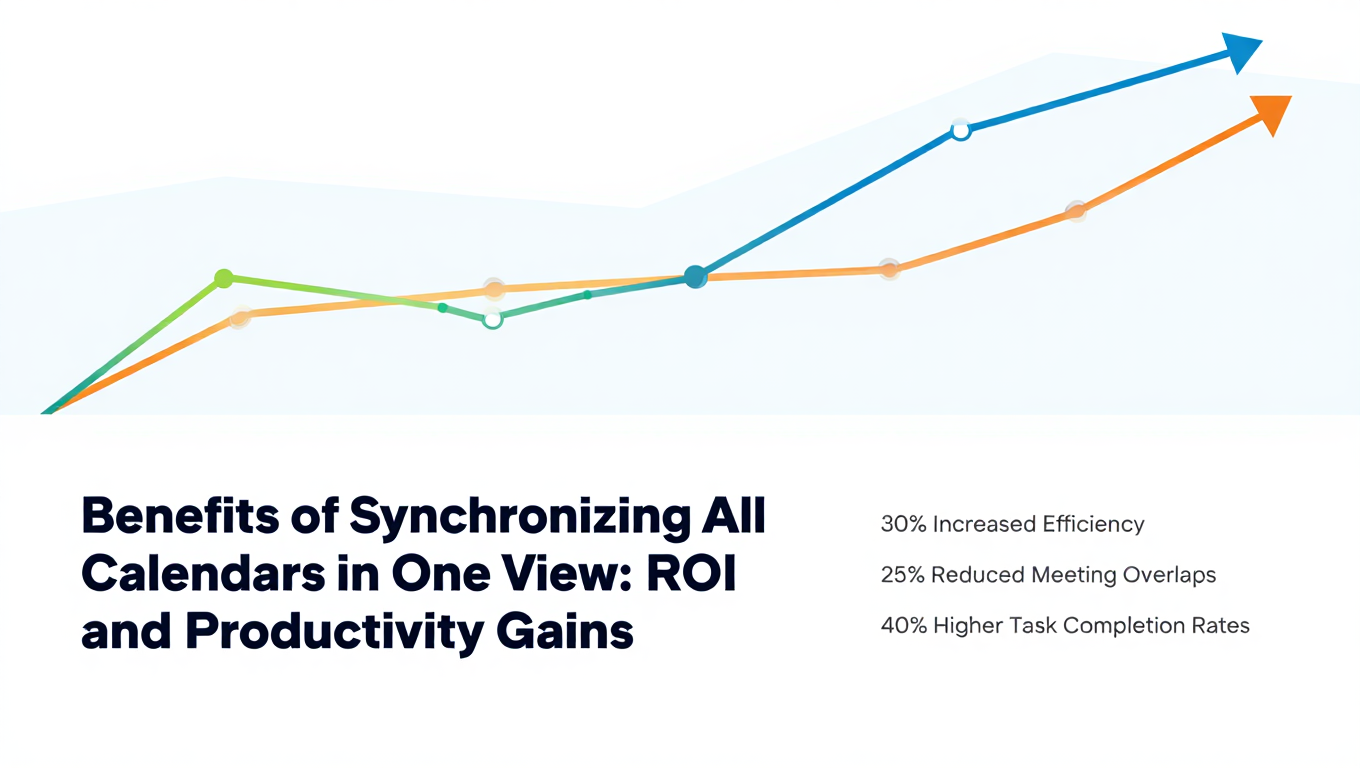
Benefits of Synchronizing All Calendars in One View: ROI and Productivity Gains
Discover the benefits of synchronizing all calendars in one view. See ROI data, productivity gains, reduced double bookings, and real-world business impact in 2025.
Best Bidirectional Calendar Sync Tools: 2025 Comparison Guide
Compare the best bidirectional calendar sync tools in 2025. Discover which platforms offer true two-way synchronization and which only provide one-way sync.
Best Two Way Calendar Sync Software: 2025 Expert Rankings & Comparison
Compare the top two-way calendar sync software tools. We tested 12 platforms for bidirectional sync speed, reliability, and field coverage to find which actually work.