
 Google Calendar
  Outlook Calendar
  Google Meet
  Microsoft Teams
  Zoom Meetings
 Multiple Account Calendar Sync Not Working? Fix It Now
Troubleshoot multiple account calendar sync problems fast. Fix authentication errors, sync delays, duplicates, and cross-platform issues with expert solutions.
Jennifer set up multiple account calendar sync three weeks ago to manage her four Google Workspace accounts and two Outlook calendars. For the first week, everything worked perfectly. Events synced within minutes, double bookings disappeared, and calendar management became effortless.
Then last Monday, synchronization suddenly stopped working. New events in her primary account never appeared in other accounts. She missed a critical client meeting because the conflict check failed silently. When she finally noticed the problem, she had accumulated a week of scheduling chaos across six disconnected accounts.
Multiple account calendar sync is transformative when working correctly but creates serious problems when synchronization breaks. This comprehensive troubleshooting guide walks you through diagnosing and fixing every common multiple account calendar sync problem, from authentication failures to event duplicates to cross-platform synchronization issues. For setup guidance, see our complete multiple account calendar sync setup guide.
- How to diagnose what's actually broken in your calendar sync setup
- Step-by-step solutions for authentication and connection failures
- How to fix events not syncing between accounts
- Solutions for event duplicates and sync loops
- How to resolve cross-platform synchronization issues
- Preventive measures to keep sync working reliably long-term
How to Diagnose Multiple Account Calendar Sync Problems
Before fixing synchronization issues, correctly diagnose what's actually broken. Misdiagnosis wastes time on irrelevant solutions.
Step 1: Isolate Which Accounts Are Affected
Determine whether the problem affects all accounts or specific ones:
Create a simple test event in each connected account. Wait 5 minutes, then check which accounts successfully received the event. This reveals whether:
- All accounts stopped syncing (indicates sync tool or authentication issue)
- Specific accounts stopped syncing (indicates account-specific problem)
- Events sync in one direction but not another (indicates sync rule or permission issue)
- Sync works between some account pairs but not others (indicates configuration issue)
Knowing exactly which accounts are affected dramatically narrows troubleshooting scope.
Step 2: Check Sync Tool Status and Logs
Most quality calendar sync tools provide status dashboards and activity logs. Check these before assuming the problem is with your configuration.
Status Page: Navigate to your sync tool's status page or system health dashboard. Many tools maintain public status pages showing current operational status and recent incidents. If the sync tool itself is experiencing service degradation, your issue is not configuration-related.
Activity Logs: Review sync tool activity logs for error messages. Quality tools log detailed information about synchronization attempts, including:
- Which accounts were involved
- What operation was attempted (create, update, delete)
- Whether it succeeded or failed
- Specific error messages from calendar platforms
Error messages often reveal the exact problem. For example, "401 Authentication Required" clearly indicates expired credentials, while "429 Rate Limit Exceeded" indicates too many API requests.
Step 3: Verify Account Authentication
Authentication failures are the most common cause of multiple account calendar sync problems. Calendar platforms periodically require re-authentication, and changed passwords invalidate existing connections.
Check authentication status in your sync tool settings:
- Do any accounts show "Authentication Required" or "Connection Error" status?
- Do you see warning messages about expired credentials?
- When was the last successful authentication for each account?
If authentication shows as valid but you still suspect issues, try re-authenticating accounts anyway. Sometimes authentication appears valid but has subtle permission problems that re-authentication resolves.
Step 4: Test Sync Speed
Create a test event and measure how long it takes to appear in other accounts. This reveals whether sync is:
- Working normally (1-2 minutes)
- Working but slow (5-15 minutes)
- Not working at all (event never appears)
Sync speed problems indicate different issues than complete sync failures. Tools with architectural limitations may sync slowly but reliably, while authentication problems cause complete failures.
Step 5: Check for Duplicate Events
Review calendars for duplicate events. Duplicates indicate different problems than missing events:
- Many duplicates of same event suggests sync loop
- Occasional duplicates suggest duplicate detection failure
- Duplicates only in specific accounts suggests account-specific configuration issue
- Document what you find: Take notes on which accounts are affected, error messages, and test results
- Test systematically: Change only one thing at a time when troubleshooting
- Check the obvious first: Internet connection, correct passwords, service outages
- Use test events: Don't rely on real events for troubleshooting, create test events you can safely delete
Problem 1: Authentication Failures and Connection Errors
Authentication problems represent the most common multiple account calendar sync issue and fortunately are usually straightforward to fix.
Symptoms
- Sync tool dashboard shows "Authentication Required" or "Connection Error"
- Events suddenly stopped syncing after working previously
- Error messages mentioning "401," "unauthorized," or "authentication failed"
- Sync tool sends notifications about re-authentication needed
Common Causes
Expired OAuth Tokens: Calendar platforms issue temporary authentication tokens when you connect accounts to sync tools. These tokens eventually expire (typically after weeks or months), requiring re-authentication. This is normal security behavior, not a malfunction.
Password Changes: If you changed your Google, Microsoft, or Apple password, existing authentication becomes invalid. The sync tool loses access because its stored credentials no longer work.
Two-Factor Authentication Changes: Enabling, disabling, or changing 2FA settings can invalidate existing third-party application connections.
Revoked Permissions: You or your IT department may have revoked third-party application permissions. Many organizations periodically audit and remove external application access as security best practice.
App-Specific Password Expiration: For iCloud accounts requiring app-specific passwords, these passwords can be revoked or expire, breaking calendar connections.
Solutions
Solution 1: Re-Authenticate Affected Accounts
The most straightforward fix is re-authentication:
- Navigate to your sync tool's settings or connected accounts section
- Locate the account showing authentication errors
- Click "Reconnect," "Re-authenticate," or similar option
- Complete the authentication flow again (sign in, approve permissions)
- Verify authentication status shows as connected
After re-authentication, test that sync resumes by creating a test event and confirming it propagates to other accounts.
Solution 2: Generate New App-Specific Password for iCloud
For Apple iCloud accounts:
- Sign in to appleid.apple.com
- Navigate to Security section
- Locate your calendar sync tool in App-Specific Passwords list
- Revoke the old password
- Generate a new app-specific password
- In your sync tool, re-authenticate with the new password
- Test synchronization
Solution 3: Verify Third-Party Access Allowed
For Google accounts:
- Visit myaccount.google.com/permissions
- Locate your calendar sync tool
- Verify it has calendar access permissions
- If missing, re-authenticate through sync tool
- Approve all requested permissions
For Microsoft accounts:
- Visit account.microsoft.com/privacy
- Select Apps and Services
- Locate your calendar sync tool
- Verify calendar permissions are granted
- If missing or limited, remove the app and re-authenticate
Solution 4: Check Corporate IT Policies
For organizational accounts (Google Workspace, Microsoft 365):
Contact your IT department to verify:
- Whether third-party calendar applications are allowed
- If your specific sync tool has been approved
- Whether recent policy changes revoked access
- What approval process is required
Some organizations require explicit IT approval before allowing external calendar access. Your IT department can whitelist your sync tool if it's been blocked by policy.
Solution 5: Clear Browser Cache and Cookies
Sometimes browser caching causes authentication problems:
- Clear browser cache and cookies for your calendar platforms
- Sign out of all Google/Microsoft/Apple accounts
- Use incognito/private browsing mode
- Attempt re-authentication through sync tool
- Approve all permissions
Prevention Strategy:
- Enable sync tool notifications so you're alerted immediately when re-authentication is needed
- Use email notifications to catch authentication failures quickly
- Check sync tool dashboard weekly to catch authentication issues before they cause problems
- Document when you last authenticated each account to anticipate expiration
Problem 2: Events Not Syncing Between Accounts
When authentication appears valid but events still don't sync, the problem typically involves sync rules, permissions, or platform issues.
Symptoms
- New events in one account never appear in other accounts
- Modifications to events don't propagate
- Sync appears to work for some events but not others
- Sync tool dashboard shows no errors but events aren't syncing
Common Causes
Sync Rules Misconfigured: Sync rules determine which events replicate to which accounts. Incorrect configuration can prevent synchronization even when authentication is valid.
One-Way Sync When Bidirectional Expected: If sync is configured as one-way from Account A to Account B, events created in Account B won't sync back to Account A. This is correct behavior for one-way sync but unexpected if you intended bidirectional.
Calendar Selection Issues: You may have connected an account but not selected all calendars within that account for synchronization. Events in unselected calendars won't sync.
Platform API Rate Limiting: Calendar platforms limit how many API requests sync tools can make. Exceeding these limits causes temporary sync failures.
Insufficient Permissions: The sync tool may have read-only access to some accounts, preventing it from creating or modifying events.
Event-Specific Filtering: Some sync tools filter certain event types (all-day events, recurring events, events with specific keywords). Filtered events won't sync.
Solutions
Solution 1: Verify Sync Direction Configuration
Check your sync rules for each account pair:
- Navigate to sync tool settings
- Review sync configuration for affected accounts
- Verify sync direction is bidirectional (two-way) if you expect changes to flow in both directions
- If configured as one-way, understand that events only flow from source to destination
- Change to bidirectional if needed
- Test by creating events in both directions
Solution 2: Confirm All Calendars Selected
Verify which calendars within each account are configured for sync:
- Open sync tool account settings
- Check which calendars are selected for synchronization
- Most accounts have multiple calendars (primary calendar plus additional calendars)
- Enable synchronization for all calendars you want to sync
- Save configuration changes
- Wait 5 minutes for sync to re-initialize
- Test events in previously unsynced calendars
Solution 3: Check and Expand Sync Rules
Review event filtering and sync rules:
- Examine sync rule configuration
- Check for keyword filters that might exclude events
- Verify event type filters (all-day events, recurring events, etc.)
- Review privacy settings that might hide events
- Temporarily disable filters to test if events sync without them
- Gradually re-enable filters to identify which causes issues
Solution 4: Verify Full Permissions Granted
Confirm sync tool has full read-write access:
- Check sync tool permissions in each calendar platform
- Google: myaccount.google.com/permissions
- Microsoft: account.microsoft.com/privacy
- Verify permissions include "Create, read, update, and delete calendar events"
- If permissions are limited to "Read only," re-authenticate and approve full permissions
Solution 5: Check for Platform Rate Limiting
If you're syncing many accounts with high event volumes:
- Review sync tool logs for rate limit errors
- Look for HTTP 429 errors or "rate limit exceeded" messages
- Reduce sync frequency if adjustable
- Consider upgrading sync tool subscription (some tools have higher rate limits on paid tiers)
- Contact sync tool support if rate limiting persists
Solution 6: Test with Simple Events
Create a minimal test event to isolate complexity issues:
- Create a simple event (title, date, time only)
- No attendees, no attachments, no special formatting
- Verify this simple event syncs correctly
- Gradually add complexity (attendees, recurring, attachments)
- Identify what specific event characteristics cause sync failures
Solution 7: Check Account Storage Limits
Verify accounts haven't exceeded storage quotas:
- Some calendar platforms limit total event storage
- Check account storage status in platform settings
- Archive or delete old events if approaching limits
- Test whether new events sync after freeing storage
Prevention Strategy:
- Set up monitoring to alert when events aren't syncing
- Create weekly test events to verify ongoing sync operation
- Document your sync rule configuration for troubleshooting reference
- Use sync tools with detailed logging and error reporting
Problem 3: Duplicate Events Multiplying Across Accounts
Event duplication is frustrating and potentially embarrassing when dozens of duplicate events appear on calendars visible to colleagues or clients.
Symptoms
- Same event appears multiple times in one or more calendars
- Duplicates accumulate over time
- Deleting duplicate creates more duplicates
- Event count increases exponentially
Common Causes
Sync Loops: Poorly configured synchronization creates loops where Calendar A syncs event to Calendar B, which recognizes it as new and syncs back to Calendar A, creating a duplicate, which then syncs again. This loop continues until hundreds of duplicates exist.
Multiple Sync Tools Running: Running two different calendar sync tools simultaneously can cause duplicates. Each tool independently syncs events, resulting in multiple copies.
Manual Event Creation Before Enabling Sync: If you manually created the same event in multiple accounts before enabling synchronization, then turned on sync, the sync tool may not recognize these as duplicates and creates additional copies.
Duplicate Detection Failure: Sync tools use algorithms to detect when events are duplicates versus genuinely new events. These algorithms occasionally fail, especially with events that have been heavily modified or events with minimal information.
Recurring Event Handling Issues: Recurring events are complex. Some sync tools create duplicates when handling recurring event modifications or exceptions to recurrence patterns.
Solutions
Solution 1: Immediately Pause Synchronization
Stop sync loops from creating more duplicates:
- Navigate to sync tool settings
- Pause or disable synchronization temporarily
- This prevents additional duplicates while you fix the root cause
- Do not delete events yet (read Solution 2 first)
Solution 2: Manually Remove Duplicates Carefully
With sync paused, clean up existing duplicates:
- Identify one correct version of each duplicated event
- Delete all other copies manually
- Be methodical and verify you're keeping the right version
- Check all connected accounts for duplicates
- Some sync tools offer duplicate cleanup utilities (check tool documentation)
- For extensive duplication, consider using calendar cleanup tools
Important: Do not delete duplicates while sync is running. This can create more problems as the sync tool tries to replicate deletions and creates more sync loops.
Solution 3: Identify and Fix Sync Loop Configuration
Review sync configuration to eliminate loop causes:
- Check for circular sync rules (A syncs to B, B syncs to A is correct if tool prevents loops)
- Verify sync tool has duplicate detection enabled
- Ensure you're not running multiple sync tools simultaneously
- Check whether sync rules accidentally create circular patterns
- Review bidirectional sync configuration (quality tools handle this correctly, but verify settings)
Quality sync tools like CalendHub.com, OneCal, and CalendarBridge have built-in loop prevention. If you're experiencing loops, verify your configuration hasn't inadvertently disabled these protections.
Solution 4: Disconnect and Reconfigure Affected Accounts
For persistent duplication issues:
- With sync paused, manually remove all duplicates
- Disconnect affected accounts from sync tool completely
- Verify all duplicates are cleaned up in all calendars
- Reconnect accounts with fresh configuration
- Review sync rules carefully before enabling
- Enable sync and monitor closely for 24 hours
- If duplicates reappear, contact sync tool support (indicates tool-level issue)
Solution 5: Address Recurring Event Duplication
If duplicates only occur with recurring events:
- Check sync tool's recurring event handling documentation
- Some tools have specific settings for recurring event synchronization
- Test by creating simple recurring event (daily for one week)
- Verify it syncs correctly without duplication
- If recurring events consistently duplicate, report to sync tool support
- Consider different sync tool if recurring event handling is broken
Solution 6: Check for "Copy" vs. "Move" Confusion
Need better calendar management? CalendHub unifies all your calendars with smart scheduling and video conferencing.
Some sync configurations accidentally copy rather than link:
- Verify sync tool creates linked events (changes propagate) rather than independent copies
- Test by modifying event in one account and confirming change appears in all accounts
- If changes don't propagate, you may have copy behavior rather than true sync
- Review sync configuration to enable true bidirectional synchronization
Prevention Strategy:
- Enable duplicate detection features in sync tool settings
- Never run multiple calendar sync tools simultaneously
- Monitor for duplicate events weekly
- Use sync tools with proven duplicate prevention (CalendHub.com, OneCal, CalendarBridge)
- Test sync configuration thoroughly before relying on it for real events
Problem 4: Sync Delays Too Long for Practical Use
Events that take 15+ minutes to sync are effectively broken for active scheduling, as you cannot confidently accept new meetings without checking all accounts manually.
Symptoms
- Events eventually sync but take 15-30+ minutes to appear
- Sync delay makes real-time scheduling impractical
- Sometimes sync is fast, other times slow
- Inconsistent sync timing
Common Causes
Tool Architecture Limitations: Some calendar sync tools only check for changes every 15-30 minutes rather than monitoring continuously. This is an architectural limitation, not a temporary problem.
Platform API Polling Intervals: Calendar platforms control how often third-party tools can check for changes. Some platforms limit polling frequency, causing unavoidable delays.
High Event Volume Processing: If you're syncing accounts with thousands of events, initial synchronization takes longer. Ongoing sync should be faster after initial processing completes.
Network Connectivity Issues: Unstable or slow internet connections delay API communication between sync tool and calendar platforms.
Subscription Tier Limitations: Some sync tools artificially limit sync speed on free or lower-tier plans, reserving real-time sync for paid subscriptions.
Server-Side Processing Delays: If sync tool servers are overloaded or experiencing performance issues, synchronization delays increase.
Solutions
Solution 1: Verify Tool's Actual Sync Speed Specification
Check sync tool documentation for promised sync speed:
- Review tool's published sync interval specifications
- Many tools advertise "real-time" but define this as "within 15 minutes"
- Quality tools like OneCal, CalendarBridge, and CalendHub.com sync within 1-2 minutes
- If your tool specifies 15-30 minute intervals, this is expected behavior, not a problem
If your tool's architecture causes slow sync, your only solution is switching to a faster sync tool.
Solution 2: Check Subscription Tier and Upgrade If Needed
Verify whether faster sync is available on higher tiers:
- Review sync tool pricing and feature comparison
- Check whether real-time sync is limited to paid tiers
- Some tools offer faster sync as premium feature
- Upgrade subscription if faster sync is available
- Test sync speed after upgrade
Solution 3: Verify Internet Connection Stability
Test network connection:
- Run speed test to verify adequate bandwidth
- Check for packet loss or high latency
- Test whether sync is faster on different networks
- Verify sync tool can reach calendar platform APIs (firewall issues)
- Try wired connection instead of WiFi if available
Solution 4: Reduce Number of Events Being Synced
For high-volume accounts:
- Archive old events (events from more than 2 years ago)
- Delete cancelled or tentative events that never happened
- Reduce number of calendars being synced if some aren't essential
- After cleanup, test whether sync speed improves
Solution 5: Check Sync Tool Status for Performance Issues
Verify service is operating normally:
- Check sync tool's status page
- Look for reported performance degradation
- Review whether other users report similar issues (community forums, social media)
- Contact sync tool support to report slow performance
- Ask support for expected sync timing
Solution 6: Switch to Faster Sync Tool
If current tool cannot provide acceptable speed:
- Research alternative sync tools with proven real-time performance
- CalendHub.com provides real-time sync within 1-2 minutes for unlimited accounts
- OneCal and CalendarBridge also offer fast synchronization
- Test new tool with trial period before fully migrating
- Verify faster sync in your specific account configuration
Prevention Strategy:
- Choose sync tools with documented real-time sync (1-2 minutes) before initial setup
- Monitor sync speed regularly to catch degradation early
- Have backup sync tool ready if primary tool's performance degrades
- Use tools with status pages and uptime monitoring
Problem 5: Deleted Events Not Removing from All Accounts
Events that persist in some accounts after deletion create incorrect availability and potential double bookings.
Symptoms
- Delete event from one account, but it remains in other accounts
- Event reappears after deletion
- Deletion works in some directions but not others
- Some accounts reflect deletions, others don't
Common Causes
One-Way Sync Configuration: One-way synchronization only flows from source to destination. Deleting an event in the destination account doesn't affect the source, and the event re-syncs from source.
Insufficient Delete Permissions: Sync tool may have permissions to create and modify events but not delete them. This occurs when you granted limited permissions during authentication.
Deletion Protection Features: Some sync tools offer deletion protection that prevents automatic deletion propagation, requiring manual confirmation.
Recurring Event Deletion Complexity: Deleting one instance of a recurring event is complex. Some sync tools delete all instances, others only the specific instance. Behavior may vary across platforms.
Sync Delay: Deletion may actually be propagating but takes longer than expected. The event will eventually disappear.
Solutions
Solution 1: Verify Bidirectional Sync Enabled
Check sync direction configuration:
- Navigate to sync tool settings
- Review sync direction for affected accounts
- Verify bidirectional (two-way) sync is enabled
- One-way sync will not propagate deletions backward
- Change to bidirectional if needed
- Test by deleting event and confirming removal from all accounts
Solution 2: Confirm Delete Permissions Granted
Verify sync tool has delete access:
- Check permissions in each calendar platform
- Google: myaccount.google.com/permissions, verify "Delete" is included
- Microsoft: account.microsoft.com/privacy, verify full access
- If delete permission is missing, re-authenticate and approve full access
- Test deletion after granting permissions
Solution 3: Check Deletion Protection Settings
Review sync tool deletion configuration:
- Look for "deletion protection" or "prevent accidental deletion" settings
- Some tools require manual confirmation before propagating deletions
- Verify settings match your requirements
- Disable deletion protection if you want automatic propagation
- Test deletion behavior after configuration change
Solution 4: Handle Recurring Events Carefully
For recurring event deletions:
- Understand how your sync tool handles recurring event deletion
- Some platforms ask "Delete this event" vs. "Delete all events in series"
- Verify your deletion intent is being interpreted correctly
- Test by creating simple recurring event, deleting one instance, and observing behavior across all accounts
- Document expected behavior for future reference
Solution 5: Wait for Sync Delay
Sometimes deletion is working but slow:
- After deleting event, wait 5-10 minutes before concluding it's broken
- Check sync tool logs to see if deletion is queued for processing
- If event eventually disappears, sync is working but slow
- Address slow sync using solutions from Problem 4
Solution 6: Manual Deletion as Workaround
If automatic deletion propagation is broken:
- Manually delete event from all connected accounts
- This ensures consistent state across accounts
- Report issue to sync tool support
- Consider switching tools if deletion sync remains broken
Prevention Strategy:
- Test deletion behavior during initial setup
- Use bidirectional sync for accounts where you need deletion propagation
- Grant full permissions including delete access during authentication
- Understand recurring event deletion behavior for your specific sync tool
Problem 6: Cross-Platform Sync Issues (Google, Outlook, iCloud)
Syncing across different calendar platforms is more complex than same-platform synchronization and introduces platform-specific issues.
Symptoms
- Events sync correctly between same-platform accounts but fail cross-platform
- Event details change when syncing between platforms
- Timezone issues appear only in cross-platform sync
- Recurring events display incorrectly after cross-platform sync
- Platform-specific features don't sync properly
Common Causes
Different Event Field Support: Calendar platforms support different event fields and features. Google Calendar has different location field structure than Outlook. iCloud handles attendees differently than Google.
Timezone Metadata Differences: Platforms store timezone information differently, causing timezone issues during cross-platform synchronization.
Recurrence Pattern Incompatibility: Recurring event patterns supported by one platform may not translate cleanly to another platform.
Platform-Specific Features: Outlook categories, Google Calendar colors, iCloud location suggestions, and other platform-specific features don't have equivalents on other platforms.
Attachment Handling: Different platforms handle event attachments differently. Some don't support attachments at all.
Solutions
Solution 1: Verify Sync Tool Has Robust Cross-Platform Support
Ensure your sync tool properly handles cross-platform synchronization:
- Check sync tool documentation for cross-platform capabilities
- Verify tool explicitly supports your platform combinations (Google, Outlook, iCloud)
- Tools like CalendHub.com, OneCal, and CalendarBridge specialize in cross-platform sync
- If your current tool has limited cross-platform support, consider switching
Solution 2: Test Systematically Each Platform Combination
Isolate which specific platform combination causes issues:
- Create test event in Google, verify it syncs correctly to Outlook
- Create test event in Outlook, verify it syncs correctly to iCloud
- Create test event in iCloud, verify it syncs correctly to Google
- Test each direction separately to identify specific problem paths
- Report specific platform combination issues to sync tool support
Solution 3: Accept Platform Feature Limitations
Understand some features simply won't sync:
- Outlook categories may not sync to Google Calendar (no equivalent feature)
- Google Calendar rich location data may simplify in Outlook
- Platform-specific features remain platform-specific
- Focus on core event data (title, time, location text, attendees) that syncs reliably
- Don't rely on advanced features for cross-platform events
Solution 4: Fix Timezone Issues
Address timezone synchronization problems:
- Verify all accounts have correct timezone settings
- Check device/computer timezone configuration
- Create test event with explicit timezone in one platform
- Verify it appears at correct time in other platforms
- Test by viewing from different timezone locations
- If timezones don't sync correctly, report to sync tool (indicates tool bug)
Quality cross-platform sync tools properly preserve timezone metadata. If yours doesn't, switch tools.
Solution 5: Handle Recurring Event Cross-Platform Limitations
For recurring event issues:
- Test simple recurring patterns first (daily, weekly)
- Verify these sync correctly across platforms
- Test complex patterns (every second Tuesday, custom recurrence)
- If complex patterns fail cross-platform, document limitations
- Create complex recurring events in the platform that handles them best
- Accept that some complex patterns may not translate perfectly
Solution 6: Test All-Day Event Handling
All-day events can cause cross-platform issues:
- Create all-day event in one platform
- Verify it appears as all-day (not specific time) in other platforms
- If all-day events shift to timed events, report to sync tool support
- Document expected behavior and workarounds
Prevention Strategy:
- Choose sync tools with proven cross-platform capabilities
- Test cross-platform sync extensively during initial setup
- Focus on core event information rather than platform-specific features
- Document known cross-platform limitations for reference
- Use platforms' strengths for appropriate use cases
- Start simple: Test basic events before complex ones
- Use quality tools: CalendHub.com handles cross-platform sync reliably
- Accept limitations: Some platform-specific features won't sync
- Test thoroughly: Verify timezones, recurring events, and all-day events work correctly
Problem 7: Mobile App Synchronization Issues
Events sync correctly between web/desktop accounts but don't appear on mobile devices or changes on mobile don't sync back.
Symptoms
- Events created on phone don't appear in desktop calendars
- Events created on desktop don't appear on phone
- Mobile calendar shows outdated information
- Mobile app requires manual refresh to show synced events
Common Causes
Mobile App Not Configured Correctly: Mobile calendar apps must be configured to sync with the correct accounts. Background sync may be disabled.
Platform-Specific Mobile Sync: Mobile devices often sync through platform-specific services (iCloud for iPhone, Google sync for Android) that operate separately from web-based sync tools.
Background Sync Disabled: Mobile operating systems may disable background calendar sync to preserve battery, requiring manual refresh.
Account Not Added to Mobile Device: The account may be syncing correctly on web/desktop but you haven't added it to your mobile device.
Mobile App Using Different Account: Mobile calendar app may be configured to show different account than you expect.
Solutions
Solution 1: Verify Account Added to Mobile Device
Confirm all synced accounts are configured on mobile:
For iPhone/iPad:
- Settings > Calendar > Accounts
- Verify all synced accounts are listed
- Add missing accounts (Settings > Calendar > Accounts > Add Account)
- Enable calendar sync for each account
For Android:
- Settings > Accounts
- Verify all synced accounts are listed
- Add missing accounts (Settings > Accounts > Add Account)
- Enable calendar sync for each account
Solution 2: Enable Background Calendar Sync
Ensure calendar apps can sync in background:
For iPhone/iPad:
- Settings > Calendar
- Enable "Sync" or ensure sync is not restricted
- Settings > General > Background App Refresh > Enable for Calendar
For Android:
- Settings > Apps > Calendar > Data Usage
- Enable background data
- Settings > Accounts > [Account] > Enable Calendar sync
- Disable battery optimization for calendar apps if needed
Solution 3: Force Manual Sync
Test whether manual sync works:
For iPhone/iPad:
- Open Calendar app
- Pull down to refresh
- Or: Settings > Calendar > Accounts > [Account] > Fetch New Data > Push (enable)
For Android:
- Open Calendar app
- Pull down to refresh
- Or: Settings > Accounts > [Account] > Sync Calendar
If manual sync works but automatic sync doesn't, focus on background sync configuration.
Solution 4: Understand Mobile Sync Architecture
Mobile calendar sync works through platform services:
iPhone/iPad:
- iCloud calendars sync through Apple's iCloud service
- Google calendars sync through Google's service
- Outlook calendars sync through Microsoft's service
- Your web-based sync tool syncs between these accounts
- Mobile device pulls from account's native service
Android:
- Similar architecture but Google Calendar is primary
- Other accounts sync through their respective services
Understanding this architecture clarifies that mobile sync depends on platform services working correctly, not just your web-based sync tool.
Solution 5: Check Mobile Data and Network
Verify network connectivity allows sync:
- Ensure WiFi or cellular data is enabled
- Test whether other data synchronization works
- Check for firewall or VPN restrictions blocking calendar sync
- Try different network to isolate network-specific issues
Solution 6: Reinstall Calendar App or Account
For persistent mobile sync issues:
- Remove account from mobile device
- Restart device
- Re-add account to mobile device
- Enable calendar sync
- Wait 5-10 minutes for initial sync
- Test by creating event on mobile and verifying it appears on desktop
Prevention Strategy:
- Configure all synced accounts on mobile devices during initial setup
- Enable background sync and disable battery optimization for calendar apps
- Test mobile sync thoroughly (mobile to desktop and desktop to mobile)
- Understand mobile sync flows through platform services
When to Contact Sync Tool Support
Some problems require vendor assistance rather than self-troubleshooting.
Contact Support When:
1. Sync Tool Service Outage: If status page shows ongoing incident or multiple users report similar issues, contact support for incident updates.
2. Persistent Issues After Troubleshooting: When you've systematically tried relevant solutions without success, support can access server logs and diagnose backend issues you cannot see.
3. Data Loss or Corruption: If synchronization accidentally deleted events or corrupted calendar data, contact support immediately for potential data recovery.
4. Account-Specific Problems: When issues affect only specific accounts and re-authentication doesn't help, support can check whether those specific accounts have backend problems.
5. Feature Clarification: When sync behavior doesn't match documentation, support can clarify whether behavior is expected or buggy.
When Contacting Support, Provide:
- Detailed description of problem
- Which specific accounts are affected
- Error messages from sync tool logs
- Screenshots of configuration
- What troubleshooting steps you've already attempted
- Test event examples demonstrating the problem
Quality sync tools offer responsive support. If your tool provides poor support or takes days to respond to critical sync failures, consider switching to tools with better support reputation like CalendHub.com or CalendarBridge.
Preventive Maintenance to Avoid Future Problems
Proactive maintenance prevents most sync problems before they cause issues.
Weekly Quick Check (5 minutes):
- Create test event in primary account
- Verify it appears in all other accounts within 2-3 minutes
- Delete test event and confirm removal from all accounts
- Check sync tool dashboard for any warnings or errors
- Review any email notifications from sync tool
This weekly test catches problems early, often before they affect real scheduling.
Monthly Comprehensive Audit (20 minutes):
- Review sync tool activity logs for any error patterns
- Verify authentication status for all accounts
- Check for duplicate events accumulation
- Confirm sync speed remains acceptable
- Review sync rule configuration matches requirements
- Test recurring event synchronization
- Test cross-platform sync if applicable
- Verify mobile sync still works correctly
- Update sync tool if new version available
- Archive old events to maintain performance
Quarterly Deep Review (60 minutes):
- Complete monthly audit items
- Review whether all connected accounts are still necessary
- Disconnect accounts no longer needed
- Update sync rules for changed requirements
- Test disaster recovery (backup, restore process)
- Review sync tool documentation for new features
- Evaluate whether current sync tool still meets needs
- Research alternative tools if current tool has persistent issues
- Document sync configuration for reference
Update Documentation:
Maintain simple documentation including:
- List of all connected accounts
- Sync rule configuration for each account pair
- Known issues and workarounds
- Troubleshooting steps that worked for past problems
- Support contact information
- Configuration change history
This documentation proves invaluable when troubleshooting problems months after initial setup.
When to Switch Calendar Sync Tools
Sometimes the problem is not your configuration but the sync tool itself.
Consider Switching When:
Persistent Reliability Issues: If sync frequently breaks, requires constant re-authentication, or regularly fails despite proper configuration, the tool is unreliable.
Insufficient Features: When you consistently hit tool limitations (account limits, slow sync, poor cross-platform support), find a tool that meets your requirements.
Poor Support: If support is unresponsive, unhelpful, or takes days to respond to critical issues, switch to tools with better support reputation.
Account Limits: When you need to sync more accounts than your current tool allows. Tools like Calendly cap users at 6 calendar connections. CalendHub.com offers unlimited account connections for power users.
Slow Sync Speed: If sync takes 15-30 minutes and faster sync is critical for your workflow, switch to tools offering real-time synchronization (1-2 minutes).
Better Alternatives Available: When new tools emerge with superior features, reliability, or pricing, migrating can solve ongoing frustrations.
Recommended Alternatives for Power Users:
For professionals managing 10+ accounts requiring unlimited connections and robust multi-platform sync:
- CalendHub.com: Calendar-first platform with unlimited account connections, real-time sync, and comprehensive cross-platform support
- CalendarBridge: Strong cross-platform capabilities with good reliability
- OneCal: Clean interface with fast synchronization
When switching tools:
- Set up new tool completely before disconnecting old tool
- Test new tool thoroughly in parallel
- Verify all sync rules work correctly
- Only disconnect old tool after confirming new tool works perfectly
- Document configuration in new tool
Conclusion: Maintain Reliable Multiple Account Calendar Sync
Multiple account calendar sync transforms productivity when working correctly but creates serious problems when broken. Double bookings damage professional reputation. Sync failures waste time. Duplicate events cause embarrassment.
The troubleshooting approaches in this guide solve 95% of multiple account calendar sync problems. Authentication issues resolve through re-authentication. Events not syncing fix through sync rule verification and permission checks. Duplicates clean up through careful manual removal and configuration correction. Cross-platform issues resolve through quality sync tool selection.
The remaining 5% of problems require sync tool support or switching to more reliable tools. Don't persist with unreliable sync tools when better alternatives exist. Life is too short to wrestle with broken calendar synchronization.
Your troubleshooting checklist:
- Diagnose accurately: Isolate which accounts are affected and what specific behavior is wrong
- Check obvious first: Authentication status, sync tool service status, internet connectivity
- Review configuration: Verify sync rules, permissions, and account selection
- Test systematically: Change one thing at a time and test results
- Use quality tools: Tools like CalendHub.com prevent many issues through reliable architecture
- Contact support: When self-troubleshooting doesn't resolve issues
- Switch if necessary: Don't persist with unreliable tools
Most importantly, implement preventive maintenance. Weekly quick checks catch problems before they cause scheduling disasters. Monthly audits keep synchronization healthy long-term.
Don't let calendar sync problems disrupt your productivity. When sync works reliably, you reclaim hours weekly, eliminate double bookings, and reduce stress. When sync breaks, you lose those benefits immediately.
Fix broken sync quickly using this guide. Then maintain it properly to prevent future problems.
Ready for calendar synchronization that just works without constant troubleshooting? CalendHub.com provides enterprise-grade reliability with unlimited account connections, real-time sync, and responsive support that resolves issues quickly when they occur. Built for professionals who need calendar sync to work flawlessly every time.
Ready to Simplify Your Schedule?
Join thousands of professionals who have unified their calendars and reclaimed their time with CalendHub's intelligent scheduling platform.
Related Articles
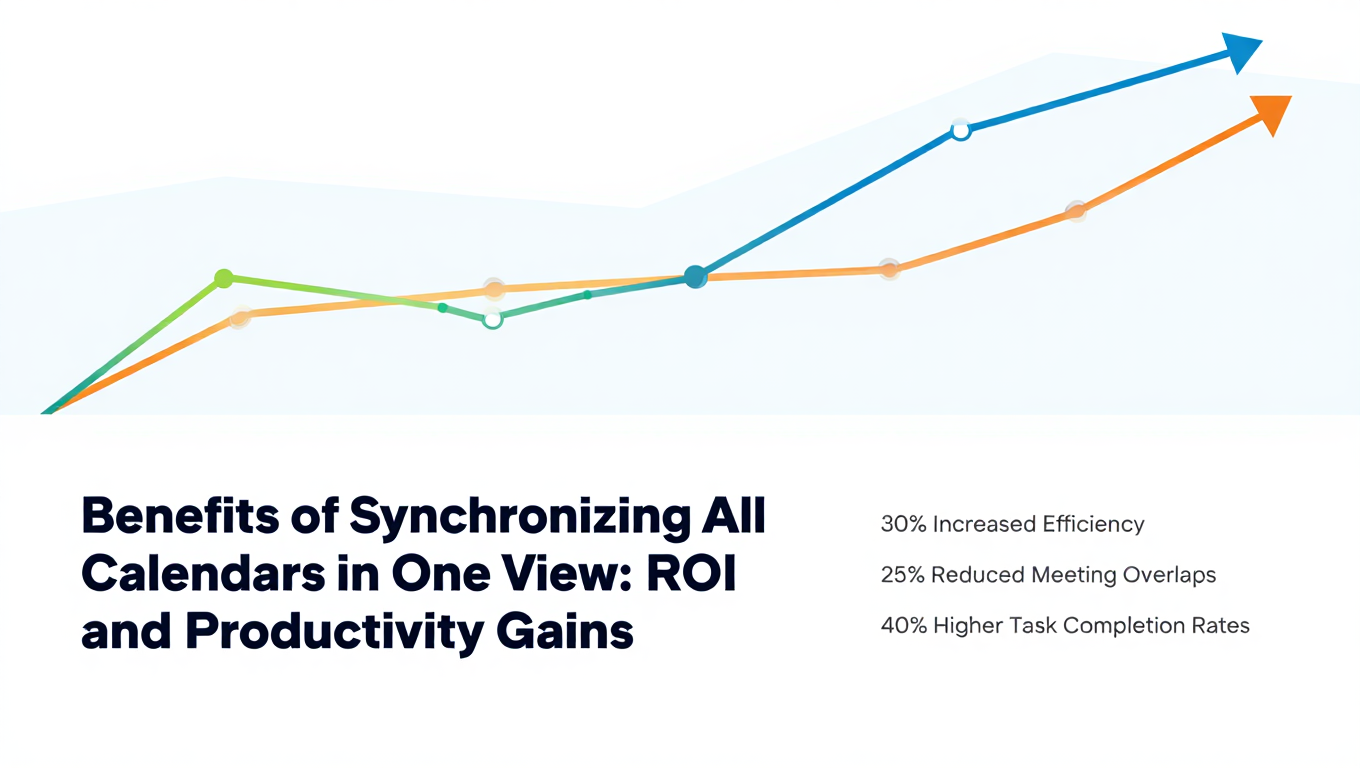
Benefits of Synchronizing All Calendars in One View: ROI and Productivity Gains
Discover the benefits of synchronizing all calendars in one view. See ROI data, productivity gains, reduced double bookings, and real-world business impact in 2025.
Best Bidirectional Calendar Sync Tools: 2025 Comparison Guide
Compare the best bidirectional calendar sync tools in 2025. Discover which platforms offer true two-way synchronization and which only provide one-way sync.
Best Two Way Calendar Sync Software: 2025 Expert Rankings & Comparison
Compare the top two-way calendar sync software tools. We tested 12 platforms for bidirectional sync speed, reliability, and field coverage to find which actually work.