
 Google Calendar
  Outlook Calendar
  Google Meet
  Microsoft Teams
  Zoom Meetings
 How to Set Up Two Way Calendar Sync Software: Complete Implementation Guide
Step-by-step guide to implementing two-way calendar sync. Learn setup procedures, troubleshooting bidirectional sync issues, and avoiding common configuration mistakes.
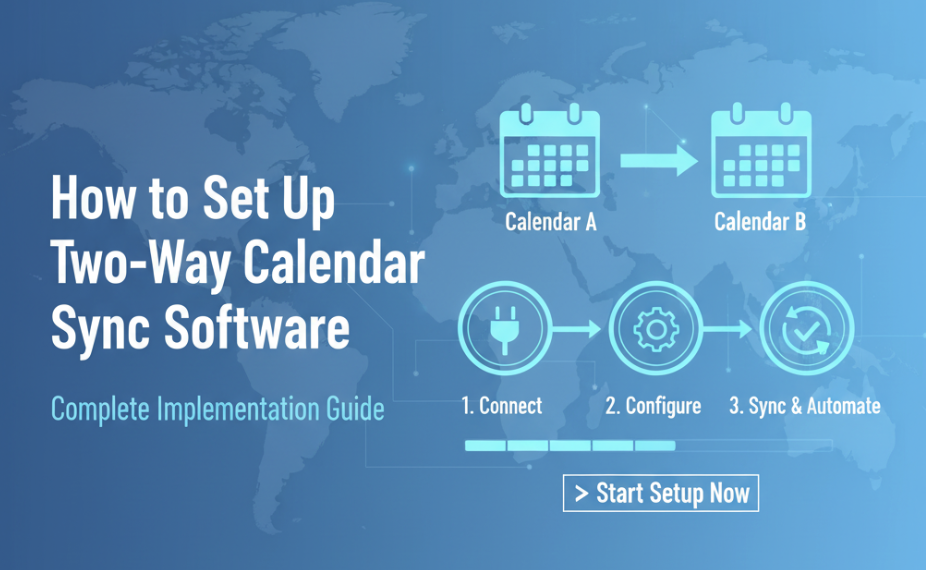
You've selected your two way calendar sync software, but now you're staring at authentication screens, sync direction options, and conflict resolution settings wondering which choices prevent sync disasters versus creating them.
Setting up bidirectional calendar synchronization incorrectly leads to duplicate events, lost updates, and the exact double booking problems sync was supposed to prevent. The difference between reliable two-way sync and a configuration mess comes down to understanding what each setting actually does and following a methodical setup process.
This implementation guide walks through every step of setting up two way calendar sync software correctly, from initial calendar connection through advanced conflict resolution configuration, with specific troubleshooting procedures for common sync problems you'll encounter.
- Step-by-step setup procedure for bidirectional calendar synchronization
- How to avoid duplicate events during initial sync setup
- Configuring conflict resolution policies for your specific use case
- Troubleshooting sync failures, missing events, and time zone issues
- Advanced configuration for filters, privacy controls, and multi-way sync
Pre-Setup Planning and Preparation
Before connecting any calendars, planning your sync architecture prevents configuration mistakes that are difficult to fix later.
Identify Which Calendars Need Bidirectional Sync
Not every calendar requires two-way synchronization. Understanding which calendars need bidirectional updates versus one-way visibility helps you configure the right sync topology.
Primary Work Calendar needs bidirectional sync with all systems that create calendar events automatically. If you use booking software like Calendly, CRM systems like HubSpot, or project management tools like Asana, these must sync bidirectionally to your primary calendar. When clients book appointments or team members schedule meetings, those events must flow to your primary calendar. When you reschedule events in your primary calendar, changes must flow back to these systems.
Personal Calendar typically requires only one-way sync to work calendars (showing busy time without details) unless you actively schedule work meetings from personal devices. If you never create work events in your personal calendar, bidirectional sync is unnecessary and creates privacy risks by potentially syncing personal details to work systems.
Shared Team Calendars need bidirectional sync only if multiple team members can modify events from different calendar systems. If your team calendar is read-only for most members, one-way sync from the authoritative source calendar suffices.
Resource Calendars for conference rooms, equipment, or shared resources require bidirectional sync since bookings occur from multiple systems. When someone reserves the conference room through Outlook, that reservation must sync to Google Calendar systems and vice versa.
Client Organization Calendars where you have guest access typically need bidirectional sync so scheduling changes you make in your primary calendar update the client's calendar system automatically.
Determine Authoritative Source for Conflicts
When the same event is modified in multiple calendars before sync completes, two way calendar sync software must determine which version to preserve. Establishing conflict resolution policies before setup prevents confusion later.
Last-Write-Wins Strategy preserves the most recently modified version and discards earlier changes. This works well when only one person typically edits events and modifications are sequential rather than simultaneous. Last-write-wins is the default strategy for most sync tools because it requires no user intervention.
Source-Based Priority designates one calendar as authoritative for specific event types. For example, your CRM calendar might take precedence for customer meetings while your primary work calendar takes precedence for internal meetings. This requires sync software that supports priority-based conflict resolution (CalendHub offers this capability).
Manual Resolution prompts you to choose which version to keep when conflicts occur. While this ensures complete control, it interrupts workflow and doesn't scale for high-volume synchronization. Manual resolution works best for small numbers of events with high-value content where data loss is unacceptable.
Field-Level Merge attempts to combine non-conflicting changes from both versions. If one calendar updated the event title and another updated the location, both changes are preserved. Only truly conflicting fields (like start time where both calendars specified different times) require resolution logic. This provides the best outcome but requires sophisticated sync software.
Document your conflict resolution policy before setup. When conflicts occur during operation, you'll have a decision framework rather than making arbitrary choices.
Clean Up Existing Calendar Data
Setting up two-way sync on calendars containing mismatched existing events causes duplicate creation, sync loops, and hours of manual cleanup. Preparing calendars before enabling sync prevents these problems.
Audit Current Calendar Contents by reviewing all calendars you plan to sync and identifying events that exist in one calendar but not others or events that exist in multiple calendars with different details. Events unique to one calendar may duplicate when sync begins. Events with different details may conflict.
Establish Single Source of Truth by choosing one calendar as the authoritative source and performing an initial one-way sync to secondary calendars. This creates baseline consistency before enabling bidirectional sync. For example, if your Google Calendar is authoritative, perform one-way sync to Outlook calendars first, verify events copied correctly, then enable bidirectional sync.
Delete or Archive Historical Events that don't need synchronization. Most two way calendar sync software syncs all events including historical past events. If your calendars contain years of old events, initial sync takes significantly longer and creates unnecessary processing load. Archive or delete events older than 3-6 months before setup unless you need historical sync.
Verify Time Zone Consistency across all calendars by checking that each calendar uses correct time zone settings. Time zone mismatches cause events to shift times during synchronization. Set all calendars to your primary time zone or enable automatic time zone detection.
Step-by-Step Setup Process
This section provides detailed setup procedures applicable to most two way calendar sync software platforms. Specific interface details vary by tool, but the conceptual steps remain consistent.
Step 1: Create Account and Connect First Calendar
Access your chosen two way calendar sync software (this guide uses CalendHub for examples, but principles apply to any platform) and create an account using your primary email address.
Connect Your Primary Calendar First by clicking the "Add Calendar" or "Connect Calendar" option, selecting your primary calendar platform (Google, Microsoft Outlook, iCloud, or other), and authorizing access via OAuth authentication.
OAuth Authorization Process presents a permission screen from your calendar provider (Google, Microsoft, or Apple). Review requested permissions carefully. Legitimate sync software requests only calendar read/write access, not email, files, or other data. Approve access to continue.
Verify Calendar Connection by checking that your calendar appears in the sync software's dashboard and confirming that recent events from your calendar display correctly. If events don't appear, the OAuth connection failed and requires repeating authorization.
Important: Do not configure sync rules yet. First verify all calendars connect successfully before enabling bidirectional synchronization.
Step 2: Connect Secondary Calendars
Add each additional calendar individually rather than connecting all calendars simultaneously. This incremental approach makes troubleshooting easier if connection issues occur.
Connect Second Calendar using the same OAuth authorization process as your primary calendar. If connecting a calendar from the same provider (e.g., second Google account), you'll need to authenticate with different credentials. Calendar providers typically require separate OAuth authorization for each account.
Handle Multi-Organization Calendars by ensuring you authorize with the correct organizational credentials. If you have calendar access through multiple organizations (e.g., Google Workspace at Company A and Company B), you must authorize each separately. The sync software cannot access Organization B's calendar using Organization A's credentials even if the same email address exists in both.
Connect iCloud Calendars with App-Specific Passwords if using two-factor authentication. Apple requires generating app-specific passwords for third-party calendar access. Visit appleid.apple.com, generate an app-specific password for calendar access, and use this password instead of your regular Apple ID password when connecting iCloud calendars.
Verify All Connections Before Proceeding by checking that each calendar displays correctly in your sync software dashboard and confirming recent events appear from each calendar. If any calendar shows "Connection Error" or displays no events, troubleshoot that calendar before enabling sync.
Step 3: Configure Initial Sync Direction
Most two way calendar sync software offers options for initial sync before enabling ongoing bidirectional sync. This critical step determines how existing events are handled.
Choose Initial Sync Strategy based on your calendar data situation:
Option A: One-Way Initial Sync from Authoritative Source works best when one calendar is completely correct and others should match it. Select your authoritative calendar as source and all others as destinations. This copies all events from authoritative calendar to secondary calendars without reverse flow.
Option B: Merge All Existing Events attempts to intelligently combine events from all calendars without creating duplicates. The sync engine matches events by title, time, and other fields, merging matched events and copying unique events. This option risks creating duplicates if event matching logic is imperfect.
Option C: Start with Empty Sync (Future Events Only) syncs only new events created after setup, ignoring existing events. This prevents duplicate creation from mismatched historical events but means existing events never synchronize. Choose this option if calendars contain significantly different event sets that would create chaos if merged.
CalendHub Recommendation: Use Option A (one-way initial sync) for most situations. Establish baseline consistency by copying your authoritative calendar to all secondaries, verify accuracy, then enable bidirectional sync. This prevents 95% of common setup problems.
Start Initial Sync by clicking "Begin Sync" or "Start Initial Synchronization" and monitoring progress through the sync dashboard. Initial sync can take several minutes to hours depending on event volume. Do not interrupt the process or modify events in any calendar during initial sync.
Verify Initial Sync Completion by checking that all calendars contain the same events and comparing a sample of 10-20 events across calendars to ensure details match. Check that time zones are correct and verify that no duplicates were created.
- Intelligent Initial Sync: Automatically detects duplicate events to prevent duplication during setup
- Progress Monitoring: Real-time dashboard shows exactly how many events have synced
- Rollback Capability: Undo initial sync if results aren't as expected before enabling bidirectional sync
- Setup Wizard: Guided configuration eliminates guesswork in sync direction and conflict settings
Step 4: Enable Bidirectional Synchronization
After verifying initial sync completed successfully, enable ongoing two-way synchronization so changes in any calendar automatically propagate to all others.
Locate Sync Direction Settings in your sync software's configuration panel. Look for options labeled "Sync Direction," "Bidirectional Sync," or "Two-Way Sync." Default settings are often one-way, so explicitly enabling bidirectional sync is required.
Enable Bidirectional Mode by selecting "Two-Way Sync" or "Bidirectional" for each calendar pair. Some tools require enabling bidirectional sync individually for each calendar pair (A↔B, B↔C, A↔C). Advanced tools like CalendHub automatically enable multi-way sync where changes in any calendar sync to all others simultaneously.
Configure Sync Interval by selecting how frequently the software checks for changes. Options typically include real-time (webhook-based), 1 minute, 5 minutes, 15 minutes, or 30 minutes. Choose the shortest interval your sync software supports that doesn't exceed API rate limits. For customer-facing booking scenarios, real-time or 1-minute sync is essential to prevent double bookings.
Set Sync Scope by specifying which events should sync. Options include all events (past, present, future), future events only (starting today), or date range (e.g., events from 1 month ago through 6 months in future). Limiting sync scope reduces processing load and prevents syncing irrelevant historical events.
Verify Bidirectional Sync is Active by creating a test event in Calendar A, confirming it appears in Calendar B within expected sync interval (typically 1-5 minutes), modifying the test event in Calendar B, and verifying changes appear back in Calendar A. If the return sync from B to A fails, bidirectional sync is not properly configured.
Step 5: Configure Conflict Resolution Settings
Conflict resolution determines how your two way calendar sync software handles situations where the same event is modified in multiple calendars before sync completes.
Access Conflict Resolution Settings typically found under "Advanced Settings," "Sync Preferences," or "Conflict Handling" in your sync software. Not all tools expose conflict resolution settings to users. If you can't find these settings, your tool uses fixed conflict resolution logic (typically last-write-wins).
Select Conflict Resolution Strategy from available options:
Last-Write-Wins (default for most tools) automatically keeps the most recently modified version and discards earlier changes. Enable timestamp-based automatic resolution and optional conflict notifications (alerts when a conflict was auto-resolved).
Priority-Based Resolution designates certain calendars as higher priority than others. Events modified in the priority calendar overwrite changes in lower-priority calendars regardless of timestamp. Configure calendar priority rankings for each event type if supported.
Manual Resolution requires user decisions when conflicts occur. Enable conflict detection alerts and conflict resolution prompts. This option requires actively monitoring sync status to avoid pending conflicts blocking synchronization.
Test Conflict Resolution by creating an event in Calendar A and waiting for it to sync to Calendar B, modifying the event in both Calendar A and Calendar B before sync completes (within 30 seconds of each other), and verifying which version your sync software preserved. Document the behavior so you understand which changes take precedence during actual conflicts.
Step 6: Configure Sync Filters and Privacy Controls
Sync filters determine which events synchronize and which remain private to individual calendars. Proper filtering prevents personal events from syncing to work calendars and vice versa.
Access Filter Settings under "Sync Filters," "Event Filters," or "Privacy Controls" depending on your two way calendar sync software interface.
Configure Calendar-Based Filters to include or exclude specific calendars from sync. For example, exclude "Birthdays" calendar from syncing to work calendar or exclude "Personal" calendar from syncing to client organization calendars. Most tools allow selecting which sub-calendars within a calendar account participate in sync.
Set Keyword-Based Filters to exclude events containing specific keywords in titles or descriptions. Common filter keywords include "Personal," "Private," "Family," or custom tags you use to mark non-work events. Configure exclusion rules that prevent events matching these keywords from syncing.
Enable Privacy Status Filtering to sync event times as "busy" blocks without syncing event details for events marked private. This shows that you're unavailable without revealing why. Enable "Show as busy only" for events marked private or confidential.
Configure Category/Color Filters if your calendars use color coding or categories to distinguish event types. Exclude certain colors or categories from syncing. For example, sync all events except those colored blue (personal category).
Test Filter Effectiveness by creating events that should be filtered (e.g., event with "Personal" in title), verifying these events remain in source calendar only and don't sync to other calendars, and creating events that should sync and verifying they sync normally. Ineffective filters create privacy breaches by syncing personal events to work systems.
Expanding to Multi-Way Sync (3+ Calendars)
After successfully setting up bidirectional sync between two calendars, you may need to add additional calendars to your sync network.
Understanding Multi-Way Sync Architecture
Adding a third calendar to sync creates two architectural possibilities with very different implementations.
Architecture A: Pairwise Two-Way Sync treats each calendar pair as separate bidirectional sync. For three calendars (A, B, C), this creates three sync pairs: A↔B, B↔C, and A↔C. Some tools require manually configuring each pair separately, meaning six configurations total (A→B, B→A, B→C, C→B, A→C, C→A).
This architecture has significant problems. Changes propagate through multiple hops (A to B to C) rather than directly, sync latency multiplies (change in A takes twice as long to reach C), and troubleshooting failures requires checking all sync pairs individually.
Architecture B: Hub-Based Multi-Way Sync connects all calendars to a central sync hub. The hub distributes changes to all calendars simultaneously. For three calendars, you configure three connections (A→Hub, B→Hub, C→Hub) and the hub handles distribution automatically.
Hub-based architecture provides faster sync (all calendars update simultaneously), simpler configuration (N connections for N calendars), and centralized conflict resolution and monitoring.
CalendHub uses hub-based multi-way sync automatically. When you add a third calendar, changes in any of the three calendars sync to the other two simultaneously without additional configuration.
Adding Third and Subsequent Calendars
Connect Additional Calendar using the same OAuth authorization process described in Step 2. After authorization, the calendar appears in your sync dashboard.
Verify Multi-Way Sync Configuration depends on your tool's architecture:
For hub-based tools like CalendHub, multi-way sync is automatic. No additional configuration is required. The new calendar immediately receives events from all existing calendars and sends changes to all existing calendars.
For pairwise tools, you must manually create sync pairs between the new calendar and all existing calendars. If you previously synced A↔B and you add calendar C, you must configure B↔C and A↔C sync relationships manually.
Test Multi-Way Sync Functionality by creating a new event in the newly added calendar, verifying it appears in ALL existing calendars within expected sync interval, modifying the event in one of the original calendars, and confirming changes propagate to the newly added calendar. Multi-directional sync should work seamlessly in all directions.
Monitor Sync Latency Degradation as you add calendars. Some two way calendar sync software experiences performance degradation with many calendars. If sync latency increases from 1 minute to 5 minutes after adding several calendars, the tool may not be architected for multi-way sync at scale.
Practical Limits on Number of Calendars
Most tools claim "unlimited calendar sync" but practical limits exist based on API rate limits, sync latency multiplication, and configuration complexity.
Need better calendar management? CalendHub unifies all your calendars with smart scheduling and video conferencing.
API Rate Limit Constraints from calendar providers limit how many calendars can sync effectively. Google Calendar API allows 1 million requests per project per day. For a sync tool with webhook support, this constraint rarely matters. For polling-based sync checking every 5 minutes, you're limited to approximately 100-150 calendars per account before hitting rate limits.
Sync Latency Considerations mean that even if a tool technically supports unlimited calendars, sync may become too slow to be useful. If adding a fifth calendar increases sync latency from 1 minute to 10 minutes, the tool doesn't effectively support more than 4 calendars for real-time needs.
Configuration Complexity Limits apply to tools requiring manual pairwise sync configuration. Syncing 5 calendars requires 20 separate configuration steps (5 calendars × 4 other calendars). This becomes impractical beyond 4-5 calendars.
For most users, 2-4 calendars covers practical needs (personal, work, client organization, booking system). If you manage more than 6 calendars requiring bidirectional sync, prioritize two way calendar sync software explicitly designed for multi-way sync like CalendHub.
Troubleshooting Common Sync Problems
Even with careful setup, synchronization issues occur. Systematic troubleshooting procedures help you identify and fix problems quickly.
Events Not Syncing at All
Symptom: You create an event in Calendar A but it never appears in Calendar B.
Diagnostic Steps:
Verify Calendar Connection Status in your sync dashboard. Most tools show connection status for each calendar. If status shows "Disconnected," "Error," or "Authentication Failed," the calendar isn't connected properly and requires reconnecting.
Check OAuth Token Validity by attempting to manually trigger sync. If sync immediately fails with authentication error, OAuth tokens expired and you must re-authorize calendar access through your sync software.
Verify Bidirectional Sync is Enabled in sync settings. Some tools default to one-way sync, requiring explicit bidirectional activation. Check that sync direction is set to "Two-Way" or "Bidirectional" for the affected calendar pair.
Review Sync Filters to ensure the event doesn't match exclusion criteria. If you configured filters to exclude events with certain keywords and your test event contains those keywords, filtering is working correctly (not a bug).
Check API Rate Limits by reviewing sync logs for rate limit errors. Google Calendar API and Microsoft Graph API return specific HTTP 429 (Too Many Requests) errors when rate limits are exceeded. If your sync software hit rate limits, sync pauses until quotas reset.
Verify Calendar API Permissions by reviewing which scopes your sync software has access to. If you authorized read-only access instead of read-write access during OAuth, the sync software cannot create events in calendars. Re-authorize with full read-write permissions.
Solution: Most "events not syncing" problems result from authentication failures or disabled bidirectional sync. Reconnect calendars and verify sync direction settings resolve 80% of these issues.
Events Syncing One Direction But Not Reverse
Symptom: Events created in Calendar A sync to Calendar B successfully, but events created in Calendar B never sync to Calendar A.
Diagnostic Steps:
Confirm Bidirectional Configuration explicitly. Some two way calendar sync software requires separate configuration for each sync direction. Verify both A→B and B→A sync are enabled, not just A→B.
Check Platform-Specific Limitations that prevent bidirectional sync on certain calendar types. Some calendar providers expose read-only APIs for specific calendar types (e.g., public calendars, subscribed calendars, or calendars where you have viewer-only access). You cannot sync to read-only calendars.
Test with Different Event Types by creating various event types in Calendar B (single event, all-day event, recurring event) and checking which types sync and which don't. Platform API limitations sometimes affect specific event types only.
Review Sync Logs for Errors specifically for Calendar B to Calendar A direction. Logs may show permission errors, field validation errors, or API failures preventing the reverse sync while forward sync succeeds.
Verify Calendar B is Not Set as Read-Only in sync software settings. Some tools allow designating certain calendars as read-only sources (changes never sync FROM these calendars, only TO them).
Solution: This typically indicates incomplete bidirectional configuration or calendar permission issues. Verify both sync directions are explicitly enabled and that you have full edit access to both calendars.
Duplicate Events Created During Sync
Symptom: The same event appears multiple times in calendars after sync runs.
Diagnostic Steps:
Identify Duplication Pattern by determining whether duplicates appear in all calendars or only some calendars, duplicates are created only during initial sync or continuously, and each sync operation creates new duplicates or duplicates appeared once during setup.
Check Event ID Mapping issues that cause sync software to treat the same event as different events. Quality two way calendar sync software tracks which event in Calendar A corresponds to which event in Calendar B using platform event IDs. If ID mapping breaks, the same event looks like two different events.
Review Sync Configuration for Circular Loops where sync software attempts to sync an already-synced event back to its source. This happens when event metadata doesn't indicate the event was synced. The sync engine sees the event in Calendar B, doesn't recognize it came from Calendar A, and syncs it back to Calendar A as a "new" event.
Verify Initial Sync Completed Successfully before bidirectional sync was enabled. If you enabled bidirectional sync while initial sync was still processing, events that were in the process of syncing may have synced twice (once from initial sync, once from bidirectional sync).
Check for Multiple Sync Configurations affecting the same calendars. If you configured two different sync tools to sync the same calendars, or created multiple sync configurations within the same tool, both configurations sync the same events, creating duplicates.
Solution: Duplicate prevention requires proper event ID tracking. If duplicates were created during initial setup, manually delete duplicates, verify only one sync configuration exists for each calendar pair, and reset sync state before re-enabling bidirectional sync. CalendHub prevents duplicates through intelligent event matching using multiple fields beyond just event IDs.
- Pause all bidirectional sync configurations immediately to prevent creating more duplicates
- Identify and manually delete duplicate events (keep one version, delete copies)
- Reset sync state in your software (this forces re-indexing of which events have synced)
- Re-enable sync and monitor for new duplicates
Events Syncing with Wrong Times or Dates
Symptom: Events sync successfully but appear at different times in different calendars, or all-day events shift dates.
Diagnostic Steps:
Identify Time Zone Discrepancies by checking each calendar's time zone settings, comparing event time zones across calendars, and verifying your sync software's default time zone setting. Time zone mismatches are the most common cause of time shifting during sync.
Reproduce with Controlled Test by creating an event in Calendar A at a specific time (e.g., 2:00 PM) with explicit time zone (e.g., 2:00 PM Pacific Time), noting what time the event appears in Calendar B, and determining the time difference (if event appears 3 hours earlier, there's a time zone conversion issue between Pacific and Eastern times).
Check All-Day Event Handling specifically. All-day events are stored differently across platforms. Google Calendar stores all-day events as date-only (no time component). Outlook stores all-day events as midnight-to-midnight timestamps. Converting between these representations can shift all-day events by one day when time zones differ.
Verify Daylight Saving Time Rules match across platforms. Events created during daylight saving time transitions (spring forward, fall back) sometimes shift by one hour if platforms apply daylight saving rules differently.
Review Sync Software Time Zone Conversion Logic by checking whether your two way calendar sync software converts times to a common time zone or preserves original time zones. Some tools standardize all events to UTC during sync, then convert back to local time zones. Bugs in this conversion logic cause time shifting.
Solution: Ensure all calendars use consistent time zone settings, ideally your primary time zone. Enable time zone preservation in sync software settings if available (preserve the original event time zone rather than converting to software default time zone). For all-day events specifically, verify your sync software handles all-day events as dates rather than timestamps.
Deleted Events Reappearing
Symptom: You delete an event from a calendar but it reappears minutes later.
Diagnostic Steps:
Verify Deletion Sync is Enabled because some sync tools only sync creation and modification, not deletion. If deletion sync is disabled, the event remains in other calendars and syncs back to the calendar where you deleted it.
Check Deletion Sync Direction specifically. Some tools allow one-way deletion sync (deletions in Calendar A remove events from Calendar B, but deletions in Calendar B don't affect Calendar A). Verify bidirectional deletion sync is enabled.
Review Calendar-Level Restore Features that may be resurrecting deleted events. Google Calendar and Outlook both offer "Trash" or "Deleted Items" folders where deleted events remain for 30 days. If your sync software syncs events from trash folders, deleted events appear to resurrect.
Test with Recurring Events specifically. Deleting single instances of recurring events behaves differently than deleting entire series. Some sync tools don't properly sync deletion of recurring event exceptions, causing deleted instances to reappear.
Check for Conflict Between Deletion and Modification where you delete an event in Calendar A while someone else modifies it in Calendar B. Depending on conflict resolution settings, the modification may win over the deletion, recreating the event.
Solution: Enable deletion sync in both directions and verify your sync software supports deletion propagation. Exclude trash or deleted items folders from sync scope. For recurring events, delete the entire series rather than individual instances if reappearance issues persist.
Sync Latency Longer Than Expected
Symptom: Changes take 10-15 minutes to sync when sync software claims 1-2 minute synchronization.
Diagnostic Steps:
Distinguish Between Initial Sync and Ongoing Sync Latency. Initial sync when setting up calendars takes significantly longer than ongoing sync. If you just set up sync, wait for initial sync to complete (can take hours for calendars with thousands of events) before evaluating ongoing sync latency.
Identify Polling vs. Webhook Sync Architecture your software uses. Polling-based sync checks for changes at regular intervals (5-15 minutes typical). If the polling interval is 10 minutes, sync latency will be 0-10 minutes depending on when you create the event relative to polling schedule. Webhook-based sync delivers changes in seconds.
Check API Rate Limit Throttling that may be slowing sync. If your sync software hit API rate limits, it implements exponential backoff (waiting increasingly long periods between retry attempts). This creates sync delays until rate limits reset.
Verify iCloud Calendar Isn't Causing Delay. iCloud calendars sync via CalDAV protocol which has inherent delays of 5-15 minutes even with best-in-class sync software. If one of your calendars is iCloud, latency for that calendar will be longer than Google or Outlook calendars.
Test Individual Calendar Pair Performance by temporarily disabling multi-way sync and testing just two calendars. If latency improves significantly, your sync software may not handle multi-way sync efficiently and latency multiplies with additional calendars.
Solution: Webhook-based sync provides fastest latency. If your two way calendar sync software uses polling, accept that sync latency equals the polling interval. CalendHub uses webhooks for Google and Outlook providing sub-minute sync, with CalDAV polling for iCloud calendars where webhooks aren't available.
Advanced Configuration Options
After basic bidirectional sync works reliably, advanced configuration options optimize sync behavior for specific use cases.
Configuring Sync Windows and Date Ranges
Most two way calendar sync software allows limiting which events sync based on date ranges. This reduces processing load and prevents syncing irrelevant historical events.
Past Event Sync Limits specify how far back to sync historical events. Options typically include all events (no past limit), events from 1 month ago, events from 3 months ago, or future events only (no past events). Unless you specifically need historical event sync, "future events only" or "1 month past" provides optimal performance.
Future Event Sync Limits specify how far forward to sync. Options include all future events (no limit), events up to 3 months in future, or events up to 12 months in future. For most users, 6-12 months provides good balance between syncing relevant events and avoiding extremely far-future events that may change.
Recurring Event Handling for sync windows requires special consideration. If you sync only 3 months into the future but have a weekly recurring event extending years, the sync software must decide whether to sync the entire recurring series or only instances within the sync window. Syncing the series metadata makes future instances appear automatically. Syncing only individual instances requires ongoing sync as new instances enter the sync window.
CalendHub Recommendation: Sync events from 1 month in the past through 12 months in the future, sync full recurring event series regardless of end date. This covers practical scheduling needs while maintaining reasonable performance.
Setting Up Smart Availability Sharing
Smart availability features sync busy/free status without syncing event details, providing calendar transparency without privacy loss.
Show As Busy Only makes events appear as blocked time in secondary calendars without revealing event titles, descriptions, locations, or other details. Recipients see that you're unavailable but not why.
Configure this feature by identifying which calendars should receive full event details versus busy-only status, enabling "Busy only" or "Private event details" options for calendars that should see limited information, and testing that synced events appear as blocked time without details.
Use Cases for Smart Availability:
- Syncing personal calendar to work calendar (show when you're unavailable without revealing personal activities)
- Sharing availability with clients without exposing internal meeting details
- Coordinating across organizations while maintaining calendar privacy
Most two way calendar sync software implements this as a sync filter option. CalendHub provides granular per-calendar privacy controls where you can set different privacy levels for each calendar in your sync network.
Configuring Selective Field Synchronization
Advanced tools allow controlling which event fields sync bidirectionally versus remaining local to individual calendars.
Commonly Configurable Fields:
- Title: Usually syncs bidirectionally by default (essential for identifying events)
- Time/Date: Always syncs bidirectionally (core event information)
- Description: Optional sync (may contain sensitive details you don't want synced)
- Location: Usually syncs bidirectionally (needed for coordinating in-person meetings)
- Attendees: Optional sync (may not be relevant across all calendars)
- Reminders: Optional sync (reminder preferences are often personal)
- Conferencing Links: Optional sync (some platforms auto-generate conferencing links that shouldn't overwrite manual links)
Configure selective field sync by accessing field mapping or field sync settings in your sync software, disabling bidirectional sync for fields you want to keep calendar-specific, and testing that disabled fields remain unchanged when events sync.
Example Configuration: Sync titles, times, and locations bidirectionally but keep descriptions, reminders, and colors local to each calendar. This provides core scheduling coordination while preserving calendar-specific customizations.
Multi-Tenant and Cross-Organization Sync Configuration
Users managing calendars across multiple organizational domains (different Google Workspace organizations, multiple Microsoft 365 tenants) face additional configuration complexity.
Authentication Challenges require authorizing each organizational calendar separately even if using the same email address. You cannot use Organization A's OAuth token to access Organization B's calendar even if both orgs use Google Workspace.
Cross-Org Permission Limitations may prevent certain fields from syncing. Some organizations configure calendar sharing policies that block external calendar applications from accessing attendee lists or other sensitive fields.
Compliance and Security Considerations require verifying your two way calendar sync software meets organizational security requirements. Enterprise IT departments may prohibit consumer sync tools that store calendar data outside approved regions or don't provide audit logging.
CalendHub Enterprise Features include SSO/SAML authentication for organizational compliance, audit logging for security review, regional data processing for GDPR compliance, and admin dashboard for centralized organization-wide sync management.
Monitoring and Maintaining Sync Health
Setting up bidirectional sync is not a one-time configuration. Ongoing monitoring ensures sync continues working reliably as calendars change, API updates roll out, and OAuth tokens refresh.
Using Sync Status Dashboards
Quality two way calendar sync software provides real-time visibility into sync status, latency, and errors.
Monitor These Key Metrics:
Sync Status Per Calendar shows whether each calendar is connected and syncing actively. Status indicators typically include "Syncing" (green, everything working), "Warning" (yellow, minor issues like elevated latency), or "Error" (red, sync failed and requires attention).
Last Successful Sync Timestamp indicates when each calendar last synced successfully. If this timestamp is hours old when sync should occur every 5 minutes, something is preventing sync from running.
Sync Latency Metrics show how long bidirectional sync takes. Track whether latency is increasing over time (indicating performance degradation) or stable.
Failed Sync Operations Counter tracks how many sync attempts failed. Occasional failures (1-2%) are normal due to temporary API issues. Consistent failures (5%+) indicate configuration or authentication problems requiring investigation.
Pending Conflict Count shows how many events have conflicts waiting for resolution if using manual conflict resolution.
API Quota Usage displays how much of your calendar API quota is consumed. High quota usage (above 70%) risks hitting rate limits during usage spikes.
CalendHub Dashboard provides all these metrics in real-time with historical trends showing sync performance over days and weeks. Automatic alerts notify you when sync status changes from healthy to warning or error states.
Setting Up Sync Health Alerts
Configure proactive alerting so you discover sync problems before they cause scheduling issues.
Critical Alerts that warrant immediate notification include sync failure (any calendar fails to sync for 30+ minutes), authentication error (OAuth token expired or calendar connection lost), and duplicate detection (sync software detected and prevented duplicate event creation).
Warning Alerts for non-critical issues include elevated latency (sync taking 2x normal time), API quota warning (approaching rate limits), and conflict detected (manual conflict resolution required).
Configure Alert Channels through email notifications (immediate alerts for critical issues), dashboard notifications (lower-priority warnings), and mobile push notifications (available with some tools) for sync failures.
Most consumer two way calendar sync software provides basic email alerts only. Enterprise tools offer integration with monitoring platforms like Slack, Microsoft Teams, or PagerDuty.
Regular Maintenance Tasks
Monthly Maintenance:
- Review sync logs for patterns in failed operations or errors
- Verify all calendars still show correct connection status
- Check OAuth token expiration dates (refresh before expiration if manual refresh is required)
- Review and update sync filters if calendar usage patterns changed
- Audit synced event sample to verify field coverage remains correct
Quarterly Maintenance:
- Re-evaluate whether current sync configuration still matches your needs
- Review whether additional calendars need to be added to sync network
- Check for updates from your sync software provider (new features, bug fixes, API changes)
- Verify sync software subscription is current and not approaching renewal with payment issues
Annual Maintenance:
- Comprehensive audit of all synced calendars and event accuracy
- Review security and OAuth permissions granted to sync software
- Evaluate whether current sync software still meets your needs or if alternatives provide better features
- Document any customizations or advanced configurations for future reference
- Real-Time Dashboard: Live sync status, latency metrics, and error tracking
- Automatic Health Checks: Proactive monitoring detects issues before they impact you
- Intelligent Alerts: Configurable notifications for sync failures, authentication errors, and anomalies
- Historical Analytics: Track sync performance trends over weeks and months
Best Practices for Production Two-Way Sync
Following these operational best practices prevents common problems and ensures long-term sync reliability.
Start Small and Expand Gradually
Do not connect all calendars simultaneously. Start with your two most critical calendars (typically personal and primary work calendars), verify bidirectional sync works correctly for 2-3 days, add third calendar only after confirming baseline reliability, and continue adding one calendar at a time with verification between each addition.
This incremental approach makes troubleshooting trivial. When issues occur, you know exactly which calendar addition caused the problem.
Document Your Sync Configuration
Create a simple document recording which calendars are synced, sync direction for each calendar (bidirectional vs. one-way), which conflict resolution strategy you configured, which filters and privacy controls are enabled, and when you last verified sync health.
Documentation becomes critical when troubleshooting problems weeks or months after initial setup. You'll remember what you configured and why.
Test Sync Before Relying on It
After setup, spend 2-3 days actively testing sync by creating events in different calendars and verifying they sync, modifying events and confirming changes propagate, deleting events and ensuring deletions sync, and deliberately creating conflicts to understand resolution behavior.
Only after confirming two way calendar sync software works as expected should you rely on it for customer-facing booking or critical scheduling.
Maintain Backup Calendar Access
Do not rely exclusively on synced calendars. Maintain direct access to all original calendar platforms so if sync fails, you can still view all calendars manually.
Sync software is an automation layer, not a replacement for the underlying calendars. Bookmark direct URLs for all calendar platforms and verify you can access them independently of sync software.
Monitor Sync Health Proactively
Don't wait for double bookings or missed meetings to discover sync failures. Check sync status dashboard weekly at minimum, enable automatic alerts for sync failures, and respond promptly to warning alerts before they become critical issues.
Proactive monitoring catches problems before they impact you.
Plan for Sync Tool Migration
No tool is perfect forever. Vendors shut down, pricing changes make tools unaffordable, better alternatives emerge, or your needs evolve beyond current tool capabilities.
Avoid vendor lock-in by regularly backing up calendar data through platform export features (Google Takeout, Outlook export), documenting your sync configuration for migration, and periodically evaluating whether your current two way calendar sync software still provides best value.
CalendHub provides data portability with easy setup/teardown allowing migration to other solutions if your needs change.
Conclusion: Successful Two-Way Calendar Sync Implementation
Setting up two way calendar sync software correctly requires methodical planning, careful initial configuration, and ongoing monitoring. The difference between reliable bidirectional sync and constant sync disasters comes down to understanding the technical details and following systematic setup procedures.
Key success factors include starting with one-way initial sync to establish baseline consistency before enabling bidirectional mode, testing extensively before relying on sync for critical scheduling, configuring appropriate conflict resolution and privacy filters for your specific use case, monitoring sync health proactively through dashboards and alerts, and maintaining documentation of your sync configuration.
Most sync problems result from rushed setup without proper verification at each stage. Taking time to verify calendar connections, test bidirectional sync with small-scale examples, and understand how your specific tool handles conflicts prevents the frustration of debugging production sync failures later.
For reliable two way calendar sync software with comprehensive setup guidance, intelligent conflict resolution, and production-grade monitoring, CalendHub provides the most robust implementation designed specifically for bidirectional synchronization. Start your free trial at CalendHub.com to experience sync that actually works as documented.
- Plan which calendars need bidirectional sync versus one-way visibility
- Clean up existing calendar data and establish single source of truth
- Connect calendars incrementally (start with two, add one at a time)
- Perform one-way initial sync before enabling bidirectional mode
- Test bidirectional sync thoroughly with all event types
- Configure conflict resolution, filters, and privacy controls
- Set up sync monitoring and health alerts
- Document your configuration for future reference
Ready to Simplify Your Schedule?
Join thousands of professionals who have unified their calendars and reclaimed their time with CalendHub's intelligent scheduling platform.
Related Articles
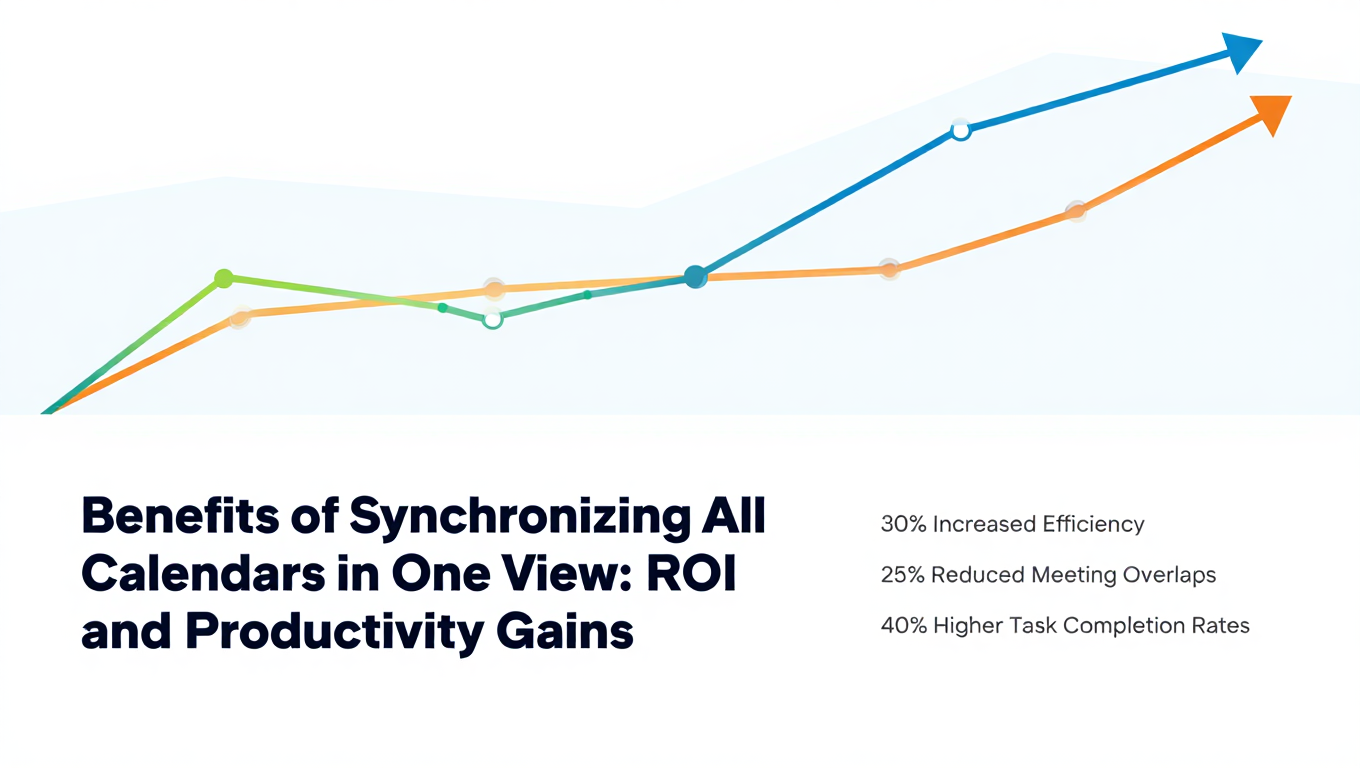
Benefits of Synchronizing All Calendars in One View: ROI and Productivity Gains
Discover the benefits of synchronizing all calendars in one view. See ROI data, productivity gains, reduced double bookings, and real-world business impact in 2025.
Best Bidirectional Calendar Sync Tools: 2025 Comparison Guide
Compare the best bidirectional calendar sync tools in 2025. Discover which platforms offer true two-way synchronization and which only provide one-way sync.
Best Two Way Calendar Sync Software: 2025 Expert Rankings & Comparison
Compare the top two-way calendar sync software tools. We tested 12 platforms for bidirectional sync speed, reliability, and field coverage to find which actually work.