
 Google Calendar
  Outlook Calendar
  Google Meet
  Microsoft Teams
  Zoom Meetings
 Sync Work and Personal Calendar Without Compromising Privacy
Protect your privacy while syncing work and personal calendars. Complete guide to privacy settings, employer policies, and secure calendar integration.
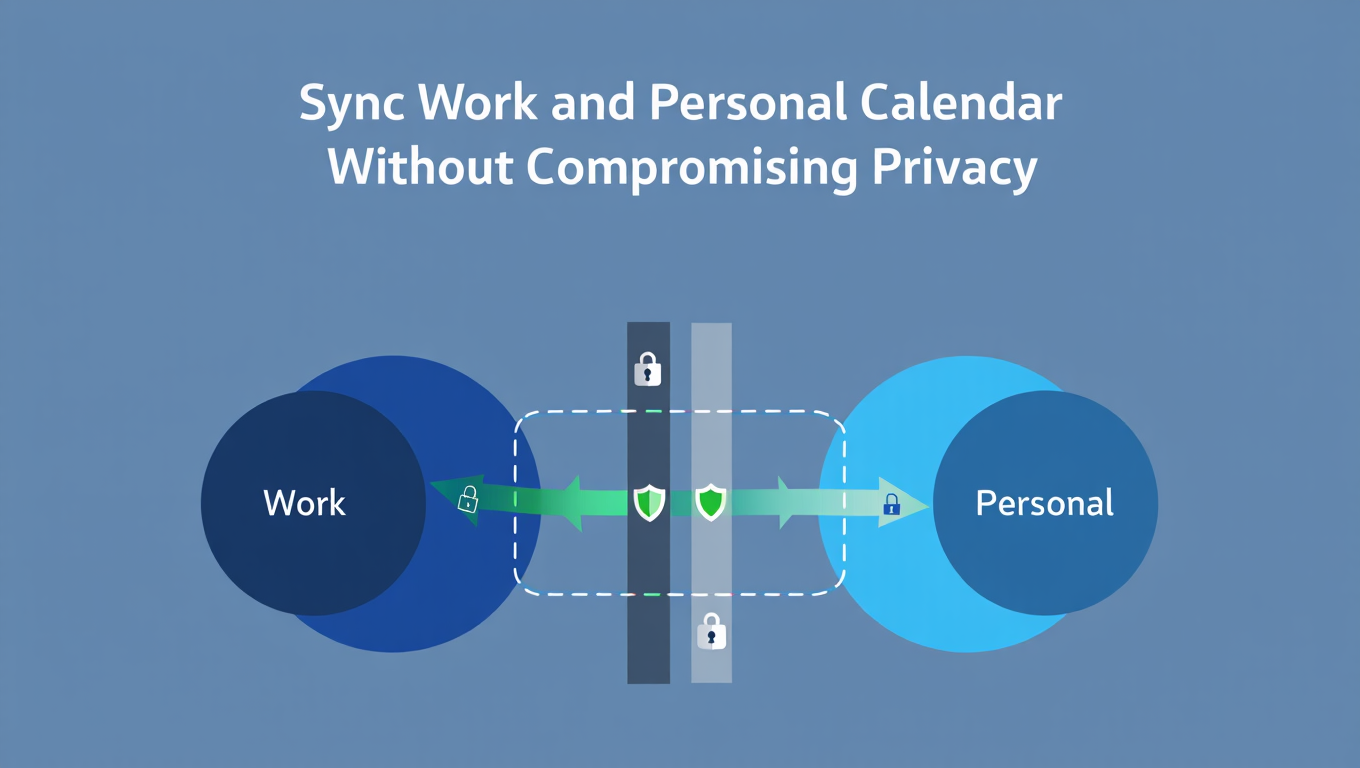
Your personal calendar contains more than just appointments. It holds medical visits, therapy sessions, job interviews, family commitments, and private matters you'd never want colleagues or employers to see. Yet you need your work calendar to show when you're unavailable to prevent double bookings.
This creates a genuine dilemma. How do you sync work and personal calendar to maintain accurate availability without exposing sensitive personal information? The answer lies in understanding privacy controls, employer policies, and security measures that protect your information while providing the scheduling integration you need.
- Colleagues seeing medical appointments, therapy sessions, or personal matters
- Employers accessing location data from personal events
- Confidential job searches becoming visible to current employers
- Family schedule details exposed to work systems
- Personal contact information accessible through work platforms
Understanding Calendar Privacy Fundamentals
Privacy in calendar synchronization means controlling what information crosses the boundary between your personal and professional life. When you sync work and personal calendar, you're creating a data connection that requires careful configuration to protect sensitive information.
Calendar events contain multiple data layers. The most basic layer is time availability, which simply indicates when you're busy or free. The next layer is the event title, showing what the commitment is called. Beyond that, you have descriptions, locations, attendee lists, attachments, and notes. Each layer reveals progressively more information.
Most calendar privacy breaches happen not through malicious access but through misconfigured sync settings. A professional sets up calendar integration choosing default settings that sync full event details, not realizing their employer can now see every personal appointment title, location, and participant.
The good news is that modern calendar sync tools offer granular privacy controls. You can sync time availability without revealing any event details, providing colleagues accurate scheduling information while keeping personal matters completely private.
How Employer Access to Calendars Actually Works
Understanding what employers can and cannot access is essential before you sync work and personal calendar. Many professionals operate under misconceptions about employer monitoring rights and technical capabilities.
What Employers Can See Through Work Calendar Systems
When you use an employer-provided calendar system like Microsoft 365 or Google Workspace, your employer owns that account and technically has access to everything within it. This includes all emails, calendar events, and files stored in that workspace.
However, access rights differ from actual monitoring practices. While employers have technical capability to view work calendar contents, most organizations don't actively monitor individual calendar events unless investigating specific policy violations or legal matters.
For work calendar events you create, employers can typically see full details including titles, descriptions, locations, and attendees. This is standard administrative access for IT departments managing organizational systems.
What Employers Cannot See Without Your Permission
Your personal calendar on your private Google, Apple, or Microsoft account remains completely separate from work systems. Employers have no technical access to these personal accounts.
When you sync work and personal calendar using proper privacy settings, employers see only what you configure them to see. If you set sync to show busy/free status only, they see blocked time without any personal event details. The personal calendar itself remains entirely separate and inaccessible.
Third-party calendar sync tools act as intermediaries. They have permissions you explicitly grant to read your personal calendar and write busy blocks to your work calendar. Your employer accesses only the work calendar, seeing the busy blocks but not the underlying personal calendar data that generated them.
GDPR and Privacy Regulations
Under GDPR and similar privacy regulations active in 2024-2025, employers must have legitimate reasons to monitor employee calendars and must be transparent about monitoring practices[^1]. In Europe and many other jurisdictions, employers cannot secretly monitor employee communications or calendar activities.
GDPR requires employers to follow seven fundamental principles when processing personal data including transparency, fairness, legality, purpose limitation, data minimization, accuracy, storage limitation, and security[^1]. These principles apply to employee monitoring including calendar access.
Most privacy regulations require employers to provide notice to employees before collecting and processing personal data. This information should appear in privacy notices easily accessible to employees, typically in employee handbooks and specific monitoring policies.
However, these protections apply primarily to employer monitoring of work systems. They don't restrict what you voluntarily share by syncing personal calendars to work systems with full detail settings. This is why configuring proper privacy controls matters so much.
[^1]: McKinsey & Company, "GDPR compliance and data privacy in the workplace," https://www.mckinsey.com/capabilities/risk-and-resilience/our-insights/gdpr
- Employers must inform you about calendar monitoring practices
- Monitoring must serve legitimate business purposes
- Employers cannot use exhaustive automated monitoring without justification
- You have rights to know what personal data is processed and how
- Consent obtained under power imbalance conditions may be invalid
- Data minimization requires collecting only necessary information
Three Levels of Calendar Privacy
When you sync work and personal calendar, you choose from three primary privacy levels. Understanding these options helps you select the appropriate level for your situation.
Level 1: Busy/Free Status Only
This is the most private option and the recommended choice for most professionals. Your work calendar displays blocked time showing you're unavailable during personal commitments, but reveals absolutely no details about what those commitments are.
Synced events appear with generic labels like "Busy," "Personal Time," or "Unavailable" depending on your sync tool configuration. Colleagues see that you have a commitment from 2 PM to 3 PM Thursday but have no information about whether it's a medical appointment, parent-teacher conference, or personal matter.
This privacy level prevents double bookings while maintaining complete confidentiality about personal activities. It provides the scheduling protection you need without exposing any sensitive information.
Busy/free sync is particularly important when dealing with sensitive appointments like medical visits, therapy sessions, legal consultations, or job interviews. These events require absolute privacy but still need to block work calendar time.
Level 2: Title Only
The middle ground shows event titles but no descriptions, locations, attendees, or other details. Your work calendar might display "Doctor Appointment" or "School Pickup" but nothing beyond those basic labels.
This level works for some professionals who want colleagues to understand the general nature of unavailability without revealing specifics. The risk is that even titles can expose sensitive information.
Consider whether colleagues seeing "Oncology Appointment," "Divorce Attorney Meeting," or "Interview" on your work calendar creates problems. For many professionals, these titles alone reveal too much.
If you choose title-only syncing, use generic labels for sensitive events. Instead of specific medical specialties, use "Medical Appointment." Instead of "Job Interview at CompanyX," use "Personal Meeting." This manual editing adds work but provides better privacy protection.
Level 3: Full Details
Full detail syncing shares complete event information including descriptions, locations, attendees, attachments, and notes. This level provides zero privacy protection and is almost never appropriate for personal-to-work calendar syncing.
The only scenario where full detail sync makes sense is syncing between two personal calendars you control, such as syncing your personal Google Calendar to your personal Outlook calendar for redundancy.
Never configure full detail syncing from personal to work calendars. The privacy risks far outweigh any convenience benefits.
Configuring Privacy Settings Correctly
Proper privacy configuration is essential before you sync work and personal calendar. These steps ensure your personal information stays protected.
Step 1: Review Your Employer's Technology Policies
Before implementing any calendar sync, review your employment agreement and technology use policies. Some organizations have specific rules about third-party tools accessing work systems or about mixing personal and professional data.
Regulated industries like healthcare, finance, and legal services often have stricter requirements. If your work involves HIPAA-protected health information, financial regulations like SOX, or attorney-client privilege, check whether calendar sync tools meet your industry's compliance requirements.
Most employers allow calendar synchronization as long as it doesn't compromise security or share confidential business information with unauthorized systems. However, confirming this before implementation prevents potential policy violations.
Step 2: Choose a Privacy-Focused Sync Tool
Not all calendar sync tools offer the same privacy protections. Evaluate options based on their privacy features and security practices.
Look for tools that offer busy/free sync as a standard option rather than requiring full detail sharing. Verify that the tool uses OAuth authentication rather than requiring you to share calendar passwords. Check whether the service stores copies of your calendar data or simply acts as a pass-through synchronizer.
Review the tool's privacy policy to understand what data they collect, how they use it, and whether they share it with third parties. Reputable calendar sync services should clearly explain their data practices.
CalendHub.com provides privacy-first calendar synchronization with granular controls over exactly what information syncs across the work-personal boundary. Unlike scheduling-focused platforms where calendar sync is an afterthought, CalendHub's calendar-first approach prioritizes protecting your sensitive information while maintaining accurate availability. Compare how CalendHub handles privacy versus competitors.
Step 3: Configure Busy/Free Sync Settings
When setting up calendar synchronization, explicitly select busy/free or availability-only mode. Don't accept default settings without verifying exactly what information they share.
Most sync tools present privacy options during initial configuration. Select the most restrictive option first. You can always expand information sharing later if needed, but you cannot retroactively protect information that's already been exposed.
Specify exactly which calendars sync. If you maintain multiple personal calendars for different purposes, choose which ones should create busy blocks on your work calendar. Your family shared calendar might warrant sync, while your dating calendar definitely doesn't.
Step 4: Test Privacy Settings Thoroughly
Before relying on your sync configuration, test it thoroughly to verify it protects your information as expected.
Create a test event in your personal calendar with a sensitive title and detailed description. Wait for sync to complete, then view your work calendar from a colleague's perspective if possible. Verify that only a generic busy block appears without any revealing information.
Edit the test event and confirm changes sync properly while maintaining privacy. Delete the event and verify it clears from both calendars. This testing catches configuration errors before they expose real sensitive information.
Step 5: Implement Ongoing Privacy Audits
Set quarterly reminders to review your calendar sync privacy settings. Software updates sometimes reset configurations to defaults, and policy changes might require adjusting your approach.
During these audits, verify that sync continues working as expected, privacy settings remain configured correctly, and no unexpected information is crossing the work-personal boundary.
- Employer Policies: Reviewed and confirmed calendar sync is permitted
- Sync Tool Selection: Chose privacy-focused service with strong security
- Privacy Level: Configured busy/free sync without detail sharing
- Calendar Selection: Only syncing appropriate personal calendars
- Testing Complete: Verified settings protect sensitive information
- Audit Schedule: Set quarterly reviews of privacy configuration
Advanced Privacy Strategies
Beyond basic privacy settings, these advanced techniques provide additional protection when you sync work and personal calendar.
Maintain Separate Personal Calendars for Different Privacy Levels
Consider using multiple personal calendars with different sync configurations. Create a "personal availability" calendar that syncs to work showing busy/free status for routine appointments. Maintain a separate "confidential personal" calendar that never syncs for truly sensitive matters like medical issues or job searches.
This segregation provides defense in depth. Even if sync settings malfunction, your most sensitive information remains completely isolated from work systems.
Use Generic Event Titles Even in Personal Calendars
If there's any possibility your sync tool might expose event titles, use generic labels even in your personal calendar. Instead of "Therapy Appointment," use "Personal Appointment." Instead of "Interview at CompanyX," use "External Meeting."
This practice protects you if sync settings change unexpectedly or if you accidentally share your screen showing your personal calendar during work video calls.
Implement Time-Based Sync Rules
Some advanced sync tools allow time-based rules. Configure sync to operate only during work hours, preventing early morning or evening personal events from appearing on work calendars at all.
This approach acknowledges that events outside work hours shouldn't require work calendar blocking in most professional environments. It provides an additional privacy layer while still preventing double bookings during the workday.
Create Location Privacy Rules
If your sync tool supports location filtering, configure it to sync only events at certain locations. Personal appointments at medical facilities or your children's schools might not sync, while appointments requiring you to be away from your office do sync as generic busy blocks.
This granular control reduces information exposure while maintaining the core benefit of preventing scheduling conflicts.
Leverage Calendar Color Coding for Privacy Awareness
Use distinct colors for different privacy levels in your personal calendar. Events marked red might be completely private and never sync. Yellow events might sync as busy blocks. Green events might be less sensitive and could sync with titles if needed.
Need better calendar management? CalendHub unifies all your calendars with smart scheduling and video conferencing.
This visual system makes it immediately obvious which events have which privacy protections, reducing the risk of accidentally exposing sensitive information.
Common Privacy Mistakes to Avoid
Even privacy-conscious professionals make these common errors when syncing calendars. Avoiding them protects your sensitive information.
Mistake 1: Accepting Default Privacy Settings
The biggest privacy mistake is accepting whatever default settings a sync tool offers without reviewing them. Many calendar sync services default to syncing event titles or even full details for convenience.
Always explicitly configure privacy settings rather than accepting defaults. Verify what information actually syncs by testing with sample events before relying on the system.
Mistake 2: Syncing Shared Family Calendars
If you maintain a shared family calendar with your spouse or household, be extremely careful about syncing it to work systems. Shared calendars often contain other people's sensitive information that they haven't consented to share with your employer.
Your spouse's medical appointments, your children's therapy sessions, or family legal matters shouldn't appear on work calendars even as busy blocks. Create a separate personal availability calendar specifically for sync purposes containing only your individual commitments.
Mistake 3: Forgetting About Calendar Invitations
When someone sends you a calendar invitation to your personal email, accepting it creates an event in your personal calendar. If that calendar syncs to work, the event appears on your work calendar.
Be mindful of what invitations you accept to synced personal calendars. A friend inviting you to a party with an inappropriate title creates problems when it syncs to your work calendar.
Mistake 4: Assuming Privacy Settings Are Permanent
Calendar sync tools update regularly, and updates sometimes reset configurations to defaults. Additionally, when you change passwords or reauthorize calendar access, privacy settings may revert.
Never assume your privacy configuration is permanent. Regular audits catch when settings have changed unexpectedly.
Mistake 5: Sharing Work Calendar Too Widely
The privacy of your synced calendar depends partly on who can view your work calendar. If your work calendar is visible to your entire organization, everyone sees your busy blocks. If only your direct team sees your calendar, privacy exposure is limited.
Review your work calendar sharing settings to ensure only necessary people have visibility. This limits how many colleagues can see even generic busy blocks from personal commitments.
Handling Sensitive Situations
Certain personal situations require extra privacy considerations when you sync work and personal calendar.
Medical Appointments and Health Issues
Medical appointments are among the most sensitive personal calendar events. Never sync medical appointments with titles like "Oncology," "Psychiatrist," or specific doctor names that reveal health information.
For medical appointments during work hours, create generic busy blocks labeled simply "Personal Appointment" or just "Busy." If colleagues ask about frequent personal appointments, you're under no obligation to explain beyond noting you have personal matters to attend to.
Under the Americans with Disabilities Act and similar laws worldwide, employers cannot inquire into medical conditions unless they directly affect job performance. Your calendar privacy helps maintain this boundary.
Job Searches While Employed
Searching for a new job while employed requires absolute calendar privacy. A calendar event labeled "Interview" or containing a potential employer's name creates obvious problems.
For job interviews, create non-syncing calendar events or use the most generic possible labels like "Personal Meeting" if sync is necessary. Consider scheduling interviews outside work hours when possible to avoid the calendar sync issue entirely.
Some professionals maintain completely separate job search calendars that never connect to any sync systems. This isolation provides maximum protection.
Legal Matters
Divorce proceedings, custody discussions, criminal legal issues, or even estate planning meetings deserve complete privacy. These sensitive legal matters should never appear on work calendars even as generic busy blocks if avoidable.
For legal appointments during work hours, use the minimum necessary calendar blocking. A simple "Personal Appointment" busy block suffices without revealing the legal nature of the commitment.
Family Situations
Family matters like marriage counseling, children's behavioral therapy, or family crisis interventions require privacy. These events impact your schedule but shouldn't be visible to colleagues.
Create generic placeholders that protect both your privacy and your family members' privacy. Remember that syncing family calendar events potentially exposes other people's sensitive information without their consent.
Religious Observances
While many professionals freely share religious observances, some situations require privacy. Job searches in discriminatory environments, religious practices that conflict with workplace norms, or simply personal preference to keep religion private all warrant careful calendar management.
Configure religious observances to sync as generic busy blocks rather than specific religious event titles if privacy matters in your situation.
- Medical appointments: Generic "Personal Appointment" labels only
- Job interviews: Non-syncing calendar or "Personal Meeting" at most
- Legal matters: Minimal necessary blocking with no details
- Family issues: Generic placeholders protecting all family members
- Religious observances: Individual choice of privacy level
- Therapy/counseling: Absolute privacy with generic blocking
Security Considerations for Calendar Sync
Privacy and security are related but distinct concerns. While privacy addresses what information others see, security addresses protecting calendar access from unauthorized users.
Authentication Methods and Security
When you sync work and personal calendar, you grant third-party tools access to both calendar systems. This access creates potential security vulnerabilities if not properly managed.
Use calendar sync tools that employ OAuth authentication rather than requiring your actual calendar passwords. OAuth grants limited permissions that you can revoke without changing passwords. If a sync service asks for your Google or Microsoft password directly, that's a major security red flag.
Enable two-factor authentication on all calendar accounts. This ensures that even if sync tool credentials are compromised, attackers cannot access your underlying calendar accounts without the second authentication factor.
Data Storage and Transmission
Understand how your sync tool handles calendar data. The most secure tools act as pass-through synchronizers that read your personal calendar and write busy blocks to your work calendar without storing copies of your events.
Less secure tools maintain copies of your calendar data on their servers. While this enables features like analytics and advanced filtering, it creates additional data breach risk.
Verify that sync tools use encrypted connections (HTTPS/TLS) for all calendar data transmission. Calendar data moving between systems unencrypted is vulnerable to interception.
Third-Party Tool Vetting
Before granting any third-party tool access to your calendars, research its security practices and reputation. Look for services that publish security audits, maintain SOC 2 compliance, or have other security certifications.
Read reviews from security-conscious users. Check whether the company has experienced data breaches in the past and how they responded. A company that quickly discloses and remediates breaches demonstrates better security culture than one that tries to hide issues.
Review what permissions the tool requests. Calendar sync requires read access to personal calendars and write access to work calendars, but shouldn't need access to email, contacts, or files unless offering integrated features requiring those permissions.
Access Token Management
Calendar sync tools use access tokens that permit them to interact with your calendars on your behalf. These tokens typically expire and require periodic renewal.
When tokens expire, sync stops working until you reauthorize access. This is actually a security feature rather than a bug. It ensures that tools must periodically reverify their access rather than maintaining permanent permissions.
Periodically review what applications have access to your calendar accounts. Both Google and Microsoft provide settings pages showing all apps with calendar access. Revoke access for any tools you no longer use.
Revoking Access
If you stop using a calendar sync tool, explicitly revoke its access to your calendar accounts rather than just stopping use. Forgotten access tokens represent security vulnerabilities.
For Google accounts, visit your Google Account settings, navigate to Security, select "Third-party apps with account access," and remove the sync tool. For Microsoft accounts, use the "Apps and services" section of account settings.
After revoking access, verify that synced events stop updating. This confirms the tool truly lost calendar access.
Platform-Specific Privacy Features
Different calendar platforms offer varying privacy features that enhance security when you sync work and personal calendar.
Google Calendar Privacy Controls
Google Calendar provides granular sharing controls for individual calendars. You can share calendars with specific people or make them public, and you can choose whether others see only free/busy information or full event details.
When syncing Google Calendars, verify that you haven't inadvertently made your personal calendar publicly accessible. This occasionally happens when users adjust sharing settings without understanding the implications.
Google Workspace (work) accounts offer additional admin controls. IT departments can restrict which third-party apps access organizational calendars. If your calendar sync tool stops working, your IT department may have changed these policies.
Microsoft Outlook Privacy Controls
Outlook and Microsoft 365 provide similar sharing granularity. You can share calendars with specific individuals, set organization-wide sharing policies, and control what information each recipient sees.
Outlook's "Private" event flag marks events that shouldn't appear when sharing calendars. However, this flag works within Microsoft's ecosystem and may not prevent sync tools from copying these events to other calendars.
For maximum privacy with Outlook, maintain separate calendars for different privacy levels rather than relying solely on the Private flag.
Apple Calendar Privacy Features
Apple Calendar integrates tightly with iCloud and provides end-to-end encryption for calendar data. This strong encryption protects data in transit and at rest.
However, third-party calendar sync tools require calendar access that bypasses some of these protections. When you grant a sync tool access to your Apple Calendar, you're creating a pathway that reduces the benefit of Apple's encryption.
Apple users particularly concerned about privacy should carefully evaluate whether calendar sync benefits outweigh the security trade-offs of granting third-party access.
Cross-Platform Privacy Challenges
Syncing calendars across different platforms (Google to Outlook, Outlook to Apple, etc.) introduces additional privacy considerations. Each platform has different security models and privacy controls.
Features that protect privacy on one platform may not translate to others. An Outlook event marked "Private" might sync to Google Calendar without any privacy protection.
When syncing cross-platform, default to the most restrictive privacy settings and test thoroughly to verify protection works as expected across all platforms involved.
Building a Privacy-First Calendar Sync Strategy
Implementing comprehensive calendar privacy requires a strategic approach rather than just configuring settings.
Step 1: Audit Your Current Calendar Privacy
Before implementing changes, assess your current situation. Review what information currently appears in your work calendar. Check whether any existing calendar sharing exposes more information than you realized.
Identify which personal calendar events absolutely must create busy blocks on your work calendar versus events that don't require work calendar visibility.
Step 2: Define Your Privacy Requirements
Clearly articulate your privacy needs. Are you comfortable with colleagues knowing you have personal appointments but not what they are? Do certain events require complete invisibility from work systems?
Consider your industry, role, and company culture. Privacy requirements differ significantly between environments. A healthcare executive has different considerations than a retail manager.
Step 3: Choose Tools Matching Your Privacy Needs
Select calendar sync tools that support your specific privacy requirements rather than compromising your needs to fit available tools.
If your privacy needs are strict, choose tools specifically designed for privacy-conscious users. CalendHub.com offers unlimited calendar integration with robust privacy controls, letting you sync as many calendars as needed while maintaining the confidentiality boundaries essential for your situation.
Step 4: Implement Multi-Layer Privacy Protection
Don't rely on a single privacy mechanism. Implement multiple protective layers so that if one fails, others maintain protection.
Use separate calendars for different privacy levels. Configure sync to busy/free only. Use generic event titles even in personal calendars. Limit work calendar sharing to necessary colleagues. These layers work together to protect sensitive information.
Step 5: Educate Stakeholders
If you work closely with assistants, colleagues who schedule on your behalf, or team members who view your calendar regularly, explain your privacy approach.
Let them know that busy blocks include personal commitments they shouldn't inquire about. This social layer of privacy protection complements technical measures.
Step 6: Monitor and Adjust
Privacy requirements evolve as your situation changes. New health issues, family situations, or career transitions may require adjusting your calendar privacy approach.
Regularly reassess whether your current privacy configuration still meets your needs or whether changes are warranted.
When Not to Sync Calendars
Sometimes the privacy risks of syncing work and personal calendar outweigh the benefits. Recognizing these situations helps you make informed decisions.
High-Security Work Environments
If you work in classified environments, defense contracting, or other high-security industries, calendar sync tools may violate security policies regardless of privacy settings.
These environments often prohibit connecting work systems to any external services, including calendar sync tools. The security risks of third-party access outweigh scheduling convenience benefits.
During Sensitive Life Events
Major life transitions like divorce, serious illness, or employment disputes may warrant temporarily disabling calendar sync for maximum privacy protection.
During these periods, manually manage scheduling conflicts rather than relying on automated sync that creates additional privacy risks.
When Employer Policies Prohibit It
If your employer explicitly prohibits third-party calendar tools or mixing personal and work data, honor those policies regardless of how well you could configure privacy settings.
Policy violations can result in disciplinary action even if your privacy configuration was technically sound.
For Highly Sensitive Professions
Therapists, attorneys, clergy, and others with professional confidentiality obligations should carefully evaluate whether any calendar sync risks violating those obligations.
Even syncing only busy/free status might create problems if the pattern of busy blocks could be analyzed to infer confidential information about clients or parishioners.
Your Privacy Action Plan
You now understand how to sync work and personal calendar while protecting sensitive information. Implementing these privacy protections requires deliberate action.
Start by reviewing your employer's technology policies to confirm calendar sync is permitted. Then evaluate your current calendar privacy to identify what information might be exposed currently.
Choose a calendar sync tool that prioritizes privacy with busy/free sync capabilities and strong security practices. Configure your sync with the most restrictive privacy settings initially. You can always relax restrictions later if needed.
Test your configuration thoroughly before relying on it. Create sensitive test events and verify they appear on your work calendar only as generic busy blocks without revealing details.
Implement the additional privacy layers discussed in this guide. Maintain separate calendars for different sensitivity levels. Use generic event titles. Limit work calendar sharing appropriately.
Set quarterly reminders to audit your calendar privacy settings. Verify they remain configured correctly and still meet your evolving needs.
Remember that 79% of professionals who schedule personal events on work calendars report improved work-life balance. Privacy-conscious calendar sync lets you achieve this benefit without compromising your sensitive personal information.
The goal isn't to hide that you have a personal life. It's to maintain appropriate boundaries about what personal details are visible in professional contexts. Proper privacy controls when you sync work and personal calendar let you prevent double bookings and maintain accurate availability while keeping sensitive matters private.
Your calendar is an intimate record of how you spend your time. Protecting that information while still enabling effective scheduling is both possible and essential in modern professional life. The privacy strategies in this guide give you the tools to achieve both goals simultaneously.
Ready to Simplify Your Schedule?
Join thousands of professionals who have unified their calendars and reclaimed their time with CalendHub's intelligent scheduling platform.
Related Articles
Benefits of Synchronizing All Calendars in One View: ROI and Productivity Gains
Discover the benefits of synchronizing all calendars in one view. See ROI data, productivity gains, reduced double bookings, and real-world business impact in 2025.
Best Bidirectional Calendar Sync Tools: 2025 Comparison Guide
Compare the best bidirectional calendar sync tools in 2025. Discover which platforms offer true two-way synchronization and which only provide one-way sync.
Best Two Way Calendar Sync Software: 2025 Expert Rankings & Comparison
Compare the top two-way calendar sync software tools. We tested 12 platforms for bidirectional sync speed, reliability, and field coverage to find which actually work.