
 Google Calendar
  Outlook Calendar
  Google Meet
  Microsoft Teams
  Zoom Meetings
 How to Synchronize All Calendars in One View: Complete 2025 Guide
Learn how to synchronize all calendars in one view with our step-by-step guide. Compare methods, avoid double bookings, and manage unlimited calendars efficiently.
You check your work calendar for availability. Three hours later, you discover you just double booked yourself because you forgot about that dentist appointment in your personal Google Calendar. Sound familiar?
Managing multiple calendars across different platforms creates chaos, missed appointments, and frustrated colleagues. The solution is to synchronize all calendars in one view, combining both true synchronization and unified viewing into a single workflow.
- The critical difference between calendar sync and unified view
- Step-by-step methods to synchronize all calendars in one view across platforms
- How to avoid the 6-calendar limit most tools impose
- Solutions for managing unlimited calendars with real-time synchronization
- Common mistakes that cause double bookings even with sync enabled
What Does It Mean to Synchronize All Calendars in One View?
To synchronize all calendars in one view means combining two distinct capabilities that most professionals need but few tools provide together.
True calendar synchronization actively copies events between calendars to block time and prevent double bookings. When someone adds an event to your work Outlook calendar, synchronization creates a duplicate event on your personal Google Calendar to mark that time as busy. This ensures accurate availability regardless of which calendar people check.
Unified calendar view displays multiple calendars simultaneously in one interface without switching between apps or tabs. Instead of opening Outlook, then Google Calendar, then iCloud separately, you see all events from every calendar on a single screen.
The problem is that most calendar tools offer one or the other, but not both. Google Calendar lets you view multiple calendars together, but it does not truly synchronize events between platforms. OneCal syncs calendars effectively but charges per calendar and limits most users to six calendars. CalendarBridge offers both sync and unified view but updates internet calendars slowly.
Research from 2024 shows that 83% of employed Americans depend on calendars to manage their daily workflow, yet calendar synchronization problems remain a leading cause of double bookings and scheduling conflicts. The average meeting starts six minutes late due to issues including double booking mix-ups, wasting 74.4 hours per employee every year.
Why Most Calendar Solutions Fall Short
Before we dive into the solution, you need to understand why standard approaches fail to synchronize all calendars in one view effectively.
Native calendar apps provide viewing, not synchronization. Google Calendar displays your Outlook and iCloud calendars alongside Google events, but this is read-only viewing. When someone checks your Google Calendar availability, they see only Google events, missing everything on Outlook or iCloud. You avoid personal double bookings, but colleagues and scheduling tools still book over your unavailable time.
Synchronization tools often lack unified dashboards. Many sync services copy events between calendars successfully but force you to manage calendars in their native apps. You still switch between Google Calendar, Outlook, and iCloud to view and edit events.
Calendar limits create artificial constraints. Popular tools like Calendly restrict you to six calendars, forcing professionals with multiple work calendars, personal calendars, and family calendars to choose which calendars to exclude. This defeats the purpose of comprehensive synchronization.
Slow update intervals cause timing gaps. Some platforms refresh internet calendar subscriptions only every 24 to 48 hours. Your unified view shows outdated information, creating the same double booking risk you tried to eliminate.
The ideal solution combines real-time bidirectional synchronization with an always-current unified dashboard that handles unlimited calendars. While platforms like CalendHub.com deliver this complete approach, let's explore all available methods so you can choose the best fit.
Method 1: Synchronize All Calendars Using Native Platform Features
Most calendar platforms offer basic synchronization capabilities, though with significant limitations.
Google Calendar Multi-Calendar Viewing
Google Calendar allows you to overlay multiple calendars in one view, but this is viewing, not true synchronization.
Step 1: Add External Calendars
- Open Google Calendar on desktop
- Click the plus icon beside "Other calendars"
- Select "Subscribe to calendar" for public calendars or "From URL" for iCal feeds
- For Outlook or iCloud, obtain the iCal URL from those platforms
- Paste the URL and click "Add calendar"
Step 2: Display Calendars Together
- In the left sidebar, check boxes next to each calendar you want visible
- Google Calendar displays all selected calendars in one view with color coding
- Toggle calendars on and off to reduce visual clutter
Limitation: This approach shows unified view but does not synchronize events between calendars. Your availability in Google Calendar does not reflect Outlook or iCloud events when others check your free and busy time.
Outlook Calendar Sharing and Overlays
Outlook provides calendar overlay capabilities for viewing multiple calendars simultaneously.
Step 1: Add Secondary Calendars
- In Outlook, click "Add Calendar" in the navigation pane
- Choose "From Internet" and paste iCal subscription URLs
- Alternatively, add calendars from your organization's directory
Step 2: Create Overlay View
- Right-click any calendar in the navigation pane
- Select "Overlay" to layer calendars in one view
- Each calendar displays in its assigned color
Limitation: Like Google Calendar, this provides unified viewing without true synchronization between external platforms.
iCloud Calendar Subscriptions
Apple's iCloud Calendar supports calendar subscriptions but with even more limited functionality.
Step 1: Subscribe to External Calendars
- Open Calendar app on Mac or iOS
- Go to File and then New Calendar Subscription (Mac) or tap "Add Subscription" (iOS)
- Enter the iCal URL from Google Calendar or Outlook
- Choose refresh frequency (though typically limited to daily updates)
Limitation: iCloud calendar subscriptions are read-only and update slowly, making this unsuitable for professional scheduling needs.
Method 2: Use Dedicated Calendar Synchronization Tools
Third-party synchronization services bridge the gap between platforms by actively copying events to maintain accurate availability everywhere.
OneCal: Fast Multi-Platform Sync
OneCal specializes in rapid calendar synchronization across Google, Outlook, and iCloud platforms.
Step 1: Connect Your Calendars
- Sign up at OneCal and connect your first calendar account
- Add additional calendar accounts (Google, Microsoft 365, iCloud)
- Select which specific calendars within each account to sync
Step 2: Configure Sync Settings
- Choose bidirectional sync for two-way updates or unidirectional for one-way copying
- Set privacy preferences to control which event details appear in synced copies
- Configure whether to show full event details or just "busy" blocks
- Enable real-time synchronization for immediate updates
Step 3: View Unified Calendar
- Use OneCal's Calendar View feature to display all calendars together
- Filter which calendars appear in your unified view
- Hide duplicate events created by synchronization to reduce clutter
Performance advantage: OneCal completes synchronization in approximately three minutes, which the company claims is five times faster than competitors. Updates happen in real-time rather than hourly or daily.
Limitation: OneCal charges per calendar and most plans restrict users to six calendars maximum. Professionals managing multiple work calendars, personal calendars, and family calendars quickly exceed this limit.
CalendarBridge: Unified Dashboard with Batch Sync
CalendarBridge offers both synchronization and a unified calendar interface in one platform.
Step 1: Create Sync Connections
- Log into CalendarBridge and navigate to Calendar Sync
- Add your Google, Microsoft 365, Outlook, and iCloud accounts
- Use batch sync creation to set up multiple calendar pairs simultaneously
- Configure sync direction (one-way or two-way) and privacy settings
Step 2: Access Unified Calendar View
- Open the Unified Calendar section in CalendarBridge
- View all connected calendars in one interface similar to Google Calendar
- Add, edit, and delete events across any connected calendar
- CalendarBridge refreshes internet calendars more frequently than native apps
Step 3: Manage Across Platforms
- No need to switch between Google Calendar, Outlook, and iCloud apps
- Make changes in the unified view and they sync to source calendars
- Check availability across all calendars from one dashboard
Limitation: While CalendarBridge refreshes internet calendars more frequently than the standard 24 to 48 hour interval, it still updates on a polling schedule rather than true real-time synchronization.
SyncThemCalendars: Privacy-Focused Sync
SyncThemCalendars provides calendar synchronization with strong privacy controls for professionals who need to hide event details.
Step 1: Set Up Synchronization
- Connect your Google and Outlook calendars to SyncThemCalendars
- Choose whether synced events display full details or just show as "busy"
- Select which fields to hide in copied events (title, description, location, attendees)
- Configure one-way or bidirectional sync
Step 2: Enable Unified Viewing
- SyncThemCalendars brings all calendars into one view
- Toggle calendars on and off to control visibility
- Synced events update in real-time across platforms
Privacy advantage: This tool excels at maintaining privacy while preventing double bookings. Your personal event titles and details stay hidden while still blocking time on your work calendar.
Limitation: SyncThemCalendars focuses primarily on Google and Outlook, with less robust support for iCloud and other platforms.
Method 3: Synchronize All Calendars in One View with CalendHub
Unlike tools that force you to choose between synchronization and unified viewing, or impose arbitrary calendar limits, CalendHub.com delivers both capabilities with unlimited calendars.
Complete synchronization across unlimited calendars. CalendHub does not restrict you to six calendars or charge per calendar. Connect all your work calendars, personal calendars, family calendars, and project calendars without limits. True bidirectional synchronization ensures every calendar reflects your complete availability.
Unified dashboard with real-time updates. View and manage all calendars from one interface that updates instantly as events change. No switching between apps, no outdated information, no manual refreshing.
Zero configuration complexity. While other tools require complex setup for each calendar pair, CalendHub simplifies the entire process. Connect your accounts and start synchronizing all calendars in one view within minutes.
Enterprise-grade reliability. Built for professionals and teams who cannot afford double bookings or calendar failures, CalendHub provides the dependable synchronization that scheduling-dependent businesses require.
- Unlimited calendars: No artificial restrictions forcing you to exclude calendars
- True real-time sync: Events update instantly across all platforms
- Unified management: Single dashboard for viewing, editing, and scheduling
- No per-calendar fees: Straightforward pricing regardless of calendar count
- All platforms supported: Google, Outlook, iCloud, Microsoft 365, and more
Advanced Configuration: Optimizing Your Synchronized Calendar View
Once you synchronize all calendars in one view using your chosen method, optimize the setup for maximum effectiveness.
Configure Privacy and Visibility Settings
Not every calendar sync should show full event details. Configure privacy levels based on which calendars you are connecting.
For personal to work calendar sync: Set synced events to show only "busy" without event titles, descriptions, or locations. This prevents double bookings while keeping personal activities private.
For work to personal calendar sync: You might want full details visible so you can reference meeting information from your phone when traveling.
For team calendar sync: Consider showing event titles and locations but hiding descriptions that might contain confidential information.
Most synchronization tools offer granular privacy controls. Invest time configuring these correctly to avoid accidentally exposing sensitive information.
Set Sync Direction Appropriately
Understanding when to use one-way versus two-way synchronization prevents unintended calendar modifications.
Bidirectional (two-way) sync: Use this when you need full synchronization between calendars you personally control. Changes made on either calendar update the other. Ideal for personal and work calendars you actively manage.
Unidirectional (one-way) sync: Choose this for calendars you observe but should not modify. For example, syncing a company-wide events calendar to your personal calendar should be one-way. You want visibility to company events, but changes you make should not push back to the company calendar.
Multiple unidirectional syncs: Some professionals create multiple one-way syncs pointing toward one primary calendar. All other calendars feed into a master calendar, creating a complete availability view in one place.
Manage Sync Frequency and Timing
Real-time synchronization is ideal, but not all tools support it. For those using polling-based sync, optimize update frequency.
Need better calendar management? CalendHub unifies all your calendars with smart scheduling and video conferencing.
For critical work calendars: Set the fastest possible refresh interval to minimize the window where calendars show outdated information.
For reference calendars: Less frequent updates suffice for calendars you monitor but rarely change, such as company holiday calendars or team vacation calendars.
Consider bandwidth and performance: More frequent synchronization consumes more API calls and potentially impacts performance. Balance responsiveness against resource usage.
Handle Time Zones Correctly
Calendar synchronization across time zones trips up many users, especially remote workers and international teams.
Verify time zone settings on each calendar. Ensure every calendar uses the correct time zone for its purpose. Your work calendar should reflect your work location's time zone, even if you travel.
Check sync tool time zone handling. Quality synchronization tools automatically convert event times to the appropriate time zone for each calendar. Verify this works correctly before relying on it for important meetings.
Test with cross-time-zone events. Before trusting your synchronization setup, create test events scheduled in different time zones and confirm they appear at the correct times on all calendars.
Troubleshooting Common Synchronization Problems
Even properly configured synchronization occasionally encounters issues. Here is how to diagnose and resolve common problems.
Events Are Not Syncing Between Calendars
Check connection status. Most synchronization tools display connection health for each linked calendar. Verify all calendars show active, healthy connections. Expired authentication tokens are a frequent culprit.
Verify sync is enabled for specific calendars. Some tools require you to enable synchronization at both the account level and the individual calendar level. Check that each calendar you want synced has synchronization turned on.
Review event privacy settings. Events marked as private on some platforms might not synchronize depending on your tool's configuration. Check whether private events should sync and adjust settings accordingly.
Confirm you are within calendar limits. If using a tool with calendar restrictions, verify you have not exceeded the maximum number of calendars. Tools hit limits silently fail to sync additional calendars.
Duplicate Events Appear After Synchronization
Seeing multiple copies of the same event clutters your calendar and creates confusion.
This is often intentional. True synchronization creates duplicate events by design. An event on your work calendar gets copied to your personal calendar to block that time. Both events represent the same commitment.
Use duplicate hiding features. Tools like OneCal and CalendarBridge offer options to hide duplicate synced events when viewing calendars together, showing each unique event only once.
Avoid manual duplication. Never manually create the same event on multiple calendars when using synchronization. Add the event to one calendar and let synchronization create the copies.
Calendars Show Outdated Information
Your unified view displays events that were already changed or deleted on the source calendar.
Force a manual sync. Most synchronization tools offer a manual refresh button to force immediate synchronization. Use this when you need instant updates.
Check sync frequency settings. Polling-based synchronization tools update on intervals. If set to sync every hour, your calendar might be up to 60 minutes behind. Increase frequency or switch to a real-time sync solution.
Verify internet calendar update intervals. Calendar subscriptions via iCal URLs often refresh only daily. Consider switching to API-based synchronization for faster updates.
Clear cache and reconnect. Stale cached data occasionally causes display issues. Disconnect and reconnect the problem calendar to force a complete refresh.
Authorization and Permission Errors
Synchronization stops working with authentication failures or permission errors.
Reauthorize calendar connections. OAuth tokens expire periodically. Sign out and sign back in to refresh authentication credentials.
Check delegated calendar permissions. If syncing a calendar someone else owns, verify you still have appropriate access permissions. Permission changes break synchronization.
Review third-party app access settings. Google, Microsoft, and Apple periodically tighten security policies. Check that your synchronization tool still has permission to access calendar data in each platform's security settings.
Best Practices for Managing Synchronized Calendars
Synchronization creates new workflow opportunities but also requires discipline to use effectively.
Designate a Primary Calendar for New Events
When you synchronize all calendars in one view, choosing where to create new events becomes important.
Pick one primary calendar. Decide which calendar should be your "source of truth" for new events. Most professionals choose their work calendar or most-used personal calendar.
Create events on the primary calendar only. Add all new events to this designated calendar and let synchronization copy them to other calendars as configured.
Avoid creating events on synchronized copies. Never add events to calendars that receive synced copies from your primary calendar. This causes conflicts and defeats the purpose of unidirectional sync.
Establish Clear Naming Conventions
With events appearing across multiple calendars, clear naming prevents confusion.
Use prefixes for synced events. Configure your sync tool to add prefixes like "Work" or "Personal" to synced event copies. This makes the event source immediately obvious.
Include location in event titles when relevant. For professionals splitting time between offices, adding location to event titles provides quick context when viewing a crowded calendar.
Distinguish similar recurring events. If you have multiple recurring meetings with similar names, differentiate them clearly to avoid joining the wrong call or arriving at the wrong location.
Review Synchronization Health Weekly
Synchronization running in the background can fail silently, leading to dangerous gaps in availability.
Schedule a weekly sync audit. Spend five minutes each week verifying that events appear correctly across all calendars.
Test both directions for bidirectional sync. Create a test event on each calendar and confirm it appears on all synchronized calendars.
Check for authorization expiration notices. Address any warnings about expiring credentials before synchronization breaks.
Plan for Synchronization Downtime
No system achieves 100% uptime. Prepare for occasional synchronization failures.
Know how to check each calendar independently. Bookmark direct links to Google Calendar, Outlook web, and iCloud calendar. If your unified view fails, you can still check availability across platforms manually.
Communicate calendar preferences to colleagues. Tell frequent collaborators which calendar to check when scheduling with you. This reduces confusion when synchronization hiccups occur.
Have a backup scheduling method. Tools like CalendHub.com provide robust redundancy, but always have an alternative approach for critical scheduling situations.
Security and Privacy Considerations
Synchronizing calendars across platforms multiplies your exposure if security is not handled properly.
Understand Data Access Permissions
Calendar synchronization tools require broad access to read, create, and modify events across all connected calendars.
Review requested permissions carefully. Before connecting calendars to any synchronization service, examine exactly which permissions the tool requests. Legitimate tools need read and write access, but should not request unrelated permissions.
Use reputable, established services. Stick with calendar synchronization providers that have track records and transparent security practices. Avoid unknown tools requesting extensive calendar access.
Check where data is stored and processed. Understand whether synced calendar data passes through the provider's servers or uses direct calendar-to-calendar synchronization. Server-based processing adds potential security exposure.
Control Sensitive Information Sharing
Calendar events often contain confidential information that should not leak across contexts.
Use "show as busy" for sensitive events. Configure synchronization to hide details for events containing confidential information, displaying only time blocks.
Avoid syncing confidential calendars to personal devices. If handling highly sensitive information on work calendars, consider excluding those calendars from synchronization to personal devices that might be lost or stolen.
Audit what appears on each calendar. Periodically review what information appears on each synchronized calendar to ensure privacy settings work as intended.
Manage Access to Synchronized Calendars
When you synchronize all calendars in one view, anyone with access to one calendar might infer information about others.
Be cautious sharing synchronized calendars. Sharing a calendar that receives synced events from other calendars effectively shares information about those other calendars too.
Use calendar-specific sharing. Share only the specific calendar relevant to the recipient rather than sharing your unified view containing all calendars.
Review delegate and subscription access. Regularly audit who has delegate access or subscription URLs for your calendars, especially after employee departures or role changes.
Measuring Success: Is Your Synchronization Working?
Implementing calendar synchronization should produce measurable improvements in scheduling efficiency and reduced conflicts.
Track Double Booking Incidents
The primary goal of synchronizing all calendars in one view is eliminating double bookings.
Before implementing synchronization: Note how many double bookings occur per month. Include both meetings scheduled over each other and missed appointments you forgot about.
After one month of synchronization: Count double booking incidents again. You should see dramatic reduction if synchronization is working properly.
Investigate remaining incidents. Any double bookings that still occur indicate gaps in your synchronization setup. Trace each incident to its root cause and address the configuration issue.
Monitor Time Saved Switching Between Calendars
Unified viewing reduces time spent navigating between calendar apps.
Estimate time previously spent checking multiple calendars. Most professionals check calendars dozens of times daily. If you spent even 30 seconds per check opening different apps, this accumulates quickly.
Track your workflow with unified view. After implementing synchronization with unified viewing, notice how often you access each calendar's native app. This should decrease substantially.
Calculate weekly time savings. If unified viewing eliminates 20 calendar app switches daily at 30 seconds each, you save 10 minutes per day or 50 minutes weekly.
Evaluate Scheduling Friction with Others
Calendar synchronization improves scheduling efficiency with colleagues and external contacts.
Note scheduling-related emails and messages. Before synchronization, count messages like "Are you available Tuesday?" or "Sorry, I need to reschedule, I have a conflict."
Compare after synchronization. Accurate availability across all calendars should reduce back-and-forth scheduling communications as others see your actual availability.
Survey frequent collaborators. Ask colleagues whether scheduling with you has become easier. Their perspective reveals whether your availability is truly accurate across platforms.
The Future of Calendar Synchronization
Calendar technology continues evolving to address synchronization and unified viewing challenges.
AI-Powered Scheduling Assistants
Artificial intelligence is transforming how calendar synchronization tools handle scheduling.
Automatic conflict detection and resolution. Modern calendar tools analyze patterns in your scheduling preferences and proactively identify potential conflicts before they cause problems.
Smart time suggestions. AI examines all synchronized calendars to suggest optimal meeting times based on your preferences, energy levels throughout the day, and commitments across all calendars.
Context-aware privacy controls. Advanced systems automatically adjust what information syncs between calendars based on event context, participant relationships, and content sensitivity without manual configuration.
Tighter Platform Integrations
Calendar platforms are expanding API capabilities and reducing barriers to synchronization.
Real-time webhook notifications. Instead of polling for changes every few minutes, modern calendar APIs push instant notifications when events change, enabling true real-time synchronization.
Standardized synchronization protocols. Industry movement toward common standards makes calendar synchronization more reliable and reduces platform-specific quirks.
Cross-platform availability intelligence. Calendar platforms increasingly share availability status across ecosystems, making it easier to synchronize all calendars in one view accurately.
Enhanced Mobile Experiences
Mobile calendar synchronization lagged behind desktop capabilities for years, but this gap is closing.
Native mobile unified views. Mobile calendar apps increasingly support displaying multiple calendars simultaneously with desktop-comparable functionality.
Offline synchronization resilience. Modern sync tools cache data and queue changes made offline, synchronizing when connectivity returns without losing updates.
Location-aware calendar management. Mobile devices leverage location data to provide context-aware calendar views, automatically highlighting relevant calendars based on where you are.
Conclusion: Take Control of Your Calendar Chaos
Learning to synchronize all calendars in one view transforms calendar management from a source of stress and missed appointments into a reliable system supporting productivity.
The key is understanding that you need both true synchronization and unified viewing. Synchronization copies events between calendars to prevent double bookings by accurately representing your availability everywhere. Unified viewing displays all calendars together, eliminating time wasted switching between apps.
Most calendar tools provide one capability or the other, but rarely both. Native platform features offer viewing without synchronization. Dedicated sync tools often lack unified dashboards or impose calendar limits. Platforms like CalendHub.com remove these compromises by delivering complete synchronization across unlimited calendars with real-time unified viewing.
Start by assessing how many calendars you actually manage. Most professionals juggle at least three: work calendar, personal calendar, and family or shared calendar. Many manage significantly more when accounting for project calendars, team calendars, and client calendars. Choose a synchronization approach that handles your actual calendar count without forcing compromises.
Then configure synchronization thoughtfully with appropriate privacy settings, sync directions, and frequency. Test thoroughly before relying on the system for critical scheduling. Monitor for double bookings and synchronization failures, especially in the first month.
The time invested in properly synchronizing all calendars in one view pays dividends through eliminated double bookings, reduced scheduling friction, and hours saved each week not switching between calendar apps. Your calendar becomes a trusted system rather than a source of anxiety and missed commitments.
Ready to Simplify Your Schedule?
Join thousands of professionals who have unified their calendars and reclaimed their time with CalendHub's intelligent scheduling platform.
Related Articles
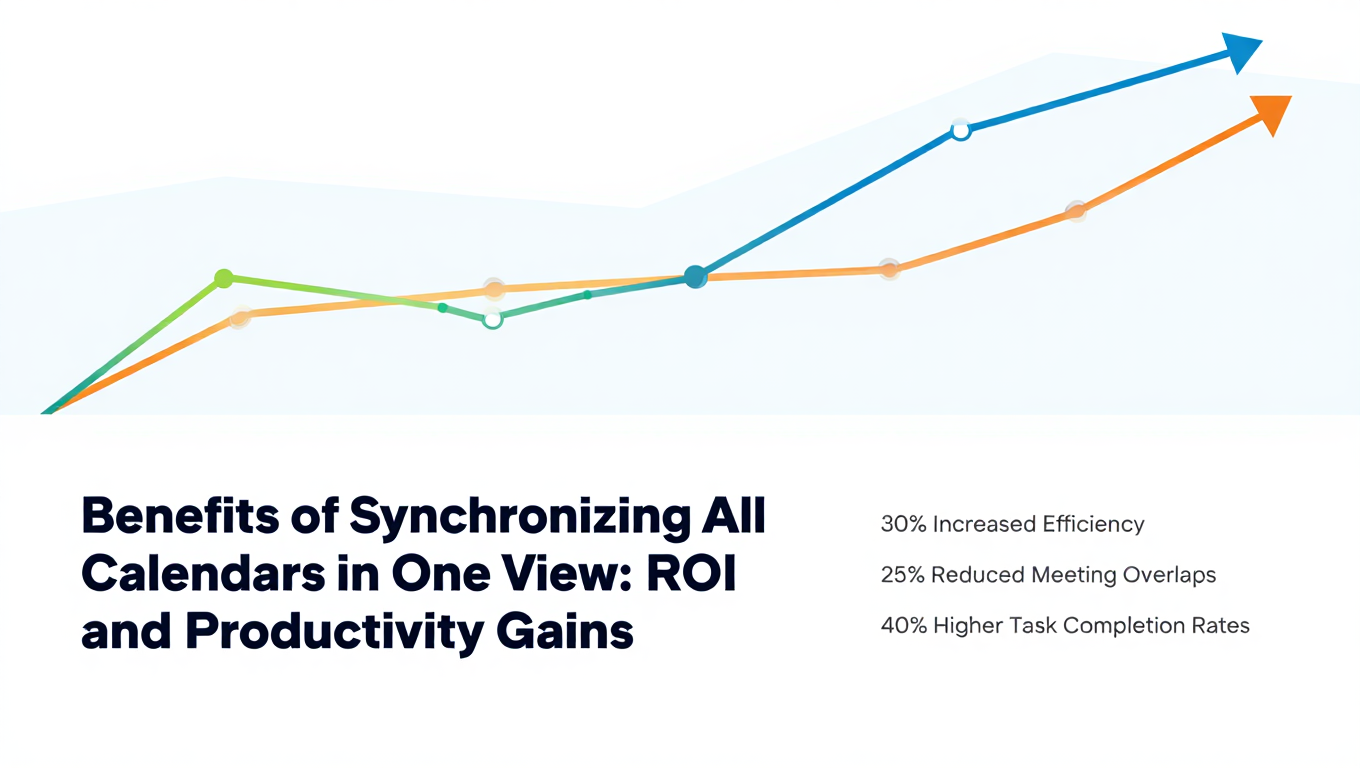
Benefits of Synchronizing All Calendars in One View: ROI and Productivity Gains
Discover the benefits of synchronizing all calendars in one view. See ROI data, productivity gains, reduced double bookings, and real-world business impact in 2025.
Best Bidirectional Calendar Sync Tools: 2025 Comparison Guide
Compare the best bidirectional calendar sync tools in 2025. Discover which platforms offer true two-way synchronization and which only provide one-way sync.
Best Two Way Calendar Sync Software: 2025 Expert Rankings & Comparison
Compare the top two-way calendar sync software tools. We tested 12 platforms for bidirectional sync speed, reliability, and field coverage to find which actually work.