
 Google Calendar
  Outlook Calendar
  Google Meet
  Microsoft Teams
  Zoom Meetings
 How to Manage Multiple Work Calendars: Complete Guide 2025
Master managing multiple work calendars across platforms. Stop double bookings, save 4+ hours weekly, and maintain professional scheduling without chaos.
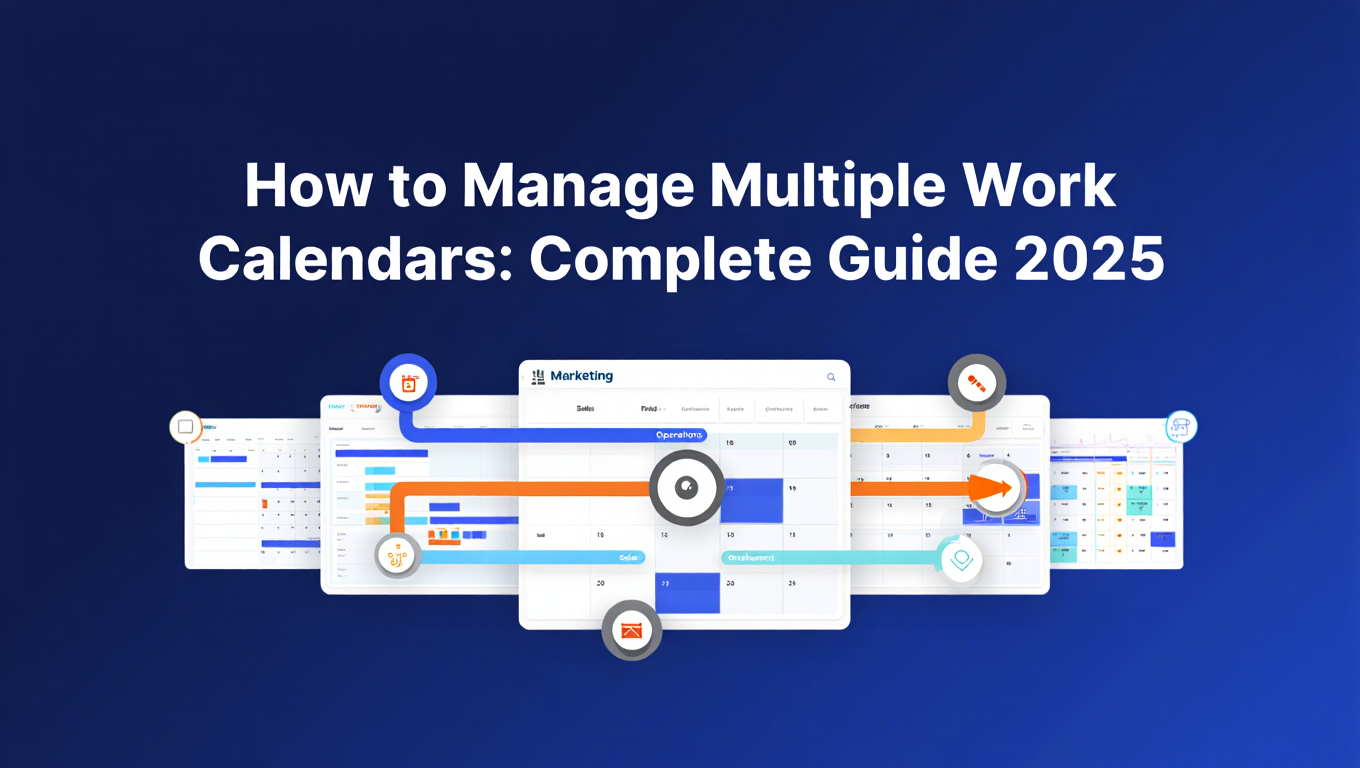
Maria manages calendars for three different consulting clients, each requiring a separate Google Calendar. She also maintains her corporate Outlook calendar from her board advisor role, a personal iCloud calendar for family coordination, and two project-specific calendars for ongoing initiatives. That's eight calendars across four different platforms.
Yesterday morning, she double booked a critical client presentation because her consulting calendar didn't reflect a board meeting from Outlook. Last week, she arrived 30 minutes late to a project kickoff after her phone only showed events from her personal calendar. She spends nearly 90 minutes daily just checking all eight calendars to understand her actual availability before responding to meeting requests.
The stress of juggling multiple work calendars is completely avoidable. With proper calendar management strategies, you maintain unified visibility across all calendars, eliminate double bookings, and reduce calendar administration time by 70% or more. No more calendar checking marathons. No more embarrassing scheduling conflicts. No more choosing which calendars to track and which to risk forgetting.
This comprehensive guide provides proven strategies, technical solutions, and professional best practices for managing multiple work calendars effectively in 2025.
- Why professionals need multiple work calendars and how to manage them effectively
- Proven strategies for unifying calendar visibility across all platforms
- Step-by-step calendar synchronization setup to prevent double bookings
- Professional workflows that reduce calendar management time by 70%
- Advanced techniques for managing 10+ work calendars without complexity
- How to choose the right calendar management tools for your needs
What Does It Mean to Manage Multiple Work Calendars?
Managing multiple work calendars means maintaining accurate, synchronized scheduling across different calendar accounts and platforms while preventing conflicts, reducing administrative overhead, and ensuring you never miss professional commitments.
You manage multiple work calendars effectively when you achieve unified visibility into all commitments without manually checking each calendar individually, when scheduling a meeting in one calendar automatically blocks that time across all others, and when your availability accurately reflects every professional obligation regardless of which calendar system controls it.
Most professionals develop multiple work calendars naturally as their careers expand. A consultant might maintain separate calendars for different clients to organize projects distinctly. An executive serving on multiple boards needs separate calendars for each organization. Remote workers often maintain distinct work and personal calendars to establish boundaries. Entrepreneurs managing several businesses require separate calendars per venture to track commitments accurately.
According to 2024 research, nearly 80% of adults use digital calendars for scheduling (U.S. Bureau of Labor Statistics), and professionals managing multiple roles or businesses typically maintain 4-7 separate calendars simultaneously. Without effective management strategies, this calendar fragmentation creates significant productivity drains and professional risks.
Many professionals experience calendar chaos from checking too many calendars daily.
Why Managing Multiple Work Calendars Is Critical in 2025
Before diving into management strategies, understanding why multiple work calendar management matters helps clarify what you're solving.
Context Switching Destroys Productivity
Research from 2024 demonstrates that context switching can consume up to 40% of productive time (McKinsey). When you must check five different calendars before committing to a meeting, you're forcing your brain to switch contexts five times just for one scheduling decision.
The average professional switches between apps and websites nearly 1,200 times daily, losing approximately 4 hours per week to these transitions (Atlassian). Every time you open a different calendar platform to check availability, you're adding to this productivity drain. Multiple calendar management reduces these switches by creating unified visibility.
Double Bookings Damage Professional Reputation
Poor scheduling practices cost businesses $1.8 trillion annually in lost productivity, according to industry studies (McKinsey). For individual professionals, double bookings create concrete damage beyond missed meetings.
Learn how to prevent double bookings across multiple calendars with proven strategies.
When a client arrives for a scheduled call that conflicts with another commitment you forgot to check, you signal disorganization and unreliability. When you miss a board meeting because it wasn't visible in the calendar you checked that morning, you lose credibility. These reputation hits compound over time, directly impacting career advancement and business development.
Double bookings aren't just inconvenient. They waste other people's time, create rescheduling cascades where fixing one conflict creates others, and in consulting and client services, directly correlate with customer churn and contract non-renewals.
Calendar Fragmentation Creates Mental Overload
The cognitive burden of tracking multiple disconnected work calendars is exhausting. You can't confidently commit to new meetings without first checking three, four, or five different calendar systems. You constantly worry about conflicts you might have missed. You second-guess whether you've captured all commitments when planning your week.
This mental load reduces focus, increases stress, and contributes to professional burnout. Studies show that 82% of people lack an effective time management system, and 35% identify time management as their biggest productivity challenge (Atlassian). For professionals managing multiple work calendars, these challenges multiply exponentially.
Effective multiple work calendar management eliminates this cognitive tax by maintaining a single source of truth across all platforms, letting you confidently schedule without fear of forgotten commitments.
Tool Limitations Force Artificial Constraints
Popular scheduling platforms impose arbitrary calendar limits that restrict professionals. Calendly's free plan allows just one connected calendar, and even paid plans have practical restrictions around how many calendars function smoothly together.
For consultants managing calendars for multiple clients, executives juggling several organizational roles, or entrepreneurs running multiple ventures, these artificial limits force impossible choices about which calendars to connect and which to manage manually.
Calendar management platforms built for power users, like CalendHub.com, eliminate these arbitrary restrictions entirely. You can manage 10, 15, 20+ work calendars without hitting artificial limits, because the platform was designed specifically for professionals with extensive calendar portfolios.
Understanding Different Approaches to Multiple Work Calendar Management
Multiple strategies exist for managing work calendars, each solving different aspects of the challenge.
Calendar Consolidation means merging multiple calendars into a single unified calendar. All events from all sources appear in one master calendar. This provides ultimate simplicity but loses organizational separation between different roles or clients. Consolidation works well for professionals with 2-3 calendars who don't need distinct separation.
Calendar Synchronization automatically replicates events across different calendars bidirectionally. When you create an event in Calendar A, it appears in Calendar B and Calendar C. Modify it anywhere, and changes propagate everywhere. Delete it once, and it disappears from all calendars. Synchronization maintains separate calendars while ensuring unified availability.
Calendar Aggregation displays multiple calendars in one view without actually syncing events. Google Calendar and Outlook offer native aggregation, letting you view work calendar, personal calendar, and client calendars side by side. However, events stay in their original calendars. Booking time in your work calendar doesn't block that time in client calendars unless you manually duplicate events.
Calendar Overlay is similar to aggregation, providing a unified visual display of multiple calendars without synchronization. You see everything at once, but must still manage each calendar separately.
For most professionals managing multiple work calendars, synchronization provides the optimal balance. It maintains organizational separation between different professional roles while ensuring that scheduling a commitment in any calendar blocks that time everywhere, preventing double bookings.
Step-by-Step: How to Set Up Multiple Work Calendar Management
Implementing effective multiple work calendar management follows a structured process regardless of which specific tools you choose.
Phase 1: Audit Your Current Calendar Situation
Before implementing management strategies, understand exactly what you're working with.
Step 1: Inventory All Work Calendars
List every work-related calendar you currently maintain:
- Corporate calendars (Outlook, Google Workspace)
- Client-specific calendars
- Project calendars
- Board or advisory role calendars
- Business venture calendars
- Shared team calendars you manage
- Scheduling or booking calendars
Don't forget calendars embedded in specialized tools. Some project management platforms, CRM systems, and collaboration tools maintain separate calendars that impact your availability.
Step 2: Identify Which Platform Each Calendar Uses
Document the platform for each calendar:
- Google Calendar
- Microsoft Outlook/Office 365
- Apple iCloud Calendar
- Exchange Server
- Platform-specific calendars (Salesforce, Monday.com, etc.)
Understanding platform distribution helps determine which management tools will work, as not all solutions support every calendar platform.
Step 3: Determine Access Level for Each Calendar
Verify you have necessary access:
- Do you own the calendar or just have viewing/editing permissions?
- Can you connect third-party tools, or do IT policies restrict external access?
- Do you have administrator rights if needed for sync setup?
Corporate calendars frequently have policies restricting third-party connections. Verify permissions before investing time in setup.
Step 4: Define Your Management Priorities
Clarify what you're trying to achieve:
- Prevent double bookings (unified availability)
- Reduce time checking multiple calendars
- Maintain separation between different professional roles
- Enable confident scheduling without calendar anxiety
- Improve professional reliability
Your priorities influence which management approach best fits your needs.
Phase 2: Choose Your Management Approach and Tools
Based on your audit, select appropriate strategies and tools.
Determine Calendar Count Threshold
If managing 2-3 work calendars, native platform features like Google Calendar's multiple calendar view or Outlook's calendar groups may suffice with disciplined manual management.
If managing 4-6 work calendars, dedicated calendar sync tools provide significant productivity gains.
If managing 7+ work calendars, calendar-first platforms built for power users like CalendHub.com become essential. These platforms eliminate artificial limits and provide interfaces optimized for extensive calendar portfolios.
Evaluate Calendar Sync Tool Options
For professionals needing synchronization, evaluate tools based on:
Platform Support: Verify the tool supports all your calendar platforms. Most handle Google Calendar and Outlook well. iCloud Calendar support varies. Specialized platform calendars may require different approaches.
Calendar Connection Limits: Some tools cap calendar connections at 6-8 calendars. Others, like CalendHub.com, offer unlimited connections. Ensure the tool scales to your portfolio.
Sync Speed: Quality tools sync within 1-2 minutes. Some budget options only sync every 15-30 minutes, making them impractical for active scheduling.
Privacy Controls: Verify the tool offers granular controls for what information syncs between calendars. Work calendars might need full details while personal calendars show only busy blocks.
Reliability: Check uptime statistics, user reviews, and whether the tool provides monitoring dashboards.
Cost: Balance features against budget. Free tools often impose significant restrictions. Professional tools typically cost $10-30 monthly.
Consider Hybrid Approaches
Many professionals combine approaches:
- Synchronize critical work calendars to prevent double bookings
- Aggregate additional calendars for visibility without full sync
- Consolidate similar calendars (multiple client calendars into one client master) to reduce total calendar count
Phase 3: Implement Calendar Synchronization
Once you've selected tools, implement synchronization systematically.
Step 1: Start with Two Calendars
Don't attempt to sync your entire calendar portfolio simultaneously. Begin with your two most critical work calendars to learn the process and verify everything works correctly.
Connect these calendars to your chosen sync tool following the tool's specific authentication process. This typically involves:
- Adding the first calendar (OAuth authentication with Google, Microsoft, or Apple)
- Granting necessary permissions
- Adding the second calendar using the same process
- Configuring sync rules between the two calendars
Step 2: Configure Sync Rules Carefully
Define how these calendars should synchronize:
Sync Direction: Choose bidirectional sync so changes in either calendar propagate to both. One-way sync only flows from source to destination, which rarely matches professional needs.
Event Detail Level: Decide whether full event information syncs or just busy blocks. Most work-to-work calendar syncing uses full details. Work-to-personal often uses busy blocking for privacy.
Sync Timing: Enable real-time synchronization if available (1-2 minute propagation). Avoid tools that only offer 15+ minute intervals.
Conflict Resolution: Specify what happens when events conflict. Most tools use "last write wins" where the most recent change takes precedence.
Step 3: Test Thoroughly Before Trusting
Never trust calendar sync without extensive testing:
- Create a test event in Calendar A
- Wait 3-5 minutes and verify it appears in Calendar B
- Modify the test event in Calendar A (change time or title)
- Verify the modification appears in Calendar B
- Modify the same event in Calendar B
- Verify the change propagates back to Calendar A
- Delete the test event from either calendar
- Confirm it disappears from both calendars
Test recurring events separately, as these often reveal synchronization edge cases.
Step 4: Add Additional Calendars Incrementally
After your first two calendars sync reliably for several days, add a third calendar. Configure sync rules, test thoroughly, and monitor for issues.
Continue adding calendars one at a time rather than connecting everything simultaneously. This incremental approach makes troubleshooting easier if problems arise.
Step 5: Configure Advanced Privacy Controls
Need better calendar management? CalendHub unifies all your calendars with smart scheduling and video conferencing.
As you add more calendars, implement sophisticated privacy rules:
- Client A calendar syncs to master calendar but NOT to Client B calendar
- Personal calendar syncs to master calendar as busy blocks only
- Board calendar syncs full details to master but busy blocks to client calendars
- Master calendar displays unified view and powers scheduling availability
Quality calendar management platforms offer granular control over which calendars sync with which others and what level of detail transfers.
Phase 4: Establish Daily Management Workflows
Technology enables multiple work calendar management, but effective workflows maximize the benefits.
Morning Calendar Review (5 Minutes)
Start each day with a quick calendar review:
- Open your unified calendar view (master calendar or aggregation view)
- Scan today's commitments across all work calendars
- Review tomorrow and the next 2-3 days for upcoming deadlines
- Identify any conflicts or issues requiring attention
With proper synchronization, this review takes 5 minutes instead of 30+ minutes checking each calendar separately.
Consistent Event Creation Location
Designate one primary calendar for creating new events. This might be your master calendar or your most frequently used work calendar. When scheduling new commitments, always create them in this primary location and let synchronization propagate them to other calendars.
Consistent creation location reduces decision fatigue about where to put new events and simplifies mental models.
Weekly Planning Session (15-20 Minutes)
Schedule a weekly planning session to review all work calendars comprehensively:
- Review the upcoming week across all calendars
- Identify scheduling gaps for focused work
- Block time for priorities before meetings fill your schedule
- Verify no conflicts exist between calendars
- Archive or clean up old events if using calendar management tools with cleanup features
This weekly review catches issues before they become problems and ensures you maintain control over your schedule rather than reacting to meeting requests.
Monthly Calendar Maintenance (30 Minutes)
Once monthly, perform calendar portfolio maintenance:
- Verify all calendars still sync correctly
- Remove calendars no longer needed (completed projects, former clients)
- Update sync rules for changed requirements
- Review calendar management tool logs for errors
- Confirm privacy controls work as intended
- Update authentication credentials if approaching expiration
Proactive maintenance prevents small synchronization issues from becoming major scheduling disasters.
- Unified Visibility: View all work calendars in one place through sync or aggregation
- Consistent Creation: Always create events in your primary calendar
- Automated Propagation: Let sync tools replicate events across calendars
- Regular Review: Daily quick checks and weekly comprehensive reviews
- Proactive Maintenance: Monthly audits prevent synchronization problems
Advanced Strategies for Managing 10+ Work Calendars
Professionals managing extensive calendar portfolios (10, 15, 20+ calendars) require advanced strategies beyond basic synchronization.
Strategy 1: Implement Calendar Hierarchy
Organize calendars hierarchically to maintain mental clarity despite high volume:
Master Calendar (Tier 1): Your single source of truth showing unified availability across all work calendars. All other calendars ultimately sync here.
Primary Work Calendars (Tier 2): Major client calendars, corporate calendar, primary business venture calendars. These sync bidirectionally with the master calendar with full details.
Specialized Work Calendars (Tier 3): Project-specific calendars, temporary initiative calendars, shared team calendars. These may sync selectively rather than fully with the master calendar.
Hierarchical organization prevents calendar overload by creating clear relationships. You check the master calendar for overall availability while drilling into specific tier 2 or tier 3 calendars for detailed project information.
Strategy 2: Use Selective Synchronization Rules
Not every calendar needs to sync with every other calendar. For extensive portfolios, implement selective syncing:
- Client calendars sync to master calendar but not to each other (privacy)
- Project calendars sync to relevant client calendar and master calendar
- Personal calendar syncs to master calendar as availability blocks only
- Master calendar reflects unified availability across everything
Selective synchronization maintains privacy boundaries while ensuring you see comprehensive availability in your master calendar.
Strategy 3: Leverage Calendar Color Coding Systematically
With 10+ calendars, color coding becomes essential for quick visual parsing:
- Assign consistent color schemes to calendar categories (all client calendars in blue shades, internal projects in green shades, corporate roles in red shades)
- Use your calendar management tool's color preservation to maintain colors across sync
- Create a documented color legend for reference
- Train your brain to recognize calendar sources by color instantly
Consistent color coding lets you glance at a crowded unified calendar and immediately identify which commitment belongs to which professional role.
Strategy 4: Automate Calendar Cleanup
Calendar portfolios accumulate clutter over time. Implement automated cleanup:
- Automatically archive events older than 6-12 months
- Remove tentative meetings after their scheduled time passes
- Clean up placeholder events never confirmed
- Delete completed recurring events to reduce visual clutter
Some calendar management tools offer automation features. Alternatively, schedule quarterly manual cleanup sessions.
Strategy 5: Create Calendar Groups for Different Contexts
Group calendars by context to reduce cognitive load:
- "Active Clients" group showing only current client calendars
- "Corporate Roles" group showing board and advisory calendars
- "Internal Projects" group showing initiative and project calendars
- "Complete View" group showing everything
Toggle between groups depending on what you're scheduling. When booking a client meeting, view only client calendars plus master calendar rather than being overwhelmed by all 15 calendars simultaneously.
Strategy 6: Use Calendar-First Management Platforms
Tools designed for casual users impose limits that restrict power users. For managing 10+ work calendars, platforms built specifically for extensive calendar management become essential.
CalendHub.com eliminates the 6-calendar limits imposed by scheduling-first tools like Calendly. It provides unlimited calendar connections, interfaces optimized for viewing numerous calendars simultaneously, batch operations for managing multiple calendars efficiently, and unified master calendar showing comprehensive availability.
When managing extensive calendar portfolios, tool selection dramatically impacts usability. Choose platforms designed for your scale rather than fighting artificial restrictions.
Common Multiple Work Calendar Management Mistakes to Avoid
Even with proper tools, common mistakes undermine multiple work calendar effectiveness.
Mistake 1: Connecting All Calendars Without Planning Sync Rules
Enthusiastically connecting all work calendars to a sync tool without carefully planning sync rules creates chaos. Events duplicate unpredictably, privacy boundaries break down, and synchronization loops create hundreds of duplicate events.
Instead, deliberately plan which calendars sync with which others, what level of detail transfers, and what privacy controls apply before connecting anything.
Mistake 2: Using Free Tools Beyond Their Intended Scale
Free calendar tools work fine for 2-3 calendars but break down at 5+ calendars. They impose connection limits, sync slowly (15-30 minute delays), lack privacy controls, and provide minimal support when problems arise.
Professional calendar management justifies professional tools. The time saved and double bookings prevented by quality tools far exceed the $10-30 monthly cost.
Mistake 3: Never Auditing Calendar Access Permissions
Calendar sync tools require access to your work calendars. Over time, you might test multiple tools, switch providers, or stop using certain services. Without periodic audits, you accumulate unnecessary third-party access to sensitive scheduling information.
Review calendar access permissions quarterly. Remove tools you no longer use. Verify current tools still operate reliably.
Mistake 4: Creating Events in Random Calendars
When you create events inconsistently across different calendars, synchronization becomes unpredictable. You forget which calendar contains the canonical version of events. Troubleshooting issues becomes nearly impossible.
Establish a consistent pattern for event creation, typically using your master calendar or primary work calendar, and let synchronization propagate to others.
Mistake 5: Ignoring Sync Failures
Calendar sync occasionally fails due to authentication expiration, API issues, or configuration problems. Ignoring error notifications or not monitoring sync status allows failures to persist, leading to double bookings from calendars that stopped syncing.
Configure alerts for sync failures. Check sync tool status dashboards weekly. Address issues immediately rather than hoping they resolve themselves.
Mistake 6: Syncing Absolutely Everything
Some events don't need to sync everywhere. Personal errands don't need to appear on client calendars with full details. Internal team meetings might not need to sync to external board calendars.
Use selective sync rules and privacy controls to sync availability without oversharing information.
How to Choose the Right Calendar Management Tools for Your Work Calendars
Selecting appropriate tools determines whether multiple work calendar management succeeds or fails.
Evaluate Based on Calendar Count
For 2-3 Work Calendars: Native platform features may suffice. Google Calendar's side-by-side view or Outlook's calendar groups, combined with disciplined manual management, can work adequately.
For 4-6 Work Calendars: Dedicated calendar sync tools provide significant value. Consider OneCal, CalendarBridge, or SyncThemCalendars for this range.
For 7+ Work Calendars: Calendar-first platforms built for power users become essential. CalendHub.com offers unlimited connections without the arbitrary caps that constrain scheduling-first tools.
Verify Platform Compatibility
Ensure tools support all your calendar platforms:
- Google Calendar (nearly universal support)
- Microsoft Outlook/Office 365 (widely supported)
- Apple iCloud Calendar (support varies; some tools discontinued iCloud after August 2023)
- Exchange Server (enterprise calendar system; verify support)
- Specialized platforms (CRM calendars, project management calendars; often require different approaches)
Assess Privacy and Security Requirements
For work calendars containing client information, financial data, or confidential business details, evaluate:
- Data encryption (in transit and at rest)
- Security certifications (SOC 2, ISO 27001)
- Privacy controls (granular rules for what syncs)
- Compliance (GDPR, HIPAA if applicable)
- Data retention policies
Enterprise-focused tools provide stronger security documentation than consumer tools.
Consider Total Cost of Ownership
Compare pricing models:
- Monthly subscription (most common; $10-30/month for professional tools)
- Annual plans (often discounted 15-20%)
- Per-calendar pricing (becomes expensive quickly for extensive portfolios)
- Unlimited flat pricing (best for 7+ calendars)
Factor in time savings. If calendar management currently consumes 4 hours weekly, a tool that reduces this by 70% saves 2.8 hours weekly. At typical professional billing rates, that justifies significant tool investment.
Test Sync Speed and Reliability
Before committing, test:
- How quickly do changes propagate? (Target under 2 minutes)
- Does sync work reliably over several days?
- How does the tool handle edge cases like recurring events, all-day events, timezone changes?
- What happens if you modify the same event in two calendars simultaneously?
Most quality tools offer free trials. Use them to verify reliability before trusting tools with professional scheduling.
Review Support Quality
When calendar sync fails the day before a critical client presentation, you need responsive support. Evaluate:
- Support availability (business hours only vs. 24/7)
- Response time commitments
- Documentation quality
- Community forums or knowledge bases
- Whether you can actually reach humans for complex issues
Measuring Success: Are You Managing Multiple Work Calendars Effectively?
After implementing management strategies, measure success to quantify benefits and identify remaining gaps.
Metric 1: Time Spent on Calendar Tasks
Track weekly time spent:
- Checking multiple calendars before committing to meetings
- Manually copying events between calendars
- Rescheduling conflicts and double bookings
- Calendar administration and maintenance
Before implementation, professionals managing multiple work calendars typically spend 3-5 hours weekly on these tasks. After implementing effective management with synchronization, this should drop to under 1 hour weekly, representing 70-80% reduction.
Metric 2: Double Booking Frequency
Count double booking incidents:
- Before management implementation
- First month after implementation
- Three months after implementation
Effective calendar synchronization should eliminate double bookings entirely or reduce them by 95%+ even for complex calendar portfolios.
Metric 3: Calendar Checking Frequency
Track how many times daily you check calendars before confidently committing to meetings:
- Before: Often checking 5+ calendars per scheduling decision
- After: Checking only unified master calendar or aggregate view
Reduced checking frequency directly correlates with decreased cognitive load and faster decision making.
Metric 4: Scheduling Confidence
Rate your confidence in committing to new meetings without extensive calendar review on a 1-10 scale. Effective management should increase confidence from 3-4 to 8-9, reducing scheduling anxiety substantially.
Metric 5: Professional Reliability
Track stakeholder feedback:
- Do clients mention improved reliability?
- Have rescheduling requests decreased?
- Do colleagues comment on better availability visibility?
- Have complaints about scheduling conflicts reduced?
External validation indicates your calendar management improvements deliver tangible professional benefits beyond personal efficiency.
Integration with Other Professional Tools
Multiple work calendar management works best when integrated into your broader professional toolkit.
Email Integration
Connect calendar management to email workflows:
- Email clients that show unified calendar availability when scheduling
- Automated meeting confirmations that check all work calendars
- Email scheduling assistants that reference comprehensive availability
Tools like Microsoft Outlook and Google Workspace naturally integrate email and calendars. Ensure your calendar sync maintains this integration.
Scheduling Page Integration
If you use scheduling pages (Calendly, Cal.com, or similar), verify they check unified availability:
- Connect scheduling tools to your master calendar showing comprehensive availability
- Configure privacy controls so scheduling pages don't reveal confidential calendar details
- Test that bookings made through scheduling pages sync to all relevant work calendars
CalendHub.com offers built-in scheduling functionality that natively understands unlimited calendar connections, eliminating integration complexity.
Task Management Integration
Integrate calendars with task management systems:
- Deadlines from task tools appear as calendar events
- Calendar time blocking reserves focus time for important tasks
- Completed tasks automatically clear calendar placeholders
Tools like ClickUp, Asana, and Todoist offer calendar integration features.
Communication Platform Integration
Connect calendars to Slack, Microsoft Teams, or other communication platforms:
- Status automatically updates based on calendar (in meeting, available, focused time)
- Meeting links automatically generated and shared
- Calendar availability visible to team members requesting meetings
These integrations extend calendar management benefits throughout your professional workflow.
Conclusion: Take Control of Your Work Calendar Portfolio Today
Managing multiple work calendars effectively isn't optional for modern professionals. It's the difference between maintaining professional reliability and constantly fighting embarrassing double bookings, between confident scheduling and anxiety-inducing calendar checking marathons, between controlling your time and letting calendar chaos control you.
The average professional managing multiple work calendars wastes over 200 hours annually on calendar-related administration. Context switching between calendar platforms consumes up to 40% of productive time. Double bookings damage client relationships and professional reputation. The cognitive burden of tracking disconnected calendars contributes directly to stress and burnout.
All of this is completely avoidable.
With proper multiple work calendar management, you achieve unified visibility across all professional commitments, eliminate double bookings through synchronized availability, reduce calendar administration time by 70-90%, maintain confident scheduling without calendar anxiety, and protect professional reputation through reliable scheduling.
Your Next Steps:
Audit your calendar portfolio: List every work calendar you currently manage and which platforms they use
Choose appropriate tools: For 7+ calendars, platforms like CalendHub.com provide unlimited connections without artificial restrictions. For smaller portfolios, evaluate OneCal, CalendarBridge, or SyncThemCalendars based on your specific needs.
Implement synchronization incrementally: Start with two critical calendars, test thoroughly, add additional calendars one at a time
Establish daily workflows: Morning calendar reviews, consistent event creation patterns, weekly planning sessions
Measure and optimize: Track time savings, double booking reduction, and scheduling confidence improvements
Don't let arbitrary calendar limits constrain your professional effectiveness. While scheduling-first tools like Calendly cap connections at 6 calendars, calendar-first platforms eliminate these artificial restrictions. CalendHub.com was built specifically for consultants, executives, and professionals managing extensive calendar portfolios without compromise.
Stop wasting hours checking multiple calendars. Stop risking double bookings that damage professional relationships. Stop bearing the mental burden of fragmented work calendars.
Implement effective multiple work calendar management today and reclaim those 200+ hours annually for work that actually advances your career and business. Your schedule, your productivity, and your professional reputation will transform.
Ready to manage unlimited work calendars without restrictions? Explore CalendHub.com's calendar-first platform built specifically for professionals refusing to accept arbitrary limits on calendar management.
For role-specific guidance, see our guides for consultants managing multiple clients, executive assistants managing multiple executives, and getting all calendars in one place.
Ready to Simplify Your Schedule?
Join thousands of professionals who have unified their calendars and reclaimed their time with CalendHub's intelligent scheduling platform.
Related Articles
AI Meeting Notes: Boost Productivity by 10 Hours Per Week in 2025
Discover how AI-powered meeting notes eliminate manual note-taking, improve meeting outcomes, and reclaim 10+ hours weekly. Complete implementation guide with proven strategies.
Calendar Aggregator Tool: Complete Guide for 2025
Learn what a calendar aggregator tool is, how it works, and why professionals managing multiple calendars need unified calendar consolidation in 2025.
Mobile Calendar Consolidation App Guide: iPhone & Android 2025
Discover the best mobile calendar consolidation apps for iOS and Android. Manage all your calendars on the go with these powerful smartphone solutions.