
 Google Calendar
  Outlook Calendar
  Google Meet
  Microsoft Teams
  Zoom Meetings
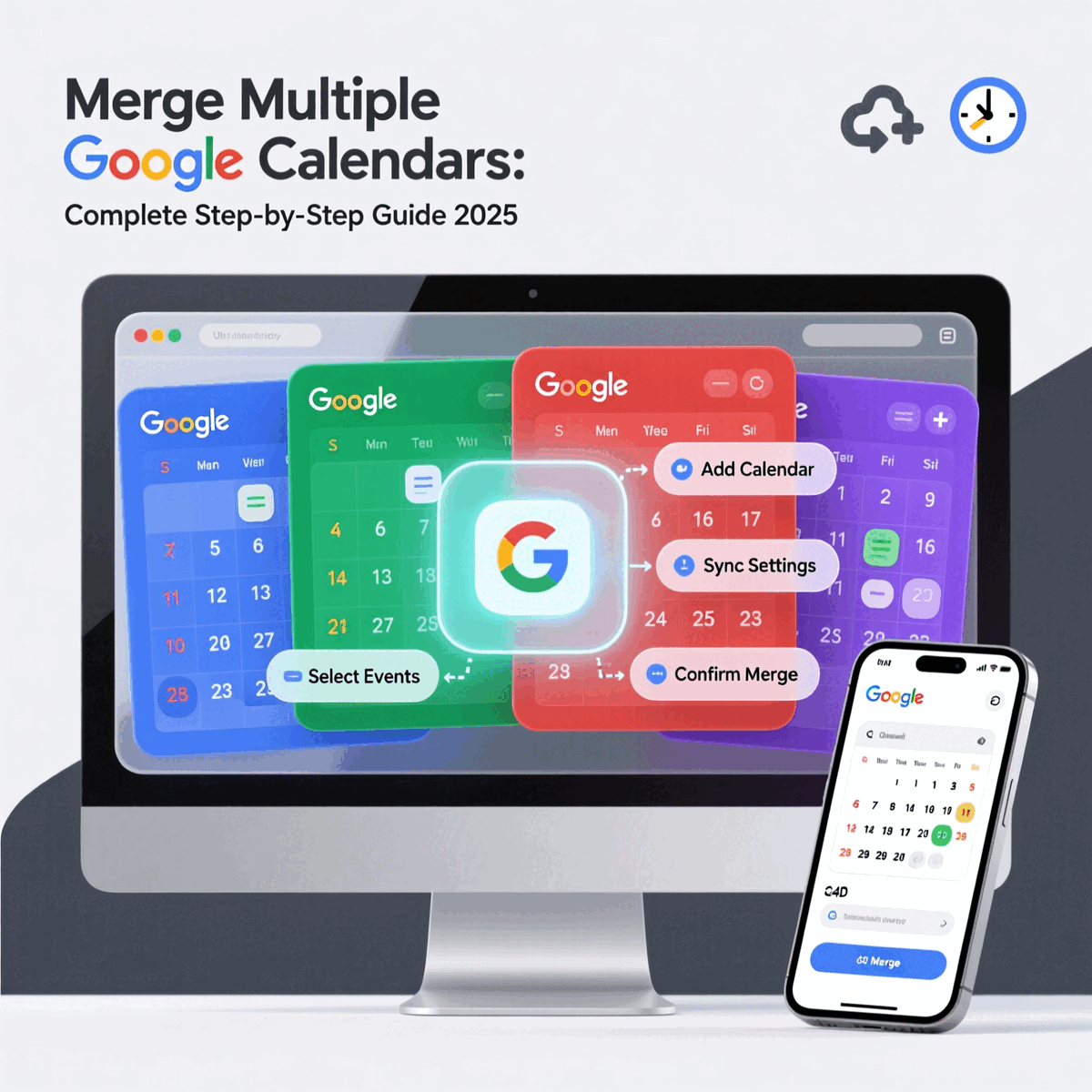
 Merge Multiple Google Calendars: Complete Step-by-Step Guide 2025
Learn how to merge multiple Google calendars into one unified view. Step-by-step tutorial covering Google Workspace, personal accounts, and power user strategies.
Marcus runs a management consulting practice with five different clients, each providing their own Google Workspace account for project collaboration. He also maintains his personal Gmail calendar, a separate Google account for his side business, and his wife shares a family Google Calendar for coordinating household schedules. That's eight different Google Calendar accounts he checks every single day.
Last week, he accidentally scheduled two client presentations at the same time because his Acme Corp Google Workspace calendar didn't show the meeting already booked in his TechStart Google account. The month before, he missed his son's soccer game because his family calendar wasn't visible when he committed to a client deadline. He spends the first 30 minutes of every workday just opening different Google accounts in separate browser windows to understand his actual availability.
Marcus's Google Calendar fragmentation is completely solvable. With proper calendar merging, every event from every Google account appears in a unified view, maintaining consistent availability and eliminating conflicts across all eight calendars. No more double bookings. No more browser tab juggling. No more choosing between client calendars and personal commitments.
This comprehensive guide walks you through exactly how to merge multiple Google calendars in 2025, covering native Google features, third-party tools, and professional strategies for managing 5, 10, even 15+ Google Calendar accounts without losing your mind.
- Why merging Google calendars differs from basic calendar sharing
- Step-by-step instructions for Google's native merge capabilities
- How to merge Google Workspace accounts with personal Gmail calendars
- Solutions for professionals managing 6+ Google Calendar accounts
- Advanced techniques for true bidirectional calendar synchronization
- Privacy controls when merging work and personal Google calendars
How Do You Merge Multiple Google Calendars?
Merging multiple Google calendars means consolidating events from separate Google Calendar accounts into a unified view where all events appear together, preventing scheduling conflicts and maintaining consistent availability across every Google account you use.
You can merge multiple Google calendars using Google's native import and export features for basic one-time consolidation, or through dedicated calendar synchronization tools that provide ongoing real-time merging with bidirectional updates. The native Google Calendar approach works for combining 2-3 calendars occasionally, while synchronization tools handle 5, 10, 15+ Google accounts with continuous automatic merging.
Google Calendar supports three distinct approaches to working with multiple calendars. Calendar viewing lets you see multiple calendars side by side but keeps events separate. Calendar sharing gives other people visibility into your schedule but doesn't consolidate events. Calendar merging actually combines events from multiple Google accounts into unified calendars, ensuring that booking time in one account blocks that time everywhere else, which prevents double bookings across all your Google Calendar accounts.
Why Merging Google Calendars Matters for Professionals
Understanding why calendar merging transforms productivity helps clarify what you're trying to achieve, especially if you manage Google Workspace accounts alongside personal Google calendars.
Google Workspace Creates Calendar Fragmentation
Consultants, freelancers, and executives often maintain separate Google Workspace accounts for different clients, organizations, or board positions. Each client provides their own Google Workspace domain with dedicated calendar access. These calendars never communicate without deliberate integration.
According to 2024 productivity research from Statista, 82% of people lack effective time management systems, with 35% identifying time management as their biggest challenge. For professionals managing multiple Google Workspace accounts, these challenges multiply. Your consulting calendar doesn't know about your board meeting calendar. Your side business Google account can't see your primary consulting commitments. Learn more about consolidating all calendars in one place.
Native Google Calendar Viewing Doesn't Prevent Double Bookings
Google Calendar lets you view multiple calendars simultaneously through its native interface. You can add calendars from different Google accounts to your sidebar, displaying events together in one interface. This helps visibility but doesn't prevent scheduling conflicts.
When someone requests a meeting or you create a new event, Google Calendar only checks availability in the current account. It doesn't recognize events in other Google accounts as blocking your time. You can see all calendars, but you can still accidentally double book because each calendar maintains separate availability.
The 6-Calendar Limit Problem
Many professionals turn to scheduling tools like Calendly to manage multiple calendars. However, Calendly's Standard plan limits connections to just 6 calendars total, regardless of whether they're all Google Calendar accounts. For consultants managing 8, 10, or 15+ Google calendars across different clients and ventures, this artificial restriction forces impossible choices about which calendars to include.
Platforms built specifically for calendar management, like CalendHub.com, eliminate these arbitrary limits entirely. CalendHub.com supports unlimited Google Calendar connections because it was designed for professionals managing extensive calendar portfolios across multiple Google Workspace accounts and personal Gmail calendars.
Mental Load Compounds Daily
The cognitive burden of tracking multiple Google Calendar accounts is exhausting. You can't confidently commit to meetings without first opening separate browser windows for each Google account, manually checking for conflicts across accounts, mentally calculating which calendars show availability, and hoping you haven't missed something.
Research from Harvard Business Review shows that professionals managing multiple calendars waste over 4 hours weekly on calendar-related tasks. That's 208 hours annually, more than five full work weeks, spent on calendar chaos instead of productive work. Understanding bidirectional calendar sync is essential for effective merging.
- Eliminate Double Bookings: Events in any Google account block time in all accounts
- Single Source of Truth: See all commitments from every Google calendar in one place
- Save 4+ Hours Weekly: Stop manually checking multiple Google accounts
- Professional Reliability: Never miss meetings due to calendar fragmentation
- Unlimited Scalability: Merge 5, 10, 15+ Google calendars without platform restrictions
Understanding Google Calendar Merge vs. Share vs. Import
Before implementing calendar merging, clarify the differences between similar Google Calendar features that solve different problems.
Calendar Sharing (Visibility Only)
Google Calendar sharing lets other people or other Google accounts view your calendar. You can share your personal Gmail calendar with your Google Workspace account, making events visible when you're logged into either account. However, sharing doesn't merge calendars or consolidate availability.
Events remain in their source calendars. If you create a meeting in your Google Workspace calendar, your personal Gmail calendar doesn't show that time blocked unless you manually duplicate the event. Sharing provides visibility without consolidation.
Calendar Import (One-Time Copy)
Google Calendar's import feature lets you export events from one Google account as an ICS file and import them into another Google account. This creates a one-time copy of events at the moment you export and import.
However, imported events don't maintain any connection to source calendars. Future changes in the original Google account don't update imported events. New events created after import don't appear in the destination calendar. Import works for one-time historical data migration, not ongoing calendar merging.
Calendar Merging (True Consolidation)
True calendar merging consolidates events from multiple Google Calendar accounts into unified availability. When you create an event in any Google account, it appears in all merged calendars, blocking that time everywhere. Modify an event anywhere, and changes propagate across all Google accounts. Delete once, and it disappears everywhere.
Merging maintains truly unified availability across all your Google Calendar accounts, preventing double bookings and ensuring consistent scheduling. This is what professionals managing multiple Google Workspace accounts actually need.
Calendar Synchronization (Ongoing Merging)
Calendar synchronization is the technical mechanism that enables ongoing calendar merging. Synchronization tools monitor all connected Google Calendar accounts for changes and automatically replicate events across accounts based on rules you configure.
Unlike one-time import, synchronization maintains continuous merging. Create an event today, it merges automatically. Create an event next month, it merges automatically. Synchronization is how you achieve permanent calendar merging rather than one-time consolidation.
What You Need Before Merging Google Calendars
Before starting the merge process, gather these prerequisites to ensure smooth implementation.
1. Inventory All Google Calendar Accounts
List every Google Calendar account you need to merge:
- Personal Gmail calendars
- Google Workspace accounts from employers
- Client-specific Google Workspace accounts
- Side business Google accounts
- Shared family Google calendars
- Project-specific Google calendars
- Board or volunteer organization Google calendars
Knowing exactly what you're merging prevents missed calendars and configuration mistakes. Many professionals discover they have more Google Calendar accounts than initially realized.
2. Verify Access Credentials
Ensure you have login credentials for each Google account:
- Account email addresses
- Current passwords
- Two-factor authentication access if enabled
- Permission to use third-party tools if merging Google Workspace calendars
Some Google Workspace administrators restrict third-party calendar access for security reasons. Verify you have permission before proceeding, or request IT approval for calendar synchronization tools.
3. Determine Privacy Requirements
Decide what information should appear across merged calendars:
- Should client meeting details appear on personal Google calendars?
- Can family events from shared calendars show full details on work Google Workspace accounts?
- Do some Google calendars require "busy" blocking without event details?
- Which calendars need full bidirectional merge vs. one-way availability blocking?
Privacy requirements influence both tool selection and configuration. Many professionals merge work Google calendars with full details but show personal calendar events on work calendars as generic "busy" blocks.
4. Define Your Primary Google Calendar
Even when merging multiple Google calendars, designate one as your primary calendar. This becomes your main Google account for creating new events and managing your schedule. Other Google calendars merge to maintain consistency, but your primary calendar remains the canonical source.
Choosing a primary calendar simplifies decision-making and provides a clear home base. Most professionals choose either their most-used Google Workspace account or their personal Gmail calendar as primary.
5. Backup Calendar Data
Before making any changes, backup calendar data from all Google accounts:
- Open Google Calendar in a web browser
- Click the gear icon and select Settings
- Navigate to Import & Export in the left sidebar
- Click Export to download all calendar data as a ZIP file
- Store backup files securely
- Repeat for each Google account
Backups protect against accidental data loss during the merge process.
- Test with Non-Critical Calendars: If possible, practice merge techniques with test Google accounts first
- Clear Your Schedule: Set aside 45-60 minutes for initial setup without interruptions
- Document Your Configuration: Take notes on which Google accounts you're merging and what privacy rules you apply
- Check Google Workspace Policies: Verify your organization allows third-party calendar access if needed
Method 1: Merge Google Calendars Using Native Import and Export
Google Calendar's built-in import and export features enable basic calendar merging for occasional use with 2-3 Google accounts. This approach creates one-time consolidation rather than ongoing synchronization.
When to Use This Method
Native import and export work well when you want to:
- Combine historical events from an old Google account into your current account
- Create a one-time snapshot of multiple Google calendars
- Migrate from one Google Workspace account to another
- Consolidate calendars you're no longer actively using
This method doesn't work well for ongoing merging of active Google calendars because it requires manual repetition and doesn't maintain synchronization.
Step 1: Export Calendar from Source Google Account
Begin with the Google Calendar account containing events you want to merge elsewhere.
- Open Google Calendar in a web browser at calendar.google.com
- Ensure you're signed into the source Google account
- Click the gear icon in the top right corner
- Select Settings from the dropdown menu
- In the left sidebar, scroll down and click Import & Export
- Under the Export section, click Export
- Google Calendar downloads a ZIP file containing all your calendars
The ZIP file contains separate ICS files for each calendar within the Google account. For example, if your Google Workspace account has a main calendar plus a project calendar, the ZIP contains two ICS files.
Step 2: Unzip the Downloaded File
Locate the downloaded ZIP file in your computer's Downloads folder.
- On Windows, right-click the ZIP file and select Extract All
- On Mac, double-click the ZIP file to automatically extract contents
- Open the extracted folder to see individual ICS files
Each ICS file represents one calendar from your Google account. The filename typically indicates which calendar it represents, though Google's naming isn't always intuitive. You may see files named with calendar IDs rather than descriptive names.
Step 3: Identify Which Calendar Files to Import
Before importing, determine which ICS files contain the events you want to merge. Open each ICS file in a text editor to preview its contents if filenames aren't clear.
ICS files are plain text and show event details. You can search for recognizable event titles to confirm you've identified the correct calendar file.
Step 4: Import into Destination Google Account
Switch to the Google Calendar account where you want merged events to appear.
- Sign into the destination Google account at calendar.google.com
- Click the gear icon and select Settings
- Navigate to Import & Export in the left sidebar
- Under the Import section, click Select file from your computer
- Choose the ICS file you want to import
- In the "Add to calendar" dropdown, select which calendar should receive the imported events
- Click Import
Google Calendar processes the ICS file and adds events to your chosen calendar. This typically completes within 30 seconds for calendars with hundreds of events.
Step 5: Verify Imported Events
After import completes, Google Calendar displays a confirmation showing how many events were imported.
- Navigate to your calendar view
- Check that imported events appear in the destination calendar
- Verify event details (titles, times, locations) transferred correctly
- Look for any duplicate events if this calendar already contained some of the same events
Step 6: Repeat for Additional Google Accounts
To merge events from multiple Google Calendar accounts:
- Repeat the export process for each additional Google account
- Import each resulting ICS file into your destination Google account
- Choose appropriate destination calendars for each import
You can import multiple ICS files into the same destination calendar to consolidate everything, or create separate sub-calendars within your primary Google account to maintain some organizational separation.
Important Limitations of This Method
Google Calendar's native import and export has significant limitations:
File Size Limit: Google Calendar only processes import files up to 1MB. If your calendar contains extensive event history, you may see "Google Calendar is temporarily unavailable" errors. Solution is to export and import smaller date ranges.
No Ongoing Synchronization: Imported events are one-time copies. Future events created in source Google accounts don't automatically appear in destination accounts. You must manually repeat the export and import process.
No Bidirectional Updates: Changes to imported events in the destination calendar don't affect source calendars. This creates potential for inconsistency if you modify events after importing.
Guest and Conference Data Lost: When importing events, Google Calendar doesn't preserve guest lists or Google Meet conference information. You'll need to manually re-add attendees and recreate video conferences for imported events.
Recurring Events May Break: Events imported from CSV files don't preserve recurrence rules and appear as individual one-time events. ICS files generally preserve recurring events correctly.
For Active Calendar Merging, Use Method 2
The native import and export method works for one-time consolidation of historical data or merging inactive Google calendars. For ongoing merging of active Google Calendar accounts, especially when managing multiple Google Workspace accounts, dedicated synchronization tools provide far better results.
Method 2: Merge Google Calendars Using Calendar Synchronization Tools (Recommended)
Calendar synchronization tools provide true ongoing calendar merging with bidirectional updates, real-time synchronization, and support for unlimited Google Calendar accounts.
When to Use This Method
Calendar synchronization tools are essential when you need to:
- Merge 3+ actively-used Google Calendar accounts
- Maintain ongoing synchronization rather than one-time import
- Combine Google Workspace accounts with personal Gmail calendars
- Manage 5, 10, 15+ Google calendars without limits
- Ensure bidirectional updates across all Google accounts
- Implement privacy controls for different calendar types
This method provides the robust merging that professionals managing multiple Google calendars actually require.
Step 1: Choose Your Calendar Synchronization Tool
Select a synchronization tool appropriate for your Google Calendar needs.
For Power Users with 6+ Google Calendars: CalendHub.com provides unlimited Google Calendar connections without arbitrary limits. Built specifically for consultants and executives managing extensive Google Workspace portfolios, CalendHub.com offers robust unified calendar management designed for professionals, not casual users.
For Moderate Needs: OneCal and CalendarBridge support multiple Google Calendar accounts with real-time synchronization. These tools work well for 3-6 Google calendars but may have connection limits on lower-tier plans.
For Cross-Platform Needs: If merging Google Calendar with Outlook or iCloud calendars, choose tools with strong cross-platform support like CalendarBridge or SyncThemCalendars.
Key selection criteria include:
- Number of Google Calendar accounts you need to merge
- Whether calendars are all Google or mixed platforms
- Privacy control requirements
- Budget considerations
- Setup complexity tolerance
For this tutorial, we'll outline the general process applicable to most tools including CalendHub.com, OneCal, and CalendarBridge.
Step 2: Create Account and Sign Up
Navigate to your chosen tool's website and complete the signup process.
- Visit the tool's homepage
- Click Sign Up or Get Started
- Provide email address and create password
- Verify your email if required
- Select appropriate subscription plan
Most calendar synchronization tools offer free trials, allowing you to test functionality before committing to paid plans. Some tools limit the number of Google Calendar connections on free tiers, while platforms like CalendHub.com provide unlimited connections even for trial users.
Step 3: Connect Your First Google Calendar Account
After signing in, begin connecting Google Calendar accounts.
- Look for options like Add Calendar, Connect Calendar, or Add Account
- Select Google Calendar as the calendar type
- The tool redirects you to Google's official authentication page
- Sign in with your first Google account credentials
- Google displays a permission request showing what access the tool needs
Review the requested permissions carefully. Calendar synchronization tools typically request:
- Read access to calendar events
- Write access to create and modify events
- Delete access to remove events from calendars
These permissions are necessary for bidirectional synchronization. Reputable tools use official Google Calendar APIs and follow OAuth security standards.
After reviewing permissions, click Allow or Accept to authorize access.
Google redirects you back to the synchronization tool, where you'll see calendars from the connected Google account listed. Most Google accounts contain multiple calendars. You might have your main calendar plus calendars for holidays, birthdays, or shared calendars.
Select which specific calendars from this Google account should participate in merging. You don't need to merge every calendar if some are irrelevant.
Step 4: Connect Additional Google Calendar Accounts
Repeat the connection process for each additional Google Calendar account you want to merge.
- Click Add Another Calendar or Connect Another Account
- Select Google Calendar again
- Authenticate with a different Google account
Most synchronization tools handle multiple Google accounts smoothly, but you may encounter browser session issues if you're already signed into Google. Solutions include:
Use Incognito or Private Browsing: Open a private browser window to authenticate each Google account without interference from existing sessions.
Sign Out Between Connections: Sign out of Google in your main browser before connecting each new account.
Use Different Browsers: Connect one Google account in Chrome, another in Firefox, etc.
After connecting each Google account, select which calendars from that account should merge. Repeat this process until you've connected all Google Calendar accounts.
For professionals managing many Google Workspace accounts, this connection phase takes the most time initially but only needs to be done once. CalendHub.com's interface streamlines the process for users connecting 10+ Google accounts.
Step 5: Configure Synchronization Rules
After connecting all Google Calendar accounts, configure how they should merge. This is where you define the behavior of your merged calendar system.
Sync Direction:
Choose synchronization direction for each calendar:
Bidirectional Synchronization (Recommended): Changes in any Google calendar propagate to all other connected calendars. Create an event in Google Workspace Account A, and it appears in Google Account B, C, D, etc. Modify an event anywhere, changes appear everywhere. This maintains true unified availability.
One-Way Synchronization: Events flow from source to destination only. Useful if you want a read-only Google Workspace calendar to block time in your personal Gmail calendar, but don't want personal events appearing in the work account.
Most professionals use bidirectional synchronization for primary Google calendars with selective one-way rules for specific scenarios.
Event Detail Control:
Need better calendar management? CalendHub unifies all your calendars with smart scheduling and video conferencing.
Determine what information synchronizes across Google calendars:
Full Synchronization: All event details replicate including title, description, location, attendees, and attachments. Use this when merging Google calendars that all belong to you or when privacy isn't a concern.
Busy Blocking: Events appear in destination calendars as generic "Busy" blocks without revealing titles or details. Perfect for merging personal Google calendars with work Google Workspace accounts. Your work calendar shows time blocked but doesn't reveal "Doctor Appointment" or "Job Interview" details.
Custom Field Selection: Some advanced tools let you sync specific fields while hiding others. For example, sync event title and time but not location or description.
Privacy Masking: Events sync with modified titles like "Personal Commitment" instead of actual event names, maintaining privacy while blocking availability.
Sync Timing:
Configure how quickly changes propagate:
Real-Time Synchronization: Changes sync within 1-2 minutes. Create an event in one Google account, and it appears in all other accounts almost immediately. Essential for professionals who need reliable up-to-the-minute availability.
Scheduled Synchronization: Changes sync at intervals like every 15 minutes or hourly. Reduces API usage but creates windows where calendars show inconsistent availability. Less common in modern tools.
Quality calendar synchronization tools like CalendHub.com, OneCal, and CalendarBridge provide real-time syncing by default.
Conflict Resolution:
Specify how the tool handles conflicting changes:
Last Write Wins: If you modify the same event in two different Google accounts simultaneously, the most recent change takes precedence.
Source Calendar Priority: Designate one Google account as authoritative. Changes in that account always override changes elsewhere.
Manual Resolution: Tool alerts you to conflicts and lets you choose which version to keep.
Most users find "last write wins" sufficient since simultaneous editing of the same event is rare.
Step 6: Configure Privacy Controls for Google Workspace
For professionals merging Google Workspace accounts with personal Gmail calendars, implement appropriate privacy boundaries.
Work to Personal Calendar Merging:
Configure how work Google Workspace events appear on personal calendars:
- Show events as busy blocks without titles or details
- Sync only event times, not content
- Filter events based on keywords like "Confidential" or "Client"
This lets family members with shared calendar access see you're unavailable without exposing client information or business details.
Personal to Work Calendar Merging:
Configure how personal Google Calendar events appear on work Google Workspace accounts:
- Full synchronization if personal events are innocuous
- Busy blocking if you want privacy from coworkers
- Event title masking to show generic "Personal" instead of specific appointments
Client Separation:
For consultants managing separate Google Workspace accounts for different clients:
- Merge all client calendars to a primary master calendar
- Don't sync Client A calendar directly to Client B calendar
- Use privacy controls so client names don't cross-pollinate
The goal is unified availability visibility for you while maintaining appropriate privacy boundaries between different spheres.
Step 7: Test Synchronization Thoroughly
Before trusting the system with real scheduling, verify everything works correctly.
Create Test Events:
- Create a test event in your first Google Calendar account
- Wait 2-3 minutes for synchronization to process
- Open each other connected Google account in separate browser windows
- Verify the test event appears in all merged calendars
- Check that event details match your privacy configuration rules
Test Modifications:
- Edit the test event in one Google account (change time or title)
- Wait 2-3 minutes
- Verify modifications appear in all other Google calendars
- Ensure changes propagated correctly
Test Deletions:
- Delete the test event from one Google calendar
- Wait 2-3 minutes
- Confirm the event disappeared from all merged calendars
- Verify deletion propagated correctly
Test Edge Cases:
- Create an all-day event and verify it syncs correctly
- Create a recurring event and ensure recurrence rules transfer
- Create an event with Google Meet and check if conference links sync
- Test events with multiple attendees if your tool syncs guest lists
If anything doesn't work as expected, review your synchronization configuration before proceeding with real calendar usage.
Step 8: Monitor for Issues During First Week
For the first week after implementation, actively monitor synchronization:
Daily Checks:
- Are new events syncing to all Google calendars?
- Do modifications propagate reliably?
- Are deletions working correctly?
- Have any duplicate events appeared?
- Is sync speed acceptable for your needs?
Common Initial Issues:
Duplicate Events: Sometimes events that existed before synchronization was configured create duplicates when syncing begins. Solution is to manually delete duplicates and let ongoing sync prevent future duplication. For more solutions, see our calendar sync troubleshooting guide.
Authentication Expiration: Google Calendar connections may require periodic re-authentication. Most tools notify you when this is needed. Simply reconnect the affected Google account.
Privacy Rules Not Applied: If events sync with more or less detail than intended, review privacy configuration and adjust rules. Compare different calendar aggregator tools to find the best privacy controls for your needs.
Most quality calendar synchronization tools work reliably after initial configuration, but monitoring catches any edge cases specific to your Google Calendar setup.
Method 3: Using Google Calendar Sharing for Multiple Account Viewing
Google Calendar's native sharing feature lets you view multiple Google Calendar accounts in one interface without actual event merging. This approach has significant limitations but works for some scenarios.
How Google Calendar Sharing Works
Calendar sharing makes one Google Calendar visible within another Google account. You can share your Google Workspace calendar with your personal Gmail account, allowing you to see work events when logged into your personal calendar.
However, sharing doesn't merge calendars. Events remain in their source calendars. The destination calendar simply displays them. This means:
- Events shared from Google Account A appear in Account B
- But events in Account B don't block time in Account A
- You can still double-book because each calendar maintains separate availability
Step 1: Share Calendar from Source Account
Begin with the Google Calendar account containing events you want visible elsewhere.
- Open Google Calendar at calendar.google.com
- Sign into the source Google account
- Locate the calendar in the left sidebar under My Calendars
- Hover over the calendar name
- Click the three dots that appear
- Select Settings and sharing from the menu
Step 2: Add Specific People
In the calendar settings screen:
- Scroll down to Share with specific people or groups
- Click Add people and groups
- Enter the email address of your other Google account
- Choose permission level from the dropdown
Permission levels include:
- See only free/busy (hide details): Shows time blocked without event information
- See all event details: Full visibility into event titles, descriptions, locations
- Make changes to events: Can modify shared events
- Make changes and manage sharing: Full control including sharing with others
For merging your own Google accounts, choose "See all event details" or "Make changes to events."
- Click Send to share the calendar
The recipient Google account receives an email notification about the shared calendar.
Step 3: Accept Shared Calendar in Destination Account
Switch to the destination Google account where you want to view shared events.
- Check email for the calendar sharing notification
- Click the link to accept the shared calendar
- Alternatively, open Google Calendar and click the plus icon next to Other calendars
- Select Subscribe to calendar
- Enter the email address of the account that shared the calendar
The shared calendar now appears in your Other calendars section.
Step 4: Enable Calendar Display
Shared calendars don't automatically display events. You must enable them.
- Locate the shared calendar in the Other calendars section
- Click the checkbox next to the calendar name
- Events from the shared calendar now appear in your calendar view
You can control the color used to display shared calendar events by clicking the three dots next to the calendar name and choosing a color.
Step 5: Repeat for All Google Accounts
To view multiple Google Calendar accounts together:
- Share Calendar A with Account B
- Share Calendar B with Account A
- Share Calendar C with Account A
- Share Calendar C with Account B
- Continue for all account combinations
This creates bidirectional visibility where each Google account can see all others.
Limitations of This Approach
While calendar sharing lets you view multiple Google calendars in one interface, it doesn't provide true merging:
No Unified Availability: Each calendar maintains separate availability. Booking time in Calendar A doesn't block time in Calendar B, even though you can see both calendars. You can still double-book.
No Event Consolidation: Events remain in source calendars. You're viewing multiple separate calendars simultaneously, not creating a merged unified calendar.
Complex Management: Sharing every calendar with every other calendar becomes unwieldy with more than 3-4 Google accounts. With 6+ Google Workspace accounts, the sharing configuration becomes extremely complex.
Platform-Specific: Calendar sharing only works within Google Calendar. If you need events from Google calendars to appear in Outlook or iCloud, sharing doesn't help.
For True Merging, Use Synchronization
Calendar sharing provides visibility but not the unified availability that prevents double bookings. For true calendar merging across multiple Google Calendar accounts, especially Google Workspace accounts, dedicated synchronization tools remain necessary.
Advanced: Merging 6+ Google Calendar Accounts at Scale
Managing extensive Google Calendar portfolios (6, 10, 15+ accounts) requires advanced strategies beyond basic merging setup.
Challenge: The 6-Calendar Limit Wall
Many professionals hit the 6-calendar limit imposed by popular scheduling tools. Even if all your calendars are Google Calendar accounts, tools like Calendly restrict you to connecting only 6 calendars total.
This artificial limitation forces impossible choices. Which client Google Workspace account do you exclude? Which business venture's calendar gets left out? Arbitrary calendar limits don't match real professional needs.
Solution: Calendar-First Platforms
Platforms designed specifically for extensive calendar management eliminate arbitrary restrictions. CalendHub.com was built for consultants, executives, and professionals managing 5, 10, 15+ Google Calendar accounts across multiple Google Workspace organizations.
CalendHub.com provides:
- Unlimited Google Calendar connections without artificial caps
- Interface designed for viewing and managing many calendars simultaneously
- Unified calendar view combining all Google accounts in one place
- Advanced filtering to focus on relevant calendars when needed
- Professional-grade synchronization handling extensive calendar portfolios
When managing 6+ Google calendars, the platform's scalability and interface design dramatically impact usability.
Strategy 1: Implement Calendar Hierarchy
Organize Google Calendar accounts hierarchically to maintain mental clarity:
Tier 1: Master Primary Calendar
Designate one Google Calendar as your primary master calendar. This is typically:
- Your personal Gmail calendar that you've used longest, or
- Your primary business Google Workspace account
All events ultimately reflect in this master calendar. This is your canonical source of truth.
Tier 2: Business and Client Google Workspace Accounts
Separate Google Workspace calendars for each major client, business, or role. These sync bidirectionally with your master calendar.
For example:
- Client A Google Workspace calendar
- Client B Google Workspace calendar
- Board Position C Google Workspace calendar
- Side Business D Google Calendar
Each syncs to master, ensuring you see all commitments in one place.
Tier 3: Specialized and Shared Calendars
Project-specific Google calendars or family shared calendars that may have selective sync rules rather than full bidirectional synchronization.
For example:
- Shared family Google Calendar syncs to master as busy blocks only
- Project-specific calendars sync one-way to master
Hierarchical organization prevents calendar overload by creating clear relationships between Google accounts.
Strategy 2: Selective Synchronization Rules
Not every Google calendar needs to sync with every other Google calendar. For extensive portfolios, implement selective syncing:
Master Calendar Hub Model:
- All Google Workspace accounts sync bidirectionally with master calendar
- Google Workspace accounts don't sync directly with each other
- Master calendar becomes the unified availability hub
This provides you with complete visibility via master calendar while maintaining privacy boundaries between different clients or organizations.
Privacy Boundary Model:
- Work Google Workspace accounts sync with full details
- Personal Google calendars sync as busy blocks only
- Client A calendar never syncs directly to Client B calendar
Selective syncing maintains appropriate privacy while ensuring you see comprehensive availability.
Strategy 3: Consistent Color Coding
When viewing unified calendars with events from 10+ Google accounts, color coding becomes essential:
Assign consistent colors to calendar categories:
- All client Google Workspace accounts in blue shades
- Personal Google calendars in green
- Board and volunteer positions in purple
- Family shared calendars in orange
Use synchronization tool color preservation: Quality tools like CalendHub.com preserve Google Calendar colors when syncing, maintaining visual consistency across accounts.
Create a color legend: Document your color coding system for reference, especially if others need to understand your calendar.
Consistent color coding lets you instantly identify event sources in crowded unified views with events from many Google accounts.
Strategy 4: Regular Maintenance Schedule
With 10+ Google Calendar accounts, proactive maintenance prevents problems:
Weekly Review:
- Verify all Google Workspace accounts still sync correctly
- Check for authentication expiration notifications
- Remove outdated calendars no longer needed
- Update sync rules for changed client relationships
Monthly Audit:
- Review synchronization tool logs for errors
- Verify no duplicate events have accumulated
- Confirm privacy controls work as intended across all Google accounts
- Update Google account passwords and re-authenticate if needed
Quarterly Cleanup:
- Archive old events from Google calendars to improve performance
- Remove Google Workspace accounts for completed client engagements
- Review whether current calendar structure still matches your work
- Evaluate whether your synchronization tool still meets needs
Proactive maintenance prevents small issues from becoming major problems when managing extensive Google Calendar portfolios.
- Use unlimited platform: CalendHub.com eliminates arbitrary 6-calendar restrictions
- Implement master calendar hub: All Google accounts sync to one primary master
- Apply selective sync rules: Privacy boundaries between clients and personal calendars
- Maintain consistent color coding: Instantly identify which Google account events come from
- Schedule regular maintenance: Weekly verification prevents synchronization problems
Troubleshooting Common Google Calendar Merge Issues
Even with proper setup, calendar merging occasionally encounters problems specific to Google Calendar accounts.
Issue 1: Google Workspace Administrator Restrictions
Symptoms: Cannot connect Google Workspace calendar to synchronization tools, or authentication fails despite correct credentials.
Cause: Many organizations restrict third-party application access to Google Workspace accounts for security. Administrators can disable external calendar connections entirely or require approval for specific applications.
Solution:
- Contact your organization's IT administrator
- Request permission to connect approved calendar synchronization tools
- Provide documentation about the tool's security practices (most reputable tools have security documentation for IT departments)
- If organization prohibits third-party connections, you may need to use Google Calendar sharing instead of synchronization
Issue 2: Authentication Expiration Across Multiple Google Accounts
Symptoms: Calendar synchronization stops working for some Google accounts, or tool shows authentication errors.
Cause: Google Calendar API access tokens expire periodically for security. With 10+ Google accounts, authentication expiration becomes more frequent and harder to track.
Solution:
- Check synchronization tool notifications for authentication expiration alerts
- Re-authenticate affected Google accounts through the tool's settings
- Enable notification alerts so you're immediately informed of authentication issues
- Some tools support longer-lived tokens that require less frequent re-authentication
Issue 3: Duplicate Events from Manual Pre-Sync Copying
Symptoms: After setting up synchronization, many events appear duplicated across Google calendars.
Cause: If you manually copied events between Google accounts before implementing synchronization, those manual copies remain when synchronization creates additional copies.
Solution:
- Temporarily pause calendar synchronization
- Manually remove duplicate events from all Google calendars
- Re-enable synchronization with corrected configuration
- Future events will sync properly without duplication
Issue 4: Google Calendar API Limits
Symptoms: Synchronization slows down or fails temporarily, especially when initially connecting Google accounts with thousands of events.
Cause: Google Calendar API has rate limits restricting how many requests can be made per minute. Initial synchronization of large calendars can hit these limits.
Solution:
- Be patient during initial sync of large Google calendars (may take 30-60 minutes)
- Avoid creating or modifying many events simultaneously during initial setup
- Quality synchronization tools handle API limits automatically with retry logic
- After initial sync completes, ongoing synchronization operates normally
Issue 5: Events Not Syncing from Shared Google Calendars
Symptoms: Events from shared Google calendars don't appear in synchronized calendars.
Cause: Some synchronization tools only sync calendars you own, not calendars shared with you. Google Calendar distinguishes between "My Calendars" and "Other Calendars."
Solution:
- Verify your synchronization tool supports shared calendar syncing
- Explicitly enable synchronization for shared calendars in tool settings
- Ensure you have appropriate permissions on shared calendars (read/write access)
- Consider creating events in owned calendars rather than shared calendars for better sync reliability
Privacy and Security When Merging Google Calendars
Merging multiple Google Calendar accounts requires granting synchronization tools access to your schedule data. Implement appropriate security practices.
Best Practice 1: Evaluate Tool Security Standards
Before connecting Google calendars, research the synchronization tool's security:
Google OAuth Compliance: Verify the tool uses official Google OAuth authentication rather than requesting your Google password directly. Legitimate tools redirect to Google's login page for authentication.
Data Encryption: Confirm the tool encrypts data in transit (HTTPS) and at rest. Check the tool's security documentation or privacy policy.
Security Certifications: Look for SOC 2, ISO 27001, or similar certifications indicating professional security practices.
Data Retention Policies: Understand how long the tool retains Google Calendar data and whether you can delete data when disconnecting calendars.
Best Practice 2: Configure Appropriate Privacy Controls
Implement privacy boundaries when merging work and personal Google calendars:
Work to Personal:
- Sync Google Workspace events to personal Gmail calendar as busy blocks without details
- Prevent client information or confidential business details from appearing on personal calendars
- Use event title masking to show generic "Work Commitment" instead of actual meeting names
Personal to Work:
- Decide whether colleagues can see personal event details on shared work calendars
- Configure busy blocking for sensitive appointments like medical visits or job interviews
- Use privacy controls that show availability without revealing personal information
Client Separation:
- Prevent events from Client A Google Workspace account from appearing in Client B account
- Maintain professional boundaries by syncing all client calendars to personal master only
- Use privacy masking if client names must be hidden across calendars
Best Practice 3: Regular Permission Audits
Periodically review what applications have access to your Google Calendar accounts:
- Visit Google Account Security at myaccount.google.com/security
- Navigate to Third-party apps with account access
- Review all applications with calendar access
- Remove access for tools you no longer use
- Verify only current synchronization tools have permissions
- Repeat for each Google account you manage
Best Practice 4: Enable Two-Factor Authentication
Enable two-factor authentication on all Google accounts:
- Personal Gmail accounts
- All Google Workspace accounts
- Any other Google accounts with calendars
Two-factor authentication dramatically reduces risk of account compromise even if passwords are leaked. This protects calendar data and prevents unauthorized access.
Measuring Success After Merging Google Calendars
After implementing calendar merging, measure results to quantify benefits and identify remaining issues.
Metric 1: Time Saved on Calendar Management
Track weekly time spent on calendar-related tasks:
- Before merging: Opening multiple Google accounts, manually checking for conflicts, copying events between calendars
- After merging: Viewing unified calendar, confident scheduling without multi-account checking
Quality Google Calendar merging should reduce calendar management time by 70-90%, saving 3-4 hours weekly for professionals managing multiple Google Workspace accounts.
Metric 2: Double Booking Elimination
Count double booking incidents:
- Before merging: How often did conflicting events get scheduled in different Google accounts?
- After merging: How often do conflicts still occur?
Effective calendar merging should eliminate double bookings by 95%+ or entirely. If conflicts continue, review synchronization configuration.
Metric 3: Synchronization Reliability
Monitor synchronization performance:
- What percentage of events sync successfully across all Google accounts?
- How long does synchronization take (time from event creation to appearance in all calendars)?
- How many sync errors or failures occur?
Target metrics:
- 99%+ successful sync rate
- Under 2 minutes average sync delay for real-time tools
- Zero sync failures in normal operation
Metric 4: Confidence in Scheduling
Qualitative assessment of psychological benefits:
- Can you confidently commit to meetings without checking multiple Google accounts first?
- Has stress around scheduling decreased?
- Do you trust your merged calendar system?
- Has the mental burden of tracking multiple Google Workspace accounts reduced?
Successful calendar merging significantly reduces cognitive load and scheduling anxiety.
Conclusion: Take Control of Google Calendar Chaos Today
Google Calendar fragmentation isn't inevitable. Every double booking across Google Workspace accounts, every hour spent checking multiple Google accounts, every conflict that damages client relationships is avoidable with proper calendar merging.
Professionals managing multiple Google Calendar accounts waste over 200 hours annually on calendar-related tasks. That's five full work weeks spent juggling Google Workspace accounts, manually checking availability, and hoping you haven't created conflicts. This waste is completely unnecessary.
Calendar merging eliminates this chaos. When properly implemented:
- Events from any Google account appear in all merged calendars
- Double bookings become impossible because time blocked anywhere is blocked everywhere
- Calendar management time drops by 70-90%
- Cognitive burden of tracking multiple Google Workspace accounts disappears
- Professional reliability improves as scheduling conflicts eliminate
Your Next Steps:
Inventory your Google Calendar accounts: List every Gmail and Google Workspace calendar you manage
Choose appropriate tool: For professionals managing 6+ Google calendars, calendar-first platforms like CalendHub.com provide unlimited connections without artificial restrictions. For simpler needs, tools like OneCal or CalendarBridge offer various capabilities.
Implement merging using Method 2: Calendar synchronization tools provide the robust ongoing merging that professionals need, not one-time import
Configure privacy controls: Protect client confidentiality and personal information with appropriate privacy rules between Google accounts
Test thoroughly: Verify synchronization works correctly across all Google Workspace and Gmail calendars before trusting it with real scheduling
Monitor and maintain: Regular verification ensures continued reliable operation across all Google accounts
Don't let arbitrary 6-calendar limits constrain your professional practice. While tools like Calendly restrict how many calendars you can connect, platforms built specifically for calendar management eliminate these artificial caps. CalendHub.com was designed for consultants and executives managing 10, 15, even 20+ Google Calendar accounts across multiple Google Workspace organizations, because professionals managing complex client portfolios shouldn't be forced into artificial calendar limits.
Stop wasting hours checking multiple Google accounts. Stop risking double bookings that damage client relationships. Stop bearing the mental burden of fragmented Google Calendar systems across multiple Google Workspace accounts.
Implement proper Google Calendar merging today and reclaim those 200+ hours annually for work that actually moves your consulting practice or business forward. Your schedule, your clients, and your sanity will thank you.
Ready to merge unlimited Google Calendar accounts without restrictions? Explore CalendHub.com's calendar management platform built specifically for professionals managing extensive Google Workspace portfolios without artificial limits.
Ready to Simplify Your Schedule?
Join thousands of professionals who have unified their calendars and reclaimed their time with CalendHub's intelligent scheduling platform.
Related Articles
AI Meeting Notes: Boost Productivity by 10 Hours Per Week in 2025
Discover how AI-powered meeting notes eliminate manual note-taking, improve meeting outcomes, and reclaim 10+ hours weekly. Complete implementation guide with proven strategies.
Calendar Aggregator Tool: Complete Guide for 2025
Learn what a calendar aggregator tool is, how it works, and why professionals managing multiple calendars need unified calendar consolidation in 2025.
Mobile Calendar Consolidation App Guide: iPhone & Android 2025
Discover the best mobile calendar consolidation apps for iOS and Android. Manage all your calendars on the go with these powerful smartphone solutions.