
 Google Calendar
  Outlook Calendar
  Google Meet
  Microsoft Teams
  Zoom Meetings
 Sync Apple Calendar with CalendHub: Complete Integration Guide 2025
Connect Apple Calendar and iCloud to CalendHub with bidirectional sync for unified scheduling across all devices.
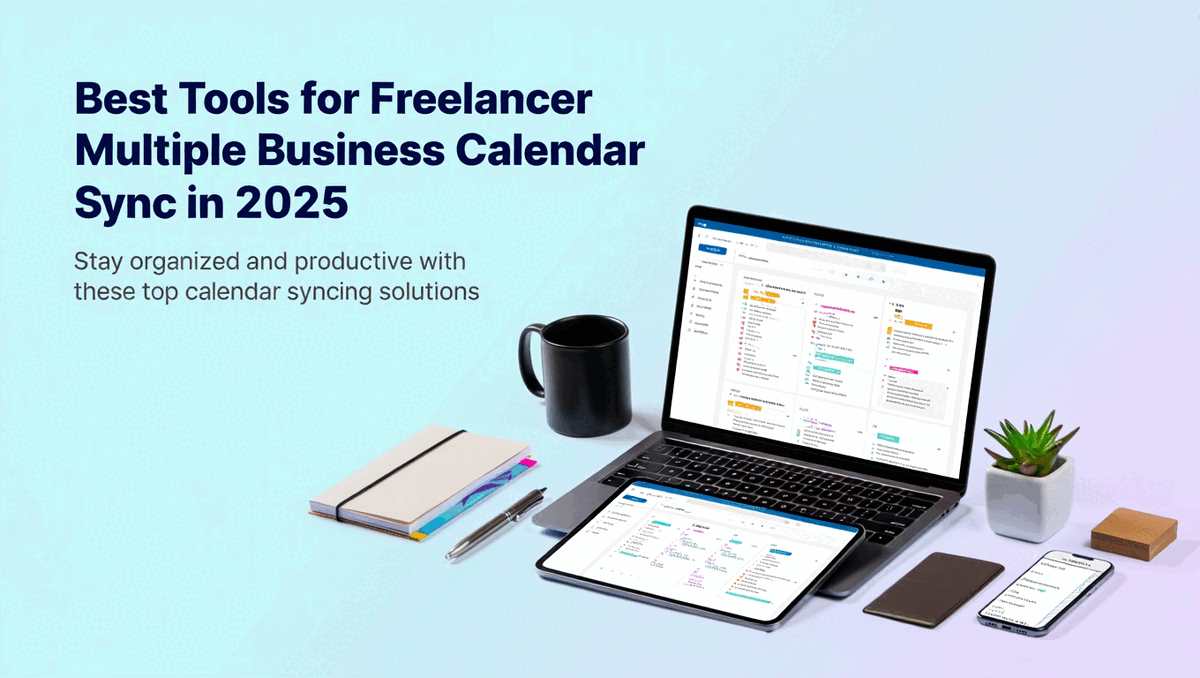
Apple Calendar is the default scheduling app for anyone in the Apple ecosystem. It lives on your iPhone, iPad, Mac, and Apple Watch, making it effortless to check your schedule from any device. But if you also rely on Google Calendar for work or Outlook for corporate meetings, Apple Calendar becomes just one piece of a fragmented puzzle.
Syncing Apple Calendar with CalendHub.com brings everything together. Your iCloud-based events flow into a unified view alongside your other calendars, and changes you make anywhere sync back automatically. No more checking three different apps to figure out if you're free Thursday afternoon.
- How to connect Apple Calendar and iCloud to CalendHub
- Setting up bidirectional sync between Apple Calendar and other platforms
- Working with iCloud's CalDAV protocol for reliable syncing
- Troubleshooting Apple-specific sync challenges
- Tips for managing multiple iCloud calendars and shared family calendars
Why Sync Apple Calendar with Your Calendar?
Apple Calendar is fantastic within the Apple ecosystem, but it doesn't naturally communicate with Google Calendar, Outlook, or other platforms. If you live entirely in Apple's world, that's fine. But most professionals don't.
Bridge the ecosystem gap. Your work might run on Google Workspace while your personal life is organized through iCloud. Without sync, booking a work meeting over your kid's soccer game is just a matter of time. CalendHub connects both worlds so your full availability is always accurate.
Keep your Apple devices updated. One of Apple Calendar's biggest strengths is its seamless device integration. When CalendHub syncs events into your iCloud calendar, those events appear on your iPhone, Mac, Apple Watch, and iPad instantly. You get the benefit of unified scheduling with the convenience of Apple's native notifications. Learn more about keeping calendars in sync in our complete bidirectional sync guide.
Simplify family scheduling. iCloud's shared family calendars are popular for coordinating household schedules. Syncing your work events into a family-visible calendar through CalendHub means your family can see when you're busy without needing access to your corporate tools.
How to Set Up Apple Calendar Integration with CalendHub
Apple Calendar connects to CalendHub through iCloud's CalDAV protocol. The setup is a little different from Google or Outlook because Apple uses a different authentication approach, but it's still straightforward.
Step 1. Sign into CalendHub. Visit CalendHub.com and log into your account. New users can create an account in seconds.
Step 2. Go to the Integrations section. Open the Integrations or Connected Calendars page from your dashboard navigation.
Step 3. Select Apple Calendar / iCloud. Click the Apple Calendar option. CalendHub will prompt you for your iCloud credentials or direct you to generate an app-specific password.
Step 4. Generate an app-specific password in iCloud. Apple requires app-specific passwords for third-party calendar access when you have two-factor authentication enabled (which you should). Go to appleid.apple.com, sign in, navigate to "App-Specific Passwords," and generate a new one labeled "CalendHub." Copy this password.
Step 5. Enter your iCloud credentials. Back in CalendHub, enter your Apple ID email and the app-specific password you just generated. CalendHub uses these to connect via CalDAV, Apple's standard calendar protocol.
Step 6. Select which iCloud calendars to sync. CalendHub will pull in all calendars associated with your iCloud account. This includes your personal calendar, any custom calendars you've made, and shared family calendars. Choose the ones you want to keep in sync.
Step 7. Set the sync direction. For each calendar, decide on bidirectional or one-way sync. Bidirectional means events flow both ways between Apple Calendar and CalendHub. If you just want Apple Calendar events visible in CalendHub without pushing events back, choose one-way read.
Need better calendar management? CalendHub unifies all your calendars with smart scheduling and video conferencing.
Step 8. Configure sync preferences. Set your preferred sync interval, event detail level, and any filters. CalendHub supports near-real-time sync for iCloud calendars, though the CalDAV protocol can sometimes add a minute or two compared to API-based connections.
Step 9. Test both directions. Add a test event in Apple Calendar on your iPhone or Mac. Wait a few minutes and confirm it appears in CalendHub. Then create an event in CalendHub and verify it shows up in Apple Calendar. Success on both ends means you're fully connected.
Best Practices for Apple Calendar Sync
Apple Calendar has its own quirks that are worth understanding for the smoothest sync experience.
Keep iCloud calendar sync enabled on all devices. Apple Calendar relies on iCloud to propagate events between devices. If iCloud Calendar is turned off on your iPhone, events you add on that phone won't reach CalendHub until you turn it back on. Make sure every Apple device has iCloud Calendar enabled in Settings.
Use separate calendars for different contexts. Apple Calendar makes it easy to create multiple calendars within iCloud. Instead of dumping everything into one calendar, create separate ones for work, personal, side projects, and family. Then you can sync each one with different rules in CalendHub.
Watch out for shared calendar permissions. If someone shares an iCloud calendar with you, you might only have view access. CalendHub can read those events, but it won't be able to create events on a shared calendar you don't have edit permissions for. Check your permissions in the Apple Calendar app.
Don't forget Siri and Apple Watch. When events sync into your iCloud calendar through CalendHub, Siri can announce them, and your Apple Watch will show them on your wrist. This makes CalendHub's sync especially powerful for Apple users who rely on proactive device notifications. Our guide on syncing multiple calendars covers how to structure this effectively.
If you have two-factor authentication enabled on your Apple ID (and Apple strongly recommends you do), you must use an app-specific password for CalendHub. Your regular iCloud password will not work. Generate one at appleid.apple.com under Security and App-Specific Passwords.
Common Issues and Troubleshooting
Apple Calendar sync works well once set up, but there are a few platform-specific issues to watch for.
"Authentication failed" error during setup. This almost always means you're using your regular iCloud password instead of an app-specific password. Generate a new app-specific password at appleid.apple.com and try again.
Events taking longer to sync than expected. iCloud's CalDAV protocol can be slightly slower than the APIs used by Google and Microsoft. A delay of two to five minutes is normal. If events take longer than 10 minutes, check your iCloud account status at apple.com/support/systemstatus.
Duplicate events on iPhone. This can happen if Apple Calendar is subscribed to another sync service at the same time as CalendHub. Make sure only CalendHub is handling cross-platform sync for each calendar pair. Remove any ICS subscription links that duplicate what CalendHub is already syncing.
Family shared calendar events not appearing. Shared family calendars sometimes have restricted API access. If a family member owns the calendar, they may need to adjust sharing settings to allow full read/write access for CalendHub to pick up those events.
Events disappearing after iCloud storage changes. If you change your iCloud storage plan or Apple ID settings, your CalDAV connection might need to be refreshed. Disconnect and reconnect Apple Calendar in CalendHub if events stop syncing after an iCloud account change. For more troubleshooting steps, see our calendar sync troubleshooting guide.
Advanced Apple Calendar Integration Tips
These tips help Apple-centric users get even more from their CalendHub integration.
Sync multiple Apple IDs. Some people maintain separate Apple IDs for personal and work use. CalendHub.com supports connecting multiple iCloud accounts, each with its own app-specific password and calendar selections. This is perfect if your company provides a managed Apple ID alongside your personal one.
Use location-based events to your advantage. Apple Calendar supports location data on events, and CalendHub preserves this during sync. When a synced event includes a location, your iPhone will still give you travel time alerts and "time to leave" notifications.
Combine with Apple Reminders for task blocking. While CalendHub doesn't sync Apple Reminders directly, you can create time-blocked events in Apple Calendar for important tasks. These blocks then sync through CalendHub to your other calendars, ensuring nobody schedules over your deep work time.
Leverage iCloud calendar subscriptions alongside CalendHub. For read-only calendars like sports schedules or holiday calendars, use iCloud's native subscription feature. Reserve CalendHub for calendars that need bidirectional sync and active management.
Apple Calendar and CalendHub together give you the best of both worlds. You keep Apple's elegant device integration and native notifications while gaining the cross-platform sync that iCloud alone can't provide. Head to CalendHub.com to connect your Apple Calendar and finally see your complete schedule in one place.
Ready to Simplify Your Schedule?
Join thousands of professionals who have unified their calendars and reclaimed their time with CalendHub's intelligent scheduling platform.
Related Articles
Benefits of Synchronizing All Calendars in One View: ROI and Productivity Gains
Discover the benefits of synchronizing all calendars in one view. See ROI data, productivity gains, reduced double bookings, and real-world business impact in 2025.
Best Bidirectional Calendar Sync Tools: 2025 Comparison Guide
Compare the best bidirectional calendar sync tools in 2025. Discover which platforms offer true two-way synchronization and which only provide one-way sync.
Best Two Way Calendar Sync Software: 2025 Expert Rankings & Comparison
Compare the top two-way calendar sync software tools. We tested 12 platforms for bidirectional sync speed, reliability, and field coverage to find which actually work.