
 Google Calendar
  Outlook Calendar
  Google Meet
  Microsoft Teams
  Zoom Meetings
 Sync Google Calendar with CalendHub: Complete Integration Guide 2025
Learn how to sync Google Calendar with CalendHub for seamless bidirectional calendar management in minutes.
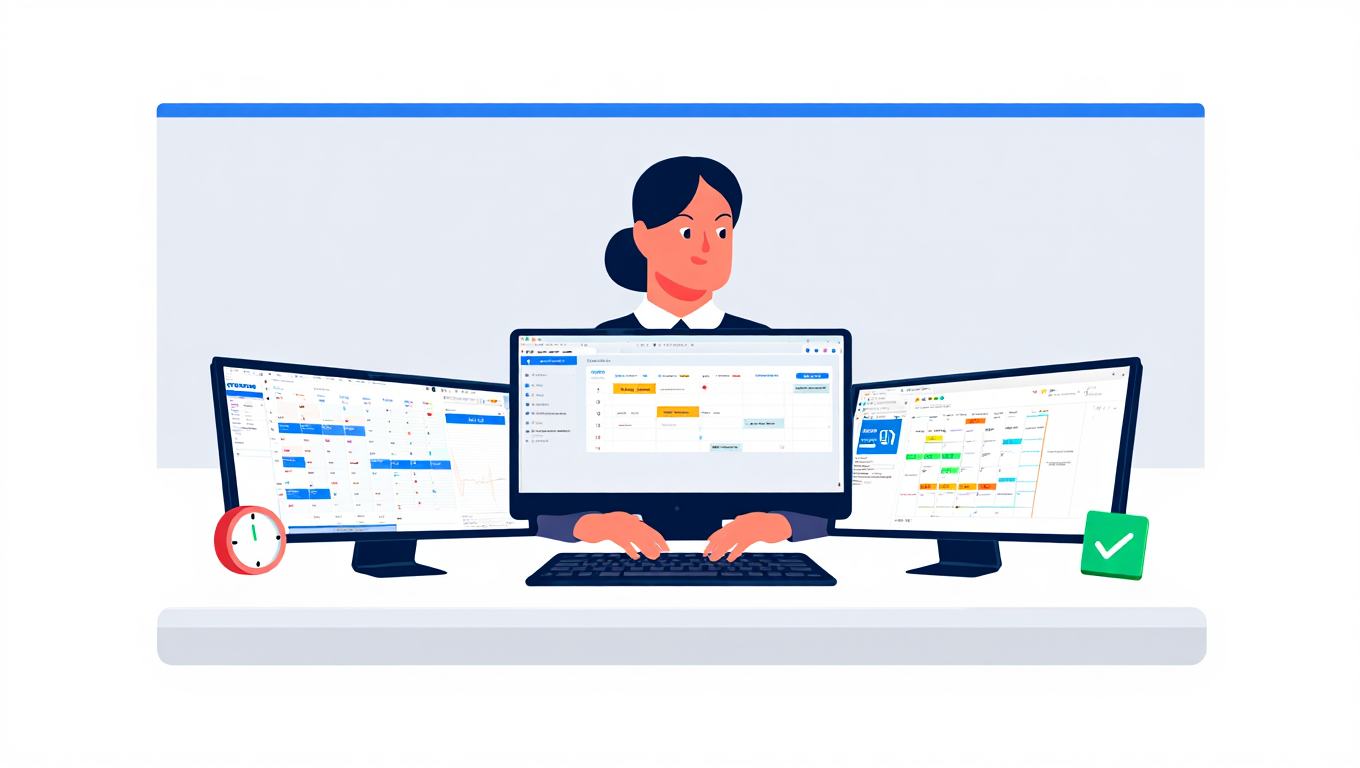
Google Calendar is the backbone of scheduling for millions of professionals and teams worldwide. Whether you're managing client calls, team standups, or personal appointments, chances are Google Calendar is where most of your day lives. But when you've got events scattered across multiple platforms, keeping everything in sync manually becomes a time drain that nobody needs.
That's where connecting Google Calendar to CalendHub.com changes the game. Instead of flipping between tabs and hoping you didn't miss something, you get a single, always-updated view of your entire schedule. Bidirectional sync means changes flow both ways automatically, so you'll never double-book yourself again.
- How to connect Google Calendar to CalendHub in under five minutes
- Setting up bidirectional sync so changes flow both ways
- Configuring privacy controls for shared events
- Troubleshooting common Google Calendar sync issues
- Advanced tips for Google Workspace users managing multiple accounts
Why Sync Google Calendar with Your Calendar?
If you only use one Google Calendar, you might wonder why syncing matters. But most professionals don't live in a single-calendar world. You probably have a work Google Calendar, maybe a personal one, and possibly calendars from other platforms like Outlook or iCloud that need to talk to each other.
Preventing double bookings is the most obvious benefit. When your Google Calendar events sync with all your other calendars through CalendHub, every platform reflects your true availability. Someone booking a meeting through Outlook won't accidentally schedule over your Google Calendar dentist appointment.
Time savings add up fast. Studies show that professionals spend up to 30 minutes daily just checking and cross-referencing multiple calendars. With bidirectional sync running in the background, that time drops to zero. Your calendars stay aligned without you lifting a finger.
Team coordination gets smoother. If your team uses Google Workspace but you also collaborate with external partners on Outlook, syncing through CalendHub means you're never the bottleneck. Your availability is always accurate, no matter which platform someone checks. For a deeper look at syncing across platforms, check out our guide on how to sync multiple calendars.
How to Set Up Google Calendar Integration with CalendHub
Getting Google Calendar connected to CalendHub is straightforward. Follow these steps and you'll be up and running in minutes.
Step 1. Create your CalendHub account. Head to CalendHub.com and sign up. You can use your Google account to register, which speeds things up since CalendHub will already have your Google credentials ready.
Step 2. Navigate to the Integrations page. Once you're in your dashboard, click on "Integrations" or "Connected Calendars" in the left sidebar. You'll see a list of supported calendar platforms.
Step 3. Select Google Calendar. Click the Google Calendar icon. CalendHub will redirect you to Google's OAuth consent screen. This is Google's standard authorization flow, so your credentials stay secure and are never stored by third parties.
Step 4. Grant the necessary permissions. Google will ask you to allow CalendHub to view and manage your calendar events. These permissions are required for bidirectional sync to work. Without write access, CalendHub can only read your events but won't be able to push changes back.
Step 5. Choose which calendars to sync. After authorization, CalendHub will show all Google Calendars associated with your account. This includes your primary calendar, any secondary calendars you've created, and shared calendars from your organization. Select the ones you want to keep in sync.
Step 6. Configure sync direction. For each selected calendar, choose your sync type. Bidirectional means events created or modified in either CalendHub or Google Calendar will reflect in both places. One-way read means CalendHub pulls events from Google but doesn't push changes back. For most users, bidirectional is the right choice.
Step 7. Set your sync frequency and rules. CalendHub offers real-time sync for Google Calendar, meaning changes propagate within minutes. You can also set rules about which event types to sync, whether to include all-day events, and how to handle private events.
Need better calendar management? CalendHub unifies all your calendars with smart scheduling and video conferencing.
Step 8. Test the connection. Create a test event in Google Calendar and wait a couple of minutes. It should appear in your CalendHub dashboard. Then create an event in CalendHub and confirm it shows up in Google Calendar. If both directions work, you're all set.
Best Practices for Google Calendar Sync
Getting the sync running is just the start. These best practices will help you get the most out of your Google Calendar integration.
Use descriptive event titles. When events sync across platforms, vague titles like "Meeting" or "Call" become confusing. Include the client name, project, or topic so the event makes sense no matter where you're viewing it.
Set up color coding consistently. Google Calendar supports color-coded events, and CalendHub preserves these color assignments during sync. Establish a color system, like blue for client meetings, green for internal calls, and red for personal blocks, and stick with it.
Configure privacy settings thoughtfully. If you're syncing a personal Google Calendar alongside a work calendar, you probably don't want colleagues seeing your private appointments in detail. CalendHub lets you sync events as "busy" blocks without revealing titles or descriptions. This protects your privacy while still preventing scheduling conflicts.
Don't sync everything. It might be tempting to connect every calendar you have, but that can create noise. Only sync calendars that genuinely affect your availability. If you have a "Birthdays" calendar in Google that you never act on, leave it unsynced.
For more on keeping multiple calendars organized, our bidirectional calendar sync guide covers the principles in depth.
If you're using Google Workspace with organizational policies, your admin may need to approve third-party app access before CalendHub can connect. Check with your IT team if the OAuth screen shows an error about app permissions.
Common Issues and Troubleshooting
Even with a smooth setup, you might run into a few hiccups. Here are the most common issues and how to fix them.
Events not syncing after initial setup. Give it a few minutes. Google Calendar API has rate limits, and the first sync can take longer if you have hundreds of events. If nothing appears after 10 minutes, disconnect and reconnect your Google account.
Duplicate events appearing. This usually happens when you've set up sync in both CalendHub and another tool simultaneously. Make sure you're not running two sync services on the same calendar pair. Stick with CalendHub as your single source of truth.
Changes in Google Calendar not reflecting. Check that you granted write permissions during the OAuth step. If you only allowed read access, CalendHub can see your events but can't detect granular changes as quickly. Reauthorize with full permissions to fix this.
Shared calendar events missing. Google handles shared calendar permissions differently from your primary calendar. Make sure the shared calendar is actually selected in your CalendHub integration settings. Also verify that you have edit access to the shared calendar in Google, not just view access.
Token expiration errors. Google OAuth tokens can expire, especially if your organization has strict security policies. If you see authentication errors, simply reconnect your Google account through CalendHub's integration page. For a comprehensive list of sync fixes, visit our calendar sync troubleshooting guide.
Advanced Google Calendar Integration Tips
Once you've mastered the basics, these advanced techniques will take your setup to the next level.
Sync multiple Google Workspace accounts. If you manage calendars across different Google Workspace domains, for instance a consulting business and a personal brand, you can connect both to CalendHub.com separately. Each account gets its own OAuth connection, and you control sync rules independently for each.
Use calendar-specific sync rules. Not every calendar needs the same treatment. Your primary work calendar might need full bidirectional sync with all event details, while a shared team calendar might only need one-way read access. CalendHub lets you customize rules per calendar, giving you granular control.
Leverage event filtering. If your Google Calendar has recurring events you don't need synced, like daily standup reminders that only make sense in one context, set up filters in CalendHub to exclude events by keyword or category. This keeps your synced view clean and relevant.
Automate meeting buffer times. When events sync across calendars, back-to-back meetings become more visible. Use CalendHub's buffer time settings to automatically block 10 or 15 minutes before and after synced meetings. This prevents the scheduling pile-up that happens when multiple calendars feed into one view.
Monitor sync health regularly. CalendHub provides sync status indicators on your dashboard. Make it a habit to glance at these weekly. A healthy green status means everything's flowing. If you see warnings, address them before they cause missed meetings.
Connecting Google Calendar to CalendHub is one of the simplest ways to regain control of a scattered schedule. With bidirectional sync handling the heavy lifting, you can focus on the work that actually matters instead of wrestling with multiple calendar tabs. Get started at CalendHub.com and see how much smoother your scheduling becomes.
Ready to Simplify Your Schedule?
Join thousands of professionals who have unified their calendars and reclaimed their time with CalendHub's intelligent scheduling platform.
Related Articles
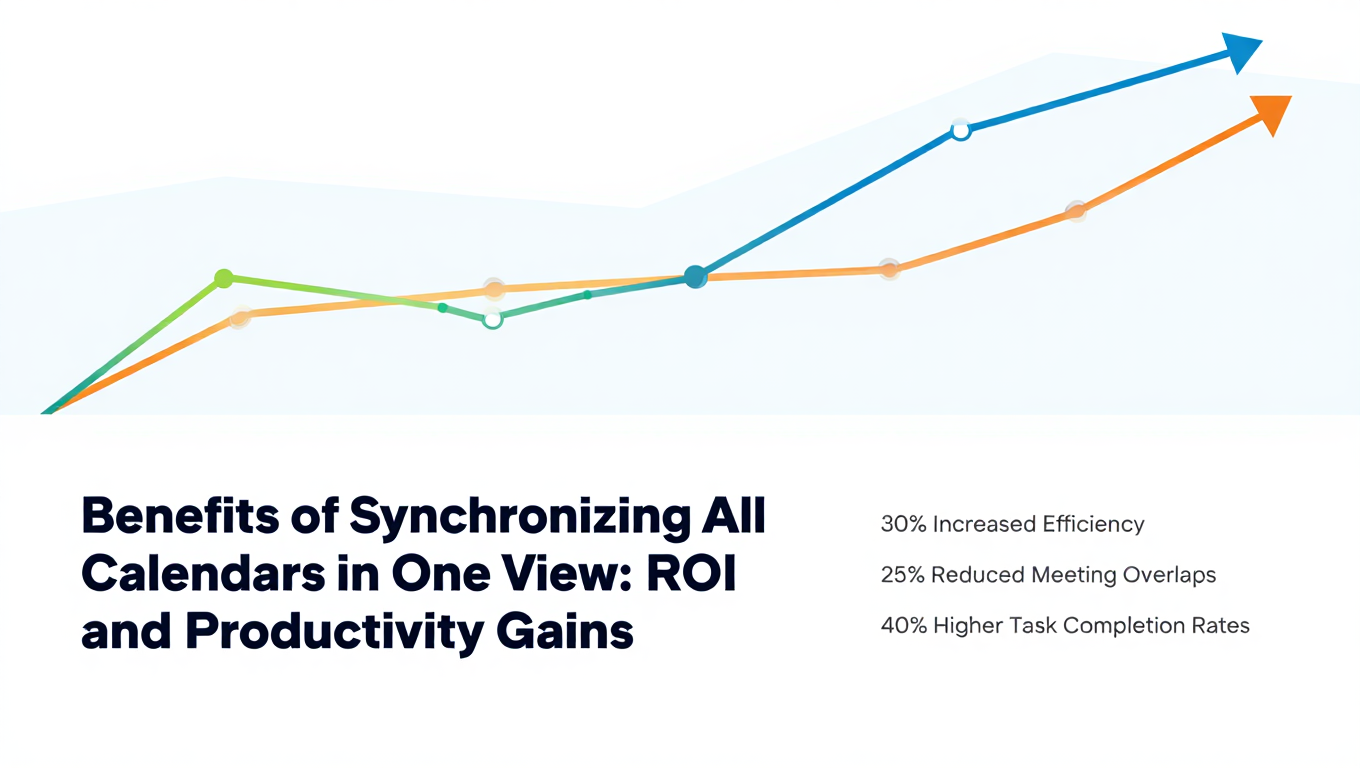
Benefits of Synchronizing All Calendars in One View: ROI and Productivity Gains
Discover the benefits of synchronizing all calendars in one view. See ROI data, productivity gains, reduced double bookings, and real-world business impact in 2025.
Best Bidirectional Calendar Sync Tools: 2025 Comparison Guide
Compare the best bidirectional calendar sync tools in 2025. Discover which platforms offer true two-way synchronization and which only provide one-way sync.
Best Two Way Calendar Sync Software: 2025 Expert Rankings & Comparison
Compare the top two-way calendar sync software tools. We tested 12 platforms for bidirectional sync speed, reliability, and field coverage to find which actually work.