
 Google Calendar
  Outlook Calendar
  Google Meet
  Microsoft Teams
  Zoom Meetings
 How to Sync Multiple Google Calendars Into One: Advanced Guide for 10+ Accounts
Expert strategies for syncing 10, 15, even 20+ Google calendars into one unified system. Advanced guide for consultants managing extensive Google Workspace portfolios.
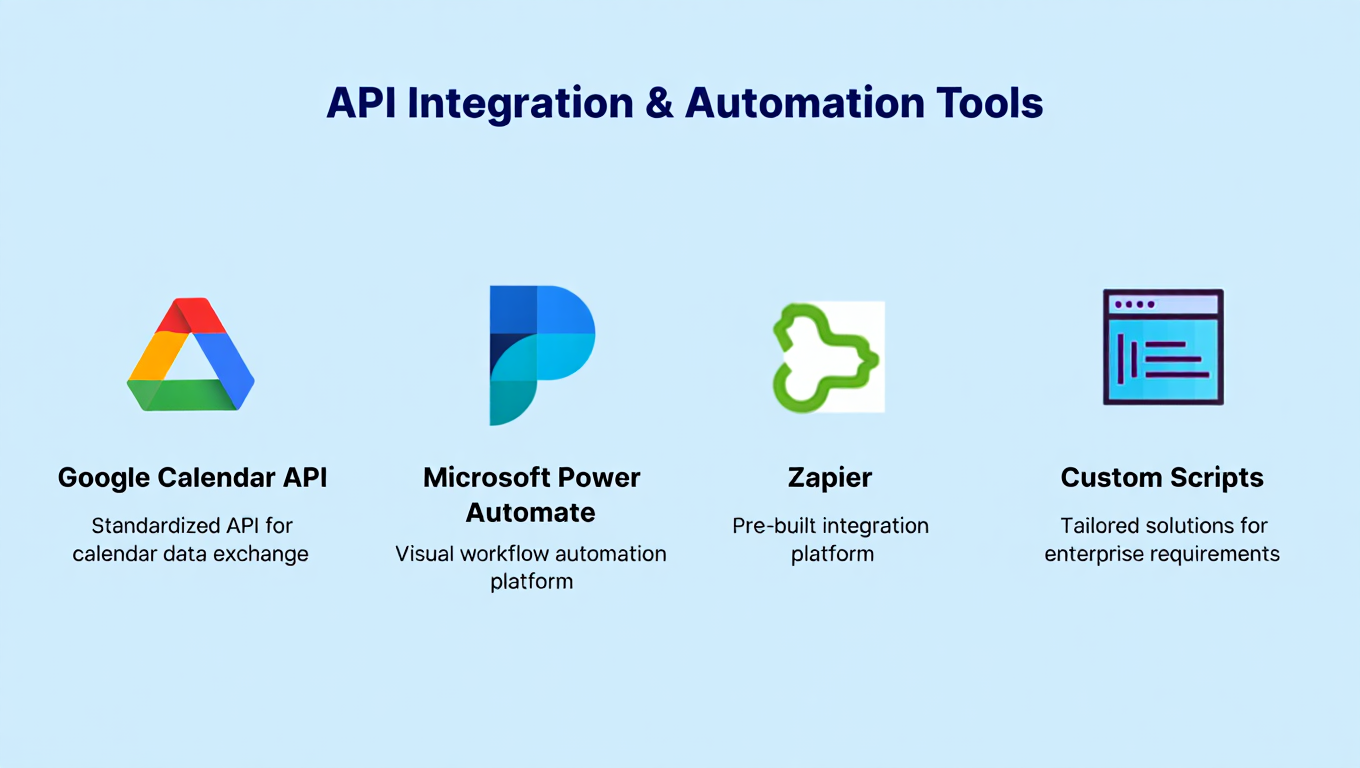
Jennifer manages 14 different Google Calendar accounts simultaneously. Three major consulting clients each provided their own Google Workspace domain. She serves on five nonprofit boards, each with dedicated Google accounts. She maintains separate Google calendars for her speaking business, her personal life, and two side ventures. Plus a shared family calendar coordinated with her partner.
Two years ago, Jennifer's calendar chaos reached a breaking point. She double-booked a board meeting with a keynote presentation, missed a critical client deadline because it conflicted with a family commitment she couldn't see, and spent the first hour of every workday just figuring out what her actual schedule looked like across 14 separate accounts. Understanding bidirectional calendar sync technology was essential to solving her problems.
Today, Jennifer's entire 14-calendar portfolio syncs into one unified system. She sees every commitment from every Google account in a single view. Double bookings are impossible because time blocked anywhere blocks everywhere. She schedules confidently without checking multiple accounts. Her calendar management time dropped from 6 hours weekly to 20 minutes.
The transformation didn't come from basic calendar tools designed for casual users managing 2-3 accounts. It required advanced strategies specifically built for extensive Google Workspace portfolios that exceed the 6-calendar limits imposed by standard scheduling platforms.
This advanced guide reveals exactly how to sync multiple Google calendars into one when managing 10, 15, even 20+ accounts across different Google Workspace organizations, clients, and ventures.
- Why managing 10+ Google calendars requires different approaches than basic sync
- Advanced architecture patterns for extensive Google Workspace portfolios
- How to overcome the 6-calendar limit in standard scheduling tools
- Sophisticated privacy controls for multi-tenant Google Calendar environments
- Performance optimization for real-time sync across many accounts
- Enterprise-grade reliability strategies for business-critical calendar management
The 10+ Calendar Challenge: Why Standard Approaches Fail
Most calendar synchronization guides assume you manage 2-5 Google accounts. They recommend tools and techniques that completely break down when managing 10, 15, or 20+ calendars across multiple Google Workspace organizations.
The 6-Calendar Limit Wall
Popular scheduling platforms like Calendly impose artificial limits capping calendar connections at 6 total accounts. For consultants managing a dozen client Google Workspace accounts, this restriction creates impossible choices about which calendars to exclude from synchronization.
You're forced to decide which clients don't matter enough to include in your unified calendar view. Which board commitments can you risk double-booking? Which business venture's calendar gets left out of availability checking?
These aren't acceptable tradeoffs. Your professional practice requires comprehensive calendar consolidation across every Google account, not arbitrary subsets dictated by tool limitations.
Synchronization Performance Degrades at Scale
Basic calendar sync tools designed for casual users handle 3-5 Google calendars adequately. But synchronization performance often degrades significantly when connecting 10+ accounts.
Sync delays increase from 1-2 minutes to 10-15 minutes as event volume overwhelms simple algorithms. Authentication management becomes unwieldy with constant re-authorization requests across many accounts. Event duplication risks multiply as synchronization logic struggles with complex multi-account scenarios.
Tools not built for scale create new problems instead of solving calendar chaos.
Interface Design Breaks with Many Calendars
Calendar applications designed for typical users provide interfaces optimized for viewing 2-5 calendars together. When you load 10+ Google calendars simultaneously, these interfaces become unusable.
Sidebar lists overflow with dozens of calendar names. Color coding becomes meaningless when you need 15+ distinct colors. Filtering and search features assume small calendar counts and perform poorly with extensive portfolios.
You need interfaces specifically designed for managing many calendars simultaneously, not casual tools repurposed beyond their design parameters.
Complex Privacy Requirements
Managing 10+ Google Workspace accounts typically means working across multiple organizations, clients, and contexts. Privacy requirements become exponentially more complex.
Client A shouldn't see events from Client B's Google Workspace account. Personal calendar details shouldn't appear on any professional Google accounts. Board position calendars need isolation from consulting client calendars. Family shared calendars require different privacy rules than business calendars.
Basic sync tools offer simple privacy controls like show all details or show busy only. Advanced scenarios require sophisticated rule-based privacy systems with conditional logic based on calendar source, event metadata, and destination account context.
Authentication Management Complexity
Google Calendar API access requires periodic re-authentication for security. With 2-3 Google accounts, re-authenticating occasionally isn't burdensome. With 14 Google accounts, authentication maintenance becomes a constant drain without proper tooling.
Standard synchronization tools treat each authentication independently, requiring you to manually re-authorize accounts one by one as tokens expire. This creates ongoing maintenance overhead that compounds with calendar count.
You need authentication management systems that handle mass re-authorization, provide proactive expiration warnings, and minimize manual intervention across many Google Workspace accounts. For authentication troubleshooting, see our calendar sync troubleshooting guide.
- Unlimited Connections: No artificial caps on calendar count
- Performance at Scale: Real-time sync maintained even with 15+ accounts
- Advanced Interface: Designed for viewing and managing many calendars simultaneously
- Sophisticated Privacy: Rule-based controls for complex multi-tenant scenarios
- Enterprise Authentication: Mass re-authorization and proactive management
Advanced Synchronization Architecture Patterns
Managing extensive Google Calendar portfolios requires architectural thinking beyond simple all-to-all synchronization.
Pattern 1: Hub-and-Spoke with Master Calendar
Instead of syncing every Google calendar directly with every other calendar, implement a hub-and-spoke architecture with a designated master calendar as the central hub.
Architecture:
Designate one Google Calendar as your master hub, typically your primary personal Gmail account or longest-used Google Workspace account. Configure all other Google calendars to sync bidirectionally with this master hub only, not directly with each other.
Example for 12-Calendar Portfolio:
Master Hub: Your personal Gmail calendar
Spokes syncing to hub:
- Client A Google Workspace calendar
- Client B Google Workspace calendar
- Client C Google Workspace calendar
- Board Position D calendar
- Board Position E calendar
- Side Business F calendar
- Speaking Business G calendar
- Board Position H calendar
- Consulting Venture I calendar
- Shared family calendar
- Project J calendar
- Volunteer Organization K calendar
Each spoke syncs only to master hub. Client A calendar never syncs directly to Client B calendar. Board Position D doesn't sync to Side Business F.
Benefits:
Privacy by Default: Client and organizational calendars remain isolated from each other. Only you see comprehensive view through master hub.
Simplified Configuration: With 12 calendars, all-to-all sync requires 66 separate synchronization connections. Hub-and-spoke requires only 11 connections.
Centralized Control: All synchronization rules, privacy settings, and configurations manage through single master hub relationship.
Performance Optimization: Synchronization algorithms optimize for hub-spoke pattern rather than handling complex many-to-many scenarios.
Clear Mental Model: You always know master hub contains complete truth. Spoke calendars contain their native events plus synchronized events from master.
Implementation:
Most advanced calendar platforms including CalendHub.com support hub-and-spoke architecture through selective bidirectional synchronization rules. You explicitly configure which calendars sync with which other calendars rather than blanket all-to-all syncing.
Pattern 2: Hierarchical Calendar Tiers
Organize extensive Google Calendar portfolios into hierarchical tiers with different synchronization rules for each tier.
Architecture:
Tier 1: Personal Master Calendar
Your primary personal Gmail account serves as the ultimate source of truth. This calendar consolidates everything and determines your actual availability.
Tier 2: Primary Business Calendars
Major client Google Workspace accounts and primary business ventures. These sync bidirectionally with Tier 1 using full event details because they're all your professional commitments.
Tier 3: Secondary Business Calendars
Board positions, volunteer organizations, and advisory roles. These sync bidirectionally with Tier 1 but may use privacy masking depending on confidentiality requirements.
Tier 4: Shared and Reference Calendars
Family shared calendars and project-specific calendars. These often sync one-way to Tier 1 as busy blocks only, ensuring family commitments block your professional availability without exposing personal details on work calendars.
Example Configuration:
Tier 1 Master: [email protected]
- Full bidirectional sync with all other tiers
- Displays all events with complete details
- Used for personal scheduling and availability reference
Tier 2 Primary Business (5 calendars):
- Major Client A: [email protected]
- Major Client B: [email protected]
- Consulting Business: [email protected]
- Speaking Business: [email protected]
- Primary Board Position: [email protected]
- All sync bidirectionally to Tier 1 with full details
- Don't sync directly with each other
Tier 3 Secondary Business (4 calendars):
- Advisory Board C: [email protected]
- Nonprofit Board D: [email protected]
- Volunteer Group E: [email protected]
- Professional Association F: [email protected]
- Sync bidirectionally to Tier 1 with title masking
- Don't sync to Tier 2 calendars
Tier 4 Shared/Reference (3 calendars):
- Family Calendar: [email protected]
- Home Projects: [email protected]
- Recurring Personal: [email protected]
- Sync one-way to Tier 1 as busy blocks only
- Never sync to Tier 2 or Tier 3
Benefits:
Clear Organizational Structure: Mental model matches your actual professional organization with primary vs. secondary commitments clearly defined.
Appropriate Privacy Boundaries: Tier structure naturally enforces privacy between professional contexts while maintaining your complete visibility.
Scalable to Any Size: Adding new calendars simply means assigning appropriate tier, not reconfiguring entire synchronization system.
Performance by Priority: Synchronization resources prioritize higher tiers ensuring most critical calendars sync fastest.
Pattern 3: Context-Based Synchronization Clusters
Group Google calendars by professional context rather than hierarchical importance, with selective inter-cluster synchronization.
Architecture:
Create distinct clusters for different professional contexts including consulting practice, board work, entrepreneurial ventures, and personal life. Configure synchronization rules based on cluster relationships rather than treating all calendars identically.
Example for Multi-Context Portfolio:
Consulting Cluster:
- Client Alpha Workspace: [email protected]
- Client Beta Workspace: [email protected]
- Client Gamma Workspace: [email protected]
- Consulting Business Admin: [email protected]
Board Work Cluster:
- Nonprofit Board A: [email protected]
- Nonprofit Board B: [email protected]
- Corporate Board C: [email protected]
Entrepreneurship Cluster:
- SaaS Startup: [email protected]
- Coaching Business: [email protected]
- Content Creation: [email protected]
Personal Life Cluster:
- Personal Gmail: [email protected]
- Family Shared: [email protected]
- Health and Fitness: [email protected]
Synchronization Rules:
All calendars within Consulting Cluster sync to [email protected] with full details. All calendars within Board Work Cluster sync to [email protected] designated as board hub. All calendars within Entrepreneurship Cluster sync to [email protected] as venture hub.
All cluster hubs sync bidirectionally to [email protected] master with appropriate privacy controls. Consulting hub syncs with full details. Board hub syncs with title masking. Entrepreneurship hub syncs with full details. Family and personal calendars sync as busy blocks only.
Benefits:
Contextual Isolation: Professional contexts remain separated. Consulting clients don't see board work. Board organizations don't see entrepreneurial ventures.
Simplified Cluster Management: Adding new consulting client only affects Consulting Cluster configuration, not entire calendar system.
Flexible Privacy Per Context: Different privacy rules apply to different professional contexts based on confidentiality requirements.
Reduced Synchronization Load: Not every calendar syncs with every other calendar, reducing total synchronization volume and improving performance.
Overcoming the 6-Calendar Limit in Scheduling Platforms
Popular scheduling tools like Calendly impose 6-calendar connection limits. Here's how to work around these restrictions.
Strategy 1: Use Calendar-First Platforms Instead
The most straightforward solution is using platforms built specifically for extensive calendar management rather than scheduling tools that added calendar features as secondary functionality.
Calendly Limitation:
Calendly's Standard and Teams plans limit connections to 6 calendars total across all platforms. Even if all your calendars are Google Calendar accounts, you cannot connect more than 6 to Calendly.
For consultants managing 10+ client Google Workspace accounts, this restriction makes Calendly unusable regardless of pricing tier.
CalendHub.com Solution:
CalendHub.com was built specifically for professionals managing extensive calendar portfolios. The platform provides unlimited Google Calendar connections without artificial caps because it was designed for consultants and executives managing 10, 15, 20+ accounts across multiple Google Workspace organizations.
Unlike scheduling tools that prioritize booking pages and added calendar support later, CalendHub.com treats comprehensive calendar management as the primary use case. The interface, synchronization engine, and feature set all optimize for users managing many calendars simultaneously.
When to Switch:
If you currently use Calendly or similar scheduling platforms and are hitting the 6-calendar limit, switching to CalendHub.com eliminates this constraint entirely. You gain unlimited connections plus interfaces designed for viewing many calendars together.
Strategy 2: Implement Pre-Consolidation Sync Layer
If you must continue using scheduling platforms with calendar limits, implement a pre-consolidation synchronization layer that syncs all Google calendars to a smaller set of consolidation calendars that stay within platform limits.
Architecture:
Use a synchronization tool like OneCal or CalendarBridge to sync all your Google Workspace accounts into 3-5 designated consolidation calendars. Connect only these consolidation calendars to your scheduling platform.
Example Configuration:
You manage 12 Google Calendar accounts. Create 3 consolidation calendars for work, boards, and personal. Sync Client A, B, C, and D Google Workspace accounts all to Work Consolidation calendar. Sync Board E, F, G, and H calendars to Board Consolidation calendar. Sync personal, family, and side business calendars to Personal Consolidation calendar.
Connect only these 3 consolidation calendars to Calendly, staying well within the 6-calendar limit while maintaining availability visibility across all 12 original accounts.
Benefits:
Allows continued use of scheduling platforms you're invested in while working around calendar connection limits. Creates cleaner consolidation for availability checking since scheduling platform only monitors 3 calendars instead of 12.
Drawbacks:
Adds complexity with two-layer synchronization system requiring two different tools. Introduces additional potential failure points where either synchronization layer could malfunction. Doubles subscription costs since you pay for both synchronization tool and scheduling platform. Sync delays compound across both layers potentially increasing time for changes to propagate.
When to Use:
Only implement pre-consolidation if you have compelling reasons to continue using scheduling platforms with calendar limits. For most professionals managing 10+ calendars, switching to unlimited platforms like CalendHub.com provides simpler and more reliable solution.
Strategy 3: Multiple Scheduling Platform Accounts
Create multiple separate accounts on scheduling platforms, each handling different subsets of your calendar portfolio.
Architecture:
Divide your 12 Google Calendar accounts across two Calendly accounts. Account 1 connects 6 calendars for consulting work. Account 2 connects 6 calendars for board work and personal. Use different scheduling links for different contexts.
Example:
Calendly Account 1 (Consulting):
- Client A, B, C, D Google Workspace accounts
- Consulting business admin calendar
- Primary personal calendar
- Scheduling link: calendly.com/consulting-practice
Calendly Account 2 (Other):
Need better calendar management? CalendHub unifies all your calendars with smart scheduling and video conferencing.
- Board E, F, G calendars
- Side business H, I calendars
- Family calendar
- Scheduling link: calendly.com/board-advisory
Benefits:
Stays within platform limits without requiring additional synchronization tools. Creates natural separation between professional contexts.
Drawbacks:
Requires paying for multiple scheduling platform subscriptions doubling or tripling costs. Creates fragmented scheduling experience with different links for different contexts. Doesn't solve unified calendar view problem since each account only sees 6 calendars. Risk of double booking across accounts since they don't know about each other's calendars.
When to Use:
Almost never. This approach creates more problems than it solves. Only consider if you have organizational mandates requiring specific scheduling platforms and cannot use unlimited calendar platforms.
- Best Solution: Switch to CalendHub.com or similar unlimited calendar platform
- Second Best: Implement pre-consolidation sync layer if you must keep existing scheduling platform
- Avoid: Multiple scheduling accounts create fragmentation without solving underlying problems
- Don't Compromise: Your professional practice needs comprehensive calendar consolidation, not workarounds to arbitrary limits
Advanced Privacy Controls for Multi-Tenant Environments
Managing Google calendars across multiple clients and organizations requires sophisticated privacy controls beyond basic show details vs. hide details options.
Rule-Based Privacy Policies
Implement privacy rules based on calendar source, destination, event metadata, and contextual relationships rather than blanket privacy settings.
Example Privacy Policy:
Rule 1: Events from consulting client Google Workspace accounts sync to personal master calendar with full details because you need complete visibility into professional commitments.
Rule 2: Events from personal master calendar sync to consulting client Google Workspace accounts as busy blocks with title "Personal Commitment" because clients don't need visibility into your personal life.
Rule 3: Events from Client A Google Workspace account never sync to Client B Google Workspace account because client confidentiality prohibits cross-client visibility.
Rule 4: Events from board position calendars sync to personal master with title masking replacing actual board names with generic "Board Meeting" to protect organizational confidentiality.
Rule 5: Events from family shared calendar sync to all professional calendars as busy blocks titled "Unavailable" with no details exposed.
Rule 6: Events marked with specific keywords like "CONFIDENTIAL" in any calendar sync only as busy blocks even to personal master calendar.
Metadata-Based Privacy Filtering
Advanced synchronization platforms allow privacy rules based on event metadata beyond just source and destination calendars.
Filter by Event Field:
Configure different privacy levels for events based on title, description content, attendee lists, or location fields. Events with specific keywords get automatically masked regardless of source calendar.
Filter by Categorization:
Events assigned to specific categories or with particular labels get different synchronization treatment. Mark events as "Public," "Confidential," or "Personal" and sync rules adjust accordingly.
Filter by Attendee Count:
Large group meetings with 10+ attendees might sync with full details while small one-on-one meetings sync as busy blocks only.
Filter by Time Patterns:
Recurring events might get different privacy treatment than one-time meetings. All-day events could sync differently than specific time slots.
Dynamic Privacy Based on Destination
Privacy rules adjust based on which calendar will receive synchronized events, not just which calendar contains source events.
Example Dynamic Policy:
Event: Client Strategy Session with Major Client A
Syncing to personal master calendar: Show full details including "Client Strategy Session - Major Client A - Q4 Planning"
Syncing to consulting business admin calendar: Show full details since it's within your consulting practice
Syncing to board position calendar: Show as busy block "Consulting Commitment" without client name
Syncing to family shared calendar: Show as busy block "Work Meeting" without any business details
Same source event receives different privacy treatment depending on synchronization destination.
Privacy Audit Trails
For consultants managing sensitive client information across multiple Google Workspace accounts, maintaining audit trails of what information syncs where helps ensure compliance with confidentiality agreements.
Audit Log Capture:
Advanced platforms log every synchronization action including which events synced from which source to which destination, what privacy transformation was applied, when synchronization occurred, and whether any errors or conflicts arose.
Review Capabilities:
Periodic review of synchronization logs ensures privacy policies work as intended. You can verify client information never crossed organizational boundaries and personal calendar details stayed properly masked on professional accounts.
Compliance Documentation:
Audit trails provide documentation for client confidentiality compliance demonstrating that appropriate technical controls prevent cross-client information exposure.
Performance Optimization for Real-Time Sync at Scale
Maintaining real-time synchronization performance across 10+ Google Calendar accounts requires optimization strategies.
Selective Event Synchronization
Not every event in every calendar needs to sync to every other calendar. Implement selective synchronization to reduce sync volume.
Historical Cutoff:
Configure synchronization to only handle events from 30 days in the past through 365 days in the future. Historical events older than 30 days don't need ongoing synchronization since they're finished.
This dramatically reduces initial synchronization volume when connecting Google Workspace accounts with years of event history.
Event Type Filtering:
Exclude certain event types from synchronization. All-day events marked as holidays might not need to sync. Declined meeting invitations don't need synchronization. Tentative events could be excluded until confirmed.
Calendar Subset Selection:
Within Google accounts containing multiple calendars, sync only relevant calendars. Your Google Workspace account might include your main calendar, a vacation calendar, a team calendar, and various shared project calendars. Sync only your main calendar, not every calendar accessible from the account.
Batch Synchronization Optimization
Synchronization engines that process events individually create unnecessary API load. Advanced platforms use batch processing for efficiency.
Intelligent Batching:
When multiple events change simultaneously, batch them into single API requests rather than processing separately. Creating 10 events in quick succession generates one batched sync operation instead of 10 individual operations.
Priority Queuing:
Recent events and near-term schedule changes get priority over distant future events. Changes to meetings happening tomorrow sync immediately while modifications to events three months away can wait slightly longer.
Delta Synchronization:
Advanced Google Calendar API sync tokens enable delta synchronization where only changes since last sync get transmitted rather than checking entire calendar contents repeatedly.
Connection Pooling and API Optimization
Google Calendar API has rate limits restricting request volume. Advanced platforms optimize API usage to stay within limits while maintaining performance.
Smart Rate Limiting:
Synchronization engines monitor Google API quota usage in real-time and adaptively throttle requests to stay within limits without failing.
Exponential Backoff:
When API requests fail due to temporary rate limiting, intelligent retry logic implements exponential backoff rather than immediately retrying and compounding the problem.
Multi-Account Load Balancing:
For users with many Google Calendar accounts, synchronization distributes API requests across accounts to avoid exhausting quota for any single account.
Predictive Pre-Synchronization
Advanced systems predict likely scheduling patterns and pre-synchronize proactively rather than waiting for explicit changes.
Working Hours Optimization:
During your typical working hours, synchronization polling increases since you're more likely to be actively scheduling. Overnight, polling frequency decreases since calendar changes are less frequent.
Meeting Pattern Recognition:
If you consistently have Monday morning team meetings, synchronization ensures those time windows are especially fresh and up-to-date right before Monday mornings.
Enterprise-Grade Reliability for Business-Critical Calendars
When managing extensive professional portfolios, calendar synchronization becomes business-critical infrastructure requiring enterprise reliability.
Multi-Region Redundancy
Advanced calendar platforms operate synchronization infrastructure across multiple geographic regions ensuring continued operation even if entire regions fail.
Geographic Distribution:
Synchronization servers operate simultaneously in multiple regions such as US East, US West, Europe, and Asia. Your calendar synchronization continues functioning even if one entire region becomes unavailable.
Automated Failover:
When primary synchronization region experiences problems, automatic failover switches to backup regions within seconds without manual intervention or service interruption.
Data Replication:
Synchronization configuration and state replicate across all regions continuously ensuring any region can take over without data loss.
Guaranteed Uptime SLAs
Professional platforms provide service level agreements guaranteeing minimum uptime percentages with financial penalties for violations.
99.9% Uptime Commitment:
Enterprise calendar platforms typically guarantee 99.9 percent uptime meaning less than 45 minutes of downtime annually. Some platforms offer 99.99 percent uptime for business-critical customers.
Proactive Monitoring:
Continuous monitoring detects synchronization problems within seconds triggering automatic remediation before users experience impact.
Incident Response:
When synchronization issues occur, dedicated support teams respond immediately to restore service and prevent ongoing impact.
Synchronization Health Monitoring
Advanced platforms provide dashboards showing real-time synchronization health across all your connected Google Calendar accounts.
Per-Calendar Status:
Dashboard displays current synchronization status for each connected Google Workspace account including last successful sync time, current sync state, any authentication warnings, and error rates if applicable.
Performance Metrics:
Real-time metrics show average sync delay across your portfolio. You can verify changes propagate within your expected timeframes and receive alerts if performance degrades.
Proactive Warnings:
Platform warns you about approaching authentication expiration days before tokens actually expire, giving you time to re-authenticate proactively rather than discovering expired connections when synchronization fails.
Data Loss Prevention
Enterprise platforms implement safeguards preventing accidental data loss during synchronization operations.
Event Deletion Protection:
When events get deleted in source calendars, advanced systems implement soft delete with recovery windows rather than immediately propagating deletion everywhere. You can recover accidentally deleted events before they disappear across all calendars.
Duplicate Detection:
Sophisticated algorithms detect when synchronization might create duplicate events and prevent duplication rather than blindly syncing everything.
Conflict Resolution:
When the same event gets modified simultaneously in multiple calendars, intelligent conflict resolution determines correct final state rather than creating inconsistencies.
Maintenance and Operational Best Practices
Managing 10+ Google Calendar accounts requires structured maintenance schedules and operational practices.
Weekly Synchronization Verification
Establish weekly verification routine ensuring all calendars sync correctly.
Weekly Checklist:
Monday morning, spend 10 minutes verifying synchronization health:
- Check platform dashboard confirming all Google accounts show healthy sync status
- Review any authentication warnings or upcoming expiration notices
- Verify recent events from each major calendar appear in master hub
- Confirm no unexpected duplicate events have appeared
- Check synchronization logs for any errors during past week
This quick weekly verification catches problems early before they impact real scheduling.
Monthly Authentication Maintenance
Google Calendar API tokens typically expire after periods ranging from weeks to months depending on configuration. Proactive monthly authentication review prevents surprise expiration.
Monthly Process:
First of each month, review authentication status for all connected Google Calendar accounts. Re-authenticate any accounts showing warnings about approaching expiration even if not yet expired. Update any Google account passwords that changed during previous month. Verify OAuth permissions remain granted for all synchronization tools.
Proactive monthly authentication prevents unexpected synchronization failures when tokens expire.
Quarterly Portfolio Review
Every three months, review entire calendar portfolio structure ensuring configuration still matches current professional reality.
Quarterly Assessment:
Review list of all connected Google Calendar accounts removing accounts for completed client engagements or inactive organizations. Add new Google Workspace accounts for new clients or roles acquired during quarter. Audit privacy rules ensuring they still match current confidentiality requirements. Evaluate whether current hub-and-spoke or hierarchical structure still makes sense. Review synchronization tool performance and consider alternatives if reliability has degraded.
Professional portfolios evolve as clients change, board terms end, and new ventures begin. Quarterly review ensures calendar synchronization system evolves to match current reality.
Annual Platform Evaluation
Once yearly, evaluate whether current calendar synchronization platform still provides best solution for your needs.
Annual Review Questions:
Does platform still support your current calendar count or have you grown beyond limits? Are there new platforms offering better features or pricing? Has platform reliability met expectations over past year? Do new requirements like integration with other tools suggest platform changes? Are there competitive platforms worth testing during next evaluation cycle?
Calendar synchronization is critical infrastructure for professional practice. Annual evaluation ensures you use the best available solution rather than staying with suboptimal platforms due to inertia.
- Weekly: 10-minute synchronization health verification
- Monthly: Proactive authentication maintenance before expiration
- Quarterly: Portfolio review removing old calendars and adding new ones
- Annually: Platform evaluation considering alternatives and new features
- Continuous: Monitor dashboard alerts responding to issues immediately
Real-World Case Studies: Managing Extensive Portfolios
Examining how professionals successfully manage large Google Calendar portfolios provides practical implementation guidance.
Case Study 1: Management Consultant with 18 Google Calendars
Background:
Senior management consultant maintains 18 separate Google Calendar accounts including 12 client-specific Google Workspace accounts from different consulting engagements, personal Gmail calendar, two side business ventures, two nonprofit board positions, and family shared calendar.
Challenge:
Calendly's 6-calendar limit forced consultant to choose which clients to exclude from unified calendar view. Resulting double bookings damaged client relationships and professional credibility.
Solution:
Migrated from Calendly to CalendHub.com gaining unlimited calendar connections. Implemented hub-and-spoke architecture with personal Gmail as master hub. All 12 client Google Workspace accounts sync bidirectionally to master with full event details. Client calendars don't sync directly with each other maintaining client confidentiality. Side business, board, and family calendars sync to master with privacy masking.
Results:
Zero double bookings in 10 months since implementation. Calendar management time reduced from 8 hours weekly to 30 minutes. Client satisfaction increased due to reliable scheduling. Professional credibility restored after eliminating scheduling conflicts.
Case Study 2: Serial Entrepreneur with 15 Google Calendars
Background:
Entrepreneur manages 15 Google Calendar accounts across five different business ventures, each with multiple Google Workspace accounts for different functional areas plus personal calendars.
Challenge:
Needed unified view across all ventures while maintaining financial separation and privacy between legally separate entities. Standard synchronization tools couldn't handle complex privacy requirements.
Solution:
Implemented context-based cluster architecture grouping calendars by business entity. Each venture's calendars sync within cluster. All cluster hubs sync to personal master calendar. Advanced privacy rules prevent cross-venture visibility while entrepreneur sees everything through master hub.
Results:
Maintained proper corporate separation meeting legal requirements. Eliminated double bookings across ventures. Reduced meeting scheduling errors from weekly to zero. Improved time allocation visibility across portfolio enabling better business prioritization.
Case Study 3: Nonprofit Board Member with 12 Calendars
Background:
Executive serves on 7 nonprofit boards while maintaining full-time employment, each board providing Google Workspace calendar. Also manages personal calendar, family calendar, and professional development calendars.
Challenge:
Needed to prevent board meeting conflicts without exposing board names and confidential organizational information across different organizations. Existing tools lacked sophisticated privacy controls.
Solution:
Implemented hierarchical tier architecture with personal calendar as Tier 1 master. Employment Google Workspace calendar as Tier 2. All 7 board calendars as Tier 3 with title masking replacing actual board names with generic "Board Meeting" labels. Family and personal calendars as Tier 4 syncing as busy blocks only.
Results:
Zero conflicts between board meetings across all 7 organizations. Maintained confidentiality with no board names leaking to other organizations. Family time properly protected preventing professional overcommitment. Employment calendar accurately reflects all commitments enabling realistic workload management.
Conclusion: Professional Calendar Management at Scale
Managing 10, 15, or 20+ Google Calendar accounts across multiple Google Workspace organizations isn't a casual use case requiring casual tools. It demands professional-grade calendar infrastructure designed specifically for extensive portfolios.
The 6-calendar limits imposed by standard scheduling platforms don't match real professional needs. Consultants managing a dozen client Google Workspace accounts shouldn't be forced to choose which clients to exclude from unified calendar views. The solution isn't accepting arbitrary limitations but using platforms built for comprehensive calendar management.
Basic synchronization tools designed for casual users managing 2-5 calendars break down when handling extensive portfolios. Sync performance degrades, interfaces become unusable, privacy controls prove inadequate, and authentication management becomes burdensome. Advanced strategies require advanced tools.
Your Implementation Roadmap:
Audit your complete calendar portfolio documenting every Google Calendar account including all client Google Workspace accounts, board positions, business ventures, and personal calendars
Select appropriate platform choosing tools built for scale. CalendHub.com provides unlimited Google Calendar connections designed specifically for extensive professional portfolios without artificial restrictions.
Design synchronization architecture implementing hub-and-spoke, hierarchical tiers, or context-based clusters matching your professional structure and privacy requirements
Configure sophisticated privacy rules ensuring client confidentiality, organizational separation, and personal privacy with rule-based policies rather than simple show-hide settings
Establish operational practices including weekly verification, monthly authentication maintenance, quarterly portfolio review, and annual platform evaluation
Monitor performance continuously using dashboard metrics confirming real-time synchronization across all Google Workspace accounts
The transformation from calendar chaos to unified calendar management isn't optional for professionals managing extensive Google Calendar portfolios. It's essential infrastructure enabling reliable scheduling, client credibility, and sustainable professional practice.
Stop accepting arbitrary 6-calendar limits that don't match professional reality. Stop struggling with basic tools designed for casual users. Stop wasting hours managing calendar fragmentation across multiple Google Workspace organizations.
Implement professional-grade calendar synchronization built specifically for consultants and executives managing 10, 15, 20+ Google Calendar accounts. Your scheduling reliability, client relationships, and professional sanity depend on it.
Ready to manage unlimited Google Calendar accounts with enterprise-grade reliability? Explore CalendHub.com's professional calendar platform designed specifically for extensive Google Workspace portfolios without restrictions or limitations.
Ready to Simplify Your Schedule?
Join thousands of professionals who have unified their calendars and reclaimed their time with CalendHub's intelligent scheduling platform.
Related Articles
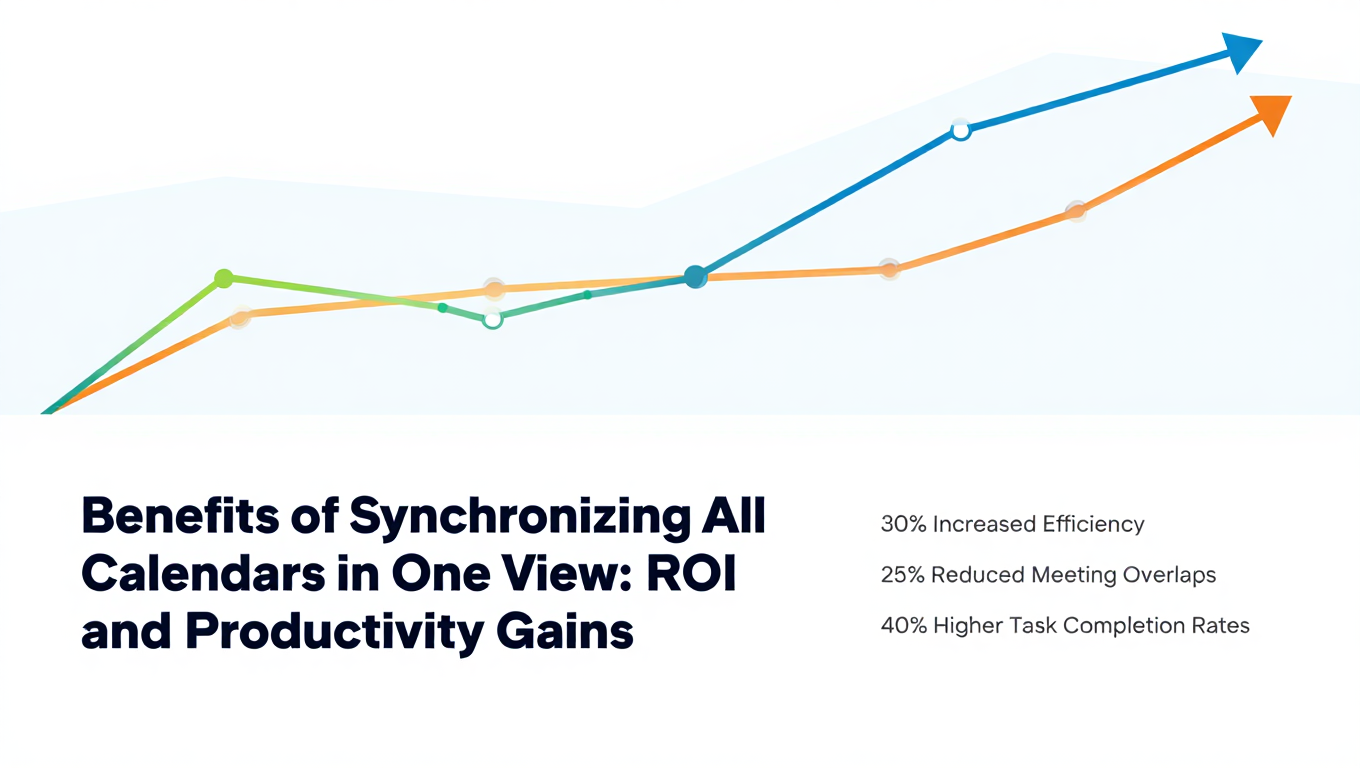
Benefits of Synchronizing All Calendars in One View: ROI and Productivity Gains
Discover the benefits of synchronizing all calendars in one view. See ROI data, productivity gains, reduced double bookings, and real-world business impact in 2025.
Best Bidirectional Calendar Sync Tools: 2025 Comparison Guide
Compare the best bidirectional calendar sync tools in 2025. Discover which platforms offer true two-way synchronization and which only provide one-way sync.
Best Two Way Calendar Sync Software: 2025 Expert Rankings & Comparison
Compare the top two-way calendar sync software tools. We tested 12 platforms for bidirectional sync speed, reliability, and field coverage to find which actually work.