
 Google Calendar
  Outlook Calendar
  Google Meet
  Microsoft Teams
  Zoom Meetings
 Sync Microsoft Teams with CalendHub: Complete Integration Guide 2025
Connect Microsoft Teams meetings to CalendHub with bidirectional sync for seamless team scheduling.
Microsoft Teams has grown from a chat tool into the central hub for meetings, collaboration, and scheduling for millions of organizations. Teams meetings populate your calendar daily, from quick huddles to large team presentations. But when those meetings exist only within the Microsoft ecosystem, professionals who juggle multiple calendar platforms start falling through the cracks.
Syncing Microsoft Teams with CalendHub.com connects your Teams meeting schedule with every other calendar you use. Whether you need Teams meetings visible in Google Calendar, Apple Calendar, or any other platform, bidirectional sync through CalendHub keeps everything aligned without manual effort.
- How to connect Microsoft Teams to CalendHub through the Outlook 365 integration
- Ensuring Teams meeting links and details sync across platforms
- Configuring bidirectional sync for Teams scheduling
- Resolving common Teams-specific sync challenges
- Advanced tips for organizations managing Teams meetings at scale
Why Sync Microsoft Teams with Your Calendar?
Microsoft Teams meetings are deeply tied to the Outlook 365 calendar. When someone schedules a Teams meeting, it creates an event in Outlook with the Teams join link embedded. That works perfectly if Outlook is your only calendar. But for most professionals, it's not.
Cross-platform visibility matters. If your personal schedule lives on Google Calendar but your company runs Teams, those Teams meetings are invisible to your personal planning unless you manually copy them. CalendHub eliminates that gap by syncing your Teams meetings everywhere.
Prevent the dreaded double-book. Picture this situation. You're free according to your Google Calendar, so a client books a call. But you actually have a Teams standup at that time. With CalendHub keeping both calendars in sync, that conflict never happens. Learn more about preventing scheduling conflicts in our multiple calendar sync guide.
Keep Teams join links accessible from any calendar. The Teams meeting link is only useful if you can find it when you need it. Syncing through CalendHub preserves that link in every calendar where the event appears, so you can join from your iPhone's Apple Calendar just as easily as from Outlook desktop.
How to Set Up Microsoft Teams Integration with CalendHub
Since Microsoft Teams meetings are created through the Outlook 365 calendar, the setup leverages CalendHub's Outlook integration with a few Teams-specific configurations.
Step 1. Sign into CalendHub. Go to CalendHub.com and log into your account.
Step 2. Connect your Outlook 365 account. Navigate to Integrations and select Outlook 365. Complete the Microsoft OAuth flow by signing in with your work Microsoft account. This is the same account you use for Teams.
Step 3. Grant calendar read and write permissions. During the OAuth step, make sure you grant both read and write access. This enables bidirectional sync so that events flow both ways between CalendHub and your Outlook/Teams calendar.
Step 4. Select the calendar that contains your Teams meetings. Your default Outlook calendar is where Teams meetings land. Select this calendar for sync. If you have additional calendars in Outlook, choose them based on your needs.
Step 5. Enable full event detail sync. This is critical for Teams. Choose the "full detail" option so that event descriptions, locations, and meeting links carry through to your other calendars. The Teams join URL lives in the event body, so stripping details would lose the link.
Step 6. Configure bidirectional sync. Set the sync direction to bidirectional. This means new events created in your other calendars (like Google Calendar) will appear in Outlook, and Teams meetings from Outlook will appear in your other calendars.
Step 7. Test with a Teams meeting. Schedule a quick test meeting in Teams. Within a few minutes, it should appear in CalendHub and any other calendars you've connected. Verify that the Teams join link is included in the synced event details.
Need better calendar management? CalendHub unifies all your calendars with smart scheduling and video conferencing.
Step 8. Test the reverse direction. Create an event in a non-Outlook calendar connected to CalendHub. Confirm it shows up in your Outlook calendar. While it won't automatically become a Teams meeting, it will block the time correctly.
Best Practices for Microsoft Teams Calendar Sync
Teams meetings have unique characteristics that deserve specific attention.
Preserve meeting descriptions during sync. Teams embeds the join link, dial-in numbers, and meeting ID in the event description. Always use "full detail" sync mode in CalendHub. Using "busy only" mode will hide these critical details.
Handle channel meetings carefully. Teams allows scheduling meetings within specific channels. These meetings have different visibility than standard meetings and are tied to the channel rather than individual calendars. Make sure your standard calendar sync captures them by checking that channel meeting events appear on your personal Outlook calendar.
Coordinate with your IT admin. Microsoft 365 administrators control which third-party apps can access calendar data. If CalendHub's OAuth flow is blocked, your admin needs to approve it in Azure Active Directory. This is a one-time step. For deeper details on Outlook configuration, see our guide to syncing Outlook calendars.
Use consistent meeting naming. When Teams meetings sync to other platforms, the event title is all the context most people see. Avoid generic titles like "Quick Chat" and instead use descriptive names like "Q3 Budget Review with Marketing" to keep things clear across all calendars.
Enterprise Microsoft 365 environments often require admin consent before third-party apps can access calendar data. If you see "Need admin approval" during setup, contact your IT department. They'll need to approve CalendHub in the Azure AD admin portal under Enterprise Applications.
Common Issues and Troubleshooting
Teams meeting sync issues usually stem from the Outlook 365 connection, but there are a few Teams-specific wrinkles.
Teams meeting links not appearing in synced events. If the join link is missing, your sync is likely set to "busy only" or "title only" mode. Switch to full detail sync in CalendHub's settings for the Outlook calendar. The Teams link lives in the event body, so it needs the full description to carry through.
Recurring Teams meetings not updating. When a recurring meeting series is modified in Teams, Outlook processes the change first. CalendHub then picks it up from Outlook. If a specific occurrence was changed but the update isn't reflected, give it a few extra minutes. Microsoft's API handles recurring event exceptions with a slight delay.
Teams meetings from other organizers not syncing. Meetings scheduled by other people should appear on your Outlook calendar automatically when you accept the invitation. If they don't appear in CalendHub, verify that you've accepted the meeting in Teams or Outlook. Tentative or pending invitations may not sync depending on your CalendHub settings.
Calendar timezone mismatches. Teams inherits your timezone from your Microsoft 365 profile. If your CalendHub timezone setting is different, meetings might appear at the wrong hour. Make sure both platforms use the same timezone. Check our calendar sync troubleshooting guide for more timezone solutions.
Channel meeting events duplicating. If a channel meeting creates both a channel calendar entry and a personal calendar entry, CalendHub might sync both. Filter out the duplicate by configuring CalendHub to only sync your primary calendar and not the channel calendar.
Advanced Microsoft Teams Calendar Integration Tips
Organizations and power users can push the Teams integration even further.
Sync Teams across personal and work calendars. The most common use case is syncing your corporate Teams meetings into a personal Google Calendar or Apple Calendar. CalendHub.com handles this seamlessly, giving you a complete picture of your day no matter which device or app you're using.
Use CalendHub scheduling pages with Teams links. When clients or external contacts book meetings through CalendHub's scheduling page, you can configure it to automatically generate a Teams meeting link and include it in the calendar invite. This eliminates the back-and-forth of sharing meeting links manually.
Monitor meeting load across the team. For managers, syncing everyone's Teams calendars through CalendHub provides visibility into team meeting load. Identify when team members are in back-to-back meetings all day and take steps to protect focused work time.
Set buffer times around Teams meetings. Enable CalendHub's automatic buffer feature to block 5 to 10 minutes before and after Teams calls. This prevents the wall-to-wall meeting days that kill productivity and gives everyone a moment to prepare or decompress between calls.
Combine with Outlook room bookings. If your organization uses Outlook room calendars for conference room scheduling, syncing these through CalendHub gives you visibility into room availability alongside your personal schedule. This is especially useful when planning in-person meetings that require a specific room.
Microsoft Teams and CalendHub together ensure your meeting schedule is visible everywhere you need it. Stop toggling between apps and start working from a single, accurate view of your commitments. Get connected at CalendHub.com and bring your Teams schedule into the fold.
Ready to Simplify Your Schedule?
Join thousands of professionals who have unified their calendars and reclaimed their time with CalendHub's intelligent scheduling platform.
Related Articles
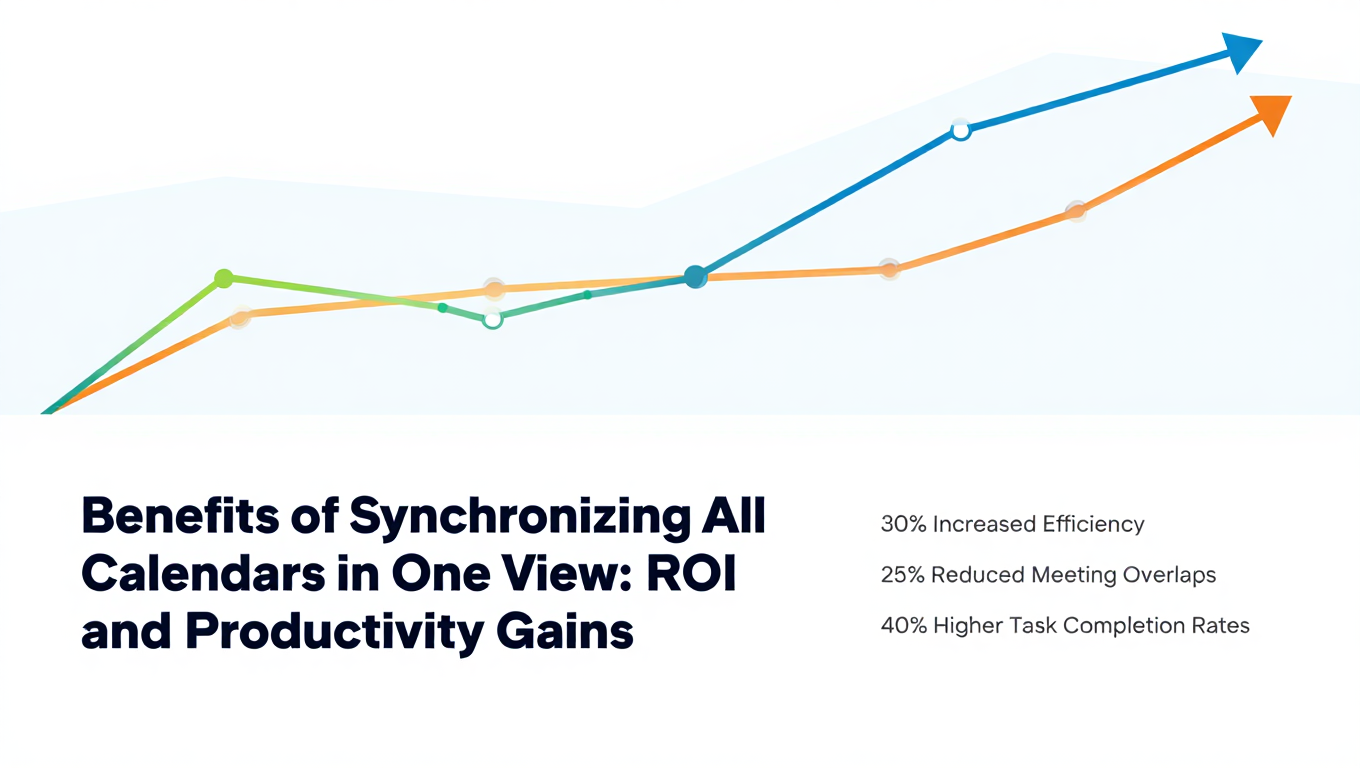
Benefits of Synchronizing All Calendars in One View: ROI and Productivity Gains
Discover the benefits of synchronizing all calendars in one view. See ROI data, productivity gains, reduced double bookings, and real-world business impact in 2025.
Best Bidirectional Calendar Sync Tools: 2025 Comparison Guide
Compare the best bidirectional calendar sync tools in 2025. Discover which platforms offer true two-way synchronization and which only provide one-way sync.
Best Two Way Calendar Sync Software: 2025 Expert Rankings & Comparison
Compare the top two-way calendar sync software tools. We tested 12 platforms for bidirectional sync speed, reliability, and field coverage to find which actually work.