
 Google Calendar
  Outlook Calendar
  Google Meet
  Microsoft Teams
  Zoom Meetings
 Sync Monday.com with CalendHub: Complete Integration Guide 2025
Connect Monday.com work management to CalendHub for one-way calendar sync that puts project timelines on your schedule.

Monday.com is the work management platform that teams across every industry use to plan, track, and deliver projects. Its colorful boards, timeline views, and automation features make project management approachable and visual. But when deadlines and milestones live exclusively on Monday.com boards, they're invisible during your daily calendar check. And your calendar is where you actually decide how to spend each hour of your day.
Syncing Monday.com with CalendHub.com brings your project dates, task deadlines, and milestone timelines directly onto your calendar. This one-way read integration pulls date-based items from your Monday.com boards and creates calendar events that sit right alongside your meetings and personal commitments. You get the full picture of what's due and when, without opening another app.
- How to connect Monday.com boards to CalendHub
- Mapping Monday.com date columns to calendar events
- Filtering which items and boards appear on your calendar
- Troubleshooting Monday.com-specific sync issues
- Advanced tips for teams managing complex projects across Monday.com and calendars
Why Sync Monday.com with Your Calendar?
Monday.com excels at organizing work, but calendars excel at organizing time. Combining both gives you something neither provides alone.
Make project deadlines part of your daily rhythm. You check your calendar every morning. You might check Monday.com when you sit down to do project work, but not necessarily first thing. When Monday.com deadlines show up on your calendar, they're part of your daily awareness. That launch date two weeks from now won't catch you off guard.
Prevent scheduling conflicts between meetings and deadlines. If three major deliverables are due on Thursday and your calendar shows five hours of meetings that day, you have a problem. But you can only see that problem when both data sources live in the same view. CalendHub makes this possible. For more on building unified calendar views, read our guide on syncing multiple calendars.
Give stakeholders timeline visibility without Monday.com access. Not every stakeholder needs a Monday.com license. When project milestones sync to a shared calendar through CalendHub, executives and clients can see key dates without navigating boards they don't understand.
How to Set Up Monday.com Integration with CalendHub
Monday.com's column-based structure makes the mapping process intuitive. Date columns become calendar events, and you control which boards and columns to sync.
Step 1. Log into CalendHub. Head to CalendHub.com and sign in. Make sure at least one calendar platform is connected.
Step 2. Open the Integrations page. Navigate to Integrations from your dashboard sidebar.
Step 3. Select Monday.com. Click the Monday.com option. CalendHub will redirect you to Monday.com's authorization page.
Step 4. Authorize CalendHub. Sign into your Monday.com account and approve CalendHub's request to access your boards and items. The authorization grants read access to pull board data into your calendar system.
Step 5. Choose which boards to sync. CalendHub displays all boards in your Monday.com account. Select the boards containing items with dates you want on your calendar. Common choices include project trackers, content calendars, campaign planners, and sprint boards.
Step 6. Map date columns to calendar events. Each Monday.com board has different columns. Tell CalendHub which date column should be used for event start dates. If a board has both "Start Date" and "Deadline" columns, you can map both to create events that span the full duration.
Step 7. Configure event details. Choose which Monday.com columns feed into the calendar event. The item name becomes the event title. You can include the board name, group name, status, person assigned, and any text columns in the event description.
Need better calendar management? CalendHub unifies all your calendars with smart scheduling and video conferencing.
Step 8. Set the destination calendar. Choose where Monday.com events should appear. A dedicated "Projects" calendar keeps deadlines separate from meetings. Or send them to your primary calendar if you want everything in one view.
Step 9. Test the sync. Add a new item to a connected Monday.com board with a date in the near future. Verify it appears on your calendar within a few minutes. If the event shows up with the correct date, title, and details, you're all set.
Best Practices for Monday.com Calendar Sync
Monday.com boards can hold a lot of data. Thoughtful filtering keeps your calendar useful.
Sync by board group for relevance. Monday.com boards organize items into groups like "This Week," "Next Week," or "Backlog." Configure CalendHub to only sync items from active groups. Backlog items with tentative dates just add noise to your calendar.
Use the status column for filtering. Monday.com's status column shows whether items are "Working on it," "Stuck," or "Done." Sync only items with active statuses to keep your calendar reflecting current work. Completed items should drop off automatically.
Include the person column in filters. If your Monday.com board tracks work for the whole team, filter by the Person column to only sync items assigned to you. This prevents your calendar from showing every team member's deadlines.
Color-code by board. When multiple Monday.com boards sync to different calendars through CalendHub, assign distinct colors to each calendar. This makes it easy to distinguish marketing deadlines from engineering milestones at a glance. Our bidirectional sync guide covers more multi-source calendar strategies.
Monday.com integration with CalendHub is a one-way read sync. Changes made in Monday.com update your calendar, but editing calendar events will not modify your Monday.com boards. Always make date and status changes directly in Monday.com to keep your project data accurate.
Common Issues and Troubleshooting
Monday.com's flexible structure is a strength, but it can introduce sync challenges.
Items not appearing on calendar. Check that the items have values in the date column you mapped. Empty date columns can't create calendar events. Also verify that the board is selected in your CalendHub integration settings and that your filters aren't excluding the item by status, group, or assignee.
Timeline columns showing incorrect durations. Monday.com's Timeline column represents a date range, while the Date column is a single date. Make sure CalendHub is reading the correct column type. If you're using Timeline columns, both start and end dates should map to the calendar event's start and end times.
Subitems not syncing. Monday.com subitems have their own columns that may differ from parent items. If you need subitem dates on your calendar, check CalendHub's settings for a subitem sync option. Some configurations treat subitems as separate entities that need their own mapping.
Changes in Monday.com taking time to reflect. Monday.com's API has rate limits, and CalendHub polls for updates at regular intervals. Expect a delay of a few minutes after making changes. If updates consistently take longer than 10 minutes, check whether your Monday.com plan's API limits are being reached.
Board restructuring breaking sync. If you rename columns, change column types, or reorganize a Monday.com board, the CalendHub mapping may break. After structural changes, revisit CalendHub's integration settings and update the column mappings. Visit our calendar sync troubleshooting guide for more debugging approaches.
Advanced Monday.com Calendar Integration Tips
Teams managing complex projects can push the integration further with these techniques.
Sync multiple workspaces. If your organization uses separate Monday.com workspaces for different departments or clients, connect each to CalendHub.com independently. Marketing's workspace feeds a Marketing calendar, Engineering's workspace feeds a Development calendar, and so on.
Create milestone calendars for leadership. Set up a Monday.com board specifically for high-level milestones and sync it to a shared calendar. Executives can subscribe to this calendar for a birds-eye view of project timelines without wading through operational details.
Combine with meeting calendar for capacity planning. The real insight comes when Monday.com deadlines sit next to your meeting schedule on the same calendar view. If you have six hours of meetings on a day when two major deliverables are due, you can proactively reschedule or delegate. CalendHub makes this cross-reference automatic.
Use Monday.com automations to enhance sync. Monday.com has built-in automations that can modify dates and statuses based on conditions. When these automations change a date, CalendHub picks up the change and updates your calendar. This creates a cascade where Monday.com automations drive calendar updates without any manual steps.
Track team workload through calendar data. When the whole team syncs their Monday.com assignments through CalendHub, a manager can see everyone's deadline load on a team calendar. This helps with resource allocation and prevents burnout by revealing when individuals are overloaded with concurrent deadlines.
Monday.com and CalendHub together bridge the gap between project planning and personal time management. Your Monday.com boards show what needs to get done. Your calendar shows when you can do it. Connecting them at CalendHub.com means you'll always have the complete picture of your work and your time in one place.
Ready to Simplify Your Schedule?
Join thousands of professionals who have unified their calendars and reclaimed their time with CalendHub's intelligent scheduling platform.
Related Articles
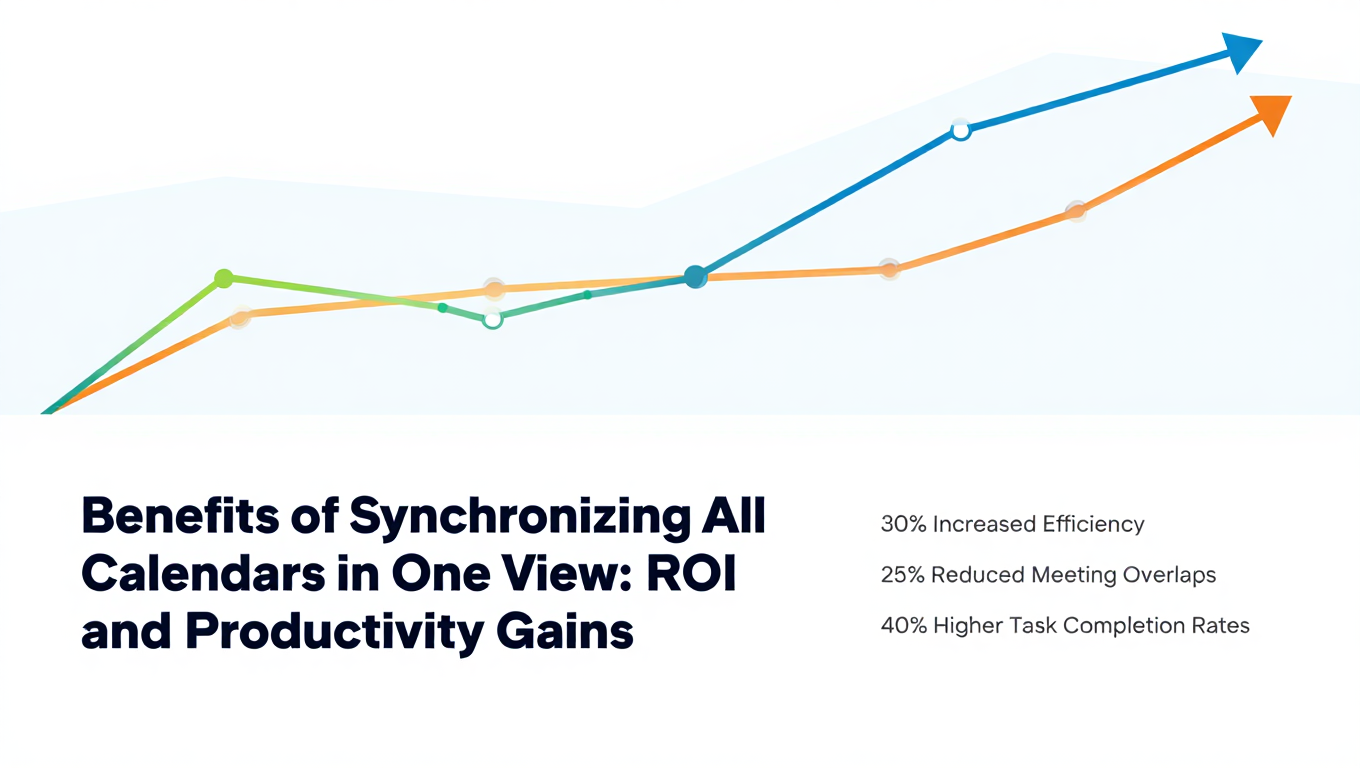
Benefits of Synchronizing All Calendars in One View: ROI and Productivity Gains
Discover the benefits of synchronizing all calendars in one view. See ROI data, productivity gains, reduced double bookings, and real-world business impact in 2025.

Best Bidirectional Calendar Sync Tools: 2025 Comparison Guide
Compare the best bidirectional calendar sync tools in 2025. Discover which platforms offer true two-way synchronization and which only provide one-way sync.

Best Two Way Calendar Sync Software: 2025 Expert Rankings & Comparison
Compare the top two-way calendar sync software tools. We tested 12 platforms for bidirectional sync speed, reliability, and field coverage to find which actually work.