
 Google Calendar
  Outlook Calendar
  Google Meet
  Microsoft Teams
  Zoom Meetings
 Sync Multiple Outlook Calendars: Enterprise IT Guide 2025
IT administrator guide to syncing Outlook calendars across Microsoft 365 tenants, Exchange Server, and hybrid environments. Implement organization-wide calendar synchronization.
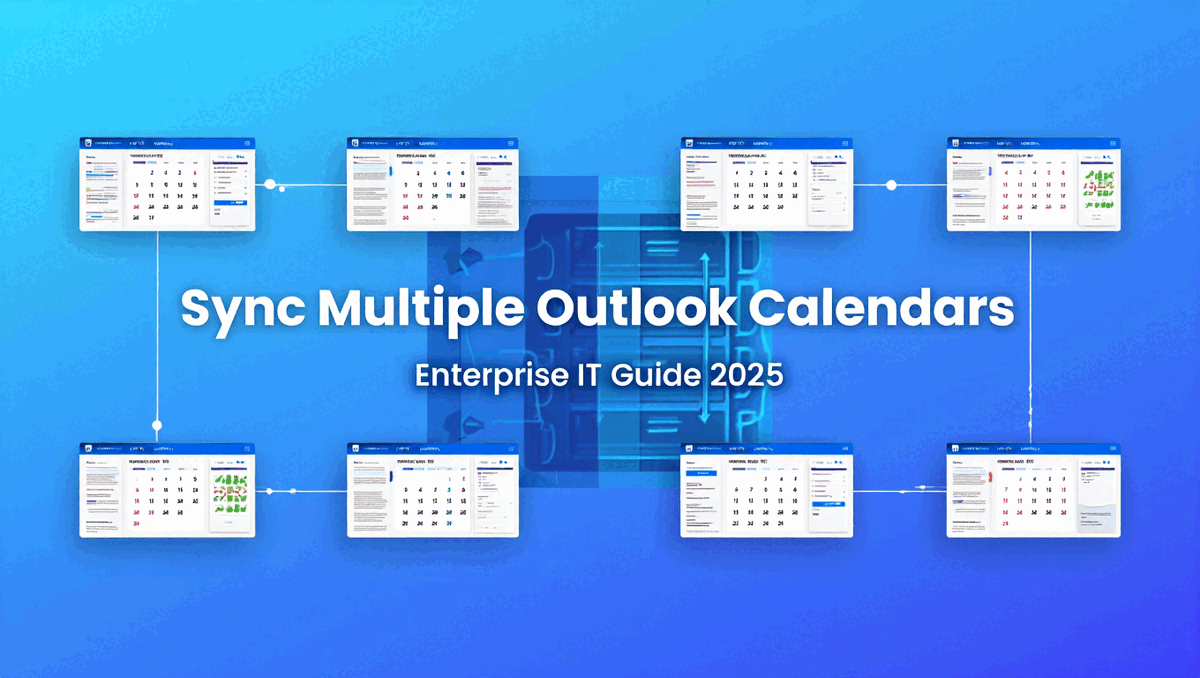
Your organization just acquired a competitor with 500 employees using their own Microsoft 365 tenant and Exchange Online infrastructure. Both companies need to collaborate immediately, but scheduling meetings between organizations is chaos. Executives juggle separate Outlook calendars from both Microsoft 365 tenants, administrative assistants can't check availability across tenant boundaries, and double bookings plague every cross-company meeting attempt.
Meanwhile, your hybrid Exchange environment runs on-premises Exchange Server for the main corporate office while branch offices use Exchange Online in Microsoft 365. Calendar free and busy information doesn't flow reliably between environments. Sales teams can't see engineering availability. Branch offices schedule over headquarters meetings. The technical support queue overflows with calendar synchronization complaints.
Your IT leadership demands a solution. They need unified calendar visibility across Microsoft 365 tenants, seamless Exchange Server and Exchange Online integration, proper security controls that satisfy compliance requirements, and scalability to support 10,000+ employees across merged organizations.
This enterprise IT administrator guide explains exactly how to implement organization-wide Outlook calendar synchronization across Microsoft 365 tenants, Exchange Server environments, and hybrid deployments in 2025. You'll learn Microsoft's native capabilities, third-party enterprise solutions, security best practices, and deployment strategies for complex organizational requirements.
- Microsoft 365 cross-tenant calendar synchronization architecture and limitations
- Exchange Server to Exchange Online calendar federation implementation
- Azure AD cross-tenant synchronization for merged organizations
- Organization Relationship configuration for cross-tenant free/busy sharing
- Enterprise calendar synchronization tools for multi-tenant deployments
- Security governance, compliance, and data residency considerations
- Scalable solutions for organizations managing 6+ Microsoft 365 tenants
How Do You Sync Multiple Outlook Calendars Across an Enterprise?
Syncing multiple Outlook calendars at enterprise scale means implementing organization-wide calendar visibility and availability synchronization across Microsoft 365 tenants, Exchange Server environments, and hybrid deployments while maintaining security governance and compliance requirements.
You can sync Outlook calendars across enterprises using Microsoft's Organization Relationships for cross-tenant free and busy sharing, Azure AD cross-tenant synchronization for user provisioning, Exchange hybrid configuration for on-premises and cloud integration, or enterprise calendar synchronization platforms that provide bidirectional event synchronization with granular security controls. The appropriate approach depends on whether you need basic free and busy visibility, full event synchronization, or specific governance requirements.
Enterprise Outlook calendar synchronization differs fundamentally from individual user calendar syncing. At enterprise scale, you must consider centralized administration, security policies, compliance requirements, data residency regulations, scalability to thousands of users, audit trails, and governance controls that individual solutions cannot provide.
Understanding Microsoft 365 Multi-Tenant Calendar Challenges
Before implementing solutions, understand the architectural challenges that make cross-tenant Outlook calendar synchronization complex at enterprise scale.
Microsoft 365 Tenant Isolation Architecture
Microsoft 365 implements strict tenant isolation for security and data separation. Each tenant operates as a completely separate environment with its own Azure AD instance, Exchange Online organization, security boundaries, and administration controls.
This isolation means users in Tenant A fundamentally cannot see calendar information for users in Tenant B without explicit configuration. When your organization manages multiple Microsoft 365 tenants due to acquisitions, subsidiary management, or geographic requirements, this isolation creates calendar visibility gaps.
According to Microsoft's 2024 documentation on multitenant organizations, cross-tenant collaboration requires deliberate setup of trust relationships and data sharing permissions. Calendar synchronization isn't automatic even when both tenants belong to the same corporate parent organization. Understanding bidirectional calendar sync architecture is essential for enterprise implementations.
Exchange Online Federation Limitations
Exchange Online supports federated calendar sharing through Organization Relationships, allowing free and busy visibility between tenants. However, this federation has significant limitations for enterprise calendar synchronization:
Free/Busy Only: Organization Relationships share availability information (free, busy, tentative, out of office) but not full event details like meeting titles, locations, descriptions, or attendee lists. Users see time blocks but not meeting context.
No Real-Time Updates: Calendar changes don't propagate instantly across Organization Relationships. Updates occur at intervals, creating windows where availability information is stale and double bookings can occur.
Manual Configuration Required: IT administrators must manually configure Organization Relationships between each pair of tenants. With multiple Microsoft 365 tenants, this creates complex configuration matrices.
No Event Synchronization: Organization Relationships provide visibility but don't actually synchronize calendar events. An event created in Tenant A doesn't appear in Tenant B's calendar, only affects free and busy status.
Cross-Tenant Availability Blindness
Users checking colleague availability through Outlook's scheduling assistant only see availability for users within their Microsoft 365 tenant. Even with Organization Relationships configured, the scheduling experience is suboptimal.
When scheduling a meeting with participants from multiple tenants, Outlook cannot aggregate availability across tenants automatically. Meeting organizers must manually coordinate by checking each tenant separately or relying on email exchanges about availability, defeating the purpose of modern calendar systems.
Hybrid Exchange Server Complexity
Organizations running hybrid Exchange environments face additional calendar synchronization challenges. On-premises Exchange Server and Exchange Online (Microsoft 365) operate as separate calendaring systems.
Hybrid Exchange configuration enables coexistence and migration, but calendar free and busy sharing between on-premises and cloud requires proper setup. Many organizations discover their hybrid configuration doesn't properly support cross-premises calendar visibility, leading to scheduling conflicts between users in different environments.
According to Connecting Software's 2024 analysis of Exchange synchronization, server-side mailbox synchronization provides better reliability than client-side solutions because it operates independently of user devices and maintains availability even when users are offline. For guidance on resolving sync issues, see our calendar sync troubleshooting guide.
Directory Synchronization vs. Calendar Synchronization
Many IT administrators confuse Azure AD Connect (directory synchronization) with calendar synchronization. Azure AD Connect synchronizes user identities, passwords, and attributes between on-premises Active Directory and Azure AD, but it doesn't synchronize calendar data.
Calendar synchronization requires separate implementation beyond directory synchronization. An organization might have perfect directory synchronization across environments while still experiencing complete calendar fragmentation. Learn about unified calendar solutions for enterprise environments.
Merger and Acquisition Scenarios
Corporate mergers and acquisitions create particularly challenging calendar synchronization requirements. Acquired organizations typically maintain separate Microsoft 365 tenants for months or years during integration.
During this period, employees from both organizations need to collaborate and schedule meetings, but their calendars remain completely separate. Traditional approaches require migrating all users to a single tenant, which is complex, risky, and time-consuming. Calendar synchronization provides interim or permanent solutions without forcing tenant consolidation.
- Data Residency Requirements: Verify that calendar synchronization solutions comply with data residency regulations in your jurisdictions
- Compliance and Audit: Ensure solutions provide audit trails meeting regulatory requirements
- Security Governance: Validate that synchronization respects existing Microsoft 365 security policies
- Scalability Testing: Confirm solutions handle your user count and calendar volume
- Change Management: Plan user communication and training for new calendar synchronization capabilities
Method 1: Implement Organization Relationships for Cross-Tenant Free/Busy
Microsoft's Organization Relationships provide native cross-tenant free and busy sharing between Microsoft 365 tenants or between Exchange Server and Exchange Online environments.
When to Use Organization Relationships
Organization Relationships work well when your requirements include:
- Basic free and busy visibility between Microsoft 365 tenants
- Cross-organization meeting scheduling without full event details
- Leveraging native Microsoft capabilities without third-party tools
- Meeting compliance requirements that restrict external tool usage
- Simple two-tenant scenarios without complex synchronization needs
Organization Relationships don't work well when you need:
- Full event detail synchronization including titles, locations, descriptions
- Real-time calendar updates across tenants
- Bidirectional event synchronization
- More than basic free and busy information
- Calendar synchronization for users managing 6+ separate Outlook accounts
Architecture Overview
Organization Relationships create trust relationships between Exchange Online organizations (Microsoft 365 tenants) allowing federated calendar sharing. Each tenant configures the other tenant as a trusted partner, enabling free and busy queries across tenant boundaries.
The relationship is peer-to-peer between tenants. With three tenants, you need three Organization Relationships (A to B, B to C, A to C). With five tenants, you need ten relationships. Configuration complexity grows exponentially with additional tenants.
Prerequisites for Implementation
Before configuring Organization Relationships:
- Verify Admin Permissions: You need Global Administrator or Exchange Administrator role in both Microsoft 365 tenants
- Identify Tenant Domains: Document the primary domain for each tenant (e.g., contoso.com, fabrikam.com)
- Determine Sharing Scope: Decide which users can share calendars (entire organization or specific groups)
- Plan Access Levels: Choose between free/busy time only, free/busy time with subject and location, or full details
- Test Environment: Configure and test in non-production tenants if possible
Step 1: Configure Organization Relationship in Source Tenant
Begin configuration in the first Microsoft 365 tenant that will share calendar information.
- Sign into Microsoft 365 admin center as Global Administrator
- Navigate to Exchange admin center (https://admin.exchange.microsoft.com)
- Select Organization, then Sharing
- Click New organization relationship
- Enter a descriptive name (e.g., "Calendar Sharing with Fabrikam")
- In the "Domains to share with" field, enter the target tenant's domain (fabrikam.com)
- Select the sharing scope (entire organization or specific security group)
- Choose calendar information sharing level:
- Calendar free/busy information with time only
- Calendar free/busy with time, subject, and location
- All calendar appointment information (not recommended for external organizations)
- Enable "Let users in your organization share their calendars"
- Click Save to create the Organization Relationship
Step 2: Configure Organization Relationship in Target Tenant
Repeat the configuration process in the second Microsoft 365 tenant to establish bidirectional sharing.
- Sign into the target tenant's Microsoft 365 admin center as Global Administrator
- Navigate to Exchange admin center
- Select Organization, then Sharing
- Click New organization relationship
- Enter a reciprocal descriptive name (e.g., "Calendar Sharing with Contoso")
- In the "Domains to share with" field, enter the source tenant's domain (contoso.com)
- Select the sharing scope and calendar information level matching the source configuration
- Enable "Let users in your organization share their calendars"
- Click Save to create the reciprocal Organization Relationship
Step 3: Test Cross-Tenant Calendar Sharing
After configuring Organization Relationships in both tenants, verify calendar sharing works correctly.
- Select test users from each tenant
- Have User A (Tenant A) open Outlook web app or desktop Outlook
- User A navigates to Calendar and clicks "Add calendar"
- User A selects "Add from directory"
- User A searches for User B (Tenant B) by email address
- If Organization Relationship is working, User B's calendar appears with appropriate free/busy information
- Verify that calendar details match configured sharing level
- Test reciprocal access with User B viewing User A's calendar
Step 4: Configure for Multiple Tenant Pairs
For organizations managing more than two Microsoft 365 tenants, repeat Organization Relationship configuration for each tenant pair.
With three tenants (A, B, C):
- Create Organization Relationship from A to B and B to A
- Create Organization Relationship from B to C and C to B
- Create Organization Relationship from A to C and C to A
This requires six separate Organization Relationship configurations. With four tenants, you need twelve configurations. With five tenants, twenty configurations.
Document your Organization Relationship matrix to track which tenant pairs have been configured and at what sharing level.
Step 5: Configure Hybrid Exchange Server to Microsoft 365
For organizations with on-premises Exchange Server and Microsoft 365, Organization Relationships also enable calendar sharing between environments.
This requires properly configured Exchange Hybrid deployment:
- Verify Exchange Hybrid Configuration Wizard has been completed
- Ensure federation trust is established between on-premises and Exchange Online
- Configure Organization Relationship from on-premises Exchange to Exchange Online
- Configure reciprocal Organization Relationship from Exchange Online to on-premises
- Verify autodiscover works correctly for both environments
- Test calendar sharing between on-premises users and Microsoft 365 users
Hybrid calendar sharing can be complex. If users report they cannot see cross-premises free and busy information, verify that:
- The mail.onmicrosoft.com domain is properly configured
- Autodiscover points to correct endpoints for both environments
- Federation certificates are valid and not expired
- Organization Relationships specify correct target domains
Important Limitations of Organization Relationships
While Organization Relationships provide native cross-tenant calendar visibility, understand their limitations:
No Real-Time Sync: Free and busy information updates at intervals, not instantly. Changes can take minutes to hours to propagate across tenants.
Limited Information: Even with maximum sharing level, Organization Relationships don't provide full event synchronization. Events don't actually copy between tenants.
No Conflict Prevention: Users can still double-book because events don't block time in other tenants, only show as busy periods.
Scheduling Assistant Limitations: Outlook's scheduling assistant may not effectively aggregate availability across Organization Relationships in all scenarios.
No Multi-Calendar User Support: Organization Relationships help users in different tenants see each other's availability, but don't help individual users managing multiple Outlook accounts across tenants.
For professionals managing 6+ Outlook calendars across different Microsoft 365 tenants, Organization Relationships don't solve the core synchronization problem. Users still need to manually check multiple tenants and platforms like CalendHub.com that provide true multi-calendar synchronization for power users.
Method 2: Implement Azure AD Cross-Tenant Synchronization
Azure AD cross-tenant synchronization automates user provisioning across Microsoft 365 tenants, which enables improved calendar collaboration in multitenant organizations.
When to Use Azure AD Cross-Tenant Sync
Azure AD cross-tenant synchronization works well for:
- Organizations managing multiple Microsoft 365 tenants that should operate as unified environment
- Post-merger scenarios where tenant consolidation is delayed or impossible
- Subsidiary organizations requiring cross-organizational collaboration
- Scenarios where users need presence in multiple tenants for calendar and Teams collaboration
This approach complements rather than replaces Organization Relationships. Cross-tenant sync provisions users across tenants, while Organization Relationships enable calendar sharing for those users.
Architecture Overview
Cross-tenant synchronization creates B2B (business-to-business) guest user objects in target tenants for users from source tenants. These guest users gain access to resources including calendars in the target tenant.
According to Microsoft's 2024 documentation, cross-tenant synchronization simplifies collaboration by automating creation, updating, and removal of B2B users across tenants within the same Microsoft 365 organization.
When User A from Tenant A is synchronized to Tenant B as a guest user, users in Tenant B can see User A in their directory, add User A to meetings, and view User A's calendar availability (subject to Organization Relationship configuration).
Prerequisites for Implementation
Before configuring cross-tenant synchronization:
- Azure AD Premium P1 licenses in source tenant for synchronized users
- Tenant Administrator access in both source and target tenants
- Security policy approval for B2B guest user provisioning
- Network connectivity between tenants (via internet)
- Documented user synchronization scope (which users need cross-tenant access)
Step 1: Configure Cross-Tenant Synchronization in Source Tenant
Begin in the Microsoft 365 tenant that will synchronize users to target tenant(s).
- Sign into Azure portal (portal.azure.com) as Global Administrator of source tenant
- Navigate to Azure Active Directory
- Select External Identities, then Cross-tenant synchronization
- Click New configuration
- Enter a descriptive name (e.g., "Sync to Fabrikam Tenant")
- Click Create
- In the configuration, select Provisioning
- Click Get started
- Set Provisioning Mode to Automatic
- In the Tenant Id field, enter the target tenant's ID
- Click Test Connection to verify connectivity
- Click Save
Step 2: Define User Scoping Rules
Determine which users should be synchronized from source to target tenant.
- In the cross-tenant synchronization configuration, select Provisioning
- Click Edit attribute mappings
- Under Mappings, select Provision Azure Active Directory Users
- Configure Source Object Scope to define which users sync
- Options include:
- Sync all users (appropriate only for small organizations or subsidiaries)
- Sync users in specific security groups
- Sync users in specific administrative units
- Sync users matching attribute filters (e.g., department, location)
- Click Save to apply scoping rules
For enterprise deployments, use security group-based scoping. Create dedicated security groups like "Cross-Tenant-Sync-Fabrikam" containing users who need calendar access to the target tenant.
Step 3: Configure Attribute Mappings
Determine which user attributes synchronize to target tenant.
- In attribute mappings, review default mappings
- Common calendar-relevant attributes include:
- displayName
- jobTitle
- department
- officeLocation
- telephoneNumber
- Modify mappings if organizational requirements differ from defaults
- Click Save after making changes
Step 4: Enable Provisioning and Start Synchronization
After configuring scoping and mappings, enable provisioning to begin synchronization.
- Return to the Provisioning overview page
- Set Provisioning Status to On
- Click Save
- Azure AD begins initial synchronization cycle
- Monitor synchronization progress under Current cycle status
Initial synchronization can take 20-40 minutes depending on user count. Azure AD discovers users matching scoping rules, creates corresponding guest user objects in target tenant, and establishes synchronization relationship.
Step 5: Configure in Target Tenant
Target tenant administrators must configure inbound trust settings to allow cross-tenant synchronization.
- Sign into Azure portal as Global Administrator of target tenant
- Navigate to Azure Active Directory
- Select External Identities, then Cross-tenant access settings
- Locate the source tenant in the list or add it
- Click Inbound access
- Under B2B collaboration, enable Allow users sync into this tenant
- Configure whether to sync all users or specific users
- Click Save
Step 6: Verify Cross-Tenant Calendar Access
Need better calendar management? CalendHub unifies all your calendars with smart scheduling and video conferencing.
After synchronization completes, verify calendar collaboration works across tenants.
- In source tenant, identify a test user who was synchronized
- In target tenant, search directory for the guest user object
- Verify guest user appears in Global Address List
- Test calendar access:
- User in target tenant opens Outlook
- User searches for guest user by name
- User views guest user's calendar availability
- Verify appropriate free/busy information displays
- Test meeting invitation:
- User in target tenant creates meeting invitation
- User adds guest user from source tenant as attendee
- Verify invitation delivers and calendar updates
Step 7: Implement for Multiple Tenant Combinations
For organizations with multiple Microsoft 365 tenants requiring mesh connectivity, configure cross-tenant synchronization for each tenant pair.
With three tenants (A, B, C), potential configurations include:
- Hub-and-Spoke: Tenant A synchronizes users to B and C, but B and C don't sync to each other
- Full Mesh: Each tenant synchronizes users to every other tenant (A to B and C, B to A and C, C to A and B)
- Selective: Only specific tenant pairs synchronize based on business requirements
Full mesh provides maximum flexibility but increases administrative complexity. Document your cross-tenant synchronization topology clearly.
Important Considerations for Azure AD Cross-Tenant Sync
Licensing Requirements: Source tenant users require Azure AD Premium P1 licenses. In organizations with thousands of users, licensing costs become significant.
Guest User Object Limitations: Synchronized users appear as guest users in target tenants, not full members. Some calendar features may behave differently for guest users depending on target tenant policies.
Deletion Behavior: When users are removed from source tenant scope, synchronization deletes their guest user objects from target tenant. Plan for scenarios like employee departures.
Calendar Detail Level: Cross-tenant synchronization enables calendar collaboration but actual calendar detail visibility depends on Organization Relationship configuration and individual calendar permissions.
Not a Complete Solution for Multi-Account Users: Azure AD cross-tenant synchronization helps users in different tenants collaborate, but doesn't solve the problem of individual users managing 6+ separate Outlook accounts. Professionals with multiple Microsoft 365 identities still need calendar synchronization platforms like CalendHub.com for unified calendar views.
Method 3: Implement Enterprise Calendar Synchronization Platform
Enterprise calendar synchronization platforms provide comprehensive solutions for syncing Outlook calendars across Microsoft 365 tenants, Exchange Server, and hybrid environments with centralized administration, security governance, and audit capabilities.
When to Use Enterprise Synchronization Platforms
Enterprise calendar synchronization platforms are essential when you need:
- Full event synchronization across Microsoft 365 tenants, not just free/busy visibility
- Bidirectional calendar updates with conflict resolution
- Support for 10,000+ users across multiple tenants and hybrid Exchange environments
- Centralized administration with role-based access control
- Comprehensive audit trails meeting compliance requirements
- Granular privacy controls and data loss prevention integration
- Solutions for executives and consultants managing 6+ personal Outlook accounts
- Cross-platform synchronization including Google Calendar and other platforms
This method provides the most comprehensive enterprise calendar synchronization capabilities.
Enterprise Platform Categories
Enterprise calendar synchronization platforms fall into three categories:
Server-Side Synchronization Platforms: Tools like Connecting Software's CB Sync and SyncPenguin Enterprise that run on servers and synchronize calendars at the infrastructure level. These provide the most robust synchronization for large-scale deployments.
Cloud-Based Synchronization Services: Platforms like CalendHub.com, OneCal Enterprise, and CalendarBridge that operate as cloud services connecting to Microsoft 365 tenants via APIs. These offer easier deployment without on-premises infrastructure requirements.
Hybrid Synchronization Solutions: Tools that combine on-premises components for Exchange Server synchronization with cloud services for Microsoft 365 synchronization.
Selection Criteria for Enterprise Platforms
When evaluating enterprise calendar synchronization platforms, consider:
Scalability:
- How many users does the platform support?
- Does pricing scale reasonably for organizations with 1,000+ users?
- Can the platform handle your calendar event volume?
Microsoft 365 Multi-Tenant Support:
- Does the platform support unlimited Microsoft 365 tenant connections?
- Can it synchronize across 5, 10, 15+ separate tenants?
- Does it handle complex tenant topologies like hub-and-spoke or full mesh?
Exchange Server Compatibility:
- Does the platform support on-premises Exchange Server versions you run?
- Can it synchronize between Exchange Server and Exchange Online?
- Does it handle hybrid Exchange environments properly?
Security and Governance:
- Does the platform support role-based access control for IT administrators?
- Can you implement granular privacy policies for calendar synchronization?
- Does it integrate with Microsoft 365 security features like Conditional Access?
- Are comprehensive audit trails available for compliance?
Deployment Model:
- Cloud-only deployment, on-premises deployment, or hybrid?
- What infrastructure requirements exist?
- How complex is initial setup and ongoing maintenance?
User Experience:
- Does synchronization work transparently for end users?
- Can users manage their own calendar sync preferences within IT policies?
- Does it support mobile devices and multiple Outlook clients?
Cost Structure:
- Per-user licensing, tenant licensing, or unlimited users?
- Are there hidden costs for API usage or storage?
- Does pricing align with your budget at scale?
Step 1: Architecture Design for Enterprise Deployment
Before implementing any enterprise platform, design your synchronization architecture.
Identify Synchronization Requirements:
Document specific requirements:
- Which Microsoft 365 tenants need calendar synchronization?
- Which Exchange Server environments must integrate?
- Do you need synchronization with Google Calendar, iCloud, or other platforms?
- How many users will use synchronized calendars?
- What privacy controls are required?
- What compliance requirements must be met?
Design Synchronization Topology:
Choose synchronization architecture:
Centralized Hub Model: All Microsoft 365 tenants synchronize through a central hub calendar system. This simplifies management but creates a potential single point of failure.
Peer-to-Peer Model: Calendars synchronize directly between tenants without central hub. This provides better redundancy but increases configuration complexity.
Hybrid Model: Primary corporate tenant acts as hub for standard users, while executives and consultants managing 6+ calendars use direct peer-to-peer synchronization to platforms like CalendHub.com.
Define Privacy and Security Policies:
Establish policies before deployment:
- What calendar information can synchronize across tenant boundaries?
- Do different user groups (executives, employees, contractors) have different synchronization rules?
- How should personal Outlook.com calendars integrate with corporate Microsoft 365 calendars?
- What data loss prevention policies apply to calendar synchronization?
- What audit and compliance monitoring is required?
Plan Rollout Phases:
Design phased deployment:
- Phase 1: Pilot with 50-100 test users from IT and willing volunteers
- Phase 2: Rollout to executive team and administrative assistants
- Phase 3: Rollout to specific departments with high cross-tenant collaboration needs
- Phase 4: Organization-wide rollout
- Phase 5: Integration with newly acquired organizations or subsidiaries
Step 2: Platform Deployment and Configuration
Deployment steps vary by platform, but general patterns include:
For Cloud-Based Platforms like CalendHub.com:
Enterprise Account Setup:
- Contact vendor for enterprise licensing
- Establish enterprise account with appropriate user licenses
- Configure single sign-on integration with Azure AD if available
- Set up administrative accounts with role-based access control
Microsoft 365 Tenant Connection:
- Authenticate each Microsoft 365 tenant with platform
- Grant application permissions in each tenant's Azure AD
- Verify permissions include necessary calendar read/write access
- Test connection to ensure API access works
Synchronization Rule Configuration:
- Define default synchronization rules for standard users
- Configure privacy masking rules (e.g., busy blocking for personal calendars)
- Set up conflict resolution policies
- Establish calendar retention and archival policies
User Provisioning:
- Import user list from Azure AD or CSV
- Assign users to appropriate synchronization groups
- Configure which Microsoft 365 tenants each user can synchronize
- Enable synchronization for pilot user group
For Server-Side Platforms:
Infrastructure Deployment:
- Deploy synchronization server on-premises or in cloud VM
- Configure network connectivity to all Exchange servers and Microsoft 365 tenants
- Install required software components and dependencies
- Configure service accounts with necessary Exchange permissions
Exchange Connection:
- Configure connections to each Exchange Server environment
- Set up Exchange Web Services or direct Exchange API connections
- Configure connections to Exchange Online for Microsoft 365 tenants
- Verify mailbox access for synchronization service accounts
Synchronization Job Configuration:
- Create synchronization jobs for each tenant pair or topology segment
- Configure synchronization schedule (real-time vs. interval-based)
- Set up bidirectional synchronization rules
- Configure error handling and retry logic
Monitoring and Alerting:
- Configure logging to capture synchronization events
- Set up alerts for synchronization failures
- Create dashboards showing synchronization health
- Establish procedures for incident response
Step 3: Pilot Testing with Limited User Group
Before organization-wide rollout, thoroughly test with pilot users.
Select Diverse Pilot Users:
- Include executive with multiple Microsoft 365 tenant accounts
- Include administrative assistant managing others' calendars
- Include consultant or employee with external client calendars
- Include hybrid worker with complex calendar needs
- Include standard employee for baseline testing
Define Success Criteria:
- Calendar events synchronize within 2 minutes across all tenants
- Zero double bookings during pilot period
- Privacy rules correctly mask sensitive information
- No performance degradation in Outlook clients
- User satisfaction scores above 4 out of 5
- Successful conflict resolution without data loss
Monitor Pilot Performance:
- Daily synchronization success rate
- Average synchronization latency
- User-reported issues and resolutions
- Platform resource utilization
- API rate limit consumption
- Cost per user during pilot
Gather User Feedback:
- Survey pilot users weekly
- Conduct focus groups to understand experience
- Identify pain points requiring configuration changes
- Document feature requests for future consideration
- Assess training needs for broader rollout
Step 4: Organization-Wide Rollout
After successful pilot, expand to full organization.
Communicate with Users:
- Announce calendar synchronization availability and benefits
- Explain what users will experience (automatic vs. requiring action)
- Provide documentation and training resources
- Set expectations for support during initial rollout
- Emphasize privacy protections and security measures
Phased Enablement:
- Enable synchronization for users in waves (100-500 users at a time)
- Monitor platform performance after each wave
- Adjust configuration based on learnings
- Pause rollout if significant issues arise
- Accelerate if performance exceeds expectations
Support Structure:
- Establish dedicated support channel for calendar synchronization issues
- Train helpdesk staff on common synchronization problems
- Create knowledge base articles for self-service support
- Monitor support ticket volume and common issues
- Refine configuration to address recurring problems
Step 5: Ongoing Administration and Governance
After deployment, establish processes for ongoing management.
Regular Maintenance Tasks:
- Monitor synchronization health dashboards weekly
- Review and renew API authentication tokens as needed
- Update synchronization rules for organizational changes
- Audit user synchronization configurations quarterly
- Review and update privacy policies as regulations change
Capacity Management:
- Monitor platform resource utilization trends
- Plan for user growth and additional tenants
- Adjust infrastructure or licensing proactively
- Archive old calendar data according to retention policies
- Optimize synchronization performance based on usage patterns
Security and Compliance:
- Review audit logs monthly for unusual activity
- Conduct quarterly access reviews for administrative permissions
- Ensure platform updates maintain compliance certifications
- Test disaster recovery procedures annually
- Update security policies as threat landscape evolves
User Lifecycle Management:
- Automate synchronization provisioning for new employees
- Disable synchronization promptly when employees depart
- Handle calendar synchronization during role changes
- Manage synchronization for contractors and temporary workers
- Support unique scenarios like executives managing 6+ calendars across tenants
Special Considerations for Power Users
Many enterprises include executives, consultants, and board members managing 6, 10, even 15+ separate Outlook calendars across different Microsoft 365 tenants and personal Outlook.com accounts.
Standard enterprise synchronization focused on organizational users may not meet power user needs. These professionals require:
- Unlimited calendar connections without arbitrary 6-calendar limits
- Fine-grained control over which calendars sync to which destinations
- Advanced privacy controls separating client calendars across tenants
- High-performance synchronization handling complex calendar portfolios
Platforms like CalendHub.com specifically address power user scenarios within enterprise environments, providing unlimited Outlook calendar connections while still respecting enterprise security policies. Unlike scheduling tools like Calendly that cap at 6 calendars, CalendHub.com handles 10, 15, 20+ calendar accounts seamlessly.
Consider hybrid approaches where standard employees use enterprise synchronization focused on organizational needs, while executives and power users leverage CalendHub.com for managing extensive personal calendar portfolios across many Microsoft 365 tenants.
- Executive Sponsorship: Secure leadership support and funding for organization-wide deployment
- Phased Rollout: Start small with pilot, expand gradually, learn continuously
- Clear Governance: Establish and communicate privacy policies and security requirements
- User Training: Provide documentation and support for users adapting to synchronized calendars
- Power User Solutions: Address unique needs of executives managing 6+ calendars with platforms like CalendHub.com
- Ongoing Optimization: Continuously monitor performance and refine configuration based on user feedback
Security, Privacy, and Compliance Considerations
Enterprise calendar synchronization raises important security, privacy, and compliance questions that IT administrators must address.
Data Residency and Sovereignty
Calendar data may be subject to data residency regulations depending on jurisdictions where your organization operates.
Identify Regulatory Requirements:
- GDPR in European Union requires data processing within EU or adequate safeguards
- Data localization laws in countries like Russia, China, India restrict data transfer
- Industry-specific regulations like HIPAA may restrict calendar information sharing
- Government contracts may require data remain within specific geographic boundaries
Verify Platform Compliance:
- Confirm calendar synchronization platform operates in compliant data centers
- Verify data processing addendums cover your jurisdictions
- Ensure data encryption meets local requirements
- Validate that platform certifications align with your compliance needs
Configure Appropriately:
- Use regional data centers when available
- Implement data residency controls in platform configuration
- Restrict cross-border calendar synchronization if required by regulation
- Document data flows for compliance audits
Privileged Information Protection
Executive calendars often contain highly sensitive information requiring enhanced protection.
Identify Sensitive Calendar Data:
- Merger and acquisition discussions
- Board meetings with confidential agenda items
- Legal consultations with privileged information
- Strategic planning sessions
- Personnel matters and performance discussions
Implement Enhanced Controls:
- Separate synchronization rules for executive calendars
- Restrict which tenants can receive executive calendar synchronization
- Implement additional encryption for sensitive calendar data
- Require additional authentication for accessing synchronized executive calendars
- Limit administrative access to executive calendar synchronization
Audit and Monitoring:
- Log all access to synchronized executive calendars
- Alert on unusual access patterns
- Review executive calendar synchronization quarterly
- Ensure audit trails meet legal hold requirements
Third-Party Risk Management
Calendar synchronization platforms represent third-party services requiring risk assessment.
Vendor Security Assessment:
- Review platform security certifications (SOC 2, ISO 27001)
- Evaluate vendor financial stability and business continuity
- Assess vendor incident response capabilities
- Verify vendor performs regular security testing
- Review vendor's data breach notification procedures
Contractual Protections:
- Establish service level agreements for availability and performance
- Define data ownership and portability requirements
- Specify data deletion procedures upon contract termination
- Include indemnification for security breaches
- Require regular vendor security attestations
Ongoing Vendor Management:
- Monitor vendor security posture annually
- Review vendor compliance reports
- Track vendor incidents and response effectiveness
- Evaluate alternative vendors periodically
- Maintain exit strategy if vendor relationship terminates
Privacy Impact Assessment
Calendar synchronization affects employee privacy and may require privacy impact assessment.
Identify Privacy Considerations:
- Calendar data reveals employee location, activities, and relationships
- Synchronization may expose personal appointments on work calendars
- Cross-tenant visibility reveals employee collaboration patterns
- Retention of synchronized calendar data creates privacy risks
Implement Privacy Protections:
- Provide clear notice to employees about calendar synchronization
- Allow employees to mark personal events for privacy masking
- Limit synchronization to business-relevant information
- Establish and enforce data retention limits
- Enable employees to request calendar synchronization data review
Document Privacy Practices:
- Update privacy policy to cover calendar synchronization
- Document legal basis for calendar data processing
- Maintain records of processing activities
- Establish procedures for data subject access requests
- Train administrators on privacy obligations
Access Control and Audit
Enterprise calendar synchronization requires robust access controls and comprehensive audit trails.
Role-Based Access Control:
- Define administrator roles with minimum necessary permissions
- Separate configuration access from audit log access
- Limit synchronization rule creation to authorized administrators
- Implement approval workflows for privileged operations
- Review and recertify administrator access quarterly
Comprehensive Audit Logging:
- Log all calendar synchronization events (create, update, delete)
- Record administrator configuration changes
- Track authentication events and failures
- Capture API access patterns and anomalies
- Retain audit logs according to compliance requirements
Security Monitoring:
- Alert on synchronization failures that might indicate attacks
- Detect unusual calendar access patterns
- Monitor for data exfiltration attempts
- Track authentication anomalies across synchronized calendars
- Investigate security incidents promptly
Measuring Enterprise Calendar Synchronization Success
After implementing enterprise calendar synchronization, measure outcomes to demonstrate value and identify improvement opportunities.
Quantitative Metrics
Synchronization Performance:
- Average calendar event synchronization latency (target: under 2 minutes)
- Synchronization success rate (target: 99.9%+)
- Platform uptime and availability (target: 99.95%+)
- API rate limit consumption (target: under 80% of limits)
User Impact:
- Reduction in double-booked meetings (target: 90%+ reduction)
- Decrease in calendar-related support tickets (target: 50%+ reduction)
- Time saved on calendar management per user per week (target: 2+ hours)
- Meeting scheduling efficiency improvement (target: 30%+ faster scheduling)
Adoption Metrics:
- Percentage of eligible users actively using synchronized calendars
- Number of calendars synchronized per user
- Frequency of cross-tenant meeting scheduling
- User satisfaction scores (target: 4+ out of 5)
Cost Metrics:
- Total cost of ownership (licensing, infrastructure, administration)
- Cost per user per month
- Return on investment based on time savings
- Comparison to alternative solutions
Qualitative Metrics
User Feedback:
- Survey users quarterly about calendar synchronization experience
- Conduct focus groups with heavy users and power users
- Gather testimonials from executives managing multiple calendars
- Identify feature requests and pain points
- Assess training effectiveness
Business Impact:
- Improved collaboration between merged organizations
- Reduced friction in cross-subsidiary scheduling
- Enhanced executive productivity managing multiple tenants
- Better support for consultants with external client calendars
- Competitive advantage in calendar management capabilities
IT Impact:
- Reduced helpdesk burden from calendar issues
- Improved IT ability to support hybrid Exchange environments
- Enhanced cross-tenant collaboration capabilities
- Better compliance and audit readiness
- Simplified user lifecycle management
Conclusion: Enterprise Calendar Synchronization as Strategic Capability
Enterprise Outlook calendar synchronization transforms from technical challenge to strategic capability when implemented properly. Organizations managing multiple Microsoft 365 tenants, hybrid Exchange environments, or post-merger integrations gain significant competitive advantage from unified calendar visibility and collaboration.
The fragmentation caused by Microsoft 365's multi-tenant architecture creates real business problems. Double bookings damage client relationships. Scheduling friction slows collaboration. Executives waste hours manually checking multiple calendars. These aren't minor inconveniences, they're productivity barriers costing organizations millions annually.
Three approaches provide solutions at enterprise scale:
Organization Relationships offer native Microsoft capabilities for basic free and busy sharing. They work well for simple cross-tenant scenarios with limited requirements. However, they don't provide full event synchronization, real-time updates, or solutions for power users managing 6+ calendars.
Azure AD Cross-Tenant Synchronization provisions users across Microsoft 365 tenants, enabling improved collaboration. Combined with Organization Relationships, this provides solid foundation for post-merger integration and subsidiary management. However, it requires Azure AD Premium licensing and doesn't solve all calendar visibility challenges.
Enterprise Calendar Synchronization Platforms deliver comprehensive solutions with full event synchronization, bidirectional updates, centralized administration, and security governance. These platforms handle complex requirements including hybrid Exchange environments, unlimited Microsoft 365 tenant connections, and power user scenarios.
Your Implementation Roadmap:
Assess Requirements: Document your organization's calendar synchronization needs, compliance requirements, and user scenarios
Design Architecture: Choose appropriate topology (hub-and-spoke, mesh, hybrid) and define privacy policies
Select Approach: Determine whether native Microsoft capabilities suffice or enterprise platforms are necessary
Pilot and Validate: Test thoroughly with diverse user group before organization-wide rollout
Deploy Systematically: Rollout in phases with strong communication and support
Address Power Users: Recognize that executives and consultants managing 6+ calendars need specialized solutions like CalendHub.com without arbitrary limits
Measure and Optimize: Track metrics, gather feedback, and continuously improve
Don't let Microsoft 365 tenant boundaries limit organizational collaboration. While native capabilities provide foundation, enterprise calendar synchronization platforms unlock full potential. For organizations where calendar visibility directly impacts business outcomes, investment in proper synchronization infrastructure pays dividends through improved productivity, reduced friction, and enhanced collaboration.
Stop accepting double bookings, calendar fragmentation, and scheduling chaos as inevitable. Implement enterprise calendar synchronization and transform how your organization manages time across Microsoft 365 tenants, Exchange Server environments, and hybrid deployments.
For power users managing extensive Outlook calendar portfolios across 6, 10, even 15+ Microsoft 365 tenants, platforms like CalendHub.com provide unlimited calendar connections without the artificial restrictions found in scheduling tools. Because enterprise calendar management is too important for arbitrary limits.
Ready to Simplify Your Schedule?
Join thousands of professionals who have unified their calendars and reclaimed their time with CalendHub's intelligent scheduling platform.
Related Articles
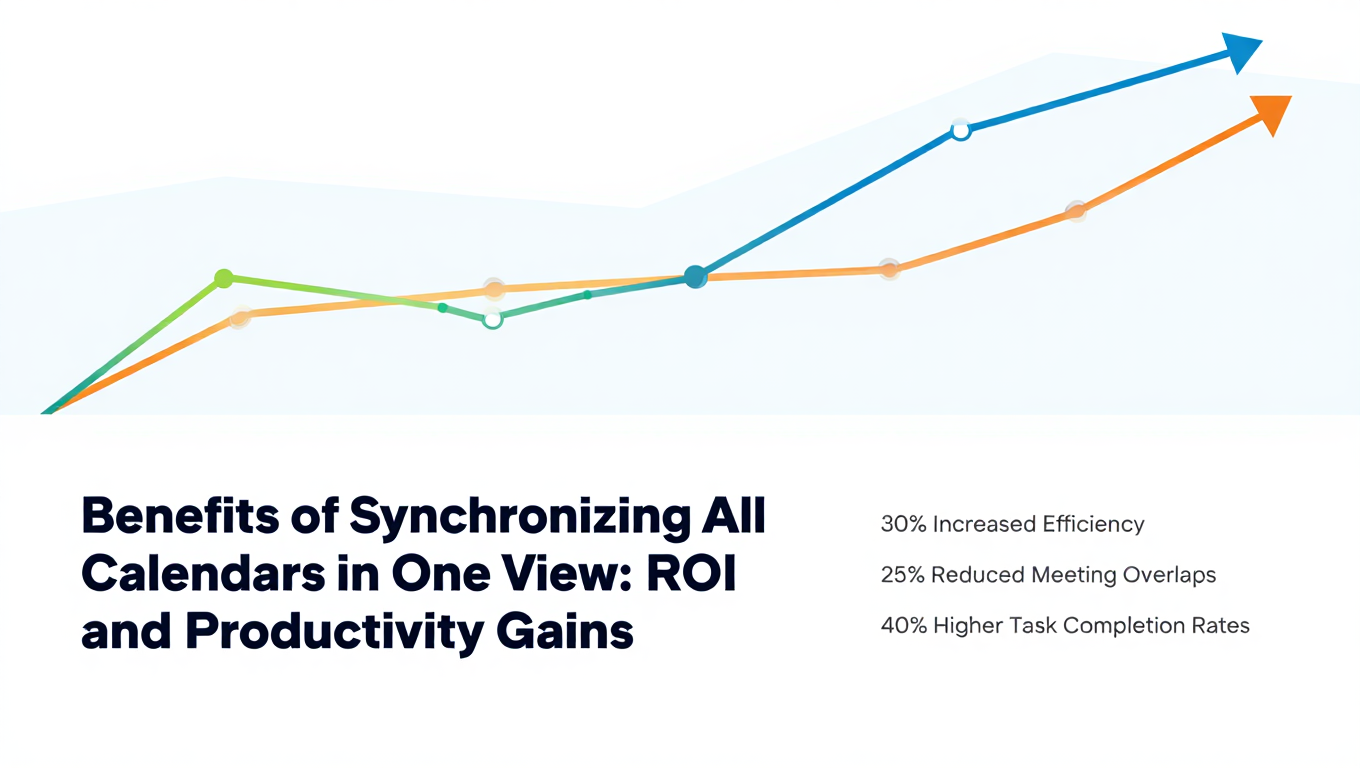
Benefits of Synchronizing All Calendars in One View: ROI and Productivity Gains
Discover the benefits of synchronizing all calendars in one view. See ROI data, productivity gains, reduced double bookings, and real-world business impact in 2025.
Best Bidirectional Calendar Sync Tools: 2025 Comparison Guide
Compare the best bidirectional calendar sync tools in 2025. Discover which platforms offer true two-way synchronization and which only provide one-way sync.
Best Two Way Calendar Sync Software: 2025 Expert Rankings & Comparison
Compare the top two-way calendar sync software tools. We tested 12 platforms for bidirectional sync speed, reliability, and field coverage to find which actually work.