
 Google Calendar
  Outlook Calendar
  Google Meet
  Microsoft Teams
  Zoom Meetings
 Sync Outlook 365 with CalendHub: Complete Integration Guide 2025
Set up Outlook 365 and CalendHub bidirectional sync for unified calendar management across all your accounts.
Outlook 365 is the calendar of choice for enterprise teams, corporate professionals, and anyone deep in the Microsoft ecosystem. It's powerful, tightly integrated with Teams and other Microsoft apps, and it handles complex scheduling scenarios like shared mailboxes and room bookings with ease. But the moment you need to coordinate with calendars outside the Microsoft world, things get complicated.
Connecting Outlook 365 to CalendHub.com bridges that gap. Whether you need your Outlook meetings visible on a personal Google Calendar, or you want all your Outlook 365 accounts feeding into a single unified view, bidirectional sync through CalendHub makes it automatic. No more copy-pasting meeting details or manually blocking time across platforms.
- How to connect Outlook 365 to CalendHub using Microsoft's secure OAuth flow
- Configuring bidirectional sync between Outlook and other calendar platforms
- Handling Microsoft 365 admin policies and organizational restrictions
- Fixing common Outlook-specific sync issues
- Advanced techniques for managing multiple Outlook 365 accounts
Why Sync Outlook 365 with Your Calendar?
Outlook 365 doesn't exist in isolation for most people. You might have a corporate Outlook account alongside a personal Gmail calendar. Or maybe you manage multiple Outlook 365 tenants for different organizations. Without sync, each calendar is an island, and islands create scheduling blind spots.
Eliminate cross-platform conflicts. The most common scheduling disaster happens when your Outlook shows you as free, but your Google Calendar has a dentist appointment. When both calendars sync through CalendHub, your true availability is reflected everywhere. For a detailed breakdown of multi-calendar strategies, see our guide to syncing multiple calendars.
Reduce context switching. Jumping between Outlook Web, the desktop app, and other calendar platforms wastes mental energy. With CalendHub pulling your Outlook events into one place alongside everything else, you check one view and you're done.
Keep external collaborators in the loop. If your company uses Outlook but your freelance clients use Google Calendar, syncing through CalendHub means you never have to manually communicate schedule changes. Your availability updates propagate automatically.
How to Set Up Outlook 365 Integration with CalendHub
The setup process is clean and follows Microsoft's standard authorization protocols. Here's how to get it done.
Step 1. Log into your CalendHub account. Go to CalendHub.com and sign in. If you don't have an account yet, creating one takes less than a minute.
Step 2. Open the Integrations panel. From your dashboard, navigate to the Integrations section. You'll see all supported calendar platforms listed with their connection status.
Step 3. Click on Outlook 365. Select the Outlook 365 option. CalendHub will initiate Microsoft's OAuth2 authorization flow. You'll be redirected to a Microsoft login page.
Step 4. Sign in with your Microsoft account. Use the email address associated with your Outlook 365 subscription. If you have multiple Microsoft accounts, make sure you're signing in with the correct one. You'll see a permissions request from CalendHub asking to access your calendar data.
Step 5. Accept the permissions. Microsoft will detail exactly what CalendHub is requesting. For bidirectional sync, CalendHub needs both read and write access to your calendar. These permissions follow Microsoft's security standards, and you can revoke them at any time from your Microsoft account settings.
Step 6. Select your Outlook calendars. Once connected, CalendHub displays all calendars in your Outlook 365 account. This includes your default calendar, any additional calendars you've created, and shared calendars from colleagues. Pick the ones that matter for your scheduling.
Step 7. Choose sync direction for each calendar. Set each calendar to bidirectional sync, one-way read, or one-way push. For your primary work calendar, bidirectional is almost always the right call. For a shared team calendar you only need visibility into, one-way read works perfectly.
Need better calendar management? CalendHub unifies all your calendars with smart scheduling and video conferencing.
Step 8. Configure event detail preferences. Decide how much detail synced events should carry. Full detail copies the event title, description, location, and attendees. "Busy only" blocks time without revealing specifics. This is especially useful when syncing a corporate Outlook calendar with a personal platform.
Step 9. Verify the sync. Create a quick test event in Outlook 365 and watch for it in CalendHub. Then do the reverse. Both should appear within a couple of minutes. If everything checks out, you're good to go.
Best Practices for Outlook 365 Calendar Sync
Follow these practices to keep your Outlook sync running smoothly over the long term.
Handle shared mailbox calendars separately. If you have access to shared mailboxes in your organization, their calendars can be synced independently. Connect each shared mailbox as its own calendar source in CalendHub so you can control sync rules per mailbox.
Mind the meeting response flow. When a meeting invitation arrives in Outlook and you accept it, that acceptance syncs through CalendHub to your other calendars. However, meeting responses only flow through Outlook's native system. If someone invites you via Outlook, always respond through Outlook to keep RSVP tracking accurate.
Use categories for sync filtering. Outlook 365 supports categories, which are labels you can apply to events. CalendHub can filter based on these categories. Tag events you don't want synced as "Local Only" and set up a filter to exclude them.
Sync your Outlook tasks calendar selectively. Outlook 365 can display tasks on your calendar. These might clutter your synced view if they're not time-bound. Consider leaving the tasks calendar unsynced and only syncing actual appointment-based calendars. Our post on syncing multiple Outlook calendars dives deeper into this.
Many organizations restrict which third-party apps can access Microsoft 365 data. If the OAuth flow shows an "admin approval required" message, you'll need your IT administrator to approve CalendHub in the Azure AD enterprise applications portal. This is a one-time step for the entire organization.
Common Issues and Troubleshooting
Outlook 365 sync is reliable, but enterprise environments can introduce some unique challenges.
"Admin approval required" during setup. This means your Microsoft 365 tenant has restricted third-party app consent. Contact your IT admin and ask them to approve CalendHub in Azure Active Directory under Enterprise Applications. Once approved, all users in your organization can connect.
Events syncing with a delay. Microsoft's Graph API sometimes throttles requests during peak usage hours. If you notice a lag beyond five minutes, it's usually temporary. CalendHub retries automatically, so events will catch up. If delays persist, check Microsoft's service health dashboard for any ongoing issues.
Recurring events not syncing correctly. Outlook handles recurring events with a complex pattern system. If a single instance of a recurring event is modified, that exception should sync properly. However, if you change the entire series, there may be a brief delay as CalendHub processes all instances. Give it a few extra minutes.
Calendar permissions revoked unexpectedly. Some Microsoft 365 organizations run periodic security reviews that can revoke third-party app tokens. If your sync stops working suddenly, reconnect your Outlook account through CalendHub's integration page. Check out our troubleshooting guide for more fixes.
Room and resource calendars not appearing. Room calendars in Outlook 365 require specific admin permissions to access via API. If you need to sync room bookings, your IT team will need to grant CalendHub access to those resource mailboxes.
Advanced Outlook 365 Calendar Integration Tips
These techniques help power users and organizations extract maximum value from the integration.
Connect multiple Outlook 365 tenants. If you work across organizations, each with its own Microsoft 365 tenant, you can connect them all to CalendHub.com independently. Each tenant gets its own OAuth connection, and you manage sync rules separately. This is perfect for consultants or executives who sit on multiple boards.
Leverage Microsoft Teams meeting data. When you create a Teams meeting through Outlook, the meeting link and join details sync along with the event through CalendHub. This means your other calendars will display the Teams link, making it easy to join from any platform.
Set up delegated calendar access. If you're an executive assistant managing someone else's Outlook calendar, you can connect their calendar through CalendHub using delegated permissions. This requires the calendar owner to grant you appropriate access in Outlook first.
Automate calendar cleanup. CalendHub's sync rules can help you keep Outlook tidy. Set rules to automatically exclude canceled events, tentative blocks, or events older than a certain date from syncing. This prevents stale data from cluttering your unified view.
Monitor sync across large teams. For organizations with multiple people syncing their Outlook 365 calendars, CalendHub provides team-level sync health monitoring. Admins can see at a glance whose connections are healthy and whose need attention.
Bringing Outlook 365 into your CalendHub setup means your corporate schedule finally plays nicely with the rest of your life. The bidirectional sync handles the heavy lifting, keeping every platform updated in real time. Get started at CalendHub.com and take control of your cross-platform scheduling.
Ready to Simplify Your Schedule?
Join thousands of professionals who have unified their calendars and reclaimed their time with CalendHub's intelligent scheduling platform.
Related Articles
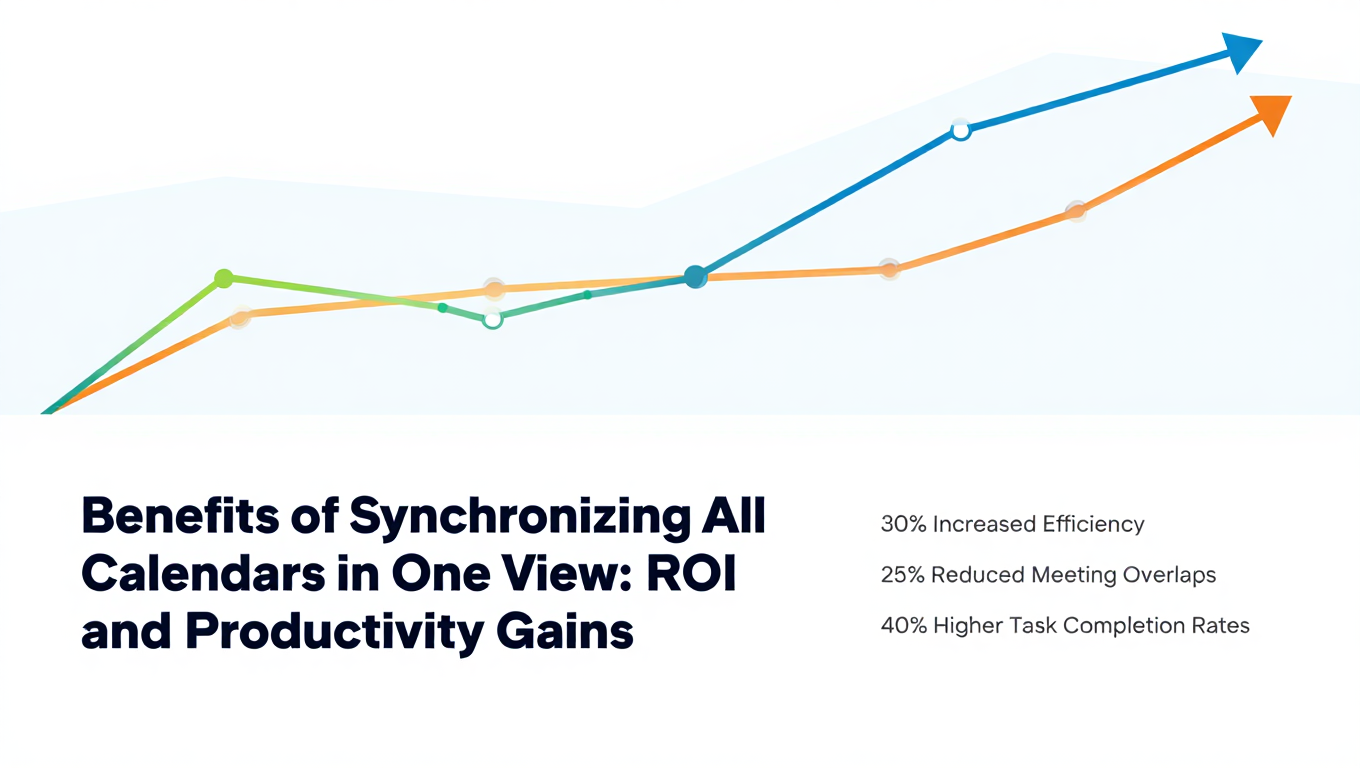
Benefits of Synchronizing All Calendars in One View: ROI and Productivity Gains
Discover the benefits of synchronizing all calendars in one view. See ROI data, productivity gains, reduced double bookings, and real-world business impact in 2025.
Best Bidirectional Calendar Sync Tools: 2025 Comparison Guide
Compare the best bidirectional calendar sync tools in 2025. Discover which platforms offer true two-way synchronization and which only provide one-way sync.
Best Two Way Calendar Sync Software: 2025 Expert Rankings & Comparison
Compare the top two-way calendar sync software tools. We tested 12 platforms for bidirectional sync speed, reliability, and field coverage to find which actually work.