
 Google Calendar
  Outlook Calendar
  Google Meet
  Microsoft Teams
  Zoom Meetings
 Sync Slack with CalendHub: Complete Integration Guide 2025
Connect Slack status and notifications to CalendHub for automatic availability updates and smarter team communication.
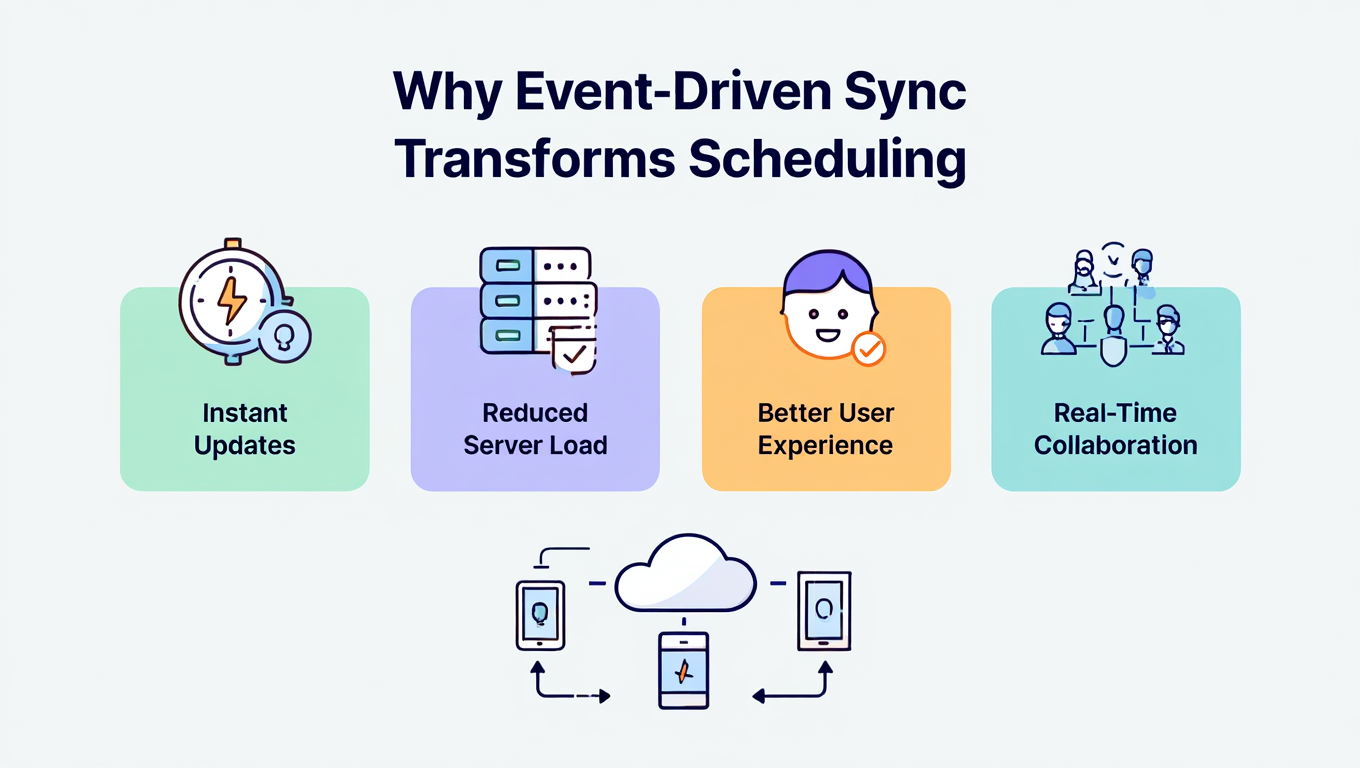
Slack is where modern teams communicate, but it's not where they manage their calendars. Yet your Slack status tells teammates whether you're available, in a meeting, or heads-down on focused work. When your status doesn't match your actual schedule, you get interrupted during meetings and teammates assume you're free when you're not.
Connecting Slack with CalendHub.com bridges the gap between your calendar and your team communication. Your Slack status automatically updates based on your calendar events, and you can receive meeting reminders right in Slack. It's a simple, one-way read integration that makes a surprisingly big difference in daily workflow.
- How to connect Slack to CalendHub for automatic status sync
- Setting up calendar notifications in Slack channels
- Configuring which events trigger status changes
- Troubleshooting Slack-specific integration issues
- Advanced tips for team-wide Slack and calendar coordination
Why Sync Slack with Your Calendar?
Slack status is one of those small things that has an outsized impact on team productivity. When someone glances at your profile and sees "In a meeting," they know to message you later. When your status is blank or outdated, they message you now and wonder why you're not responding.
Automatic status updates save mental energy. Manually updating your Slack status before every meeting is a habit most people fail at consistently. By syncing with CalendHub, your status updates itself. When a calendar event starts, your Slack status changes. When it ends, your status returns to normal. Zero effort required.
Reduce unnecessary interruptions. Research consistently shows that context switching kills productivity. When your Slack status reflects your calendar accurately, colleagues naturally hold non-urgent questions until you're free. This creates more focused work periods for everyone. Learn how unified calendar management powers this in our guide on syncing multiple calendars.
Get meeting reminders where you already are. If you spend most of your workday in Slack, getting calendar notifications there means you won't miss the start of a meeting. CalendHub can send you a Slack DM or post to a channel five or ten minutes before each event.
How to Set Up Slack Integration with CalendHub
The Slack integration is a one-way read sync. CalendHub reads your calendar events and pushes status updates and notifications to Slack.
Step 1. Log into CalendHub. Visit CalendHub.com and sign in. Make sure you've already connected at least one calendar (Google, Outlook, or Apple) so CalendHub has events to work with.
Step 2. Open the Integrations page. Navigate to the Integrations section from your dashboard.
Step 3. Select Slack. Click the Slack integration option. CalendHub will redirect you to Slack's OAuth page.
Step 4. Choose your Slack workspace. If you belong to multiple Slack workspaces, select the one where you want calendar sync active. You can connect additional workspaces later.
Step 5. Approve CalendHub's permissions. Slack will display what CalendHub is requesting. This typically includes permission to update your status and send messages on your behalf (for notifications). These permissions are scoped and can be revoked at any time from your Slack workspace settings.
Step 6. Configure status sync rules. Back in CalendHub, set up how your Slack status should behave during calendar events. Common configurations include setting your status to "In a meeting" with a calendar emoji during meetings, or "Focused" during time blocks you've labeled as deep work.
Step 7. Choose notification preferences. Decide whether you want CalendHub to send you Slack DMs before meetings. You can set the reminder interval, like 5 minutes before or 15 minutes before. You can also choose to post to a specific channel for team visibility.
Need better calendar management? CalendHub unifies all your calendars with smart scheduling and video conferencing.
Step 8. Test the integration. Schedule a test event in your connected calendar that starts in a few minutes. Watch your Slack status change when the event begins and revert when it ends. If the status updates correctly, you're all set.
Best Practices for Slack Calendar Sync
A few configuration choices make the difference between a useful integration and a noisy one.
Be selective about which events trigger status changes. Not every calendar event warrants a Slack status change. A full-day "reminder" event probably shouldn't set you to "In a meeting" for eight hours. Use CalendHub's filters to only trigger status updates for timed events with actual meetings.
Customize status messages by event type. Instead of a generic "In a meeting" for everything, configure different status messages. Client calls might show "On a client call," internal meetings might show "Team meeting," and blocked focus time might show "Do not disturb." CalendHub lets you map status text based on event keywords or calendar source.
Keep the status emoji professional. CalendHub lets you choose which emoji appears next to your status. The calendar emoji is a safe default. Avoid overly casual emojis that might not land well in professional contexts.
Don't forget to set a fallback status. Configure what your Slack status should revert to when you're not in any event. A simple "Available" or your standard working status ensures colleagues always know where you stand. Our bidirectional sync guide covers more coordination strategies.
Some Slack workspaces restrict which apps can modify user statuses. If the integration fails to update your status, ask your Slack workspace admin to ensure CalendHub is approved in the workspace's app management settings. The admin can find this under Settings and Administration, then Manage Apps.
Common Issues and Troubleshooting
Slack integration is lightweight, but a few issues can crop up.
Status not updating during events. Check that CalendHub has the correct permissions in your Slack workspace. Also verify that the calendar events you're expecting to trigger status changes match your filter criteria. All-day events, for example, might be excluded by default.
Status stuck on "In a meeting" after event ends. This can happen if the event duration was modified after CalendHub read it, or if there's a timezone mismatch. Check that your CalendHub timezone matches your Slack workspace timezone. If the status is stuck, manually clear it in Slack and verify that future events trigger correctly.
Notifications going to the wrong channel. Double-check the channel configuration in CalendHub's Slack settings. If you've moved channels or renamed them, the connection might need to be refreshed.
Multiple Slack workspaces conflicting. If you're in several Slack workspaces and connected CalendHub to more than one, make sure each workspace has its own sync rules. A calendar event shouldn't necessarily update your status in every workspace. For broader troubleshooting, visit our sync troubleshooting guide.
Status overridden by other Slack apps. Some Slack integrations, like Spotify or focus tools, also modify your status. If another app overwrites CalendHub's status, check your Slack app priorities and consider disabling status changes from competing apps.
Advanced Slack Calendar Integration Tips
These tips help teams get the most from the CalendHub and Slack connection.
Roll it out team-wide. When the entire team syncs their calendars with Slack through CalendHub.com, the effect multiplies. Everyone's availability is visible at a glance, which reduces "Are you free?" messages and makes asynchronous communication much smoother.
Create a team calendar channel. Set up a dedicated Slack channel like #team-calendar and have CalendHub post upcoming meetings for the whole team. This gives everyone a shared view of the day's schedule without leaving Slack.
Use DND mode alongside status sync. Slack's Do Not Disturb feature pairs well with calendar status sync. Configure CalendHub to also enable DND during events marked as focused work time. This goes beyond a status change and actually pauses notifications, giving you true uninterrupted time.
Sync across work and personal contexts. If you have a personal Slack workspace alongside your company one, CalendHub can update both. This is useful for community Slack groups or side projects where colleagues need to know your availability.
Combine with other CalendHub integrations. The Slack integration becomes even more powerful when combined with Google Calendar, Outlook, or Teams sync through CalendHub. Your calendar data feeds into Slack status updates, while the same data keeps all your calendar platforms aligned. It's a complete ecosystem for schedule management.
Connecting Slack and CalendHub turns your calendar into a live availability signal for your team. No more manual status updates, no more "sorry I was in a meeting" messages. Just accurate, automatic communication about where your time is going. Set it up at CalendHub.com and let your calendar speak for itself.
Ready to Simplify Your Schedule?
Join thousands of professionals who have unified their calendars and reclaimed their time with CalendHub's intelligent scheduling platform.
Related Articles
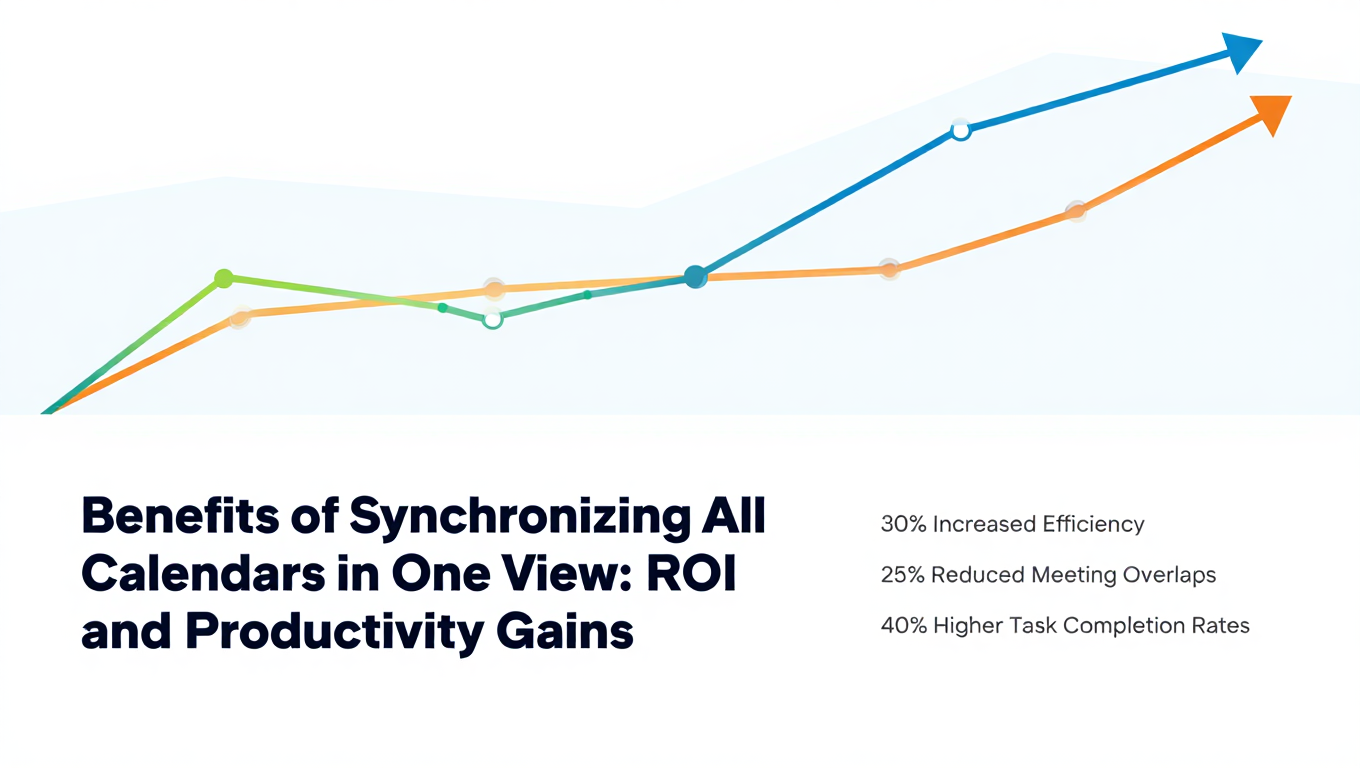
Benefits of Synchronizing All Calendars in One View: ROI and Productivity Gains
Discover the benefits of synchronizing all calendars in one view. See ROI data, productivity gains, reduced double bookings, and real-world business impact in 2025.
Best Bidirectional Calendar Sync Tools: 2025 Comparison Guide
Compare the best bidirectional calendar sync tools in 2025. Discover which platforms offer true two-way synchronization and which only provide one-way sync.
Best Two Way Calendar Sync Software: 2025 Expert Rankings & Comparison
Compare the top two-way calendar sync software tools. We tested 12 platforms for bidirectional sync speed, reliability, and field coverage to find which actually work.