
 Google Calendar
  Outlook Calendar
  Google Meet
  Microsoft Teams
  Zoom Meetings
 Sync Trello with CalendHub: Complete Integration Guide 2025
Sync Trello card due dates with CalendHub for one-way calendar integration that puts project deadlines on your schedule.
Trello's kanban board approach to project management is beloved for its simplicity. Drag cards between columns, set due dates, add checklists, and you've got a visual workflow that's easy for anyone to understand. But Trello boards are visual planning tools, not calendars. When critical card due dates don't appear on your actual schedule, you end up relying on memory instead of your calendar.
Connecting Trello with CalendHub.com takes every card due date from your boards and places it on your calendar automatically. This one-way read integration means you'll see Trello deadlines right alongside your meetings, appointments, and personal events. No more switching between Trello and your calendar to understand what's due when.
- How to connect Trello boards to CalendHub
- Mapping card due dates to calendar events
- Filtering which cards and boards sync to your calendar
- Troubleshooting common Trello sync issues
- Advanced tips for teams using Trello boards and calendar scheduling together
Why Sync Trello with Your Calendar?
Trello is where you plan work. Your calendar is where you plan time. When these two systems don't talk to each other, work falls through the gaps.
See deadlines where you plan your day. Most people start their morning by checking their calendar, not their Trello boards. When card due dates live on your calendar through CalendHub, you see immediately what project work needs attention today, before your first meeting even starts.
Prevent overcommitting. Without deadline visibility on your calendar, it's easy to accept meetings on the same day that three major Trello cards are due. Syncing Trello with CalendHub makes the conflict obvious. You can either push the meeting or get ahead on the project work. For more on building a unified schedule, see our multiple calendars sync guide.
Keep remote teams aligned. When a whole team's Trello due dates sync to their individual calendars, everyone has a personal view of what's coming up. This reduces the need for status update meetings and gives each person ownership of their timeline.
How to Set Up Trello Integration with CalendHub
The setup is beginner-friendly and takes just a few minutes. Trello's straightforward data structure makes the mapping process simple.
Step 1. Log into CalendHub. Head to CalendHub.com and sign in. Make sure at least one calendar platform (Google Calendar, Outlook, or Apple Calendar) is already connected.
Step 2. Go to Integrations. Click on the Integrations section from your CalendHub dashboard.
Step 3. Select Trello. Click the Trello option. CalendHub will redirect you to Trello's authorization page.
Step 4. Authorize CalendHub. Sign into Trello and approve CalendHub's request to access your boards and cards. This grants read access so CalendHub can pull card data into your calendar.
Step 5. Choose your Trello boards. CalendHub will list all boards associated with your Trello account. Select the boards whose card due dates you want on your calendar. You can pick specific boards rather than syncing everything.
Step 6. Configure what syncs. Decide which card data becomes part of the calendar event. The card title becomes the event name. You can include the board name, list name, card description, and labels in the event description for additional context.
Step 7. Choose your destination calendar. Select which connected calendar should receive Trello events. A dedicated "Trello Deadlines" calendar gives you the option to show or hide project dates. Alternatively, send them to your main calendar for full visibility.
Need better calendar management? CalendHub unifies all your calendars with smart scheduling and video conferencing.
Step 8. Test the connection. Add a due date to a Trello card and check that it appears on your calendar through CalendHub within a few minutes. If the event shows up with the correct date and card name, you're all set.
Best Practices for Trello Calendar Sync
These tips help you keep the integration useful without overwhelming your calendar.
Only sync boards that matter. If you have personal Trello boards for recipes, vacation planning, or hobby projects, they probably don't need to clutter your work calendar. Be selective about which boards you connect to CalendHub.
Use Trello labels for sync filtering. Trello's color-coded labels are great for categorizing cards. Configure CalendHub to only sync cards with specific labels, like "Priority" or "This Sprint." This way, only the most important deadlines reach your calendar.
Include the list name in the event title. Trello lists represent workflow stages, like "To Do," "In Progress," and "Done." Including the list name in the synced event helps you see at a glance where the task stands without opening Trello. An event titled "Design Homepage Mockup (In Progress)" is much more useful than just "Design Homepage Mockup."
Archive completed cards promptly. Trello cards that are done but not archived will continue to sync if they have due dates. Make it a habit to archive completed cards so they drop off your calendar. This keeps your schedule reflecting only active work. Check out our bidirectional sync guide for more organization strategies.
Only Trello cards with due dates will create calendar events. Cards without due dates have no time information to map, so they'll be skipped during sync. Make sure your team consistently assigns due dates to cards they want visible on calendars.
Common Issues and Troubleshooting
Trello's simple structure means fewer things can go wrong, but here are the common issues.
Cards not appearing on calendar. The number one cause is missing due dates. Trello cards without a due date assigned won't sync. Also check that the card's board is selected in your CalendHub integration settings.
Completed cards still showing. If a card is marked complete in Trello (due date strikethrough) but still appears on your calendar, adjust your CalendHub filter to exclude completed cards. The exact setting depends on how your boards use the complete status.
Board changes not reflected. If you rename a board or move cards between boards, CalendHub may need a moment to catch up. Renamed boards should update automatically, but if a card moves to a board that isn't connected, it will disappear from sync. That's expected behavior.
Due date times showing incorrectly. Trello allows setting both date-only and date-with-time due dates. Date-only due dates typically create all-day events. If you see unexpected times, check whether the original Trello card has a specific time set or just a date. Timezone settings in CalendHub should also match your Trello account timezone.
Too many events from large boards. Enterprise Trello boards with hundreds of cards can flood your calendar. Use filters to limit sync to cards assigned to you, cards in specific lists (like "This Week" or "In Progress"), or cards with specific labels. Our troubleshooting guide has more tips for managing sync volume.
Advanced Trello Calendar Integration Tips
These strategies help power users and teams get even more from the Trello and CalendHub combination.
Sync multiple boards to separate calendars. If you manage different projects on different Trello boards, sync each board to its own calendar in CalendHub.com. Your "Marketing" board feeds a Marketing calendar, your "Engineering" board feeds an Engineering calendar, and so on. Then you can toggle calendars on and off based on what you're focused on.
Use card start dates for event ranges. Trello's Power-Up features and some card setups support start dates in addition to due dates. When both dates are available, CalendHub can create events that span the full duration. This turns your calendar into a timeline view of your active work.
Combine with meeting sync for workload planning. The real magic happens when Trello deadlines sit next to your synced meetings from Google Calendar or Outlook. You can instantly see whether you have enough free time to handle what's due this week. If Tuesday is packed with meetings and three Trello cards are due Wednesday, you know to start working ahead.
Create Trello cards from calendar events. While the CalendHub integration is one-way from Trello to calendar, you can close the loop with an automation platform like Zapier or Make. Set up a workflow where creating a specific type of calendar event in CalendHub automatically generates a corresponding Trello card.
Track team velocity through calendar data. When all team members sync their Trello due dates through CalendHub, you can get a birds-eye view of how many deadlines the team is handling each week. This data helps managers adjust workloads and improve sprint planning over time.
Trello and CalendHub together bridge the gap between project planning and time management. Your kanban boards tell you what needs to get done, and your calendar tells you when you can do it. Connecting the two at CalendHub.com means you'll never lose track of a deadline buried on a board you forgot to check.
Ready to Simplify Your Schedule?
Join thousands of professionals who have unified their calendars and reclaimed their time with CalendHub's intelligent scheduling platform.
Related Articles
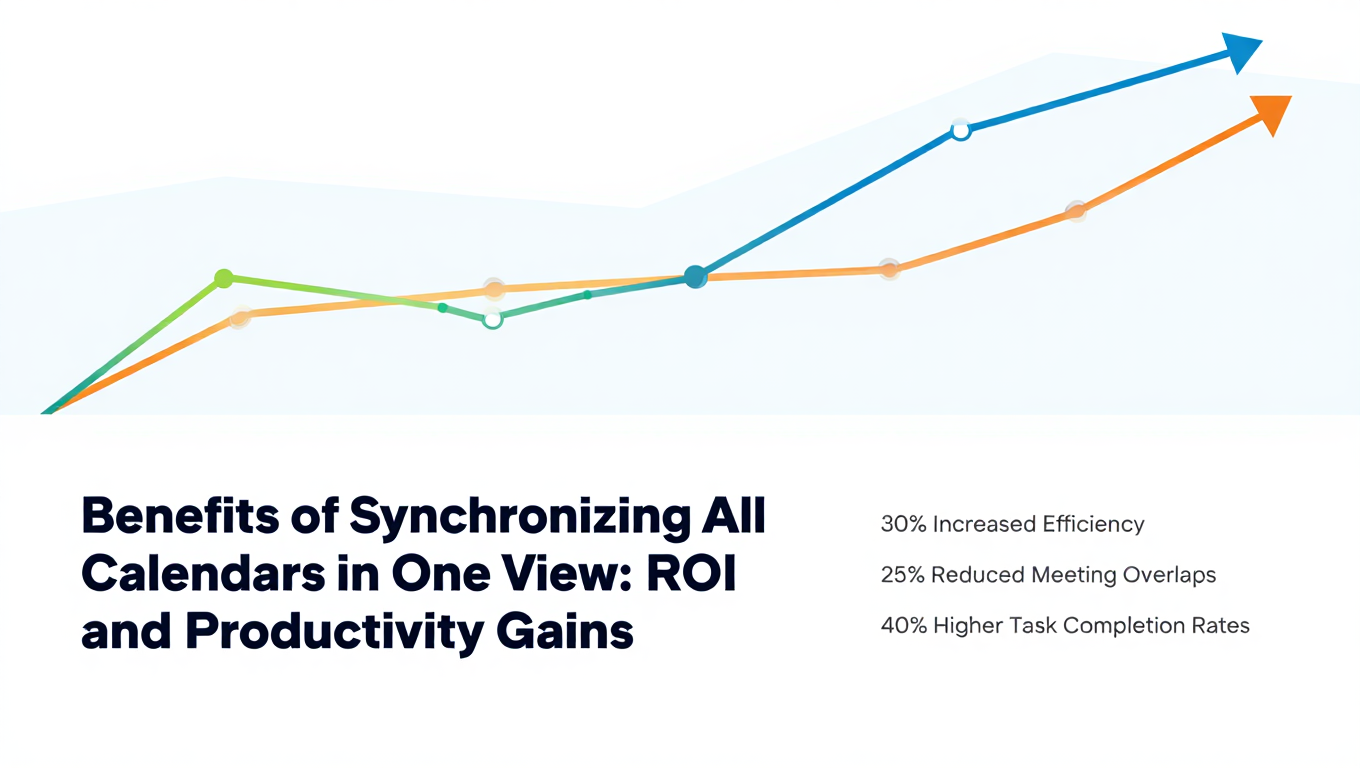
Benefits of Synchronizing All Calendars in One View: ROI and Productivity Gains
Discover the benefits of synchronizing all calendars in one view. See ROI data, productivity gains, reduced double bookings, and real-world business impact in 2025.
Best Bidirectional Calendar Sync Tools: 2025 Comparison Guide
Compare the best bidirectional calendar sync tools in 2025. Discover which platforms offer true two-way synchronization and which only provide one-way sync.

Best Two Way Calendar Sync Software: 2025 Expert Rankings & Comparison
Compare the top two-way calendar sync software tools. We tested 12 platforms for bidirectional sync speed, reliability, and field coverage to find which actually work.