
 Google Calendar
  Outlook Calendar
  Google Meet
  Microsoft Teams
  Zoom Meetings
 Sync Zoom with CalendHub: Complete Integration Guide 2025
Connect Zoom meetings to CalendHub for automatic meeting link sync and seamless video conferencing scheduling.
Zoom has become the default video conferencing tool for teams, freelancers, and businesses of every size. Whether it's a quick standup, a client presentation, or a webinar with hundreds of attendees, Zoom meetings fill up calendars everywhere. But keeping those Zoom links attached to the right calendar events across multiple platforms can be surprisingly annoying.
Connecting Zoom with CalendHub.com solves this by automatically pulling your Zoom meeting data into your unified calendar view. Every scheduled Zoom call shows up with its join link, making it easy to hop into meetings from any calendar platform without hunting through emails for the right link.
- How to connect your Zoom account to CalendHub
- Automatically syncing Zoom meeting links to your calendar events
- Viewing all upcoming Zoom calls in one unified schedule
- Troubleshooting Zoom-specific sync issues
- Advanced tips for managing Zoom scheduling across teams
Why Sync Zoom with Your Calendar?
Zoom meetings don't exist in a vacuum. Every Zoom call has a time, a duration, and participants, which means it needs to live on your calendar. But when meetings are created in different tools by different people, keeping track of Zoom links gets messy.
Never hunt for a Zoom link again. How many times have you frantically searched your email for a Zoom link two minutes before a meeting? When Zoom syncs through CalendHub, every meeting event automatically includes its join URL. Click the event, click the link, and you're in.
See your full meeting load. Zoom's own dashboard shows you upcoming meetings, but it doesn't show your non-Zoom appointments. CalendHub pulls your Zoom schedule alongside everything else, giving you an honest picture of your day. For more on unifying your calendar view, check out our guide on syncing multiple calendars.
Prevent scheduling over Zoom calls. If a colleague schedules a Zoom meeting with you but it only appears in one calendar, your other calendars still show that time as free. Syncing Zoom through CalendHub ensures your availability is blocked across every platform.
How to Set Up Zoom Integration with CalendHub
Zoom connects to CalendHub through a one-way read sync, pulling your Zoom meeting schedule into your CalendHub dashboard and connected calendars.
Step 1. Log into CalendHub. Head to CalendHub.com and sign into your account. New users can sign up in under a minute.
Step 2. Open Integrations. Navigate to the Integrations page from your dashboard sidebar.
Step 3. Select Zoom. Click the Zoom icon in the integrations list. CalendHub will redirect you to Zoom's OAuth authorization page.
Step 4. Sign in to your Zoom account. Log in with the Zoom account you want to connect. If you use Zoom through a company SSO, use those credentials. Zoom will ask you to approve CalendHub's access to your meeting data.
Step 5. Approve the permissions. Zoom will display the specific data CalendHub is requesting. This typically includes read access to your meeting schedule, meeting details, and meeting links. Since this is a one-way read sync, CalendHub won't create or modify meetings in your Zoom account.
Step 6. Configure what syncs. Once connected, choose which meeting types to pull in. Options typically include scheduled meetings, recurring meetings, and webinars. Personal Meeting ID sessions can be included or excluded based on your preference.
Step 7. Map Zoom meetings to calendar destinations. Tell CalendHub where synced Zoom events should appear. You might want them on your primary work calendar, a dedicated "Video Calls" calendar, or across all connected calendars. This flexibility lets you control visibility.
Need better calendar management? CalendHub unifies all your calendars with smart scheduling and video conferencing.
Step 8. Verify the connection. Check that your upcoming Zoom meetings appear in CalendHub. Each event should include the meeting title, time, duration, and the Zoom join link. If you see your next scheduled Zoom call, the integration is working.
Best Practices for Zoom Calendar Sync
These practices help you get the most value from your Zoom and CalendHub connection.
Let CalendHub be the scheduling hub. Instead of scheduling Zoom meetings directly through Zoom and then manually adding them to your calendar, use CalendHub's scheduling features. When you create a meeting through CalendHub, it can automatically generate a Zoom link and attach it to the event across all connected calendars.
Include Zoom links in synced event descriptions. Make sure your sync settings preserve event descriptions and locations. Zoom join links are typically stored in these fields, and stripping them during sync defeats the purpose of the integration.
Create a dedicated Zoom calendar for clarity. If you have a high volume of Zoom meetings, consider creating a separate calendar just for Zoom calls. Sync that calendar through CalendHub to your other platforms. This keeps your main calendar clean while still blocking the time. Our bidirectional sync guide explains how to manage multiple sync destinations.
Review recurring meeting sync regularly. Zoom recurring meetings can change when the host updates the series. CalendHub picks up these changes, but it's worth verifying that your longest-running recurring Zoom meetings still have accurate times and links.
Zoom integration with CalendHub is a one-way read sync. This means CalendHub pulls your Zoom meeting data into your calendars, but changes made in CalendHub or your calendars won't create or modify Zoom meetings. Always manage Zoom meeting settings directly in Zoom.
Common Issues and Troubleshooting
Zoom sync is generally smooth, but here are the issues that pop up most often.
Zoom meetings not appearing in CalendHub. Make sure the meetings are actually scheduled in Zoom and not just in your calendar. If someone sends you a Zoom link without using Zoom's scheduling feature, Zoom's API won't know about it. Only meetings created through Zoom's scheduling system will sync.
Meeting links missing from synced events. Check your CalendHub sync settings to ensure event descriptions are being preserved during sync. The Zoom join URL is embedded in the event description or location field. If your sync is set to "busy only" mode, these details get stripped.
Canceled Zoom meetings still showing on calendar. There can be a brief delay between canceling a meeting in Zoom and the removal syncing to CalendHub. If a canceled meeting persists beyond 15 minutes, trigger a manual sync refresh from your CalendHub dashboard.
Webinars not syncing. Zoom treats webinars differently from standard meetings in its API. Make sure you've enabled webinar sync in your CalendHub Zoom integration settings. Some Zoom plans don't include webinar features, so verify your Zoom subscription supports them.
SSO authentication issues. If your organization uses SSO for Zoom, the OAuth token might expire based on your company's session policies. Reconnect the Zoom integration through CalendHub if you see authentication errors. Visit our troubleshooting guide for more detailed fixes.
Advanced Zoom Calendar Integration Tips
Power users can take the Zoom integration further with these techniques.
Combine Zoom sync with buffer times. Back-to-back Zoom meetings are exhausting. Use CalendHub's buffer time feature to automatically block 10 or 15 minutes after every synced Zoom call. This gives you breathing room and prevents the meeting marathon that drains productivity.
Track meeting volume over time. By syncing all your Zoom meetings through CalendHub.com, you can get a clearer picture of how much time you spend in video calls each week. Use this data to identify meeting overload and reclaim focused work time.
Differentiate internal and external Zoom calls. Set up sync rules in CalendHub to tag Zoom meetings differently based on whether they're with internal teammates or external clients. This helps when reviewing your week and understanding where your time went.
Use CalendHub for Zoom meeting scheduling links. Instead of sharing your Zoom Personal Meeting ID directly, use CalendHub's scheduling pages. When invitees book a time, CalendHub can automatically create a Zoom meeting and include the link in the calendar invite sent to all parties.
Sync Zoom across all your calendars. If you use Google Calendar at work and Apple Calendar personally, syncing Zoom through CalendHub means your Zoom calls appear on both platforms. You'll get notifications from whichever device you're on, and you'll always have the join link handy.
Bringing Zoom into your CalendHub setup means never scrambling for a meeting link again. Your Zoom schedule lives alongside everything else, giving you a complete view of your day and making it easy to jump into calls from any platform. Connect Zoom at CalendHub.com and simplify your video meeting workflow today.
Ready to Simplify Your Schedule?
Join thousands of professionals who have unified their calendars and reclaimed their time with CalendHub's intelligent scheduling platform.
Related Articles
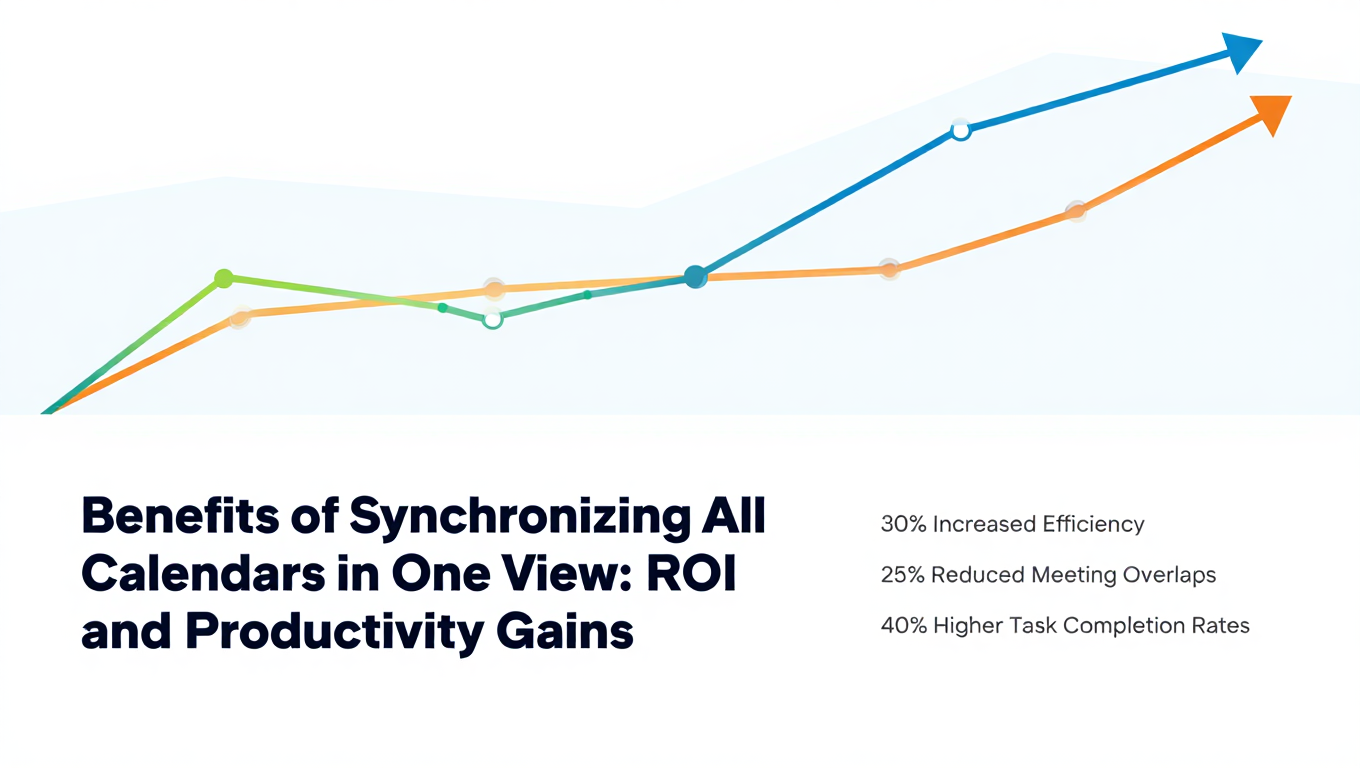
Benefits of Synchronizing All Calendars in One View: ROI and Productivity Gains
Discover the benefits of synchronizing all calendars in one view. See ROI data, productivity gains, reduced double bookings, and real-world business impact in 2025.
Best Bidirectional Calendar Sync Tools: 2025 Comparison Guide
Compare the best bidirectional calendar sync tools in 2025. Discover which platforms offer true two-way synchronization and which only provide one-way sync.
Best Two Way Calendar Sync Software: 2025 Expert Rankings & Comparison
Compare the top two-way calendar sync software tools. We tested 12 platforms for bidirectional sync speed, reliability, and field coverage to find which actually work.