
 Google Calendar
  Outlook Calendar
  Google Meet
  Microsoft Teams
  Zoom Meetings
 How Consultants Should Merge Multiple Google Calendars in 2025
The complete guide for consultants managing 5-15+ client Google Workspace accounts. Learn calendar merging strategies that prevent double bookings across all clients.
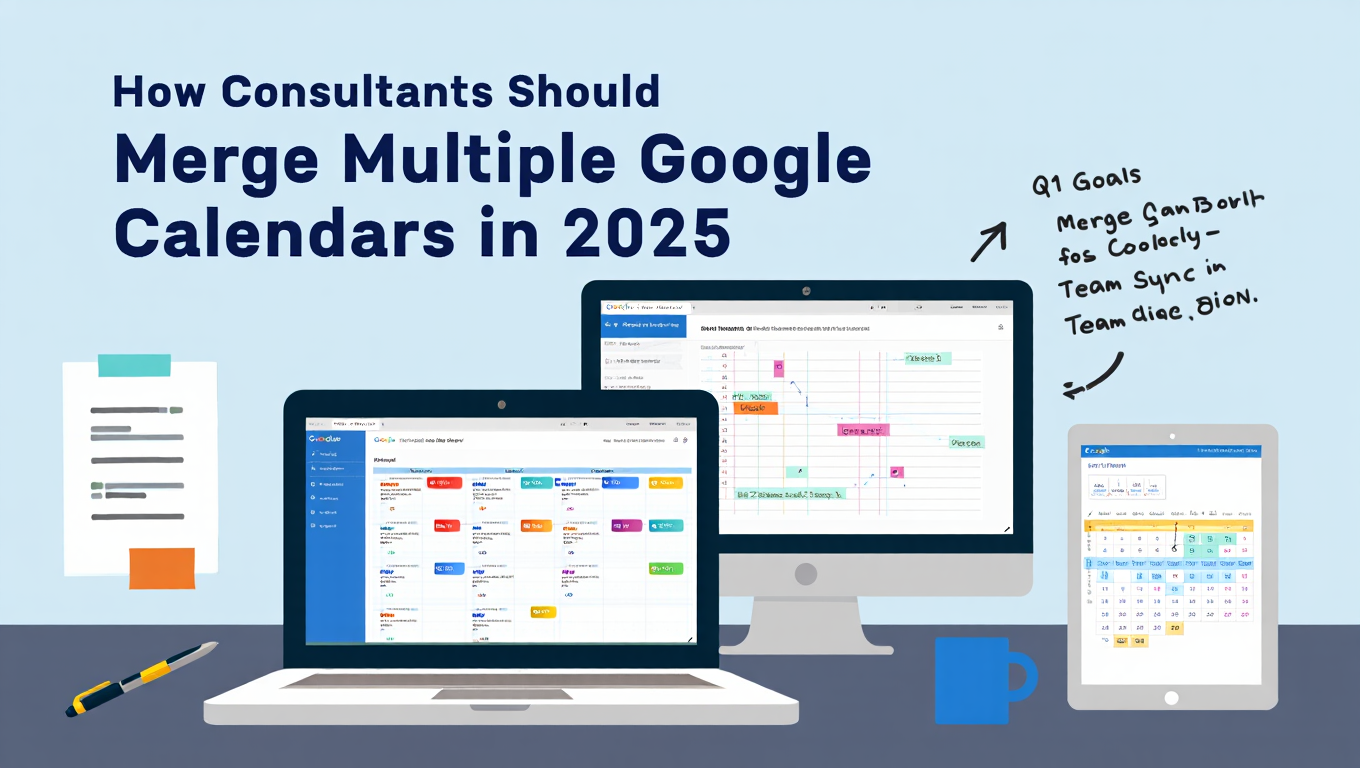
David runs a successful management consulting practice serving seven different clients simultaneously. Each client provides their own Google Workspace account with dedicated email and calendar for project work. He also serves on three nonprofit boards, each with separate Google Workspace access. Add his personal Gmail calendar and his consulting business Google account, and David manages twelve different Google Calendar accounts across nine separate organizations.
For three years, David's calendar management strategy involved organized chaos. Every morning started with opening twelve browser tabs, signing into each Google account separately, manually checking every calendar for conflicts, and mentally calculating his actual availability. Last month, he double booked a critical presentation for his largest client against a board meeting because his TechCorp Google Workspace calendar didn't reflect the commitment in his nonprofit Google account. The rescheduling cascade damaged both relationships and cost him a week of productivity.
Two weeks ago, David discovered that other consultants don't manage calendars this way. They merge all their Google Workspace accounts into unified calendar systems that prevent double bookings automatically, provide instant visibility across all clients, and eliminate the daily calendar checking ritual entirely.
This comprehensive guide shows exactly how consultants managing multiple client Google Workspace accounts should merge Google calendars to eliminate conflicts, maintain appropriate client privacy boundaries, and reclaim hours of calendar management time weekly.
- Why consultants need different calendar strategies than casual users
- How to merge 5, 10, 15+ client Google Workspace accounts properly
- Privacy strategies that keep client information appropriately separated
- Solutions for consultants hitting 6-calendar limits with scheduling tools
- Real-world calendar architecture for complex consulting portfolios
- How to maintain professional boundaries while achieving unified availability
Why Consultants Face Unique Google Calendar Challenges
Understanding why consultant calendar management differs from typical professional scenarios clarifies what solutions actually work.
Challenge 1: Multiple Google Workspace Organizations
Corporate employees typically manage 2-3 calendars maximum. Personal Gmail calendar, work Google Workspace calendar, maybe a shared family calendar. Straightforward calendar merging handles this easily.
Consultants operate in a fundamentally different environment. Each client engagement often includes dedicated Google Workspace access within the client's organization. You're not just viewing their calendars, you have actual accounts in multiple Google Workspace domains.
According to 2024 research on independent consultants from Statista, professionals serving 5+ simultaneous clients average 8.3 different calendar accounts across various platforms. For consultants who exclusively work with Google Workspace clients, that means 8+ separate Google Calendar accounts in different organizational domains, each requiring individual sign-in and separate management. Learn more about managing all calendars in one place to streamline this complexity.
Challenge 2: Client Confidentiality Requirements
Unlike employees with one employer, consultants must maintain strict information boundaries between competing or unrelated clients.
Client A can't see that you're working with Client B. Competitor organizations can't view each other's project timelines. Board meeting details from one nonprofit shouldn't appear in commercial client calendars. Professional ethics and often legal contracts require this separation.
This means calendar merging can't simply sync everything everywhere. You need selective synchronization with privacy controls that provide unified availability without compromising client confidentiality.
Challenge 3: No Control Over Client Systems
Corporate employees work within one IT environment controlled by their employer. Consultants have zero control over client Google Workspace configurations.
Client A might restrict third-party calendar applications entirely. Client B allows certain tools but requires IT approval. Client C has no restrictions. Your personal Gmail calendar is fully yours to manage. This heterogeneous environment complicates calendar merging implementation.
You need strategies that work across different organizational policies, don't require client IT involvement, and function reliably despite inconsistent access levels.
Challenge 4: Frequent Calendar Portfolio Changes
Employee calendars remain relatively stable. Consultants constantly add and remove calendars as client engagements begin and end.
You start a new client engagement this month, gaining another Google Workspace account. You finish a six-month project next quarter, removing that client's calendar from active rotation. Board terms end, volunteer positions change, client relationships evolve. Your calendar portfolio changes every few months.
This fluidity requires calendar merging solutions that make adding and removing Google accounts simple, don't charge per calendar, and adapt easily to changing portfolios. Compare calendar aggregator tools to find platforms that handle dynamic calendar portfolios effectively.
Challenge 5: Higher Stakes for Double Bookings
When corporate employees double book meetings, it's embarrassing and inconvenient. When consultants double book client commitments, it's a professional failure that directly threatens client relationships and revenue.
Clients pay premium consulting rates with expectations of professionalism and reliability. Double booking a client presentation because your calendar system failed signals disorganization and damages trust. For consultants, calendar failures have direct business consequences.
This means consultant calendar merging must be absolutely reliable. You can't tolerate sync delays, missed events, or synchronization failures that corporate employees might accept occasionally.
- Calendar Limits: Calendly limits connections to 6 calendars, even on paid plans, inadequate for consultants with 8-12+ client accounts
- No Privacy Controls: Basic tools sync everything everywhere without confidentiality boundaries
- Designed for Employees: Built for 2-3 calendar scenarios, not complex consulting portfolios
- Can't Handle Google Workspace Complexity: Don't properly manage multiple organizational domains
The Consultant Calendar Architecture: Master Hub Model
Based on analysis of successful consultant calendar management strategies, the most effective approach uses a master hub architecture with selective synchronization.
Component 1: Personal Master Calendar
Designate one Google Calendar as your personal master calendar. This is typically your personal Gmail calendar or primary consulting business Google account.
Your master calendar serves as the canonical source of truth showing every commitment across all clients, boards, and personal obligations. Only you see this calendar. It exists purely for your unified visibility and availability management.
All other calendars synchronize to this master, ensuring you see comprehensive availability when making scheduling decisions. The master calendar doesn't necessarily sync back to all client calendars (that's where selective rules come in), but it receives events from everywhere.
Component 2: Client Google Workspace Calendars
Each client Google Workspace calendar remains in its original organization. You don't try to move events out of client systems. Instead, events from client calendars synchronize to your master calendar.
Client A events appear in your master calendar. Client B events appear in your master calendar. But Client A events don't sync to Client B calendars, and vice versa. This maintains privacy boundaries while giving you unified visibility.
Component 3: Board and Volunteer Google Calendars
Board positions and volunteer roles often provide separate Google Workspace accounts. Treat these similarly to client calendars: synchronize to master for your visibility, but don't cross-pollinate with client calendars.
Component 4: Shared Family or Personal Calendars
If you maintain shared Google Calendars with family, partners, or personal commitments, synchronize these to master as well. Apply privacy controls so personal events appear on client calendars only as busy blocks without details.
Synchronization Flow Architecture:
Client A Google Workspace Calendar ──┐
Client B Google Workspace Calendar ──┤
Client C Google Workspace Calendar ──┤
Board Position D Google Calendar ────┼──> Master Personal Calendar (unified view)
Board Position E Google Calendar ────┤
Consulting Business Google Calendar ─┤
Personal Gmail Calendar ─────────────┘
Events flow from all calendars into master. Your master calendar optionally syncs availability back to client calendars, but clients never see each other's information.
Why This Architecture Works for Consultants:
Unified Visibility: Your master calendar shows every commitment regardless of source, preventing double bookings.
Privacy Boundaries: Client information stays in client calendars, only flowing to your private master calendar.
Simple Mental Model: One place to check for comprehensive availability, even though events technically live in many places.
Scales Infinitely: Add new clients by connecting their Google Workspace calendar to master. Remove clients by disconnecting when engagements end.
No Client IT Involvement: Synchronization happens via your personal tools, not requiring client system changes.
Step-by-Step: Implementing Consultant Calendar Merging
Here's exactly how to implement the master hub architecture for consultant calendar management.
Step 1: Choose Unlimited Calendar Platform
Standard scheduling tools limit calendar connections to 6 calendars total. Consultants managing 8, 10, 15+ client Google Workspace accounts need unlimited platforms.
CalendHub.com was built specifically for this scenario. Unlimited Google Calendar connections across unlimited Google Workspace organizations. No artificial caps. No per-calendar pricing. Designed for consultants managing extensive client portfolios.
Other enterprise-focused options include OneCal and CalendarBridge, though verify they support your specific calendar count without restrictions.
Critical Selection Criteria:
- Unlimited Google Calendar connections
- Robust Google Workspace support across different organizations
- Privacy controls for selective synchronization
- Bidirectional sync capability
- Real-time synchronization (1-2 minute delays maximum)
- Professional-grade reliability (99%+ uptime)
Free scheduling tools designed for casual users won't work for consultant needs. Invest in proper calendar infrastructure appropriate for your professional practice.
Step 2: Designate Master Calendar
Identify which Google Calendar serves as your master hub. Options:
Personal Gmail Calendar: Good choice if you want master calendar completely separate from any client or business organization. Provides maximum privacy and control.
Consulting Business Google Workspace: If you maintain a dedicated Google Workspace for your consulting business, this calendar works well as master.
Oldest Personal Calendar: Some consultants choose the Google Calendar they've used longest for continuity.
The master calendar should be one you fully control, not tied to any client organization. Never use a client Google Workspace calendar as master, since you could lose access when engagements end.
Step 3: Connect All Client Google Workspace Calendars
Using your chosen calendar platform (CalendHub.com, etc.), connect every client Google Workspace calendar.
For each client Google Workspace account:
- Add calendar connection in your platform
- Select Google Calendar as type
- Authenticate with client Google Workspace credentials
- Approve calendar access permissions
- Select specific calendars within that account to sync
You may need to use private/incognito browser windows to authenticate with multiple Google accounts if your browser caches sessions.
Handling Google Workspace IT Restrictions:
Some client organizations restrict third-party calendar access. If authentication fails:
- Contact client IT department
- Explain you need calendar synchronization for availability management
- Provide your calendar tool's security documentation
- Request approval for the specific application
- Offer to go through their approval process
Most IT departments approve legitimate business tools, especially when consultants provide proper documentation. CalendHub.com and similar enterprise tools offer IT security information specifically for this scenario.
If client IT absolutely prohibits third-party access, you have limited options. Calendar sharing within Google Calendar provides visibility but not true merging. Or maintain that one calendar separately, accepting reduced automation for that client.
Step 4: Connect Board and Volunteer Google Calendars
Add any board positions, volunteer roles, or other Google Workspace accounts beyond client work:
- Connect each Google Workspace account to your calendar platform
- Select relevant calendars from each account
- Apply same authentication process
Step 5: Connect Personal and Business Google Calendars
Add your personal Gmail calendar and consulting business Google account:
- Connect personal Google Calendar
- Connect consulting business Google Workspace calendar
- These typically have no IT restrictions since you control them
After this step, you should have all Google Calendar accounts connected to your calendar platform. For consultant with 7 clients, 3 board positions, plus personal and business calendars, that's 12 total Google Calendar account connections.
Step 6: Configure Master Hub Synchronization
Now configure how calendars synchronize using the master hub model.
Synchronization Direction Configuration:
From Client Calendars to Master: Bidirectional or one-way from client to master
- Client calendar events appear in your master calendar
- Optionally, master calendar events sync back to client calendars as busy blocks
Between Client Calendars: No synchronization
- Client A events never sync directly to Client B calendar
- Maintains privacy boundaries
From Personal Calendar to Master: Bidirectional
- Personal events appear in master
- Master events appear in personal calendar
From Master to Client Calendars: One-way as busy blocks (optional)
- Your master calendar availability syncs to client calendars
- Client calendars show time blocked without event details
- Prevents clients scheduling over your commitments from other clients
Visual Configuration for 3-Client Example:
Client A Calendar <──> Master Calendar <──> Personal Calendar
Client B Calendar <──> Master Calendar
Client C Calendar <──> Master Calendar

No direct sync between Client A, B, or C calendars
Step 7: Configure Privacy Controls
Privacy controls ensure client confidentiality while maintaining unified availability.
Client Calendar to Master: Full event details
- You see complete event information in master calendar
- Event titles, descriptions, locations, attendees all sync
- This is your private master, so full details are appropriate
Master to Client Calendars: Busy blocking only (recommended)
- Client calendars show your availability accurately
- But don't reveal details from other clients or personal life
- Events appear as generic "Busy" blocks without titles
Personal to Client Calendars: Busy blocking only
- Personal appointments block time on client calendars
- Client calendars don't show "Doctor Appointment" or "Job Interview" details
- Professional boundaries maintained
Between Clients: No synchronization
- Client information never crosses organizational boundaries
- Each client sees only their own events plus your busy times
Alternative Privacy Configuration (Maximum Transparency):
Some consultants prefer clients see more information:
Need better calendar management? CalendHub unifies all your calendars with smart scheduling and video conferencing.
Personal to Client: Show event titles but not descriptions
- Clients see "Personal Appointment" or "Family Commitment"
- Provides context while maintaining privacy
Master to Client: Show generic categories
- Events appear as "Client Meeting," "Board Meeting," "Personal"
- Provides general context without specific client names
Choose privacy configuration matching your professional style and client expectations.
Step 8: Test Synchronization Thoroughly
Before trusting the system with real scheduling, verify everything works correctly.
Test 1: Client Calendar to Master Sync
- Create test event in Client A Google Workspace calendar
- Wait 2-3 minutes
- Verify event appears in your master calendar with full details
- Repeat for each client calendar
Test 2: Master to Client Sync
- Create test event in master calendar
- Wait 2-3 minutes
- Check all client Google Workspace calendars
- Verify event appears as busy block without details (if configured that way)
- Confirm no client information crossed to other client calendars
Test 3: Privacy Controls
- Create personal event with sensitive title
- Verify it appears in master with full details
- Check client calendars show only busy block
- Confirm personal details aren't exposed
Test 4: Modifications and Deletions
- Modify a test event in one calendar
- Verify changes propagate correctly
- Delete a test event
- Confirm deletion appears everywhere appropriate
Test 5: Cross-Client Privacy
- Create event in Client A calendar
- Verify it doesn't appear in Client B or Client C calendars
- Confirm it only appears in master calendar with full details
If any test fails, review configuration before proceeding with real calendar usage.
Step 9: Monitor for First Two Weeks
After implementation, actively monitor synchronization:
Daily Checks (Week 1):
- Verify new events sync to master properly
- Check for any duplicate events
- Confirm client calendar privacy boundaries hold
- Monitor sync speed meets expectations
Weekly Checks (Week 2):
- Review synchronization tool logs for errors
- Verify no authentication expiration warnings
- Check that all client calendars still sync
- Confirm privacy controls work as intended
Most issues surface in the first week if they're going to appear. After two weeks of reliable operation, you can reduce monitoring to monthly audits.
Real-World Consultant Calendar Scenarios
Different consulting practices have different calendar needs. Here's how various consultant types should configure calendar merging.
Scenario 1: Management Consultant with 5-8 Simultaneous Clients
Calendar Portfolio:
- 5-8 client Google Workspace accounts
- Personal Gmail calendar
- Consulting business Google account
- Perhaps 1-2 board positions
- Total: 8-12 Google Calendar accounts
Recommended Configuration:
- Master calendar: Consulting business Google Workspace account
- All client calendars sync to master (bidirectional, full details to master)
- Master syncs to client calendars as busy blocks only
- Personal calendar syncs to master with full details, to client calendars as busy
- No direct synchronization between client calendars
Platform: CalendHub.com or similar unlimited platform (6-calendar limit tools inadequate)
Scenario 2: Fractional Executive Serving 3-4 Companies
Calendar Portfolio:
- 3-4 company Google Workspace accounts (part-time executive roles)
- Personal Gmail calendar
- Perhaps 2-3 advisory board Google Workspace accounts
- Total: 6-10 Google Calendar accounts
Recommended Configuration:
- Master calendar: Personal Gmail calendar (separate from any company)
- All company calendars sync to master bidirectionally
- Company calendars sync availability to each other as busy blocks (executives often need this)
- Personal calendar syncs to all company calendars as busy blocks
- Advisory board calendars sync to master only
Platform: CalendHub.com for unlimited connections
Privacy Consideration: Fractional executives sometimes need companies to see each other's busy times (so Company A knows when you're at Company B), but not event details.
Scenario 3: Independent Consultant with Frequent Client Turnover
Calendar Portfolio:
- 3-5 active client Google Workspace accounts
- 2-3 recently completed client accounts (being phased out)
- Personal Gmail calendar
- Business Google account
- Total: 6-10 accounts, changing quarterly
Recommended Configuration:
- Master calendar: Business Google account
- Active client calendars sync bidirectionally to master
- Recently completed client calendars sync one-way to master only (you see their events, they don't get yours)
- Disconnect client calendars entirely 30 days after engagement ends
- Personal calendar syncs bidirectionally to master
Platform: Tool with easy add/remove calendar workflow for frequent changes
Scenario 4: Consultant + Academic with Complex Portfolio
Calendar Portfolio:
- 4 consulting client Google Workspace accounts
- University Google Workspace calendar (adjunct teaching)
- 2 research project Google calendars
- Personal Gmail calendar
- Total: 8+ Google Calendar accounts
Recommended Configuration:
- Master calendar: Personal Gmail calendar
- Consulting calendars sync to master, master syncs busy to consulting calendars
- University calendar syncs to master, master syncs busy to university calendar
- Research calendars sync to master only
- No cross-pollination between consulting, academic, and research spheres
Platform: CalendHub.com for privacy control sophistication
Privacy Consideration: Academic and consulting work must remain clearly separated.
- Master hub architecture: One unified calendar receiving events from all client accounts
- Privacy boundaries: Client information never crosses organizational lines
- Unlimited platform: CalendHub.com eliminates artificial calendar count restrictions
- Bidirectional master sync: See everything in master, clients see only appropriate busy times
- Easy portfolio changes: Add new clients, remove completed engagements smoothly
Advanced Strategies for Complex Consulting Portfolios
Once basic calendar merging works, these advanced strategies optimize further.
Strategy 1: Color Coding by Client
When your master calendar displays events from 12+ sources, visual organization becomes critical.
Implementation:
- Assign consistent colors to client categories in Google Calendar
- All Client A events in one color
- All Client B events in another color
- Board positions in separate color family
- Personal events in distinct color
Using CalendHub.com:
- Platform preserves Google Calendar colors when syncing
- Your color coding appears consistently across all views
- Instantly identify event sources in crowded master calendar
Strategy 2: Calendar Hierarchy with Tiered Sync
Not all calendars need identical sync configurations. Implement tiered synchronization.
Tier 1: Primary Active Clients (Full Bidirectional Sync)
- Your 3-5 most important current clients
- Full bidirectional sync to master
- Master syncs availability back to these calendars
Tier 2: Secondary Clients (One-Way to Master)
- Smaller engagements or advisory roles
- Events sync to your master for visibility
- Your master doesn't sync back to these calendars
Tier 3: Historical/Archive Calendars (Read-Only)
- Recently completed client engagements
- One-way sync to master for 30 days post-engagement
- Then disconnect entirely
This reduces synchronization complexity while maintaining appropriate visibility.
Strategy 3: Keyword-Based Automatic Privacy
Advanced calendar platforms support keyword-based filtering for automatic privacy.
Configuration Examples:
- Events containing "Confidential" never sync to any client calendars
- Events containing specific client names don't sync to competitor calendars
- Events tagged "Internal" stay in their source calendar only
This provides automatic privacy enforcement based on how you title events.
Strategy 4: Geographic and Timezone Considerations
Consultants working across timezones face additional complexity.
Best Practices:
- Always create events with explicit timezone specifications
- Verify your synchronization tool preserves timezone metadata
- Test how events appear when you travel to different timezones
- Use Google Calendar's timezone display features to see events in multiple zones
For International Consultants:
- Maintain master calendar in your home timezone
- Client calendars display events in their local timezones
- Synchronization tool handles timezone conversion automatically
Strategy 5: Scheduled Sync Pauses for Deep Work
Some consultants temporarily pause synchronization during deep work periods to reduce notifications.
Implementation:
- Identify deep work blocks (e.g., Monday mornings)
- Reduce sync frequency during these times if platform supports it
- Or disable mobile sync temporarily while keeping web sync active
- Re-enable full sync outside deep work periods
This reduces interruption while maintaining calendar accuracy for scheduling purposes.
Maintaining Calendar Hygiene with Multiple Client Accounts
With 10+ Google Calendar accounts, maintenance prevents problems.
Weekly Maintenance Tasks:
Monday Morning Calendar Audit:
- Review master calendar for the week
- Verify no scheduling conflicts across clients
- Check for any sync errors or warnings
- Ensure authentication hasn't expired for any Google account
Friday Afternoon Cleanup:
- Archive or delete completed events older than 90 days
- Remove tentative events that were never confirmed
- Update recurring events that have changed
- Review upcoming week for scheduling issues
Monthly Maintenance Tasks:
First of Month Review:
- Verify all client Google Workspace accounts still sync correctly
- Check for any duplicate events that have accumulated
- Review synchronization tool logs for patterns
- Update privacy configurations if client relationships changed
Calendar Portfolio Audit:
- Remove disconnected or completed client calendars
- Add new client Google Workspace accounts for new engagements
- Update calendar hierarchy if priorities changed
- Verify color coding still makes sense
Quarterly Maintenance Tasks:
Deep Configuration Review:
- Review all synchronization rules for every calendar
- Verify privacy boundaries still match client requirements
- Check whether calendar platform still meets needs
- Update documentation of your calendar architecture
- Review costs and consider plan changes if needed
Security Audit:
- Review all applications with Google Calendar access across all accounts
- Remove access for any tools no longer used
- Update Google account passwords
- Verify two-factor authentication enabled on all accounts
Backup Verification:
- Export all calendars as backup
- Store exports securely separate from synchronization tool
- Test restoration process periodically
- Document recovery procedures
Common Consultant Calendar Mistakes to Avoid
Learning from common mistakes accelerates success.
Mistake 1: Trying to Use Scheduling-First Tools
Many consultants start with Calendly or similar scheduling tools because they're popular. These tools are designed for appointment booking, not calendar management. Their 6-calendar limits and simple sync models don't match consultant needs.
Solution: Start with calendar-first platforms like CalendHub.com designed for extensive Google Workspace portfolios.
Mistake 2: Syncing Client Calendars Directly to Each Other
Some consultants configure Client A calendar to sync directly to Client B calendar, thinking this simplifies architecture.
Problem: This violates client confidentiality and creates privacy issues.
Solution: Use master hub architecture where client calendars never connect directly.
Mistake 3: Using Client Google Workspace Calendar as Master
Designating a client Google Workspace calendar as your master hub seems convenient if that's your primary client.
Problem: When the engagement ends, you lose access to your master calendar containing everything.
Solution: Always use a personal Google account you fully control as master.
Mistake 4: Not Configuring Privacy Controls
Implementing calendar sync without privacy configuration means all event details appear everywhere.
Problem: Client confidential information crosses organizational boundaries inappropriately.
Solution: Configure privacy controls from day one, defaulting to busy blocking between clients.
Mistake 5: Ignoring Google Workspace IT Policies
Attempting to connect client Google Workspace calendars without understanding IT policies leads to authentication failures.
Problem: Hours wasted troubleshooting when the issue is organizational policy, not configuration.
Solution: Proactively contact client IT departments to understand policies before implementation.
Mistake 6: No Documentation of Calendar Architecture
Setting up complex synchronization without documenting configuration makes troubleshooting impossible.
Problem: When problems occur months later, you can't remember why you configured things certain ways.
Solution: Document your calendar architecture, sync rules, and privacy configurations from the start.
Mistake 7: Not Testing Edge Cases
Testing only standard events misses edge cases like recurring events, all-day events, and timezone-specific events.
Problem: Edge cases fail during real usage, causing scheduling problems.
Solution: Thoroughly test all event types before trusting the system.
Measuring Calendar Management ROI
Track benefits to justify investment in proper calendar infrastructure.
Time Savings Measurement:
Before Calendar Merging:
- Time checking multiple Google accounts daily: 30-45 minutes
- Time resolving double booking conflicts weekly: 60-90 minutes
- Time manually copying events between calendars: 30 minutes weekly
Total weekly time: 4-6 hours
After Calendar Merging:
- Time checking unified master calendar: 5 minutes daily
- Time resolving conflicts: Near zero (prevented automatically)
- Time manually copying: Zero (automated)
Total weekly time: 25-35 minutes
Time savings: 3.5-5.5 hours per week, or 180-285 hours annually
Conflict Reduction:
Metric: Double booking incidents per quarter
- Before: 3-5 incidents
- After: 0-1 incidents
Business Impact: Each double booking requires 2-3 hours to resolve and damages client relationships. Eliminating 12-20 double bookings annually saves 24-60 hours plus relationship preservation.
Professional Perception:
Qualitative Assessment:
- Clients notice improved scheduling reliability
- Reduced rescheduling requests improve professional image
- Faster response to scheduling requests (checking one calendar vs twelve)
- Increased confidence in committing to meetings
Cognitive Load Reduction:
Measurement: Self-assessment scale 1-10
- Stress around calendar management before: 7-8
- Stress after unified system: 2-3
Proper calendar merging eliminates the mental burden of tracking twelve separate systems.
Financial ROI:
Investment:
- Calendar platform subscription: $10-30/month
- Implementation time: 2-4 hours once
- Monthly maintenance: 30 minutes
Return:
- Time saved: 180+ hours annually worth $20,000-50,000+ at consulting rates
- Conflicts avoided: $5,000-15,000 in preserved client relationships
- Reduced stress: Significant quality of life improvement
Calendar infrastructure delivers 100x+ ROI for consultants managing multiple client accounts.
Conclusion: Calendar Management as Competitive Advantage
For consultants managing 5, 10, 15+ client Google Workspace accounts, professional calendar management isn't optional. It's competitive infrastructure that directly impacts client satisfaction, revenue generation, and professional sustainability.
The consultant who spends 30 minutes each morning checking twelve Google accounts, manually calculating availability, and hoping for no conflicts operates at a fundamental disadvantage. Double bookings damage client relationships. Calendar chaos creates daily stress. Hours wasted on calendar management are hours not spent on revenue-generating client work.
Consultants who implement proper calendar merging eliminate these problems entirely. Unified availability prevents double bookings. Master hub architecture maintains client confidentiality. Automated synchronization reclaims hours weekly. Professional reliability improves client satisfaction.
The difference between calendar chaos and calendar mastery is choosing appropriate infrastructure. Scheduling tools designed for casual users with 2-3 calendars don't scale to consultant portfolios. Six-calendar limits are artificial restrictions that don't match professional realities.
Your Implementation Roadmap:
Acknowledge the problem: If you're manually checking multiple Google Workspace accounts daily, you're wasting hours that compound to weeks annually
Choose unlimited platform: CalendHub.com was built specifically for consultants managing extensive Google Workspace portfolios without artificial calendar limits
Implement master hub architecture: One unified calendar receiving events from all clients, with privacy boundaries preventing information crossing organizational lines
Configure privacy controls: Client calendars see your availability without seeing other clients' information
Test thoroughly: Verify synchronization works correctly before trusting it with real client scheduling
Monitor and maintain: Regular audits ensure continued reliable operation across changing client portfolios
Don't accept artificial limitations that don't match your professional needs. While popular scheduling tools cap calendars at 6 connections, calendar-first platforms eliminate these restrictions entirely. CalendHub.com supports unlimited Google Workspace accounts across unlimited organizations because consultants managing complex client portfolios shouldn't be constrained by arbitrary limits designed for casual users.
Stop wasting 4-6 hours weekly on calendar chaos. Stop risking client relationships through double booking conflicts. Stop bearing the mental burden of tracking twelve separate calendar systems.
Implement consultant-appropriate calendar merging today and reclaim those 180+ hours annually for revenue-generating client work. Your clients, your schedule, and your sanity will thank you.
Ready to eliminate calendar chaos permanently? Explore CalendHub.com's unlimited calendar management platform built specifically for consultants managing extensive Google Workspace client portfolios without restrictions or compromises.
Ready to Simplify Your Schedule?
Join thousands of professionals who have unified their calendars and reclaimed their time with CalendHub's intelligent scheduling platform.
Related Articles
All Calendars in One Place: The Complete Solution for 2025
Discover how to consolidate all calendars in one place and eliminate scheduling chaos. Stop juggling multiple calendar apps with this complete guide.
Google Calendar Merge Not Working? Fix These 12 Common Problems
Troubleshoot Google calendar merge issues with expert solutions. Fix sync failures, duplicates, authentication errors, and Google Workspace restrictions.
Proven Strategies to Manage Multiple Work Calendars in 2025
Executive strategies for managing multiple work calendars effectively. Learn time management frameworks, calendar workflows, and professional best practices.