
 Google Calendar
  Outlook Calendar
  Google Meet
  Microsoft Teams
  Zoom Meetings
 How to View All Calendars Together: Complete Guide 2025
Learn proven methods to view all calendars together in one unified view. Master Google, Outlook, and Apple Calendar with step-by-step instructions.
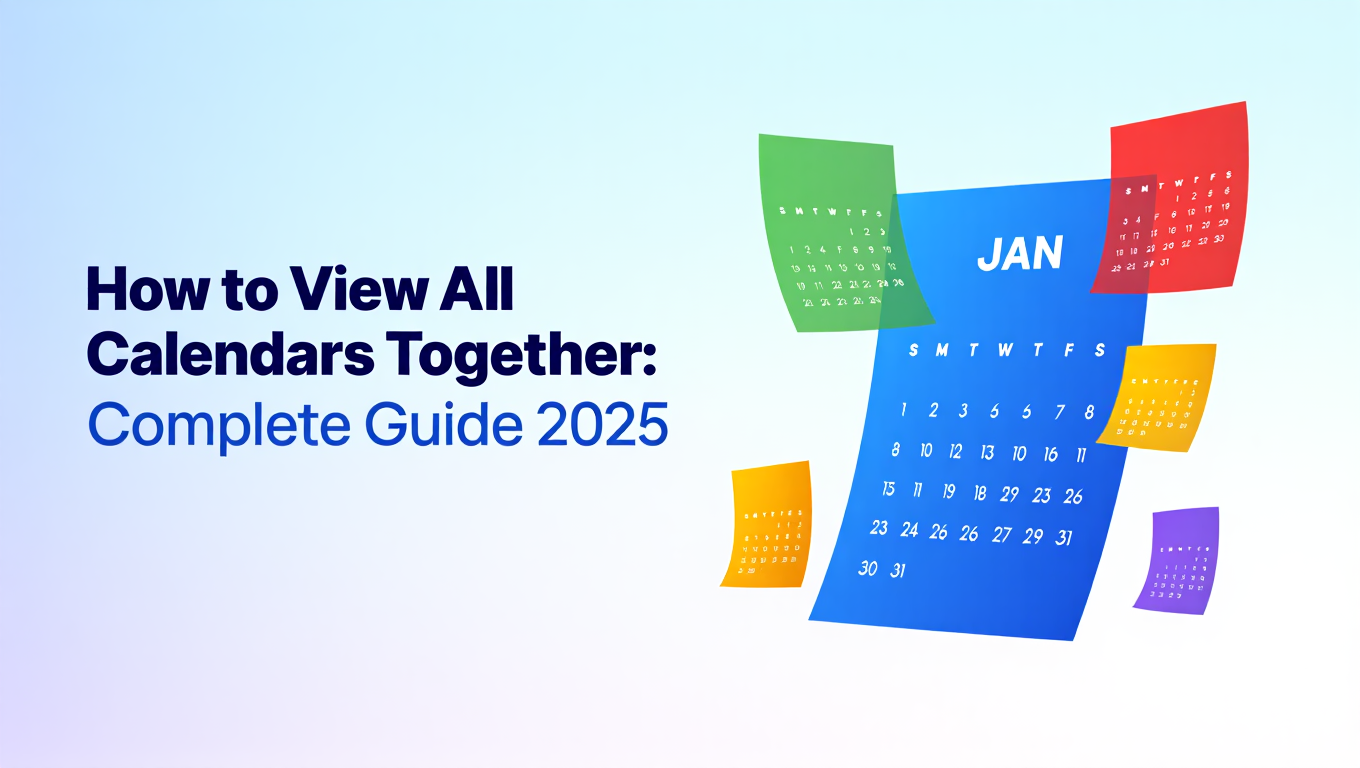
You have a work calendar in Outlook, personal appointments in Google Calendar, family events in Apple Calendar, and side project deadlines scattered across three more platforms. Every morning starts with the same exhausting routine. Open Outlook. Check Google. Switch to Apple. Refresh your shared team calendar. By the time you have a complete picture of your day, fifteen minutes have vanished and you have already missed the first meeting reminder.
This fragmented approach costs professionals an average of 2 hours and 53 minutes of productive time daily, according to 2024 productivity research. The solution is learning to view all calendars together in one unified interface.
- Native methods to view all calendars together in Google, Outlook, and Apple Calendar
- Step-by-step instructions for creating unified calendar views
- Advanced techniques for managing 10+ calendars simultaneously
- How to eliminate double bookings and scheduling conflicts
- Solutions that scale beyond platform limitations
What Does It Mean to View All Calendars Together?
Viewing all calendars together means consolidating multiple calendar sources into a single, unified interface where you can see every commitment, meeting, and event without switching between applications or browser tabs.
This unified calendar view displays events from different accounts simultaneously, typically with color coding to distinguish between sources. When implemented correctly, you gain instant visibility into your complete schedule across work, personal, team, and shared calendars.
The difference between viewing calendars together and simply having multiple calendars open is critical. A true unified view synchronizes in real time, prevents double bookings automatically, and allows you to manage all events from one central location rather than toggling between separate windows.
According to 2024 calendar management statistics, 70% of American adults use digital calendars, but only 23% schedule everything in their calendar effectively. The primary barrier is calendar fragmentation across multiple platforms and accounts.
Why You Need to View All Calendars Together
Calendar fragmentation creates three major problems that directly impact your productivity and professional reputation.
Double Bookings and Scheduling Conflicts
When you cannot view all calendars together, you inevitably schedule meetings during times that appear free in one calendar but are occupied in another. This leads to last-minute cancellations, rescheduling headaches, and damaged professional credibility.
Research shows that double bookings and conflicting schedules lead to missed appointments and wasted time across organizations. The average employee loses 45 minutes weekly to scheduling conflicts that could be prevented with unified calendar visibility.
Wasted Time Switching Between Platforms
Opening Outlook, then Gmail, then Apple Calendar, then your team scheduling tool creates constant context switching. Each transition disrupts your focus and consumes mental energy that should be directed toward meaningful work.
Studies indicate that 75% of people are willing to invest between 5 and 10 minutes daily to gain better time management benefits. The irony is that switching between calendars often exceeds this time investment without providing any organizational benefit.
Incomplete Schedule Awareness
When you cannot view all calendars together, you lack complete awareness of your availability. You might accept a client meeting forgetting about your child's school event, or commit to a deadline while overlooking a week with three conferences already scheduled.
This incomplete visibility makes strategic planning impossible. You cannot accurately assess workload, identify available focus time, or make informed commitments about future availability.
- Eliminate Double Bookings: See all commitments simultaneously to prevent scheduling conflicts
- Save Time Daily: Stop switching between platforms and tabs throughout your day
- Improve Decision Making: Make better commitments with complete schedule visibility
- Reduce Stress: Gain confidence that nothing falls through the cracks
- Professional Credibility: Never reschedule due to overlooked conflicts
How to View All Calendars Together in Google Calendar
Google Calendar provides native functionality to view multiple calendars together through its layered display system. This approach works well for users who primarily operate within the Google ecosystem or can import external calendars into Google.
Method 1: Display Multiple Google Calendars Simultaneously
If all your calendars exist within Google Calendar (either as separate calendars you created or calendars others have shared with you), the process is straightforward.
Step-by-Step Instructions:
- Open Google Calendar in your web browser or mobile app
- Look at the left sidebar under "My calendars" and "Other calendars"
- Click the checkbox next to each calendar you want to view together
- All selected calendars will overlay in the main calendar view with different colors
- Hover over any calendar name to temporarily highlight only that calendar's events
- Click the three dots next to a calendar name to adjust its color for better visual distinction
Each calendar displays with a unique color, allowing you to identify the source of each event at a glance. You can create up to 25 calendars within a single Google account and display all of them simultaneously.
Customizing Your Unified View:
To optimize how you view all calendars together in Google Calendar, adjust the display settings to match your working style.
Toggle calendars on and off quickly by clicking their checkboxes rather than permanently removing them. This allows you to reduce visual clutter during focused work sessions while maintaining easy access to all calendars when needed.
Change calendar colors to create visual grouping. For example, use shades of blue for all work-related calendars, green for personal commitments, and orange for family schedules. This color strategy makes pattern recognition effortless when scanning your schedule.
Method 2: Import External Calendars into Google Calendar
To view calendars from Outlook, Apple Calendar, or other platforms together with your Google calendars, you need to import them using calendar sharing links.
Importing via ICS/iCal URLs:
- In your external calendar (Outlook, Apple, etc.), find the calendar sharing or export settings
- Generate a shareable calendar link in ICS or iCal format (sometimes called a "secret address" or "private URL")
- Copy this URL to your clipboard
- In Google Calendar, click the "+" icon next to "Other calendars" in the left sidebar
- Select "From URL"
- Paste the ICS/iCal URL
- Click "Add calendar"
The external calendar will now appear in your "Other calendars" list and can be displayed alongside your native Google calendars. Google Calendar refreshes imported ICS feeds approximately every 24 hours, which means changes in the source calendar may not appear immediately.
Important Limitations:
Google Calendar's ICS import creates a read-only view. You cannot edit events from imported external calendars within Google Calendar. To modify these events, you must return to the source calendar platform.
The 24-hour refresh delay for ICS feeds creates synchronization lag that can result in viewing outdated information, particularly problematic for calendars that change frequently throughout the day.
Google Calendar allows you to import and view multiple external calendars, but the read-only nature and sync delays make this solution less than ideal for active calendar management across platforms.
Method 3: Use Google Calendar Sync with Multiple Accounts
If you manage multiple Google accounts (personal Gmail, work Google Workspace, etc.), you can view all calendars together by adding secondary accounts to your primary Google Calendar.
Adding Multiple Google Accounts:
- In Google Calendar, click your profile icon in the top right corner
- Select "Add another account"
- Sign in with your secondary Google account credentials
- Once authenticated, you can switch between accounts or view calendars from both accounts together
- In the left sidebar, calendars from all connected Google accounts appear in separate sections
- Check the boxes next to calendars from any account to view them together
This method works seamlessly when all your calendars exist within Google's ecosystem. Each account maintains full editing capabilities, and synchronization happens in real time without the delays associated with ICS imports.
The challenge is that this approach only solves the problem if you use exclusively Google Calendar. Most professionals need to view all calendars together from a mix of Google, Microsoft, Apple, and specialized scheduling platforms.
How to View All Calendars Together in Outlook
Microsoft Outlook offers several native features designed to help users view multiple calendars together, with functionality that varies slightly between the desktop application, web version, and mobile apps.
Method 1: Side-by-Side Calendar View
Outlook's side-by-side view displays multiple calendars as separate columns, allowing you to compare availability across calendars simultaneously.
Desktop Application Instructions:
- Open Outlook and navigate to the Calendar view
- In the left navigation pane, locate the "My Calendars" section
- Check the box next to each calendar you want to view together
- Selected calendars will display side by side in the main viewing area
- Adjust the number of visible days (day, work week, week, or month) using the ribbon controls
- Drag the vertical dividers between calendars to adjust column widths
This side-by-side view works best when viewing two to four calendars simultaneously. Beyond four calendars, the columns become too narrow to display event details effectively, requiring constant horizontal scrolling.
Web Version (Outlook.com) Instructions:
- Sign in to Outlook.com and select Calendar from the app launcher
- In the left sidebar, click the checkbox next to each calendar under "My calendars" or "Other calendars"
- Checked calendars appear side by side in separate columns
- Use the view selector at the top to switch between day, week, and month layouts
The web version provides similar functionality to the desktop application, though some advanced features like calendar overlay (discussed next) may be limited depending on your account type.
Method 2: Overlay Calendar View (Desktop Only)
Outlook's overlay view provides a true unified calendar view where multiple calendars merge into a single display with color-coded events, similar to Google Calendar's layered approach.
Creating an Overlay View:
- Open Outlook Calendar on your desktop application
- Check the boxes to display multiple calendars side by side (as described above)
- On each calendar except your primary one, click the small arrow icon in the calendar header
- Select "Overlay" from the dropdown menu
- The selected calendar will merge into your primary calendar view
- Repeat this process for each additional calendar you want to overlay
- Events from different calendars appear in their designated colors on a single timeline
The overlay view in Outlook provides the most efficient way to view all calendars together within the Microsoft ecosystem. You can overlay up to 10 calendars simultaneously, though visibility becomes challenging beyond five or six calendars depending on how many events each contains.
Switching Back to Side-by-Side:
To exit overlay mode, click the arrow icon on any overlaid calendar header and select "Side-by-Side" instead of "Overlay." Each calendar will return to its own column.
Method 3: Calendar Groups
Outlook allows you to create calendar groups for organizing related calendars that you frequently need to view together, streamlining the process of switching between different unified views.
Creating and Using Calendar Groups:
- In Outlook Calendar, right-click in the "My Calendars" area
- Select "New Calendar Group"
- Name the group (e.g., "Work Projects," "Team Calendars," "Family Schedules")
- Drag existing calendars into the group or right-click the group to add calendars
- Check the box next to the group name to display all calendars within that group simultaneously
- Uncheck the group to hide all its calendars at once
Calendar groups function as organizational containers that make it easier to view all calendars together that relate to specific contexts. For example, create a "Work" group containing your primary work calendar, team shared calendars, and conference room bookings. Create a separate "Personal" group with family, personal, and social calendars.
This feature excels at helping you switch contexts quickly. Rather than manually checking and unchecking individual calendars throughout the day, you toggle entire groups on and off with a single click.
Method 4: Adding External Calendars to Outlook
To view calendars from Google, Apple, or other platforms together with Outlook calendars, you can connect external accounts or subscribe to calendar feeds.
Connecting a Google Calendar:
- In Outlook, navigate to File > Account Settings > Account Settings
- On the Internet Calendars tab, click "New"
- Enter the ICS/iCal URL from your Google Calendar settings
- Click "Add" and name the calendar subscription
- Click "OK" to complete the subscription
Alternatively, you can connect your entire Google account to Outlook:
- Go to File > Add Account
- Enter your Google email address
- Authenticate with Google and grant Outlook permission
- Your Google calendars will appear in the Outlook calendar list
Important Considerations:
Similar to Google Calendar's limitations, ICS subscriptions in Outlook are read-only and update approximately every 24 hours. For more dynamic synchronization, connecting entire accounts (Google to Outlook) provides better real-time visibility.
Outlook can display up to 10 calendars simultaneously in overlay view, but this technical limit may be insufficient for professionals managing extensive calendar portfolios across multiple organizations, clients, or projects.
How to View All Calendars Together in Apple Calendar
Apple Calendar (formerly iCal) offers native functionality to view multiple calendars together across iPhone, iPad, and Mac devices, with seamless synchronization through iCloud.
Method 1: Display Multiple Calendars on Mac
The Mac version of Apple Calendar provides the most robust interface for viewing multiple calendars together with flexible display options.
Step-by-Step Process:
- Open Calendar on your Mac
- Look at the left sidebar where all available calendars are listed under sections like "On My Mac," "iCloud," and any connected accounts
- Check the box next to each calendar you want to view together
- All selected calendars will display simultaneously in the main view with color-coded events
- Switch between Day, Week, Month, and Year views using the buttons at the top
- Adjust calendar colors by right-clicking a calendar name, selecting "Get Info," and choosing a new color
Apple Calendar supports viewing numerous calendars simultaneously without a strict technical limit, though practical visibility constraints emerge when displaying more than 10-12 calendars with heavy event density.
Need better calendar management? CalendHub unifies all your calendars with smart scheduling and video conferencing.
Optimizing Your View:
Use the View menu to customize how you view all calendars together. Select View > Show Calendar List to ensure the sidebar remains visible. Choose View > Show Event Times to display start and end times directly on calendar events for better schedule clarity.
Press Command-1, Command-2, Command-3, or Command-4 to quickly switch between Day, Week, Month, and Year views. These keyboard shortcuts accelerate navigation when frequently changing your calendar perspective throughout the day.
Method 2: Calendar Visibility on iPhone and iPad
Apple Calendar on iOS and iPadOS allows you to view all calendars together with a streamlined mobile interface optimized for smaller screens.
Mobile Instructions:
- Open Calendar on your iPhone or iPad
- Tap "Calendars" at the bottom center of the screen
- In the calendar list that appears, tap the circles next to each calendar you want to view
- Selected calendars show a checkmark
- Tap "Done" to return to your calendar view
- All selected calendars display together with color-coded events
The mobile interface makes it slightly less convenient to toggle calendars on and off compared to desktop applications, but the trade-off is having complete calendar visibility wherever you go.
Creating Calendar Groups (Mobile):
To manage visibility of related calendars more efficiently:
- Tap "Calendars" at the bottom of the screen
- Tap "Edit" in the top left corner
- Tap "Add Calendar Group" (you may need to scroll down)
- Name your group
- Tap the information icon next to the group name
- Select which calendars belong in this group
- Tap "Done"
Now you can show or hide all calendars in a group simultaneously by tapping the group name, making it easier to view all calendars together that relate to specific contexts.
Method 3: Adding External Calendars to Apple Calendar
To view Google Calendar, Outlook, or other external calendars together with your Apple calendars, you can connect accounts or subscribe to calendar feeds.
Connecting a Google or Microsoft Account:
- On Mac, open System Settings > Internet Accounts (or System Preferences > Internet Accounts on older macOS)
- Click the "+" button or select the account type (Google, Microsoft, etc.)
- Sign in with your credentials
- Ensure "Calendars" is checked in the services list
- Click "Done"
Your external calendars will now appear in Apple Calendar's sidebar and can be displayed alongside native Apple calendars. Changes sync automatically based on your system refresh settings.
Subscribing to Calendar Feeds:
- Obtain the ICS/iCal subscription URL from the external calendar service
- In Apple Calendar, go to File > New Calendar Subscription
- Paste the calendar URL
- Click "Subscribe"
- Choose the refresh frequency, location, and other settings
- Click "OK"
Subscribed calendars are read-only within Apple Calendar. You must edit events in the source application. Apple Calendar refreshes subscribed calendars based on your chosen interval (every 5 minutes, 15 minutes, hour, day, or week).
The more frequent refresh options provide better synchronization than Google Calendar or Outlook's ICS import methods, but even the 5-minute refresh creates potential gaps where you are viewing outdated information.
Advanced Techniques to View All Calendars Together
When native platform features prove insufficient for your calendar management needs, several advanced techniques enable you to view all calendars together more effectively.
Color-Coding Strategy for Maximum Clarity
Strategic color assignment transforms a cluttered unified calendar view into an instantly scannable overview of your schedule.
Implement a Universal Color System:
Assign colors by calendar category rather than arbitrary preferences. Use warm colors (red, orange, yellow) for urgent or time-sensitive commitments. Apply cool colors (blue, green, purple) for flexible or routine activities. Reserve neutral colors (gray, beige) for tentative events or calendar feeds you monitor but do not actively manage.
For example, assign red to client meetings, orange to internal deadlines, yellow to collaborative team sessions, blue to focus work blocks, green to personal appointments, and purple to professional development activities.
This system allows your brain to process schedule information pre-attentively. You can identify the nature of your day (heavy on client work versus focused on internal projects) with a quick glance rather than reading individual event titles.
Maintain Consistency Across Platforms:
When you view all calendars together using different platforms throughout the day (Outlook on desktop, Google Calendar on your phone, Apple Calendar on your tablet), ensure color coding remains consistent. This requires manually configuring the same colors for corresponding calendars across each platform.
The setup investment pays dividends in cognitive efficiency. Your brain builds pattern recognition based on color associations, making schedule comprehension nearly instantaneous regardless of which device you are using.
Calendar Layering for Context-Specific Views
Rather than always displaying every calendar simultaneously, create multiple unified views optimized for different contexts and switch between them as your focus changes throughout the day.
Morning Planning View:
Display all calendars together to see your complete schedule during morning planning. This comprehensive view reveals potential conflicts, helps you assess daily workload, and enables strategic prioritization.
Deep Work View:
During focused work sessions, hide all calendars except those containing hard deadlines and critical meetings. This reduced view minimizes distractions while maintaining awareness of immovable commitments.
Meeting Mode View:
Before joining meetings, display only work-related calendars and team schedules. This focused view helps you remember context, recall previous discussions, and prepare for upcoming collaborative sessions without personal calendar clutter.
End-of-Day Review View:
Display all calendars again during your end-of-day review to verify completed commitments, reschedule missed tasks, and preview tomorrow's obligations.
These context-specific views require platform support for saving custom calendar visibility configurations. Calendar groups in Outlook and Apple Calendar enable this workflow. Google Calendar requires manually toggling calendars on and off unless you use browser bookmarks with different calendar visibility parameters in the URL.
Third-Party Calendar Aggregation Tools
When native platform capabilities cannot accommodate your need to view all calendars together, particularly when managing more than 10 calendars across different platforms, third-party calendar aggregation tools provide more powerful solutions.
Calendar Synchronization Services:
Tools like CalendarBridge, OneCal, and similar services create two-way synchronization between multiple calendar platforms. Rather than viewing read-only imports, these services copy events bidirectionally so your Google Calendar, Outlook Calendar, and Apple Calendar all contain the same events.
When you create or modify an event on any platform, the synchronization service updates all other platforms within minutes. This approach allows you to view all calendars together using whichever native application you prefer, knowing the information is current and complete.
Unified Calendar Dashboards:
Services that provide unified calendar dashboards create a single interface where all your connected calendars appear together regardless of their source platform. You sign into the dashboard, connect your various calendar accounts, and view everything in one place without switching applications.
Platforms like CalendHub.com specialize in true unified calendar viewing without the artificial limitations found in other solutions. While competitors like Calendly cap calendar connections at 6 calendars, CalendHub offers unlimited calendar viewing designed specifically for power users managing 10, 15, or 20+ calendars across multiple organizations, clients, and projects.
This approach transforms calendar management from a constant juggling act into a streamlined, stress-free experience. You gain the ability to view all calendars together in a purpose-built interface rather than trying to force native applications beyond their designed capacity.
- Verify the service supports all platforms you use (Google, Microsoft, Apple, specialized tools)
- Confirm whether synchronization is read-only or bidirectional
- Check refresh frequency to ensure acceptable synchronization delays
- Review security and privacy policies for calendar data handling
- Test whether the solution has connection limits that might constrain future needs
Common Challenges When Trying to View All Calendars Together
Even with proper setup, several persistent challenges affect users attempting to maintain unified calendar visibility.
Synchronization Delays and Outdated Information
Calendar feeds that update every 24 hours create situations where you view all calendars together but see yesterday's schedule instead of real-time information. This lag defeats the primary purpose of unified visibility.
The synchronization delay problem compounds when multiple team members rely on shared calendar visibility. Person A cancels a meeting but Person B, viewing an imported version of that calendar, still sees the meeting and shows up to an empty room.
Mitigation Strategies:
Prioritize solutions offering real-time or near-real-time synchronization (under 5-minute delays). When using ICS feed subscriptions, manually refresh the calendar before important planning sessions or scheduling decisions.
Consider whether read-only imports truly solve your problem or simply create a different set of complications. Bidirectional synchronization services that copy events across platforms eliminate the source-versus-import distinction, ensuring consistency regardless of where you view your calendars.
Platform Connection Limits
Many calendar platforms and third-party tools impose limits on the number of calendars you can connect or view simultaneously. These restrictions force artificial choices about which calendars to include in your unified view.
Google Calendar allows up to 25 calendars within a single account but imports from external platforms count toward this limit. Outlook displays up to 10 calendars in overlay view effectively. Many scheduling tools that offer calendar viewing as a secondary feature cap connections at 6 calendars or fewer.
These limits prove inadequate for professionals managing calendars for multiple clients, projects, teams, and personal commitments. A consultant working with five clients, each providing a shared project calendar, instantly exceeds most platform limits before adding personal, family, or internal business calendars.
Why CalendHub Solves This Problem:
Unlike platforms designed primarily for scheduling (like Calendly) that add calendar viewing as an afterthought with strict connection limits, CalendHub approaches the problem from a calendar-first perspective. The platform is built specifically for users who need to view all calendars together without arbitrary restrictions.
There is no 6-calendar cap. No juggling which calendars to include and exclude. No compromising calendar visibility because your legitimate needs exceed the platform's designed capacity. CalendHub delivers true unlimited calendar viewing for power users who manage extensive calendar portfolios.
Visual Clutter and Information Overload
Successfully configuring your system to view all calendars together can create a new problem. When 10 or 15 calendars overlay in a single view, each filled with numerous events, the resulting visual density makes it difficult to extract meaningful information.
This clutter problem is particularly acute in week or month views where each calendar day becomes a tiny rectangle trying to display dozens of overlapping events. Event titles truncate to just a few characters, making them unidentifiable. Color coding helps but only to a point when you are managing more calendars than there are easily distinguishable colors.
Practical Solutions:
Leverage calendar visibility toggles aggressively. Just because you have configured your system to view all calendars together does not mean all calendars must display simultaneously at all times. Show and hide calendar groups based on your current focus.
Rely on day or multi-day views rather than month views when dealing with numerous calendars. The additional space for each day's events makes overlapping commitments much easier to parse.
Implement smart naming conventions for events. When titles truncate, the first few words need to convey maximum information. "Client call" is less useful than "Acme Inc strategy call" when you can only see the first 10 characters.
Permission and Access Management
When you view all calendars together, you are often combining calendars you own completely with calendars others have shared with you and calendars you have imported from various platforms. This mix of ownership and permission levels creates complications.
You cannot edit events on read-only imported calendars. You may have limited visibility into shared calendar details (some organizations share only free/busy time without event titles). Changes you make to synchronized calendars may or may not propagate back to the source depending on how synchronization is configured.
These permission inconsistencies create workflow friction. You see an event you need to reschedule but must remember which platform owns that calendar to make the change. You cannot immediately determine whether you have permission to modify a team calendar event or need to request changes from the organizer.
Managing Permission Complexity:
Document your calendar structure explicitly. Maintain a reference that notes which calendars are read-only, which are synchronized bidirectionally, which are fully owned, and which are shared with limited access. This documentation speeds decision-making when you need to modify events.
Establish clear conventions with teams and organizations about calendar sharing permissions. When possible, advocate for edit access on shared calendars rather than read-only viewing, reducing the number of different platforms you must access for calendar management.
Choosing the Right Solution to View All Calendars Together
The optimal approach to viewing all calendars together depends on your specific situation, technical environment, and calendar management needs.
When Native Platform Features Are Sufficient
If you meet all of the following criteria, native platform features likely provide adequate unified calendar visibility:
You use exclusively or primarily one ecosystem (all Google, all Microsoft, or all Apple). You manage fewer than 6-8 calendars total. Most of your calendars exist within your primary platform rather than requiring imports from external sources. You can tolerate occasional synchronization delays for the few external calendars you import. You do not require unified visibility on mobile devices across different platforms.
In this scenario, follow the platform-specific instructions earlier in this guide to configure native unified calendar views without additional tools or services.
When You Need a Third-Party Solution
Consider third-party calendar aggregation tools if you encounter any of these situations:
You regularly use multiple platforms (Google for personal, Outlook for work, Apple on mobile devices). You manage more than 8-10 calendars across different sources. Timely synchronization is critical and 24-hour delays are unacceptable. You need bidirectional editing rather than read-only viewing of external calendars. You are hitting connection or display limits in your current platform.
Third-party solutions provide the infrastructure to view all calendars together regardless of source platform, with more flexible synchronization options and fewer artificial limitations.
When CalendHub Is the Right Choice
CalendHub becomes the optimal solution when you need calendar-first design rather than scheduling-first design with calendar viewing as a secondary feature.
Choose CalendHub when you are a power user managing 10, 15, 20+ calendars across multiple organizations, clients, or projects. When you need unlimited calendar connections rather than artificial caps. When you require a true unified view built specifically for calendar visibility rather than a scheduling tool that added calendar viewing as an afterthought. When you value responsive support from a team that understands complex calendar management needs.
Scheduling platforms like Calendly focus on appointment booking, with calendar viewing supporting that primary function. Their 6-calendar connection limits reflect this priority. In contrast, CalendHub focuses on calendar management itself, providing the unlimited viewing capacity that professionals with extensive calendar portfolios actually need.
This fundamental difference in design philosophy determines whether a solution will scale with your needs or force you into compromises and workarounds as your calendar management becomes more sophisticated.
Implementation Checklist: Setting Up Your Unified Calendar View
Follow this systematic checklist to successfully configure your system to view all calendars together.
Preparation Phase:
- List every calendar you currently use across all platforms and accounts
- Identify which calendars are essential for daily viewing versus occasional reference
- Determine which single platform or tool will serve as your primary calendar interface
- Document current calendar colors and naming conventions to maintain consistency
- Export a backup of each calendar in ICS format before making configuration changes
Configuration Phase:
- Within your primary platform, enable visibility for all native calendars using the platform-specific methods described earlier
- For calendars on secondary platforms, determine whether to use ICS import (read-only), account connection (potential bidirectional), or third-party synchronization (full bidirectional)
- Connect or import each external calendar following the appropriate method for your platform
- Assign colors strategically to each calendar based on your chosen color-coding system
- Test that all calendars are displaying correctly with recent events visible
Optimization Phase:
- Create calendar groups or visibility presets for different contexts (comprehensive view, focused view, meeting mode view)
- Configure mobile devices to access the same unified calendar view
- Set up synchronization refresh intervals to minimize delays while respecting rate limits
- Establish a calendar naming convention that makes events identifiable even when truncated
- Schedule weekly calendar maintenance time to verify synchronization, resolve conflicts, and adjust configurations
Validation Phase:
- Create a test event in each calendar and verify it appears in your unified view
- Modify test events and confirm changes appear correctly (or understand limitations of read-only calendars)
- Delete test events and verify removal appears in unified view
- Share your unified calendar access approach with relevant team members
- Document your final configuration, including which calendars are connected, which methods are used, and any limitations encountered
Next Steps: Optimizing Your Calendar Management
Learning to view all calendars together is the foundation of effective calendar management, but you can extend these benefits further through additional optimization strategies.
Start by conducting a calendar audit to identify events that recur automatically but no longer serve useful purposes. Many professionals discover that 20-30% of their calendar entries are outdated recurring meetings that continue appearing because no one explicitly cancelled them. Removing this obsolete scheduling clutter makes your unified calendar view more actionable.
Implement time blocking in your unified calendar to protect focus time from meeting encroachment. When you can view all calendars together, you gain complete visibility into fragmented schedules. Use this awareness to consciously create contiguous blocks for deep work rather than accepting the default pattern of scattered 30-minute gaps between meetings.
Establish calendar communication conventions with your team and family. When everyone understands that calendar visibility means calendar trust, people become more diligent about keeping calendars current. This cultural shift transforms your unified calendar view from an approximation of your schedule into a definitive source of truth.
Consider experimenting with calendar-based productivity methodologies like time blocking, task batching, or theme days. These approaches become significantly more effective when you have the comprehensive schedule visibility that comes from viewing all calendars together.
Finally, reassess your calendar management needs quarterly. As your professional responsibilities evolve, your projects change, and your personal commitments shift, your calendar portfolio grows and contracts. A solution that worked perfectly six months ago may now be inadequate, signaling the need to explore more robust tools like CalendHub.com that scale effortlessly from 5 calendars to 25 calendars without requiring workflow changes.
The digital calendar market has grown to $5.5 billion in 2024 and is projected to reach $8.3 billion by 2033, driven primarily by demand for better calendar synchronization and unified viewing capabilities. This growth reflects the universal challenge professionals face in managing increasingly complex schedules across multiple platforms and accounts.
Learning to view all calendars together is not a technical luxury but a practical necessity for maintaining productivity, preventing conflicts, and preserving your mental energy for meaningful work rather than administrative calendar juggling. Implement these strategies today and reclaim the time and peace of mind that fragmented calendar management has been costing you.
Ready to Simplify Your Schedule?
Join thousands of professionals who have unified their calendars and reclaimed their time with CalendHub's intelligent scheduling platform.
Related Articles
Enterprise Scheduling Software with Multiple Calendar Support: Complete Guide for Teams in 2025
Comprehensive guide to enterprise scheduling software supporting multiple calendars. Discover requirements, features, and solutions for large teams and organizations.
Executive Assistant Multiple Calendar Tool: Complete 2025 Guide
Discover the best executive assistant multiple calendar tools for managing 5-10 executives simultaneously. Compare features, pricing, and EA-specific capabilities.
How to Choose Multiple Calendar Management Software
Expert guide to selecting the right multiple calendar management software for consultants, executives, and fractional leaders managing 10+ calendars.