
 Google Calendar
  Outlook Calendar
  Google Meet
  Microsoft Teams
  Zoom Meetings
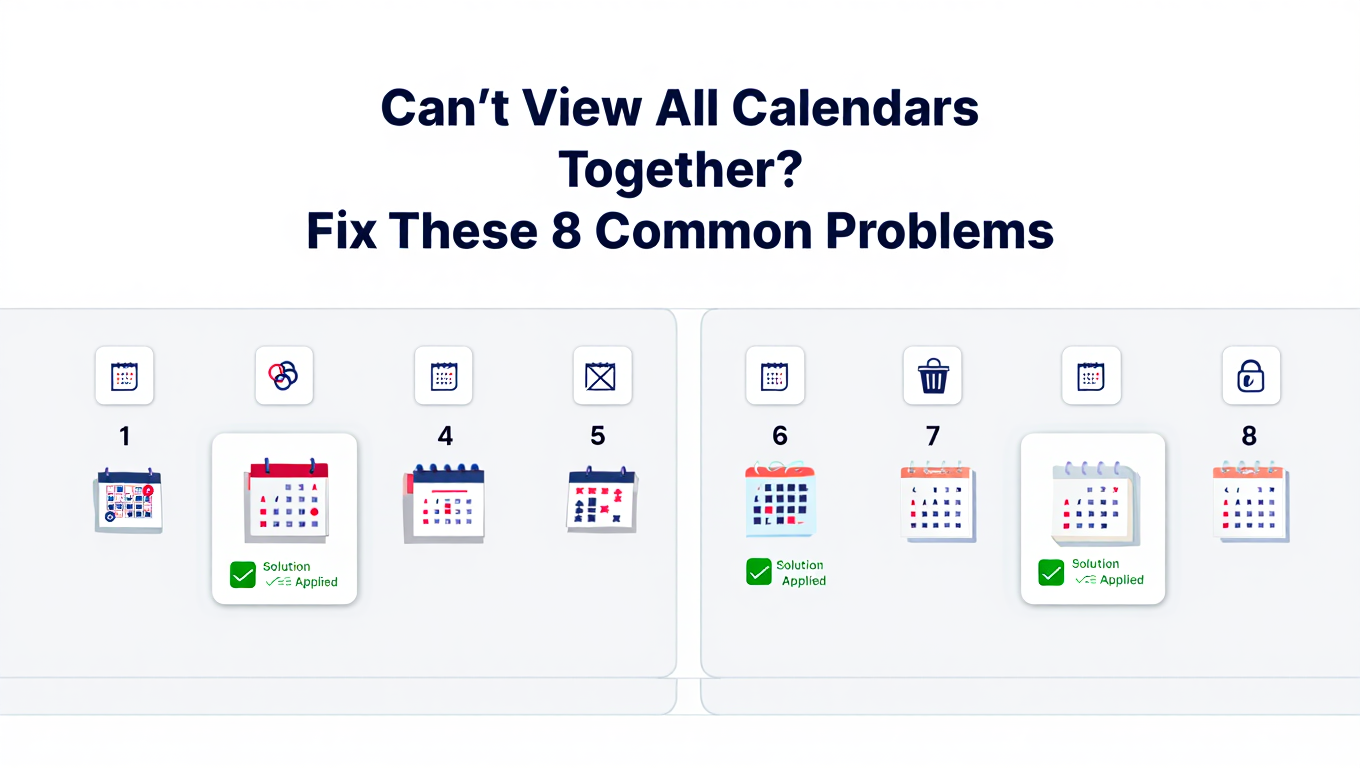
 Can't View All Calendars Together? Fix These 8 Common Problems
Troubleshoot why you can't view all calendars together. Fix sync issues, visibility problems, connection errors, and calendar display failures.
You followed the setup instructions perfectly. Connected your Google Calendar, linked your Outlook account, and imported your iCloud calendars. Everything should work. Yet when you open your calendar app, half your events are missing, one calendar shows data from three days ago, and another calendar refuses to appear at all despite being "successfully connected" according to the settings page.
Calendar visibility problems waste time, create scheduling conflicts, and undermine the entire purpose of unified calendar management. When you cannot reliably view all calendars together, you revert to the fragmented approach of checking multiple platforms separately, eliminating any efficiency gains from unified calendar viewing.
The good news is that most calendar visibility problems stem from a handful of common issues with straightforward solutions. This guide walks through systematic troubleshooting to restore your ability to view all calendars together.
- Step-by-step diagnostics for calendar visibility problems
- Solutions for synchronization failures and outdated calendar data
- Fixes for calendar connection errors across Google, Outlook, and Apple platforms
- How to resolve permission and sharing problems preventing calendar viewing
- When to migrate to more reliable calendar management solutions
Problem 1: Some Calendars Not Appearing in Unified View
The most frustrating calendar visibility issue is when calendars simply do not appear despite being connected to your account. You know the calendar exists, you have access credentials, but it refuses to display alongside your other calendars.
Check Calendar Visibility Settings
Every calendar platform uses checkbox-based visibility controls that can be accidentally toggled off, hiding calendars from view without disconnecting or removing them.
Google Calendar:
- Open Google Calendar in a web browser
- Look at the left sidebar under "My calendars" and "Other calendars"
- Scroll through the entire list to find your missing calendar
- Verify that the checkbox next to the calendar name is checked
- If unchecked, click the box to enable calendar visibility
The mobile app uses a slightly different interface. Tap "Calendars" at the bottom of the screen to see the complete list. Calendars without checkmarks are hidden from view. Tap the circle next to each calendar you want to display.
Microsoft Outlook:
- Open Outlook Calendar on desktop or web
- Locate the "My Calendars" or "Other Calendars" section in the left navigation
- Find your missing calendar in the list
- Check the box next to the calendar name to display it
- If using overlay view, ensure you have clicked the arrow icon and selected "Overlay" rather than leaving the calendar in side-by-side mode
Apple Calendar:
- Open Calendar on Mac
- Look at the left sidebar showing all calendars
- Verify the checkbox next to your missing calendar is checked
- On iOS, tap "Calendars" at the bottom, then check for your calendar in the list and ensure it has a checkmark
This simple visibility toggle causes more calendar viewing problems than any complex technical issue. According to support documentation, the calendar may be syncing perfectly in the background but if it is not turned on in your app's menu, you will not see any events.
Verify Account Connection Status
Sometimes calendars disappear because the underlying account connection has expired or requires re-authentication.
Check Account Status:
- Navigate to account settings in your calendar application
- Look for any error messages, warning icons, or "re-authenticate" prompts next to connected accounts
- Verify that accounts show as "Connected" or "Active" rather than "Disconnected" or "Authentication Required"
- If you see authentication errors, click the account and follow the prompts to sign in again
Google and Microsoft accounts often require periodic re-authentication, particularly if you have changed your password, enabled two-factor authentication, or if security policies have changed. Apple accounts may require re-entering your Apple ID password after major iOS or macOS updates.
Calendar connections can also break when the source account is disabled, deleted, or has permissions revoked. If you were viewing a colleague's shared calendar and they later removed your access, the calendar will disappear from your unified view.
Refresh Calendar Data Manually
Calendar applications cache data locally to improve performance. Sometimes this cache becomes stale or corrupted, preventing calendars from appearing even though the connection is active.
Force Calendar Refresh:
On Google Calendar web, there is no explicit refresh button, but you can force a refresh by pressing Ctrl+R (Windows) or Command+R (Mac) to reload the entire page.
On Outlook desktop, click Send/Receive > Update Folder or press F9 to force calendar synchronization.
On Apple Calendar, go to Calendar > Refresh Calendars or press Command+R.
On mobile devices, pull down on the calendar view to trigger a manual refresh using the pull-to-refresh gesture.
If manual refresh does not resolve the problem, the issue likely lies with account connection, permissions, or synchronization configuration rather than simple cache staleness.
- Confirm you have active internet connectivity
- Verify you are signed into the correct account (check account switcher)
- Ensure the missing calendar actually contains events (empty calendars may appear to be missing)
- Check that you have not exceeded calendar connection limits for your platform
- Rule out temporary service outages by checking platform status pages
Problem 2: Calendar Data Is Outdated or Not Synchronizing
When you can view all calendars together but the information is outdated by hours or days, synchronization problems are preventing current data from reaching your unified calendar view.
Understand Synchronization Delay Expectations
Different calendar connection methods have vastly different synchronization speeds, and what appears to be a "problem" may actually be the expected behavior for that connection type.
ICS/iCal calendar subscriptions typically refresh every 24 hours in Google Calendar, though the actual interval is not guaranteed and can be longer. Apple Calendar allows you to configure ICS refresh intervals from every 5 minutes to weekly. Outlook refreshes ICS subscriptions periodically based on internal algorithms.
Direct account connections (Google to Google, Microsoft to Microsoft, Apple to Apple within iCloud) synchronize in real-time or within seconds. Changes appear almost instantly across devices using the same platform.
Third-party calendar synchronization services vary widely, from real-time bidirectional sync to hourly batch updates depending on the service and subscription tier.
If your calendar data is 6 hours old and you are using an ICS import that refreshes daily, the system is working as designed. The solution is not troubleshooting but rather switching to a faster synchronization method or different calendar aggregation approach.
Check Synchronization Settings and Intervals
Many calendar platforms allow you to adjust synchronization frequency for connected accounts and calendar feeds.
Adjust ICS Refresh Interval (Apple Calendar):
- Control-click (right-click) the calendar subscription in the sidebar
- Select "Get Info"
- In the "Auto-refresh" dropdown, select a more frequent interval
- Click "OK"
Changing from daily refresh to every 5 minutes dramatically reduces synchronization delay for ICS imports, though it increases network traffic and may not be supported for all calendar feed sources.
Force Synchronization Immediately:
Rather than waiting for the next scheduled sync, force an immediate synchronization to determine whether the sync mechanism works but simply runs infrequently, or whether synchronization is completely broken.
In mobile calendar apps, use the pull-to-refresh gesture to trigger immediate sync. On desktop applications, the refresh or send/receive commands described earlier force synchronization.
If forced synchronization brings calendar data current, you have confirmed the sync mechanism works and you simply need to adjust refresh intervals. If forced synchronization changes nothing, you have a deeper connection or permission problem.
Clear Calendar Cache and Restart Applications
Corrupted local cache can prevent calendar applications from accepting fresh synchronized data, making it appear that synchronization has failed even when data is successfully transmitted.
Clear Calendar Cache (Mobile):
On iOS, go to Settings > Calendar > Accounts, select the problematic account, toggle Calendar off and back on. This forces the system to clear cached calendar data and re-download from the server.
On Android, go to Settings > Apps > Calendar > Storage > Clear Cache (not Clear Data, which removes all calendar information). Then open the calendar app and allow it to re-sync.
Clear Calendar Cache (Desktop):
On Windows Outlook, closing Outlook completely and using Task Manager to verify no Outlook processes are running before reopening forces cache refresh on startup.
On Mac Apple Calendar, quit Calendar completely, then hold Option while clicking the Calendar icon in the Dock to reset preferences and clear cache.
After clearing cache, allow several minutes for the application to re-download calendar data from servers. Check whether calendar information is now current.
Verify Two-Way Sync vs. One-Way Sync Configuration
Some calendar connections are intentionally one-way, meaning changes in your unified view do not sync back to the source calendar, or changes in the source do not automatically appear in your unified view.
If you are using a calendar synchronization service, review the sync configuration to confirm it is set to bidirectional rather than unidirectional. Some services default to one-way sync as a safety measure to prevent accidental changes from propagating.
Check whether you configured the connection as "import" (typically one-way, read-only) versus "sync" (typically bidirectional with editing capabilities). Switching from import to sync often requires deleting the existing connection and recreating it with different settings.
Problem 3: External Calendars Show as Read-Only
You successfully configured your system to view all calendars together, but when you try to edit events from external calendars, you receive "read-only" errors or find that changes do not save.
Understand Calendar Import vs. Calendar Sync
Calendar imports and calendar synchronizations are fundamentally different connection types that determine whether you can edit events.
Calendar Import (ICS/iCal Subscription):
An import creates a read-only snapshot of the external calendar. The connection is one-directional, pulling data from source to destination. You cannot edit these events within your unified view. Changes must be made in the source calendar platform.
Google Calendar's "Add by URL" feature creates ICS imports. Outlook's "Internet Calendar Subscription" creates ICS imports. Apple Calendar's "Calendar Subscription" creates ICS imports.
These imports allow you to view all calendars together but not manage them from a single location.
Calendar Sync (Bidirectional Connection):
A synchronization creates a two-way connection where changes in either platform propagate to the other. Events can be created, edited, or deleted from your unified view, and changes sync back to the source calendar.
Google Calendar account connections (adding a secondary Google account) create bidirectional sync. Outlook account connections for Exchange or Microsoft 365 create bidirectional sync. Third-party services like CalendarBridge and OneCal specifically provide bidirectional synchronization.
Solution:
If you need to edit external calendars from your unified view, you must replace read-only ICS imports with bidirectional account connections or third-party synchronization services.
Delete the existing ICS import, then reconnect the calendar using an account connection method rather than URL subscription. For platforms that do not support direct account connections, implement a third-party synchronization service that provides bidirectional sync.
Check Calendar Sharing Permissions
Even with bidirectional sync connections, you may lack permission to edit events on shared calendars depending on how the calendar owner configured sharing settings.
Google Calendar Sharing Permissions:
Calendar owners can grant "See only free/busy," "See all event details," "Make changes to events," or "Make changes and manage sharing" permissions. If you received "See all event details" access, the calendar will appear in your unified view but all events will be read-only.
Contact the calendar owner and request "Make changes to events" permission if you need editing capability.
Microsoft Outlook Sharing Permissions:
Outlook provides granular permission levels including Reviewer (read-only), Author (create and edit own items), Publishing Author (create, edit, and delete own items), Editor (full editing of all items), and Owner (full control).
If you cannot edit events on a shared Outlook calendar, you likely have Reviewer permissions. Request that the calendar owner upgrade your permissions to Author or Editor level.
Apple Calendar Sharing Permissions:
iCloud calendar sharing offers "View Only" or "View & Edit" permissions. View Only creates read-only access even through bidirectional connections.
Ask the calendar owner to change your permission level to "View & Edit" within iCloud calendar sharing settings.
Migrate from Import to Native Account Connection
The most reliable solution to read-only limitations is replacing calendar imports with native account connections wherever possible.
Google Calendar Example:
If you currently subscribe to a Google Calendar via ICS URL (read-only), remove that subscription and instead add the entire Google account to your calendar application using account connection features.
This changes the connection from a periodic read-only import to a real-time bidirectional sync with full editing capabilities.
Outlook Calendar Example:
If you are viewing an Outlook calendar through ICS import, connect your entire Microsoft account instead. This provides full Exchange synchronization with bidirectional editing rather than static periodic imports.
Not all calendar platforms support native account connections to external services. Google Calendar does not offer a native way to connect Microsoft accounts with full bidirectional sync. This limitation is where third-party synchronization services become valuable, providing the bidirectional infrastructure that native platforms lack.
Problem 4: Hitting Calendar Connection Limits
You attempt to add another calendar to your unified view and receive an error message about exceeding maximum calendars, connection limits, or account restrictions.
Identify Platform-Specific Limits
Different calendar platforms impose different restrictions on how many calendars you can view together simultaneously.
Google Calendar limits users to 25 calendars per account (though you can connect multiple accounts). The practical display limit is lower as visual clutter makes viewing 20+ overlapping calendars difficult.
Outlook supports up to 10 calendars in overlay view effectively. You can display more calendars in side-by-side view, but beyond 10 calendars the interface becomes unusable.
Apple Calendar has no stated technical limit, but performance degrades and visual clarity suffers when displaying 15+ event-dense calendars simultaneously.
Third-party calendar platforms have varying restrictions. According to market research, many scheduling-focused tools that offer calendar viewing as a secondary feature cap connections at 6 calendars, reflecting their primary use case of appointment scheduling rather than comprehensive calendar management.
Solutions for Platform Limits:
If you are hitting Google's 25-calendar limit, create a second Google account and distribute your calendar subscriptions across both accounts. Use Google's account switcher to access calendars from both accounts.
If Outlook's 10-calendar overlay limit is insufficient, consider whether some calendars could be viewed on-demand rather than continuously. Create calendar groups for different contexts and toggle groups on/off rather than displaying all calendars simultaneously.
For users consistently exceeding native platform limits, migrate to a calendar management platform designed for power users. While scheduling tools like Calendly cap at 6 calendars, platforms like CalendHub provide unlimited calendar connections specifically for professionals managing extensive calendar portfolios.
Audit and Remove Unused Calendars
Calendar connection limits create an opportunity to audit your calendar portfolio and remove calendars you no longer actively use.
Review each connected calendar and ask whether you genuinely need it in your unified view or whether it represents a past project, former job, or outdated commitment.
Old birthday calendars, holiday calendars in multiple formats, expired shared project calendars, and calendars from previous organizations often accumulate over years without being consciously removed.
Removing 5-6 obsolete calendars can bring you back under connection limits while also reducing visual clutter and improving the usability of your unified calendar view.
Prioritize Calendar Visibility by Context
Rather than attempting to view all calendars together all the time, create context-specific calendar views that display relevant subsets of your total calendar portfolio.
Use calendar groups or visibility presets to create "Work view" showing only professional calendars, "Personal view" showing only family and personal calendars, and "Comprehensive view" showing everything for morning planning sessions.
Need better calendar management? CalendHub unifies all your calendars with smart scheduling and video conferencing.
This approach allows you to manage more total calendars than platform limits technically support by strategically showing and hiding calendars based on your current focus.
Some platforms let you save custom views or calendar groups, making this workflow seamless. Others require manually toggling calendars on and off, which is tedious but still more functional than hitting hard connection limits.
- Evaluate Actual Needs: Determine whether you truly need to exceed limits or can optimize current setup
- Consider Migration: Compare time spent managing workarounds versus switching to unlimited platforms
- Calculate Costs: Professional time wasted on calendar juggling often exceeds subscription costs for better tools
- Plan for Growth: Choose solutions that accommodate future expansion, not just current minimums
Problem 5: Calendar Colors Not Displaying Correctly
You configured each calendar with a specific color to make it easy to view all calendars together and identify event sources at a glance, but calendars appear in wrong colors, default colors, or without color distinction.
Synchronize Color Settings Across Platforms
When you view the same calendars on multiple devices or platforms, each may have independent color settings that do not synchronize automatically.
A calendar you set to blue in Google Calendar may appear green in Outlook and orange in Apple Calendar because each platform stores color preferences locally rather than as part of the calendar data itself.
Solution:
Manually configure matching colors for each calendar across every platform and device where you view that calendar. This requires initial setup time but creates consistent visual experience regardless of which device you use.
Maintain a color coding reference document listing which calendars should use which colors, then apply these settings consistently across Google Calendar, Outlook, Apple Calendar, and any third-party calendar platforms you use.
Work Within Platform Color Palette Limitations
Different calendar platforms offer different color customization capabilities, which can prevent perfect color matching across platforms.
Google Calendar provides a preset palette of approximately 24 colors but does not allow custom RGB color selection in the standard interface. Outlook offers a limited color palette with fewer options than Google. Apple Calendar allows custom color selection with full color picker functionality.
When you cannot achieve exact color matches, create a color strategy that works within the constraints of all platforms you use. Choose colors available across all platforms rather than using Apple's custom colors that cannot be replicated in Google Calendar or Outlook.
Group related calendars using color families (all work calendars in shades of blue, all personal calendars in shades of green) rather than demanding precise color matches.
Reset Calendar Colors to Defaults
Sometimes calendar color settings become corrupted, causing calendars to display in unexpected colors or without color differentiation at all.
Reset Colors:
In Google Calendar, click the three dots next to a calendar name, select "Settings and sharing," scroll to the calendar color section, and choose a new color from the palette. This resets any corrupted color data.
In Outlook, right-click the calendar name, select "Color," and choose from the available options.
In Apple Calendar, control-click the calendar name, select "Get Info," click the color swatch, and choose a new color from the color picker.
After resetting colors, the calendar should display correctly in your unified view.
Use Alternative Visual Distinction Methods
If color alone proves insufficient for distinguishing calendars when viewing many calendars together, supplement color coding with other visual indicators.
Implement systematic naming conventions where calendar names include prefixes or suffixes identifying their category (work calendars start with "W:", personal calendars with "P:", client calendars with "C:", etc.).
When viewing calendars in list or agenda format rather than timeline view, these naming conventions provide clarity even when color coding is ambiguous.
Some calendar platforms allow emoji or icons in calendar names, though this practice can create synchronization issues across platforms that handle special characters differently.
Problem 6: Calendar Events Missing or Duplicated
Your unified calendar view shows some events multiple times while other events fail to appear at all, creating an unreliable view that you cannot trust for scheduling decisions.
Diagnose Duplicate Event Sources
Event duplication typically occurs when the same calendar is connected through multiple methods simultaneously, creating overlapping data streams.
Common Duplication Scenarios:
You subscribed to a Google Calendar via ICS import in Outlook while also connecting your entire Google account to Outlook, resulting in each event appearing twice (once from the ICS feed, once from the account sync).
You are using a third-party calendar synchronization service while also maintaining native ICS imports, causing the sync service's bidirectional copies to appear alongside the original ICS imports.
You have multiple devices or applications configured to sync the same calendar with different settings, creating duplicate entries when synchronization conflicts occur.
Solution:
Identify and remove redundant calendar connections. Choose either ICS import or account connection for each calendar, not both. If using a third-party synchronization service, remove native imports and rely entirely on the sync service.
Review all devices and applications where you access calendars to verify each calendar is connected only once through the optimal method.
Fix Missing Events from Partial Sync
When some events appear while others from the same calendar are missing, you likely have a partial synchronization problem where only recent events sync successfully or where date range filters exclude older or future events.
Check Sync Range Settings:
Many calendar applications limit how far back and forward they synchronize events to manage performance and storage.
On mobile devices, check calendar sync settings for date range restrictions. iOS and Android both offer settings like "Sync events from 1 month ago" or "Sync events 6 months forward." Events outside these ranges will not appear even though they exist in the source calendar.
Adjust sync range settings to include the full date range you need to view. Be aware that syncing years of historical events may impact performance and storage on mobile devices.
Verify Event-Specific Sync Failures:
Occasionally specific events fail to sync due to malformed data, unsupported characters in event titles, or attachments that exceed size limits.
If most events from a calendar appear but a few specific events consistently miss, try editing those events in the source calendar. Remove special characters from titles, eliminate large attachments, and simplify event details. Then force a sync to see if the simplified events now appear.
Remove Duplicate Events Safely
When you identify duplicate events cluttering your unified calendar view, remove them carefully to avoid accidentally deleting the only copy of important events.
Safe Duplicate Removal Process:
- Verify that duplicates truly are duplicates by checking event details, times, and descriptions rather than just similar titles
- Identify which calendar connection is creating the duplicates
- Disable or remove the redundant connection at the source (disconnect the account, unsubscribe from the ICS feed)
- Wait for the next sync cycle and verify duplicates disappear automatically
- Only manually delete duplicate events after confirming the source connection is removed and no more duplicates are being created
Manually deleting duplicates without fixing the underlying connection problem results in duplicates reappearing at the next sync, creating an endless cycle of deletion and regeneration.
Problem 7: Calendar Permissions and Sharing Errors
Error messages about insufficient permissions, sharing failures, or access denied prevent you from viewing shared calendars alongside your own calendars in a unified view.
Verify You Have Active Sharing Invitations
Shared calendars require explicit invitations that you must accept before the calendar appears in your account.
Check for Pending Invitations:
In Google Calendar, look for email invitations with "Add this calendar" buttons. Click the button to formally accept the sharing invitation and add the calendar to your account.
In Outlook, calendar sharing invitations appear as special email messages with "Accept" buttons. Some organizations use automatic calendar sharing through Exchange server, which bypasses email invitations.
In Apple Calendar, sharing invitations arrive via email with iCloud calendar links that add the calendar when clicked.
If you never received or accidentally deleted a sharing invitation, contact the calendar owner and request that they resend the invitation.
Request Appropriate Permission Levels
The calendar owner controls what permission level you receive, and insufficient permissions can prevent the calendar from appearing in your unified view or limit what information displays.
Common Permission Issues:
"See only free/busy" permission shows only blocked time without event details, which may not display properly in unified calendar views designed to show full event information.
"View only" permissions allow you to see the calendar but prevent editing, which creates the read-only problems discussed earlier.
No calendar permission at all means the calendar will not appear in your account regardless of synchronization configuration.
Contact calendar owners and explain specifically what permission level you need. For most unified calendar viewing scenarios, "See all event details" (Google) or "Reviewer" (Outlook) permissions are minimum requirements, with "Make changes to events" or "Editor" permissions needed if you require editing capability.
Troubleshoot Organization-Level Restrictions
Some organizations implement IT policies that restrict external calendar sharing, prevent calendar connections to third-party services, or limit which types of calendar data can synchronize outside the organization's network.
These security policies override individual user settings, meaning even if a colleague grants you calendar access, organizational restrictions may prevent the connection from functioning.
Signs of Policy Restrictions:
Error messages mentioning "administrator," "policy," "compliance," or "security" when attempting calendar connections suggest organizational restrictions rather than individual configuration problems.
Calendar connections that work successfully on personal accounts but fail on work accounts typically indicate organizational IT policies.
Inability to connect work calendars to third-party services while personal calendars connect without issue points to administrative restrictions.
Solution:
Contact your IT department to understand calendar sharing policies and request exceptions if appropriate. Explain the business need for unified calendar viewing and ask whether approved methods exist within policy constraints.
Some organizations whitelist specific calendar services for business use while blocking others. Your IT department may approve CalendHub.com or similar professional calendar management platforms while restricting consumer services.
In highly regulated industries, external calendar sharing may be prohibited entirely for compliance reasons. In these scenarios, unified calendar viewing must be accomplished entirely within approved enterprise platforms.
Problem 8: Platform-Specific Technical Issues
Beyond general calendar visibility problems, each platform has unique technical issues that can prevent you from viewing all calendars together.
Google Calendar: Service Account Limits
Google enforces API rate limits that can cause synchronization failures when third-party services connect too many calendars or request updates too frequently.
If you use third-party calendar aggregation services with Google Calendar, you may encounter temporary synchronization failures with errors like "Quota exceeded" or "Too many requests."
These issues typically resolve automatically after a few hours as rate limits reset. If problems persist, contact the third-party service provider to verify their API usage is optimized correctly.
Outlook: Cached Exchange Mode Issues
Outlook's Cached Exchange Mode stores local copies of calendar data for offline access, but this cache can become corrupted or outdated, preventing calendar updates from displaying.
Disable and Re-enable Cached Exchange Mode:
- In Outlook, go to File > Account Settings > Account Settings
- Select your Exchange or Microsoft 365 account
- Click "Change"
- Uncheck "Use Cached Exchange Mode"
- Restart Outlook
- Repeat the process and re-enable "Use Cached Exchange Mode"
- Allow Outlook to rebuild the cache
This forces Outlook to retrieve all data directly from the server, bypassing corrupted local cache, according to troubleshooting documentation.
Apple Calendar: iCloud Synchronization Delays
Apple Calendar relies on iCloud for synchronization across devices. When iCloud experiences service issues or your account has synchronization problems, calendars may fail to appear on some devices while working correctly on others.
Verify iCloud Calendar Sync:
On iOS, go to Settings > [Your Name] > iCloud and verify Calendar is toggled on.
On Mac, go to System Settings > [Your Name] > iCloud and ensure Calendars is checked.
Sign out of iCloud completely, restart your device, and sign back in to force a full re-synchronization. This resolves most persistent iCloud calendar sync problems.
Mobile-Specific Calendar Problems
Mobile calendar applications face unique constraints including battery optimization, background sync limitations, and storage restrictions that can prevent calendars from appearing or updating.
Android Calendar Sync Issues:
Verify that the Calendar app is not restricted by battery optimization. Go to Settings > Apps > Calendar > Battery and ensure the app is allowed to run in the background without restrictions.
Enable calendar sync in account settings. Go to Settings > Accounts, select each account, and verify Calendar is toggled on for synchronization.
iOS Calendar Sync Issues:
Check Background App Refresh settings. Go to Settings > Calendar and ensure Background App Refresh is enabled, allowing the Calendar app to update when not actively open.
Verify calendar accounts are active. Go to Settings > Calendar > Accounts and check for any error icons or "Re-enter Password" messages that indicate authentication problems.
- Problems persist after exhausting platform-specific troubleshooting steps
- You encounter the same issues repeatedly despite temporary fixes
- Technical limitations prevent the workflow you need (connection limits, sync delays)
- Time spent troubleshooting exceeds the value of the unified calendar view
- Platform restrictions or design decisions fundamentally conflict with your requirements
When Technical Problems Indicate You Need a Different Solution
Sometimes persistent calendar visibility problems are not bugs to fix but signals that you have outgrown your current platform's capabilities.
Recognizing Platform Limitations vs. Temporary Issues
Temporary issues resolve with troubleshooting. Platform limitations are intentional design decisions that no amount of configuration will overcome.
Temporary Issues:
Calendar appears offline due to authentication expiring but works after signing in again. Events fail to sync due to network interruption but update successfully once connectivity restores. Calendar colors display incorrectly due to corrupted settings but correct after resetting preferences.
Platform Limitations:
ICS imports that always refresh every 24 hours because that is how the platform designed the feature. Calendar connection caps at 6 calendars because the platform targets casual users, not power users. Read-only external calendar viewing because the platform does not support bidirectional synchronization infrastructure.
If you repeatedly encounter the same "problem" that turns out to be working as designed, you are fighting platform limitations. The solution is not better troubleshooting but platform migration.
Calculating the Cost of Calendar Management Friction
Persistent calendar problems create hidden costs through wasted time, scheduling conflicts, missed opportunities, and mental stress.
If you spend 10 minutes daily troubleshooting calendar synchronization, verifying that events appear across platforms, or working around connection limits, you are spending 40+ hours annually on calendar administrative overhead.
At typical professional billing rates, 40 hours represents thousands of dollars in opportunity cost, far exceeding the subscription cost of more capable calendar management platforms.
Double bookings caused by calendar synchronization delays damage professional reputation and waste everyone's time through last-minute rescheduling.
Incomplete calendar visibility due to connection limits forces you to check multiple platforms separately, eliminating the efficiency gains that unified calendar viewing is meant to provide.
When calendar friction consistently affects your productivity and reliability, investing in a more capable solution generates positive return on investment within weeks.
Why Power Users Eventually Choose Unlimited Solutions
Professionals with sophisticated calendar management needs eventually migrate to platforms designed specifically for power users rather than continuing to fight limitations in consumer-focused tools.
The difference between a scheduling platform that added calendar viewing as a secondary feature and a calendar management platform designed specifically for unified viewing is substantial.
Scheduling platforms like Calendly focus on appointment booking, with calendar viewing supporting that primary function. Their 6-calendar connection limits reflect typical appointment scheduling needs, not comprehensive calendar management requirements.
In contrast, calendar management platforms like CalendHub eliminate artificial connection limits because they are built specifically for professionals who need to view all calendars together, whether that means 7 calendars or 27 calendars.
This fundamental difference in design philosophy determines whether a platform scales with your growing responsibilities or forces you into constant workarounds and limitations.
When you consistently hit connection limits, deal with unacceptable synchronization delays, or find that the platform simply was not designed for your use case, migration to a purpose-built calendar management solution is the answer.
CalendHub provides unlimited calendar viewing without the arbitrary caps, read-only restrictions, or synchronization delays that plague scheduling-first platforms. The calendar-first design philosophy means every feature prioritizes calendar visibility and management rather than treating calendar viewing as an afterthought.
For professionals managing 10, 15, 20+ calendars across multiple organizations, clients, and projects, this unlimited scalability is not a luxury but a practical necessity.
Systematic Troubleshooting Checklist
When you cannot view all calendars together or encounter calendar visibility problems, work through this systematic diagnostic process.
Level 1: Quick Fixes (5 minutes)
- Verify calendar visibility checkboxes are enabled for all calendars
- Check that you are signed into the correct account
- Confirm internet connectivity is active
- Force manual calendar refresh or sync
- Restart the calendar application
Level 2: Account and Connection Issues (15 minutes)
- Verify all calendar accounts show as connected without authentication errors
- Check for and accept any pending calendar sharing invitations
- Review calendar permission levels to ensure adequate access
- Force account re-authentication by signing out and back in
- Test whether the calendar appears on a different device or platform
Level 3: Synchronization and Configuration (30 minutes)
- Review synchronization settings and adjust refresh intervals
- Check for date range restrictions limiting which events sync
- Clear calendar cache and allow fresh data download
- Verify connection type (import vs. sync) matches your needs
- Remove and recreate problematic calendar connections
Level 4: Advanced Diagnostics (60 minutes)
- Test with a new test calendar to isolate whether the issue is calendar-specific
- Check platform status pages for known service outages
- Review IT policies that might restrict calendar sharing or external connections
- Compare calendar behavior across different devices and platforms
- Document exact error messages for support team consultation
Level 5: Platform Migration Consideration
- Calculate time spent on calendar troubleshooting monthly
- Evaluate whether problems are temporary issues or permanent platform limitations
- Determine if you have outgrown current platform capabilities
- Compare current friction costs against better platform subscription costs
- Test alternative calendar management platforms designed for your use case
Prevention: Avoiding Calendar Visibility Problems
Many calendar problems can be prevented through proper initial configuration and regular maintenance rather than requiring troubleshooting after issues emerge.
Initial Setup Best Practices:
Document your calendar connections, including which method you used (import, account sync, third-party service), what permission level you have, and any configuration settings applied.
Choose the most robust connection method available for each calendar. Prefer account connections over ICS imports, bidirectional sync over read-only imports, and real-time synchronization over periodic updates.
Test calendar visibility immediately after connecting each calendar by creating a test event, verifying it appears in your unified view, editing it from the unified view, and confirming changes sync back to the source.
Establish a consistent color coding system before connecting calendars, then apply colors systematically as you add each calendar to your unified view.
Ongoing Maintenance Practices:
Schedule monthly calendar audits to verify all calendars are synchronizing correctly, remove obsolete calendars you no longer use, and check for any error messages or authentication issues.
Update calendar applications and operating systems regularly. Many calendar synchronization improvements and bug fixes arrive through software updates.
Monitor for changed passwords, enabled two-factor authentication, or updated security policies that might break existing calendar connections requiring re-authentication.
Review calendar connection methods periodically. As platforms add new features, better connection options may become available to replace older methods you configured years ago.
Platform Selection Considerations:
Choose calendar platforms designed to scale with your anticipated growth rather than selecting based solely on current minimums. If you manage 7 calendars today, assume you will need capacity for 12-15 calendars within two years.
Prioritize platforms with responsive customer support and comprehensive documentation. When problems do occur, accessible support resources dramatically reduce troubleshooting time.
Verify that platforms support all calendar services you actually use. Excellent Google Calendar synchronization provides no value if you primarily need Outlook and Apple Calendar integration.
Test platforms thoroughly during trial periods with your actual calendars and real workflows before committing to annual subscriptions.
Conclusion: Reliable Calendar Visibility Is Non-Negotiable
The ability to view all calendars together reliably is fundamental to professional effectiveness. When calendar visibility breaks down, you lose the unified schedule awareness needed for intelligent decision-making and efficient time management.
Most calendar visibility problems stem from common issues including visibility toggles, synchronization configuration, connection method limitations, permission problems, and platform restrictions. Systematic troubleshooting resolves the majority of these issues within minutes to hours.
However, some calendar "problems" are actually intentional platform limitations that indicate you have outgrown your current solution's designed capacity. Fighting these limitations through endless workarounds wastes more time than migrating to a platform built for your actual needs.
According to 2024 research, 70% of American adults use digital calendars, but calendar synchronization challenges and visibility problems remain the primary complaints. The calendar management market continues growing at nearly 5% annually specifically because professionals need better solutions for viewing all calendars together across increasingly fragmented platform ecosystems.
When you encounter persistent calendar problems, first work through systematic troubleshooting. If problems resolve temporarily but recur regularly, evaluate whether you are dealing with platform limitations rather than technical bugs.
For power users managing extensive calendar portfolios, platforms like CalendHub that eliminate connection limits and focus exclusively on calendar management often provide the reliability and scalability that scheduling-first tools with limited calendar viewing cannot match.
Your calendar is too critical to accept unreliable visibility, constant troubleshooting, or artificial limitations. Implement proper initial configuration, maintain calendar connections proactively, and choose platforms capable of supporting your actual requirements rather than forcing your workflow into platforms designed for simpler use cases.
Fix what can be fixed. Migrate away from what cannot. But never accept persistent calendar visibility problems as inevitable. Reliable unified calendar viewing is achievable with the right combination of proper configuration and appropriate platform selection.
Ready to Simplify Your Schedule?
Join thousands of professionals who have unified their calendars and reclaimed their time with CalendHub's intelligent scheduling platform.
Related Articles
Enterprise Scheduling Software with Multiple Calendar Support: Complete Guide for Teams in 2025
Comprehensive guide to enterprise scheduling software supporting multiple calendars. Discover requirements, features, and solutions for large teams and organizations.
Executive Assistant Multiple Calendar Tool: Complete 2025 Guide
Discover the best executive assistant multiple calendar tools for managing 5-10 executives simultaneously. Compare features, pricing, and EA-specific capabilities.
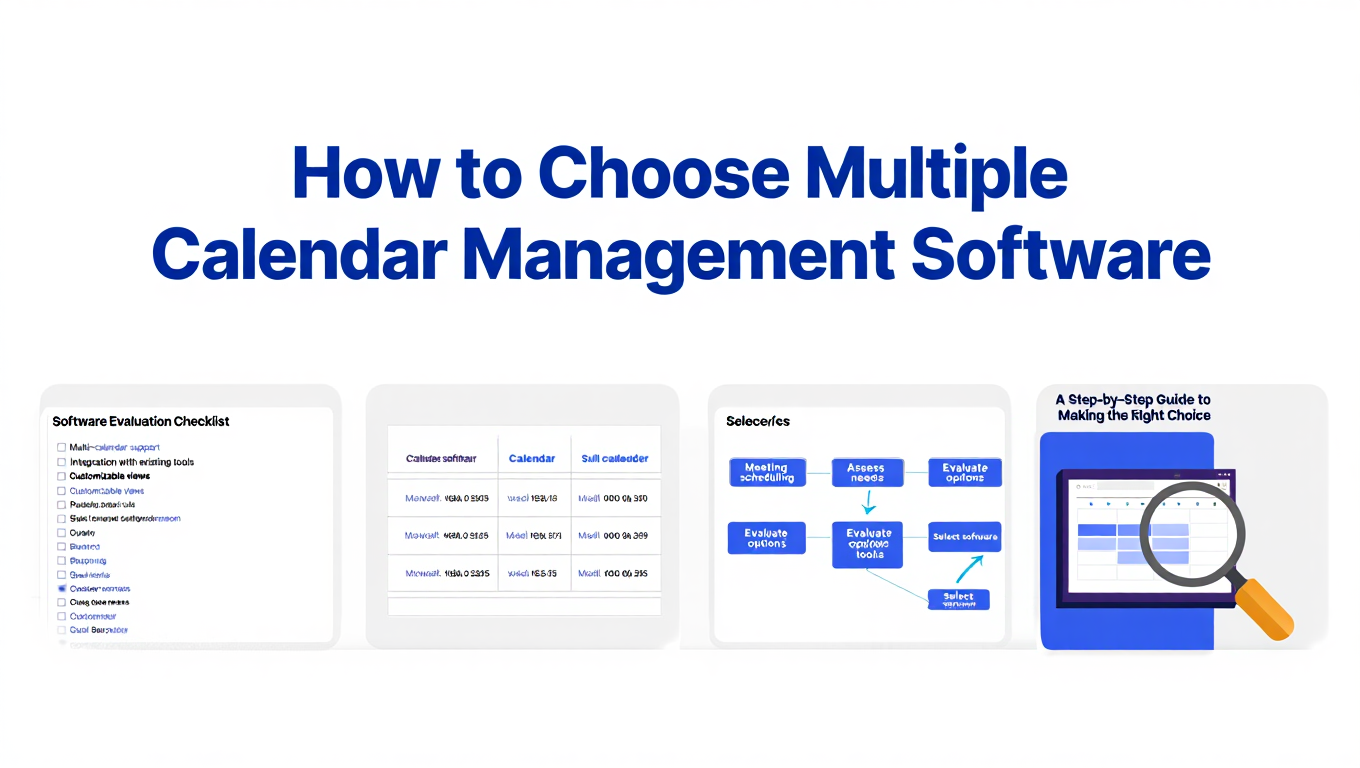
How to Choose Multiple Calendar Management Software
Expert guide to selecting the right multiple calendar management software for consultants, executives, and fractional leaders managing 10+ calendars.