
 Google Calendar
  Outlook Calendar
  Google Meet
  Microsoft Teams
  Zoom Meetings
 Master Workflow: Managing All Calendars in One Place (2025)
Build a proven workflow for managing all calendars in one place. Step-by-step system for professionals juggling multiple calendars across teams and clients.
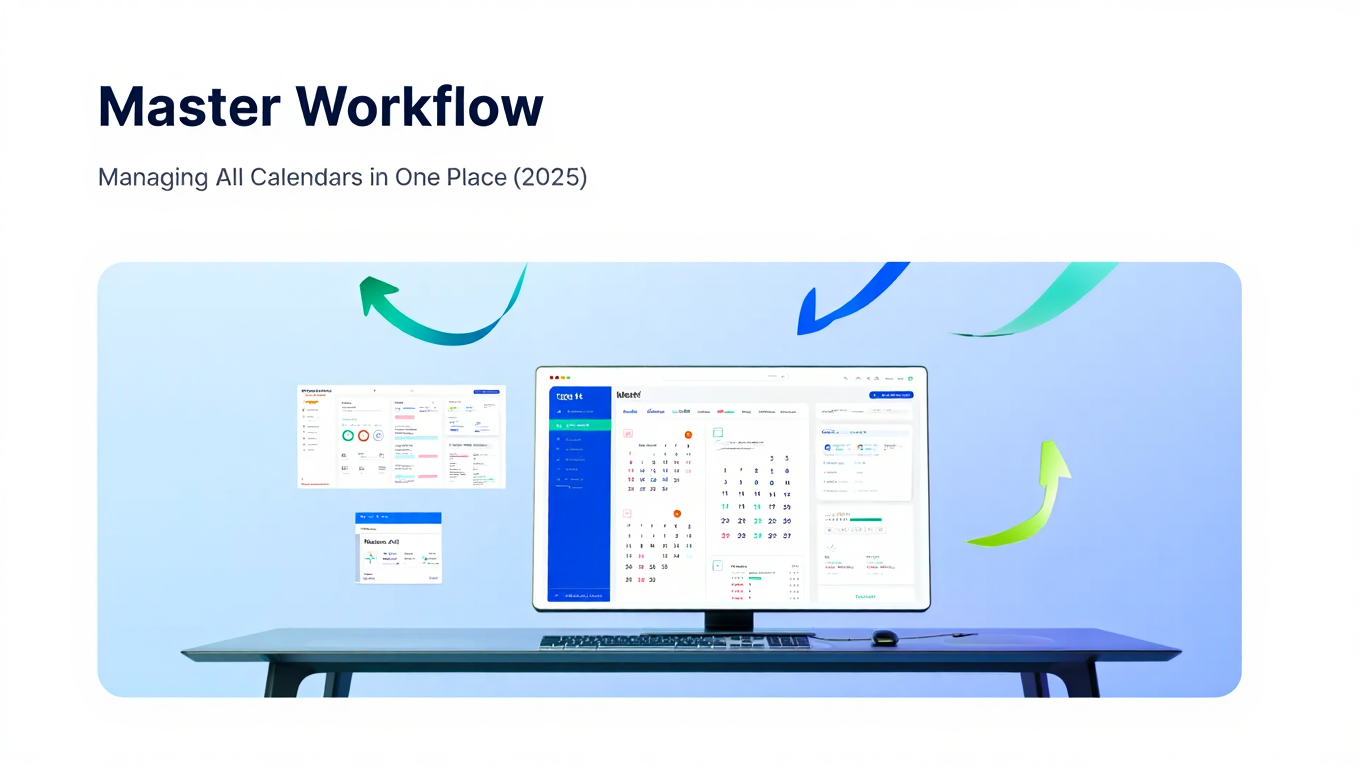
A senior marketing director opens six different browser tabs every Monday morning. Google Calendar for team meetings. Outlook for corporate events. Apple Calendar for personal commitments. Three different client scheduling platforms for external stakeholders. By 9:15 AM, she has already spent 20 minutes cross-referencing calendars and still books herself for two overlapping meetings.
This scenario repeats across millions of professionals daily. According to 2024 workplace research, professionals spend an average of 6 hours weekly on scheduling-related activities, with calendar fragmentation multiplying this time waste exponentially. The typical employee operates at only 2 hours and 53 minutes of true productivity per workday, and inefficient calendar management contributes significantly to this efficiency loss.
The solution is not another productivity app promising miracles. You need a systematic workflow for managing all calendars in one place that actually fits how you work. This comprehensive guide provides that workflow, designed specifically for power users managing 10, 15, or 20+ calendars across multiple platforms, teams, and responsibilities.
- Complete implementation process from calendar audit through daily execution
- Specific strategies for executives, consultants, remote teams, and creative professionals
- Advanced techniques for calendar layering, filtering, and context-specific views
- Troubleshooting common workflow breakdowns and synchronization failures
- Metrics and optimization approaches for continuous workflow improvement
Why You Need a Calendar Consolidation Workflow
Viewing all calendars in one place represents the outcome, not the process. Between your current fragmented calendar chaos and a smoothly functioning unified system lies a workflow that must become as automatic as checking email.
Without a systematic workflow, calendar consolidation remains a well-intentioned project that collapses under real-world pressure. You set up a unified calendar view, use it enthusiastically for a week, then gradually drift back to old habits. Three months later, your consolidated calendar sits abandoned while you toggle between the same five calendar apps as before.
The Cognitive Load Problem
Calendar fragmentation creates constant background stress that undermines focus and decision-making. Before making any commitment, you must mentally inventory every calendar source, checking for conflicts across disconnected platforms. This cognitive burden compounds throughout the day, creating decision fatigue that reduces productivity far beyond the raw time wasted on calendar management.
Research from 2024 indicates that 88% of professionals manage time via calendars, yet only 20% feel in control of shifting priorities. This control gap stems largely from calendar fragmentation preventing professionals from leveraging their calendar investments effectively. You cannot control what you cannot see, and scattered calendars create inevitable blind spots.
The Double-Booking Crisis
Without centralized visibility, double bookings become mathematical inevitabilities rather than occasional mistakes. You maintain 8 different calendar sources. Each scheduling decision has an 87.5% chance of checking the right calendar and a 12.5% chance of missing the conflicting commitment hiding in another source.
Make 20 scheduling decisions weekly, and probability dictates 2-3 missed conflicts. Each double booking costs 20-30 minutes resolving, plus the professional credibility damage and relationship strain. That translates to 4-7 hours monthly spent fixing preventable calendar problems.
The Context-Switching Tax
Opening five calendar apps each morning wastes 10-15 minutes. Checking each platform before scheduling decisions adds 5 minutes per decision. Across a typical workweek with 20+ scheduling interactions, calendar fragmentation steals 2-3 hours of productive time weekly.
Beyond raw time loss, context switching between different calendar interfaces disrupts concentration. Each platform uses different visual layouts, color schemes, navigation patterns, and interaction models. Your brain constantly adapts, creating unnecessary cognitive friction that extends well beyond calendar management tasks.
A proper workflow for managing all calendars in one place eliminates these problems systematically rather than hoping good intentions overcome structural inefficiencies.
The Complete Calendar Consolidation Workflow
This workflow guides you from initial setup through daily execution, creating a sustainable system that becomes easier over time rather than requiring constant willpower to maintain.
Phase 1: Comprehensive Calendar Discovery
Most calendar consolidation attempts fail during setup because professionals underestimate how many calendar sources they actually use. The obvious calendars get connected while embedded calendars in project tools, old platforms referenced occasionally, and shared calendars accessed passively remain invisible.
Conduct a 7-Day Calendar Audit
Rather than trying to remember every calendar you use, track them actively for one week. Every time you check a calendar, reference scheduling information, or receive a calendar invitation, document that source.
Create a simple tracking spreadsheet with these columns. Calendar platform name. Primary purpose. Update frequency. Access method. Owner or administrator. Number of active events. This structured approach captures details that prove valuable during configuration.
Most professionals discover they actively use 7-12 different calendar sources when they systematically audit rather than relying on memory. Marketing managers might track team calendars, client calendars, content calendars, campaign milestone calendars, and personal calendars across 4-5 different platforms. Consultants juggling multiple clients easily reach 15-20 calendar sources.
Categorize Calendar Sources
Group discovered calendars into categories that reflect how you actually use them. Common categories include primary work calendar, team coordination calendars, client-facing calendars, personal life calendars, and reference calendars you monitor but rarely update.
This categorization guides your visual organization strategy later. Calendars in the same category might use similar colors or display together in specific views. The categorization also helps identify which calendars require real-time synchronization versus acceptable delay.
Identify Integration Requirements
For each calendar source, determine what integration method it supports. Major platforms like Google Calendar, Microsoft Outlook, and Apple iCloud typically offer OAuth authentication providing two-way synchronization. Smaller platforms or specialized tools might only provide ICS calendar feeds offering read-only access.
Document these integration requirements because they influence your platform selection. If you need to consolidate 5 calendars only available via ICS feeds, choose a platform with strong ICS support. If all your calendars support OAuth, you can leverage two-way synchronization capabilities.
Phase 2: Platform Selection Based on Actual Requirements
Your calendar audit reveals specific requirements that narrow viable platform options substantially. A user managing 6 Google Calendars has different needs than a consultant tracking 18 calendars across Google, Outlook, client scheduling tools, and project platforms.
Evaluate Calendar Connection Limits
The most critical specification is how many calendars the platform actually supports. If your audit revealed 12 active calendar sources, eliminate any platform limiting you to 6 connections. Platforms like Calendly cap paid users at 6 calendars, making them unviable for power users regardless of their other features.
CalendHub.com, Cal.com, and OneCal represent platforms supporting unlimited calendar connections. For professionals managing extensive calendar ecosystems, this requirement alone narrows the field to a handful of viable options.
Assess Technical Complexity Requirements
Some unified calendar platforms require significant technical knowledge for setup and ongoing maintenance. Cal.com offers powerful consolidation but expects users to navigate technical configuration, troubleshoot authentication issues, and manage calendar feeds manually.
Others like CalendHub prioritize zero-configuration simplicity, handling technical complexity behind streamlined interfaces. Your technical comfort level should guide this evaluation. Non-technical users benefit from platforms abstracting technical details. Technical users might prefer platforms exposing advanced configuration options.
Prioritize Calendar-First vs. Scheduling-First Design
Distinguish between scheduling tools that happen to aggregate calendars and calendar management platforms designed specifically for consolidation. This design philosophy fundamentally affects whether the platform suits workflow-focused calendar management.
Scheduling-first platforms like Calendly optimize for letting others book time with you. Calendar-first platforms like CalendHub optimize for helping you manage your complete scheduling ecosystem. For a workflow centered on unified calendar management rather than appointment booking, calendar-first design proves critical.
Test Mobile Experience Thoroughly
You check calendars on desktop during planning sessions and on mobile while traveling, during phone calls, and between meetings. Platforms compromising mobile functionality undermine workflow benefits whenever you work away from your desk.
Test whether the platform delivers equivalent functionality on mobile devices as it provides on desktop. Can you view all connected calendars? Can you access saved views? Can you create events on specific calendars? Can you manage visibility settings? Workflow sustainability requires consistent experiences across devices.
Phase 3: Systematic Calendar Connection
With your platform selected and calendar inventory complete, connect calendars methodically rather than rushing through setup. Careful configuration now prevents troubleshooting later.
Connect in Priority Order
Start with your most critical calendars, typically your primary work calendar and personal calendar. Verify these core calendars sync correctly, display properly, and update reliably before proceeding to secondary sources.
This staged approach ensures your most important scheduling information consolidates successfully even if you encounter issues with less critical sources. You maintain basic functionality while troubleshooting edge cases.
Configure Visual Organization Immediately
As you connect each calendar, configure its display settings, color coding, and naming conventions. Choose colors that make calendar sources instantly recognizable and align with calendar categories from your audit.
Use descriptive names providing context at a glance. Instead of "Work Calendar," specify "Work - Client Meetings." Instead of "Team Calendar," identify "Team - Marketing Projects." These detailed names make scanning your unified view dramatically more efficient.
Verify Bidirectional Sync
For calendars supporting two-way synchronization, test that changes propagate correctly in both directions. Create a test event in your unified calendar view, then verify it appears in the source calendar. Create a test event directly in the source calendar, then confirm it displays in your unified view.
This verification catches configuration issues during controlled testing rather than discovering them through real scheduling conflicts later.
Document Authentication Credentials
Calendar platforms periodically require credential renewal or authentication updates. Document where you stored credentials, which authentication methods you used, and any special configuration requirements for each calendar source.
This documentation proves invaluable when connections break and you need to troubleshoot months after initial setup when you no longer remember configuration details.
Phase 4: Workflow Habit Formation
Technology enables calendar consolidation, but habits determine whether it succeeds. The most sophisticated unified calendar platform fails if you do not actually use it for scheduling decisions.
Establish Your Unified Calendar as Default Application
Configure your consolidated calendar platform as your default calendar application across all devices. On mobile, set it as the app that opens when tapping calendar notifications. On desktop, make it your browser homepage or pin it as your first tab.
Reduce friction to accessing your unified view until checking it becomes automatic. The easier accessing your consolidated calendar, the more likely you will actually use it instead of defaulting to familiar but fragmented calendar apps.
Implement the "Check Before Committing" Rule
Create an inviolable rule that before accepting any meeting, event, or time commitment, you check your unified calendar view first. This sounds obvious, but habits prove remarkably persistent.
Many professionals continue defaulting to whichever calendar platform the meeting invitation arrived through, completely defeating consolidation benefits. The unified view only provides value when you actually reference it for every scheduling decision.
Create Context-Specific Views for Common Scenarios
Most unified calendar platforms support selective calendar visibility, letting you show or hide specific calendar sources. Leverage this capability to create preset views matching your common contexts.
Create a "comprehensive planning view" showing all calendars simultaneously for weekly planning sessions. Build a "deep work view" hiding optional calendars to highlight protected focus time. Establish a "client engagement view" displaying customer-related calendars while temporarily hiding internal team calendars.
Name and save these preset views for one-click access. Most professionals benefit from 4-6 standard views matching contexts like comprehensive planning, focused execution, client engagement, team coordination, and personal time.
Schedule Weekly Calendar Maintenance
Block 15 minutes weekly for calendar system maintenance. Review connection health for all linked calendars. Check for synchronization delays or authentication issues. Verify your color coding and organization remain clear and functional. Update calendar visibility presets if your needs have shifted.
This proactive maintenance catches small issues before they compound into workflow-breaking problems. The 15-minute weekly investment prevents hours spent troubleshooting calendar emergencies.
Phase 5: Advanced Workflow Optimization
Once your basic calendar consolidation workflow functions reliably, advanced optimizations multiply productivity benefits and create sophisticated scheduling capabilities.
Implement Automated Conflict Detection
Configure your unified calendar platform to automatically flag potential scheduling conflicts across all connected calendars. When events overlap across different sources, automated alerts notify you immediately rather than requiring manual conflict detection during visual scanning.
This proactive conflict detection transforms your workflow from reactive calendar checking to predictive schedule management. You learn about potential double bookings before they become actual problems.
Create Smart Filters for Event Types
Beyond simple calendar visibility controls, create filters that highlight specific event types across all calendars in one place. Filter for tentative events to see uncommitted time blocks requiring follow-up. Filter for events without location information to identify meetings needing logistical details. Filter for recurring events to audit ongoing commitments.
These smart filters help you extract insights from your unified calendar that remain invisible when viewing calendars individually. The aggregated perspective reveals patterns and issues that fragmented views obscure.
Establish Buffer Time Rules
Use your unified calendar workflow to systematically protect transition time between meetings. When accepting back-to-back commitments, your consolidated view reveals the packed schedule that individual calendar sources might hide.
Implement a personal rule requiring 10-15 minute buffers between meetings whenever your unified view shows consecutive events. This scheduling discipline becomes enforceable only when you can actually see your complete schedule.
Integrate Task Management with Calendar Views
Connect your unified calendar workflow to task management systems so deadlines and scheduled work appear alongside meetings and events. This integration transforms your calendar from a meeting tracker to a comprehensive time allocation view.
Modern productivity platforms increasingly support bidirectional calendar integration. Tasks with due dates automatically appear on your calendar. Calendar events generate task checklists for meeting preparation. This integration leverages your calendar consolidation as the foundation for broader productivity workflows.
Workflow Adaptations for Different Professional Roles
While the core workflow applies universally, specific professional contexts benefit from targeted adaptations addressing their unique calendar management challenges.
Executive and Leadership Workflow
Executives typically manage extensive calendar ecosystems including their personal schedule, team calendars, department-wide calendars, board meeting schedules, client engagement calendars, and personal commitments. This complexity requires workflow modifications emphasizing delegation and executive assistant collaboration.
Delegate Calendar Management with Maintained Visibility
Grant executive assistants access to your unified calendar platform so they can manage scheduling while you maintain complete visibility. The consolidated view becomes shared infrastructure rather than personal tool.
Configure permissions allowing assistants to create, modify, and delete events while you retain override authority. The unified calendar serves as the single source of truth both parties reference continuously.
Implement Tiered Calendar Priority Levels
Create a visual hierarchy distinguishing critical commitments from optional engagements. Use color intensity, event styling, or calendar layering to make priority instantly recognizable in your unified view.
High-priority calendars like board meetings, executive team sessions, and critical client engagements receive prominent visual treatment. Lower-priority calendars like optional organization events or informational meetings use subtle styling that fades into background context.
Establish Protected Focus Time Blocks
Research shows that 58% of workers use calendar blocking to protect time from meetings. For executives managing packed schedules, this protection proves essential for strategic thinking and important work requiring sustained concentration.
Use your unified calendar workflow to identify gaps between meetings, then block focus time explicitly. The consolidated view reveals available time that fragmented calendars obscure. Treat these blocks as seriously as external commitments, declining meeting requests that conflict.
Consultant and Freelance Workflow
Consultants juggling multiple clients manage perhaps the most complex calendar ecosystems, often tracking 15-20 different calendar sources across client organizations, project timelines, and personal commitments.
Create Client-Specific Calendar Views
Build preset calendar views for each major client showing their associated calendars alongside your personal schedule. When preparing for client calls or project work, activate the relevant client view to see applicable scheduling context.
Need better calendar management? CalendHub unifies all your calendars with smart scheduling and video conferencing.
This client-focused filtering reduces information overload by displaying only calendars relevant to your current engagement. You maintain complete calendar consolidation while avoiding the overwhelming density of showing 20 calendars simultaneously.
Implement Time Tracking Integration
Connect your unified calendar workflow to time tracking systems that log billable hours based on calendar events. When client meeting blocks appear on your consolidated calendar, they automatically generate time entries for invoicing.
This integration eliminates duplicate data entry while ensuring billing accuracy. Your calendar becomes the authoritative source for both scheduling and time allocation tracking.
Track Calendar Complexity as Business Metric
For consultants, calendar complexity directly correlates with business health. The number of active client calendars you manage indicates workload and revenue potential.
Monitor how your calendar count trends over time. Growing from 12 to 18 active calendars signals expanding client base and business growth. Contracting from 15 to 10 calendars might indicate completing projects without replacing them, triggering business development activities.
Remote Team Workflow
Remote teams face unique calendar challenges coordinating across time zones, asynchronous work patterns, and distributed collaboration tools. The workflow must accommodate these distributed work realities.
Consolidate Team Availability Calendars
Beyond personal calendars, remote teams benefit from shared availability calendars showing when team members work across different time zones. Incorporate these availability calendars into your unified view so scheduling team meetings accounts for distributed working hours.
When your consolidated calendar shows your 9 AM alongside a teammate's 6 PM in their time zone, you make more thoughtful scheduling decisions respecting work-life boundaries.
Integrate Asynchronous Work Blocks
Remote work enables asynchronous collaboration where teammates work on shared projects during different hours. Use your unified calendar to explicitly block deep work time for asynchronous project contributions, making this time visible to teammates who might otherwise schedule synchronous meetings.
The consolidated view helps balance synchronous collaboration (meetings requiring real-time participation) with asynchronous work (focused contributions on your own schedule).
Configure Multi-Timezone Display
Enable multi-timezone display in your unified calendar platform so you see local time alongside relevant team member time zones. This prevents the common remote work mistake of scheduling meetings at inappropriate hours for distributed teammates.
When your unified view shows "2 PM (my time) / 10 PM (Sarah's time)," you recognize the scheduling problem immediately rather than discovering it through Sarah's polite decline.
Creative Professional Workflow
Creative professionals including designers, writers, and content creators balance client project deadlines, content calendars, publication schedules, and personal creative time. This workflow emphasizes deadline visibility and creative time protection.
Merge Project Timelines with Event Calendars
Import project milestone calendars and content deadlines into your unified calendar view alongside meetings and events. This creates comprehensive visibility showing how deadline pressure interacts with meeting commitments.
When your consolidated view shows a major deliverable deadline the same week as five client presentations, you recognize the capacity conflict during planning rather than discovering it too late to adjust.
Block Extended Creative Focus Sessions
Creative work often requires 3-4 hour uninterrupted blocks for deep concentration and flow states. Use your unified calendar to identify and protect these extended windows, treating them as seriously as client meetings.
The consolidated view reveals available time windows large enough for meaningful creative work. Fragmented calendars obscure these opportunities, making it appear your schedule lacks capacity for focused creative time.
Integrate Content Calendars with Personal Schedule
Content calendars tracking publication schedules, campaign launches, and deliverable deadlines belong in your unified calendar view alongside personal scheduling. This integration prevents the common mistake of committing to aggressive content calendars without accounting for existing meeting obligations.
When your consolidated view shows 15 content deadlines the same month as a packed conference schedule, you recognize the overcommitment before it becomes a crisis.
- Executives: Emphasize delegation, priority hierarchy, and protected strategic thinking time
- Consultants: Focus on client-specific views, time tracking integration, and capacity monitoring
- Remote Teams: Prioritize timezone awareness, asynchronous work blocks, and team availability
- Creatives: Integrate project timelines, protect creative focus sessions, and merge content calendars
Troubleshooting Common Workflow Breakdowns
Even well-designed workflows encounter problems. Understanding common breakdown patterns helps you diagnose and resolve issues quickly.
The Parallel System Problem
Symptom: You maintain a unified calendar view but continue using individual calendar platforms for actual scheduling decisions.
Diagnosis: This represents the most common workflow failure. You successfully implemented technical calendar consolidation but never formed the habit of using your unified view as the primary scheduling interface.
Solution: Enforce the "check before committing" rule ruthlessly for 30 days. Before accepting any commitment, verify you checked your consolidated calendar first. Use implementation intentions specifying exactly when and how you will reference your unified view. Consider temporarily removing individual calendar apps from easy access to force unified view usage.
The Stale Calendar Problem
Symptom: Your unified calendar view shows outdated information with events missing or incorrectly displayed.
Diagnosis: Calendar synchronization has broken, either through authentication expiration, API changes, or connection failures. Many professionals never notice synchronization issues because they continue referencing source calendars directly.
Solution: Implement weekly connection health checks as part of your calendar maintenance routine. Most platforms display last synchronization timestamps for each connected calendar. When timestamps show stale dates, investigate and refresh connections immediately. Set up synchronization failure alerts if your platform supports them.
The Visual Overwhelm Problem
Symptom: Your unified calendar view shows so many calendars simultaneously that you cannot effectively process the information.
Diagnosis: You consolidated all calendars into one view but failed to implement calendar layering or filtering strategies. Showing 15 calendars simultaneously creates information density that overwhelms rather than clarifies.
Solution: Create context-specific calendar views showing only relevant calendars for your current situation. Use calendar hiding, filtering, and layering to reduce visible complexity while maintaining comprehensive consolidation. Most professionals need 4-6 preset views rather than one overwhelming comprehensive display.
The Mobile Disconnect Problem
Symptom: Your workflow works perfectly on desktop but collapses when you need mobile calendar access.
Diagnosis: Your chosen platform compromises mobile functionality, or you failed to configure mobile apps equivalently to desktop setup. Many professionals carefully configure desktop calendar consolidation then neglect mobile implementation.
Solution: Invest equivalent setup effort configuring mobile apps. Verify all calendar connections work on mobile. Test that saved views synchronize across devices. Ensure you can perform critical workflows like checking availability and creating events through mobile interfaces. If your current platform provides inadequate mobile experiences, consider platforms like CalendHub offering full mobile feature parity.
The New Calendar Problem
Symptom: You add a new calendar source to your ecosystem but forget to integrate it into your unified view, recreating the fragmentation you eliminated.
Diagnosis: Your workflow lacks a process for incorporating new calendar sources as your ecosystem evolves. The calendar inventory that guided initial setup becomes outdated as you join new teams, onboard new clients, or adopt new tools.
Solution: Create a new calendar integration checklist you complete whenever you start using a new calendar source. The checklist should include connecting it to your unified platform, configuring visual organization, adding it to relevant preset views, and updating your calendar inventory documentation.
Measuring Workflow Success
Implementing metrics helps you validate that your calendar consolidation workflow delivers expected benefits and identify areas requiring optimization.
Quantitative Metrics
Time Spent on Scheduling Activities
Track how long you spend on scheduling-related activities before and after workflow implementation. Fragmented calendars typically require 6+ hours weekly across calendar checking, scheduling decisions, conflict resolution, and meeting preparation.
Effective consolidation workflows should reduce this to 2-3 hours weekly, saving 3-4 hours that reallocate to productive work. Use time tracking during sample weeks to establish baseline and post-implementation measurements.
Double-Booking Frequency
Count scheduling conflicts before and after implementing your workflow. Most professionals managing fragmented calendars experience 12-15 preventable conflicts monthly. Each conflict requires 20-30 minutes resolving, totaling 4-7 hours monthly on conflict resolution.
Proper calendar consolidation workflows should reduce conflicts to 1-2 monthly, typically caused by factors beyond calendar visibility like miscommunication or last-minute changes. This represents an 85-90% conflict reduction delivering immediate time savings.
Calendar Check Speed
Measure how long checking availability requires. Fragmented calendars force you to open multiple applications, mentally cross-reference schedules, and verify conflicts across sources. This process takes 3-5 minutes per scheduling decision.
Unified calendars should reduce availability checks to 15-30 seconds. With 20-30 scheduling decisions weekly, this acceleration saves 60-90 minutes weekly or 50-75 hours annually.
Mobile Calendar Access Frequency
Track how often you successfully access calendar information on mobile devices. Fragmented calendars often create mobile access failures where you cannot verify availability during phone calls or while away from your desk.
Effective mobile workflow implementation should enable confident mobile calendar access matching desktop reliability. Increased mobile calendar usage indicates your workflow provides consistent cross-device functionality.
Qualitative Metrics
Scheduling Confidence
Monitor your subjective confidence when making scheduling commitments. Calendar fragmentation creates persistent anxiety about potential conflicts hiding in unseen calendar sources. You never fully trust your schedule because you know it might be incomplete.
Successful workflows transform this anxiety into confidence. You should feel certain about your availability, trust your schedule completely, and experience significantly reduced stress around scheduling decisions.
Decision Speed
Notice how quickly you can make scheduling decisions. Fragmented calendars slow decision-making because you must check multiple sources before confirming availability. This creates awkward pauses during phone calls, delayed email responses, and frustrated colleagues waiting for scheduling confirmations.
Effective workflows enable immediate scheduling decisions. You should answer availability questions instantly, confirm commitments in real-time, and maintain conversational flow during scheduling discussions.
Workflow Friction
Assess how much effort your calendar workflow requires. Does checking calendars feel smooth and automatic, or does it require conscious willpower to remember the process? Do you experience frustration and obstacle navigation, or does the workflow disappear into background routine?
Sustainable workflows feel effortless after initial habit formation. If your workflow still requires significant conscious effort after 30 days, something needs optimization.
System Trust
Evaluate whether you trust your unified calendar completely or continue double-checking against source calendars. True workflow success means you reference only your consolidated view, confident it accurately reflects your complete schedule.
Continued source calendar checking indicates incomplete trust, suggesting synchronization reliability issues or lingering habits from fragmented workflow patterns.
- Time Savings: 3-4 hours weekly reduction in scheduling overhead
- Conflict Reduction: 85-90% decrease in double bookings and scheduling conflicts
- Decision Speed: 10x faster availability checking (5 minutes to 30 seconds)
- Confidence: Elimination of scheduling anxiety and complete schedule trust
- Habit Formation: Automatic unified calendar checking without conscious effort
Advanced Calendar Workflow Strategies
Once your foundational workflow operates smoothly, advanced strategies create sophisticated scheduling capabilities that extend well beyond basic calendar consolidation.
Predictive Schedule Analysis
Use your unified calendar to analyze scheduling patterns revealing productivity insights. Which days consistently show packed meeting schedules versus open focus time? Which weeks show sustainable workload versus overcommitment? Which calendar sources generate the most scheduling density?
These patterns guide strategic schedule management. If analysis reveals that Tuesdays average 6 hours of meetings while Wednesdays average 2 hours, protect Wednesdays for deep work requiring extended concentration. If certain client calendars show unsustainable meeting frequency, proactively discuss scheduling expectations.
Document these patterns and review them quarterly. Your calendar contains valuable data about how you actually allocate time versus how you intend to allocate time. Mining this data drives continuous workflow optimization.
Calendar-Based Capacity Planning
Translate your calendar into capacity planning tool showing how time allocates across different responsibilities. Create custom views filtering by calendar categories showing how much time goes to client work versus internal projects versus personal commitments.
This capacity visibility helps you make strategic decisions about taking on new projects, delegating responsibilities, or declining commitments that exceed available capacity. The unified calendar becomes your time budget dashboard.
Many professionals discover they commit 60-70 hours weekly when they actually quantify calendar commitments, revealing why they consistently feel overwhelmed. The consolidated view makes this overcommitment visible rather than subjective.
Automated Scheduling Rules
Implement automated rules that intelligently process calendar events based on your workflow preferences. Configure automatic conflict alerts for specific calendar combinations. Set up buffer time insertion between consecutive meetings. Create automatic categorization based on attendees or keywords.
These automation layers transform your unified calendar from passive display to active scheduling assistant. The workflow increasingly manages itself based on rules you establish, reducing manual calendar management overhead.
Cross-Platform Workflow Integration
Extend your calendar workflow beyond scheduling into broader productivity integration. Connect your unified calendar to project management tools, communication platforms, note-taking systems, and task managers.
Calendar events automatically generate project tasks. Meeting invitations create preparation checklists. Deadline events trigger notification workflows. Your calendar becomes the temporal backbone connecting every aspect of your productivity system.
This integration maximizes return on calendar consolidation investment. Instead of just solving calendar fragmentation, you create infrastructure supporting comprehensive productivity workflows.
Workflow Maintenance and Long-Term Sustainability
Calendar consolidation workflows require ongoing maintenance rather than one-time implementation. Building maintenance into your routine ensures long-term sustainability.
Monthly Workflow Reviews
Schedule 30-minute monthly reviews assessing workflow health and identifying optimization opportunities. Review your calendar connection status, confirming all sources synchronize reliably. Audit your preset calendar views, updating them to reflect any changes in your responsibilities or priorities.
Evaluate whether your color coding and visual organization remain clear and functional, or whether accumulated complexity requires simplification. Review your workflow metrics comparing current performance against baseline measurements.
These monthly reviews catch gradual workflow degradation before it becomes critical. The proactive maintenance prevents the slow drift back to fragmented calendar patterns that undermines initial consolidation success.
Quarterly Workflow Optimization
Every quarter, conduct deeper workflow analysis identifying opportunities for strategic improvement. Review your calendar patterns from the previous 90 days, looking for trends in meeting density, calendar source utilization, and scheduling conflict causes.
Experiment with workflow modifications addressing identified issues. If monthly reviews show persistent synchronization problems with specific calendar sources, investigate alternative integration approaches. If pattern analysis reveals certain calendar views receive minimal usage, eliminate them to reduce interface complexity.
Treat your workflow as continuously evolving based on empirical performance rather than static implementation. The best workflow for your current responsibilities might need adjustment as your role, team, or professional context changes.
Calendar Ecosystem Evolution
Your calendar ecosystem inevitably grows and changes. You join new teams adding shared calendars. You onboard new clients creating additional calendar sources. You adopt new productivity tools with embedded calendar functionality.
Build a process for incorporating new calendar sources into your existing workflow without disrupting established patterns. The new calendar integration checklist mentioned earlier helps, but also establish regular ecosystem reviews identifying calendar sources that have become obsolete and can be removed.
Calendar consolidation remains dynamic rather than static. Your workflow must accommodate ecosystem evolution while maintaining the core benefits of unified calendar visibility.
Knowledge Transfer and Documentation
Document your workflow thoroughly so you can onboard colleagues, share best practices, or recreate your setup if you change platforms or devices. This documentation proves invaluable when training executive assistants, helping team members implement similar workflows, or troubleshooting configuration issues months after initial setup.
Include your calendar inventory, integration methods for each source, color coding schemes, preset view definitions, and automation rules. This documentation serves as both knowledge repository and troubleshooting reference.
Choosing the Right Platform for Your Workflow
Your workflow sustainability depends heavily on selecting a platform that supports your specific calendar consolidation requirements without imposing artificial constraints.
For Power Users Managing 10+ Calendars
Platforms with artificial calendar connection limits immediately disqualify themselves. Calendly's 6-calendar cap, regardless of its other features, makes it unviable for extensive calendar ecosystems.
CalendHub.com specifically targets power users with unlimited calendar connections, sophisticated filtering and layering tools, and calendar-first design philosophy. The platform accommodates growing calendar ecosystems without hitting arbitrary limits that force uncomfortable calendar selection compromises.
For Teams Requiring Shared Calendar Workflows
Some workflow scenarios involve multiple people accessing the same unified calendar view. Executive assistants managing executive schedules, team coordinators tracking resource availability, or project managers monitoring milestone calendars need shared access rather than individual consolidation.
Evaluate platforms based on their collaborative features, permission management capabilities, and team access controls. Teamup specializes in shared calendar scenarios, while platforms like Microsoft Outlook serve enterprise team collaboration through Active Directory integration.
For Cross-Platform Consistency
Your workflow must function equivalently across desktop and mobile devices. Platforms compromising mobile functionality or requiring separate mobile configuration undermine workflow sustainability whenever you work away from your desk.
CalendHub delivers full feature parity between desktop and mobile experiences. One Calendar optimizes specifically for mobile use. Native Google and Outlook apps leverage platform advantages. Test mobile experiences thoroughly before committing to a platform, verifying that critical workflow steps work seamlessly on smartphones.
For Technical Simplicity
Some professionals want sophisticated calendar consolidation without technical complexity. They need workflows that work reliably without requiring troubleshooting expertise or technical configuration knowledge.
CalendHub prioritizes zero-configuration simplicity, abstracting technical details behind streamlined interfaces. Users connect calendars through straightforward authentication flows without managing API keys, webhook configurations, or synchronization parameters manually.
Taking Action: Implementing Your Workflow
You understand the complete workflow for managing all calendars in one place, from initial calendar discovery through daily execution and ongoing optimization. Implementation requires deliberate action transforming knowledge into practice.
Week 1: Discovery and Platform Selection
Conduct your 7-day calendar audit, documenting every calendar source you actively use. Categorize calendars and identify integration requirements. Based on your actual calendar count and technical preferences, select your unified calendar platform.
For power users managing 10+ calendars without technical constraints, CalendHub.com provides the most capable solution with unlimited connections and calendar-first design. For Google/Outlook/iCloud-only ecosystems, OneCal offers strong synchronization. For mobile-focused usage, One Calendar optimizes for smartphone experiences.
Week 2: Connection and Configuration
Connect all discovered calendars to your chosen platform, working methodically through your inventory. Configure visual organization, color coding, and naming conventions as you connect each source. Create your initial set of context-specific calendar views.
Verify synchronization works bidirectionally where supported. Test mobile access confirms your workflow functions across devices. Document authentication credentials and integration methods for future reference.
Week 3: Habit Formation
Implement the "check before committing" rule, forcing yourself to reference your unified calendar before accepting any scheduling commitment. Set your consolidated calendar as your default application across all devices.
Create your saved calendar views matching common contexts. Schedule your weekly 15-minute calendar maintenance session. Begin tracking baseline metrics for time spent scheduling, double-booking frequency, and decision speed.
Week 4: Optimization and Refinement
Based on three weeks of real-world usage, identify workflow friction points and optimization opportunities. Adjust calendar views that do not match actual usage patterns. Simplify color coding if it proves too complex. Configure automation rules that smooth recurring workflow steps.
Conduct your first formal workflow review, comparing current metrics against baseline measurements. The reduction in scheduling overhead and conflict frequency validates your workflow implementation and motivates continued refinement.
Month 2: Advanced Implementation
Implement role-specific workflow adaptations matching your professional context. Executives establish delegation workflows and protected focus time. Consultants create client-specific views and time tracking integration. Remote team members configure multi-timezone displays and asynchronous work blocks.
Explore advanced features like smart filtering, predictive schedule analysis, and cross-platform productivity integration. Your workflow matures from basic calendar consolidation to sophisticated scheduling ecosystem.
Month 3: Sustainability and Evolution
Conduct your first monthly workflow review, assessing connection health and view relevance. Perform quarterly workflow optimization based on 90 days of calendar pattern analysis. Establish maintenance routines ensuring long-term workflow sustainability.
Your calendar consolidation workflow should now feel automatic rather than requiring conscious effort. The unified calendar becomes your instinctive reference for all scheduling decisions, with fragmented calendar patterns feeling uncomfortable and inefficient.
The Transformation: Before and After
The difference between fragmented calendar chaos and systematic unified calendar workflow transforms how you relate to your schedule and your time.
Before: Calendar Fragmentation
Every morning starts with opening six browser tabs and three mobile apps. You spend 15-20 minutes cross-referencing calendars, still missing conflicts. Before confirming availability, you mentally inventory every calendar source, creating awkward pauses and delayed responses. You experience constant anxiety about potential double bookings hiding in unseen calendars.
You waste 6+ hours weekly on scheduling overhead. You resolve 12-15 preventable conflicts monthly, each costing 20-30 minutes and damaging professional credibility. Context switching between different calendar interfaces creates persistent cognitive friction. You never fully trust your schedule because you know it might be incomplete.
After: Unified Calendar Workflow
Your morning review takes 2 minutes scanning your comprehensive unified view. Availability checks require 15-30 seconds, enabling immediate scheduling confirmations. You feel complete confidence in your schedule, trusting that your consolidated view accurately reflects all commitments.
You spend 2-3 hours weekly on scheduling activities, reclaiming 3-4 hours for productive work. Conflicts drop to 1-2 monthly, nearly all caused by factors beyond calendar visibility. Your unified calendar becomes invisible infrastructure supporting your productivity rather than constant obstacle demanding attention.
You make faster decisions, experience less stress, and maintain better work-life boundaries because you can actually see your complete time allocation. Calendar management transforms from daily frustration to smooth background process.
Conclusion: Your Calendar Workflow Starts Now
Professional calendar management in 2025 requires systematic workflows, not good intentions. The technology exists to consolidate all calendars in one place. The workflow strategies exist to make that consolidation sustainable. The only remaining variable is your decision to stop accepting fragmented calendar chaos as inevitable.
Your calendar fragmentation costs 6 hours weekly in wasted scheduling overhead. It creates 12-15 monthly preventable conflicts. It generates persistent anxiety and decision-making friction. Every week you delay implementing proper workflows wastes another 6 hours and risks another dozen conflicts.
The workflow is clear. Audit your calendars comprehensively. Choose a platform supporting your actual requirements without artificial limits. Connect calendars systematically. Form habits making your unified view the default scheduling reference. Measure results validating your workflow success. Optimize continuously based on empirical performance.
For power users managing extensive calendar ecosystems, platforms like CalendHub.com provide the unlimited connections and sophisticated features that workflow sustainability requires. The unlimited approach accommodates your calendar ecosystem as it grows and evolves rather than forcing calendar selection compromises when you hit arbitrary platform limits.
Stop juggling calendars. Build your workflow. Take control of your schedule. The transformation starts with deciding that systematic calendar management matters more than continuing fragmented patterns because they feel familiar.
Your schedule is too important to manage across five different apps. Your time is too valuable to waste resolving preventable double bookings. Your productivity deserves better than fragmented calendar chaos.
Implement your workflow. Consolidate your calendars. Reclaim your time. The systematic approach to managing all calendars in one place delivers measurable, sustainable productivity improvements that compound over months and years.
The question is not whether unified calendar workflows work. The evidence proves they do. The question is when you will stop accepting calendar fragmentation and claim the productivity benefits that systematic calendar consolidation delivers.
Your workflow starts now.
Ready to Simplify Your Schedule?
Join thousands of professionals who have unified their calendars and reclaimed their time with CalendHub's intelligent scheduling platform.
Related Articles
All Calendars in One Place: The Complete Solution for 2025
Discover how to consolidate all calendars in one place and eliminate scheduling chaos. Stop juggling multiple calendar apps with this complete guide.
How Consultants Should Merge Multiple Google Calendars in 2025
The complete guide for consultants managing 5-15+ client Google Workspace accounts. Learn calendar merging strategies that prevent double bookings across all clients.
Google Calendar Merge Not Working? Fix These 12 Common Problems
Troubleshoot Google calendar merge issues with expert solutions. Fix sync failures, duplicates, authentication errors, and Google Workspace restrictions.